


 Video Converter Ultimate
 Gravador de ecrã
 Reparo de vídeo
Como recortar uma imagem no Photoshop
You can do a lot in Photoshop; it’s like a whole-package tool for editing images. If you have been using Photoshop and are still familiar with all its features or someone who is trying to explore the cut-out features it offers, we're here to support you! Learn and understand how to cut out an image in Photoshop quickly and easily. Also, discover other methods for cutting out images online if Photoshop doesn’t fit your resources and skills.

Parte 1. Como recortar uma imagem no Photoshop
Aprender como cortar imagens no Photoshop é importante porque permite que os indivíduos separem e manipulem diferentes elementos de uma imagem com precisão. Essa habilidade é fundamental para tarefas como remoção de fundo, criação de colagens e melhorias direcionadas durante a edição de imagens. Seja em design gráfico, fotografia de produtos ou arte digital, a capacidade de cortar imagens proporciona flexibilidade e controle criativo, permitindo que profissionais e entusiastas alcancem os resultados visuais desejados em diversos projetos.
Veja como cortar uma imagem no Photoshop:
Step 1. Open an image in Photoshop by going to the File tab.
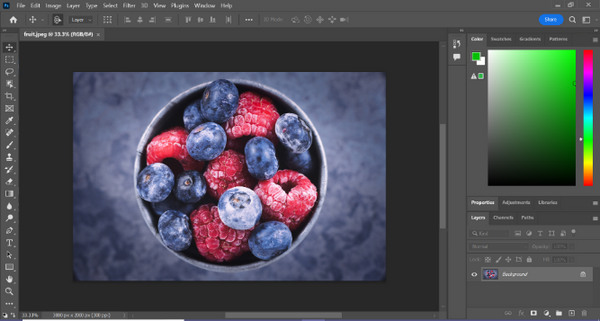
Step 2. Choose the Object Selection tool and drag the mouse over your object to select the area you want to cut out.
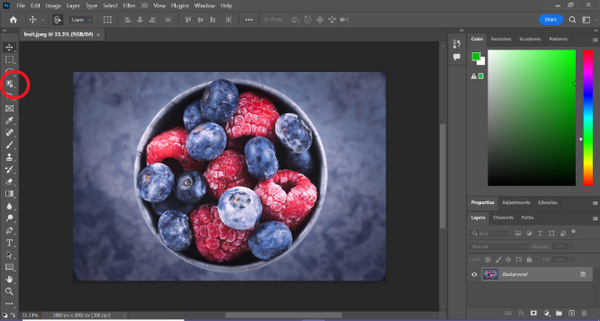
Step 3. Click Select and Mask.
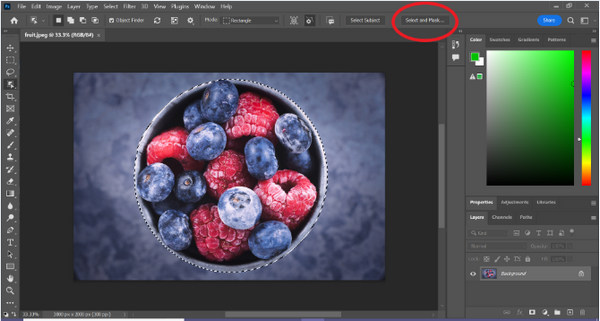
Step 4. Adjust the selection settings, such as feathering, if needed.
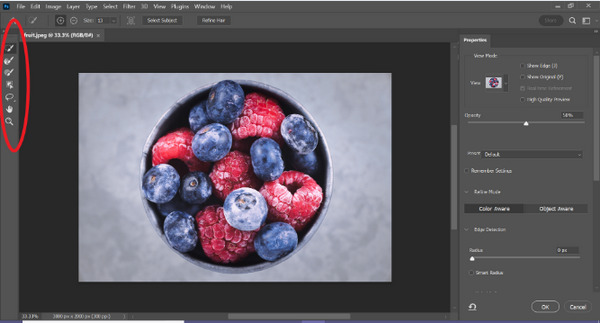
Step 5. Click the Mask icon to cut out your image and save the modified image.
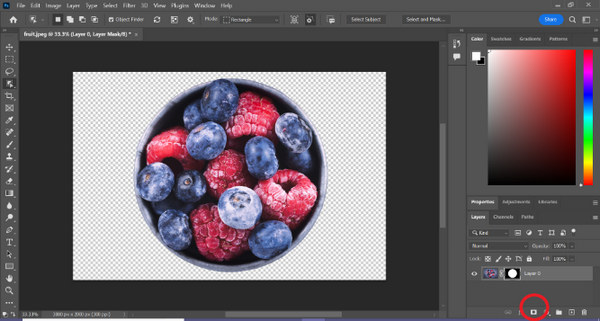
With this simple guide, you can now cut out an image in Photoshop quickly and easily. Just follow the guide and enjoy a hassle-free process of precise image editing. Also, you can change the image color to replace the cutout part.
Parte 2. Como recortar uma imagem sem o Photoshop Online?
Se você não tiver o Photoshop instalado em seu computador, existe uma maneira de recortar uma imagem online. Embora o Photoshop seja uma ferramenta de qualidade para edição de imagens, especialmente para recortar uma imagem perfeitamente, foram necessárias habilidades e prática para dominá-lo. Portanto, se esta ferramenta estiver fora de seu controle, você pode usar esses métodos para recortar uma imagem facilmente.
Método 1: removedor de fundo online FVC
FVC Online Background Remover is versatile and user-friendly, designed to automatically remove backgrounds from images in formats such as PNG, JPG, and JPEG. This tool simplifies the process of creating transparent backgrounds and offers customization options, allowing users to use a brush to select specific areas to remove or keep.
Além disso, o FVC Free Background Remover permite aos usuários alterar o fundo da imagem para uma cor sólida de sua escolha ou até mesmo substituí-lo por outra foto. A ferramenta vai além da remoção do fundo, oferecendo recursos simples de edição, como corte, realocação, inversão e rotação, permitindo aos usuários melhorar o apelo geral de suas imagens. Abaixo estão as etapas sobre como usar isso.
Step 1. First, go to their official website and click on Upload Image.
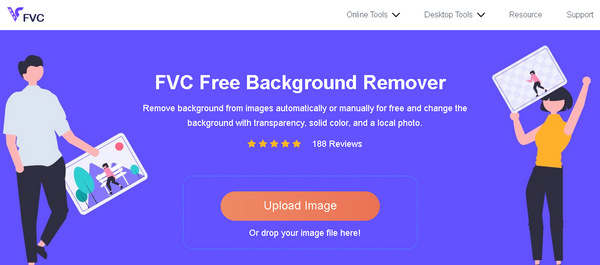
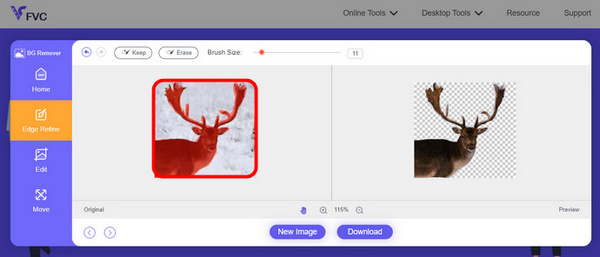
Step 2. Wait for the process. After that, you can edit your image by refining the edges and moving the subject.
Step 3. To save the result, click the Download button.
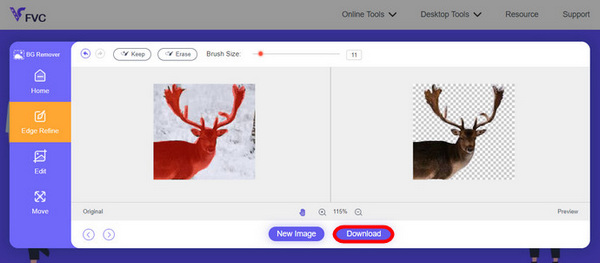
FVC Image Background Remover is truly a go-to tool for cutting out an image. Aside from it’s free, the tool is super user-friendly to add the background to an image. See, you just have to follow a few easy steps, and you can easily remove the background of your photos with such ease.
Método 2: usando o recurso iPhone iOS 16
O iPhone iOS 16 traz vários novos recursos e atualizações. Uma delas é a imagem recortada. Este recurso de recorte de imagem permite aos usuários isolar o assunto de uma foto e criar recortes de fotos diretamente em seus iPhones.

Step 1. Open a photo in your Photos.
Step 2. Long press the subject of the photo, and then a shiny white outline will appear.
Step 3. Now, copy and paste the image to your notes, messenger, and message. You can also directly airdrop it to another iphone device.
Este recurso de recorte de foto está disponível apenas no iOS 16 e posterior no iPhone XS, iPhone XR e posterior.
Parte 3. Perguntas frequentes sobre como cortar uma imagem no Photoshop
Como recortar alguém de uma foto e colocá-lo em outra no Photoshop?
To cut someone out of a picture in Photoshop and place them in another, follow these steps:
1. Use the Lasso or Pen tool to outline the person carefully.
2. Right-click and choose Layer via Copy to duplicate the selected area.
3. Open the destination image, create a new layer, and paste the copied layer onto it.
4. Adjust the size and position as needed, refining the edges for a seamless integration.
Como você recorta algo no Photoshop e o torna transparente?
To cut something out in Photoshop and make it transparent:
1. Utilize the Pen tool or the Magic Wand to select the object.
2. Press Delete to remove the selected area.
3. Save the image in PNG.
4. Ensure that the deleted area appears as a checkerboard pattern, indicating transparency.
Como você subtrai uma forma no Photoshop?
To subtract a shape in Photoshop:
1. Create two shapes using the Shape tool or any selection tool.
2. Ensure both shapes are on separate layers.
3. Select the top layer, go to the Path Operations in the toolbar, and choose Subtract Front Shape.
4. The top shape will subtract from the bottom shape, creating a new shape with the subtracted area.
Posso recortar objetos complexos com detalhes finos no Photoshop?
Sim, o Photoshop oferece ferramentas avançadas como a ferramenta Caneta para seleções precisas de objetos complexos. Aumente o zoom para obter precisão, crie pontos de ancoragem ao redor do objeto e refine o caminho para obter recortes detalhados.
Qual é a diferença entre Layer via Cut e Layer via Copy ao cortar uma imagem no Photoshop?
Camada via Corte remove a área selecionada e a coloca em uma nova camada. Enquanto, Layer via Copy duplica a área selecionada em uma nova camada, deixando o original intacto. Escolha se deseja manter o original ou não durante o processo de corte.
Conclusão
It’s easy, right? Now that you know how to cut out an image in Photoshop, elevate that skill and explore other features in Photoshop. Moreover, you can try other methods of cutting out an image online by using FVC Online Background Remover or through your iphone device. Cutting out an image is now easier than ever so don’t miss this chance and enhance your creativity by following this guide.
-
 Como remover marca d’água de foto no Photoshop [etapas]
 O Photoshop é uma das ferramentas de edição populares. Obtenha o tutorial gratuito aqui usando o Photoshop para remover a marca d'água das fotos. Além disso, descubra maneiras alternativas.
-
 Como cortar no Photoshop: Guia do iniciante [2025]
 Descubra como cortar imagens no Photoshop com este guia fácil de seguir. Além disso, aprenda como selecionar áreas, ajustar proporções e muito mais para cortar fotos.
-
 Como alterar a cor no Photoshop | Guia abrangente de 2025
 Quer levar sua criatividade para o próximo nível aprendendo como alterar a cor de fundo no Photoshop? Este artigo tem tudo que você precisa saber. Leia agora!
