


 Video Converter Ultimate
 Gravador de ecrã
 Reparo de vídeo
 Secure Download
Instruções definitivas para remover a marca d'água do Canva [Resolvido]
Online and professional users that need to produce high-quality photographs, presentations, and videos frequently use Canva. This program has many advantages, including a large selection of tools, templates, designs, themes, and more. Unfortunately, the pro elements now have watermarks. The pro elements require payment to be used without a watermark. Luckily, this post will show you the best methods you can try to remove Canva watermarks without purchasing the pro elements. Thus, read through the article to get an idea about removing Canva watermarks.

Parte 1: Melhor ferramenta online para remover marcas d'água do Canva
If you want to learn how to remove Canva watermarks for free, you can use FVC Free Watermark Remover. This web-based tool can eliminate any object from your photo without spending any penny. Also, it can erase your Canva watermarks easily with the help of watermark remover tools like Brush, Polygonal, and Lasso. Moreover, you can also remove watermarks using the cropping tool, especially when the area of the watermarks is on the edge of your photo. In addition, you don’t need to worry about its supported image format because it supports almost all formats, such as JPG, PNG, BMP, and more. With its intuitive interface and basic methods, we can say that FVC Free Watermark Remover is perfect for all users, including beginners. This part will assist you in how to remove Canva watermarks from your photo using all watermark removers, such as Brush, Lasso, and Polygonal tools.
Você pode usar a ferramenta Pincel se quiser remover marcas d'água como se estivesse apenas escovando-as. Você pode até redimensionar o tamanho do pincel de acordo com sua preferência. Você pode usar a ferramenta Laço para selecionar partes fechadas de imagens ou formas. Por fim, você pode usar a ferramenta Poligonal se quiser destacar as marcas d'água como uma forma de retângulo para removê-las facilmente sem seguir o padrão da marca d'água.
Usando a Ferramenta Pincel
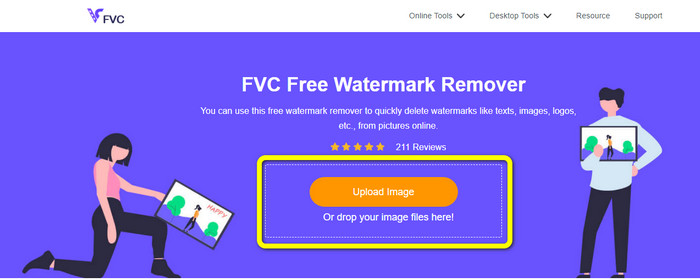
Step 1: The first thing you must do is visit the FVC Free Watermark Remover website. Then, hit the Upload Image button to upload your image with a Canva watermark. Another way to upload a photo is to drop your image file into the box.
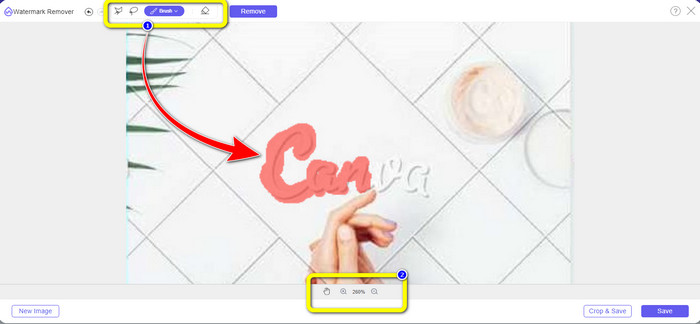
Step 2: On the first box above, select the Brush tool. Then, use this tool to highlight the Canva watermarks from your photo. Under the brush tool, you can manipulate the size of your brush. You can zoom out and in on your image in the second box below to see some little watermarks.
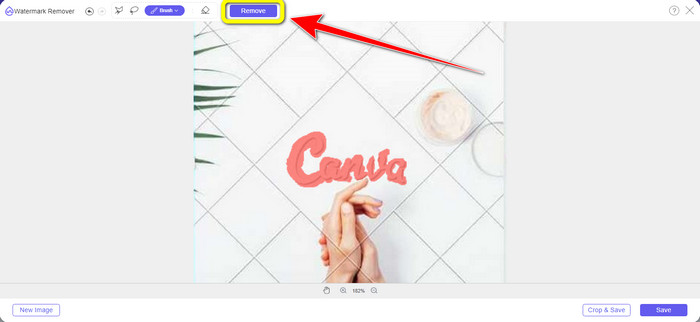
Step 3: When you are done highlighting the Canva watermarks from your photo, click the Remove button so that it can proceed to the removal process. Then, wait for a few seconds.
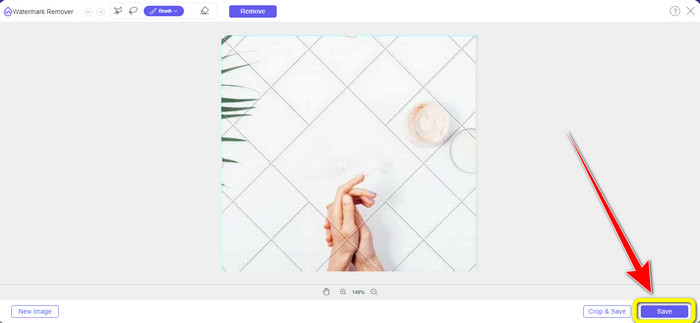
Step 4: After the removal process, you can see that the Canva watermark is already gone. Click the Save button to save your photo.
Usando a Ferramenta Laço
Step 1: After uploading your image with a Canva watermark, select the Lasso tool from the watermark remover tools. Then, use your mouse to highlight the Canva watermark.
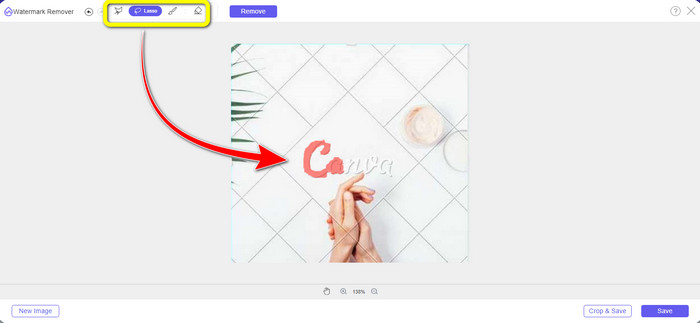
Step 2: On the yellow box below the photo, you can click the + or - icon to magnify your picture to see it clearly. Then, click the Remove button when you are finished highlighting the Canva watermark using the Lasso tool.
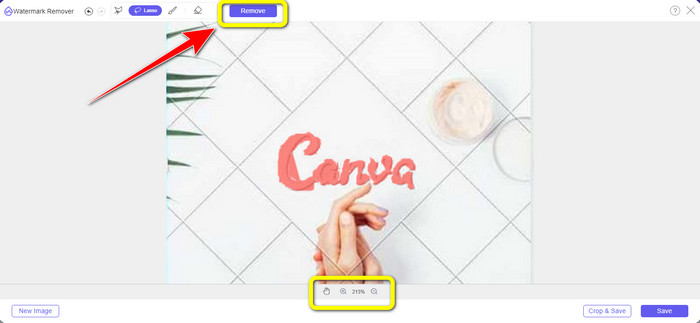
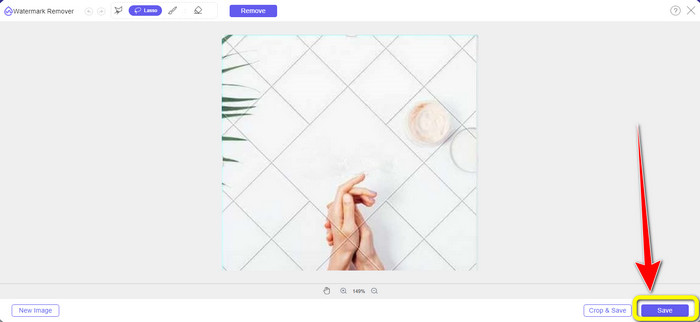
Step 3: After the removal process and when the Canva watermark is deleted, click the Save button to save your final photo.
Usando a Ferramenta Poligonal
Step 1: When you are done adding your photo in FVC Free Watermark Remover, select the Polygonal tool from the watermark remover tools.
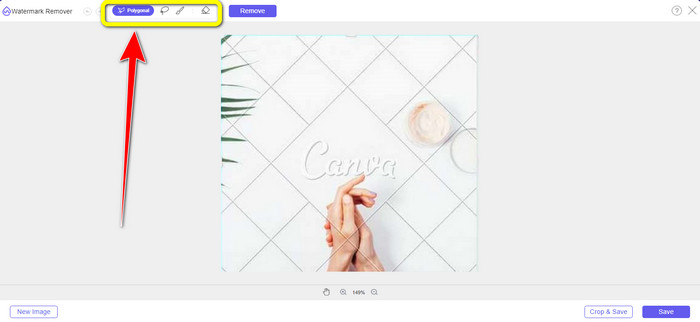
Step 2: In this part, using the Polygonal tool, highlight the Canva watermark from your image.
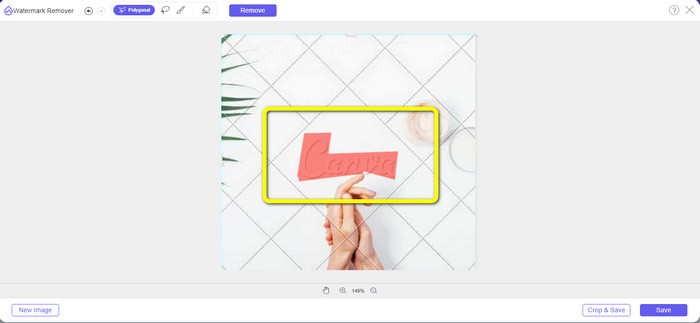
Step 3: After the highlighting process, you can already remove the Canva watermark by clicking the Remove button.
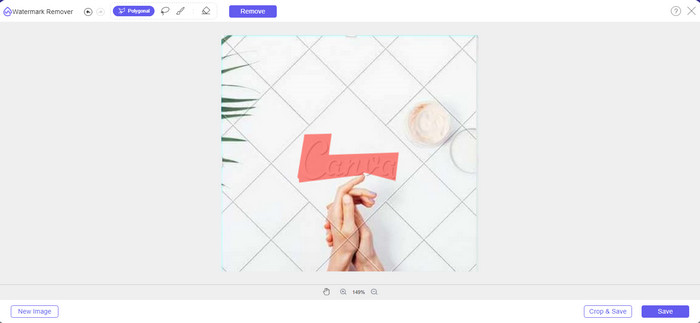
Step 4: After the removal process, you can proceed to the next and last method: saving your photo by clicking the Save button.
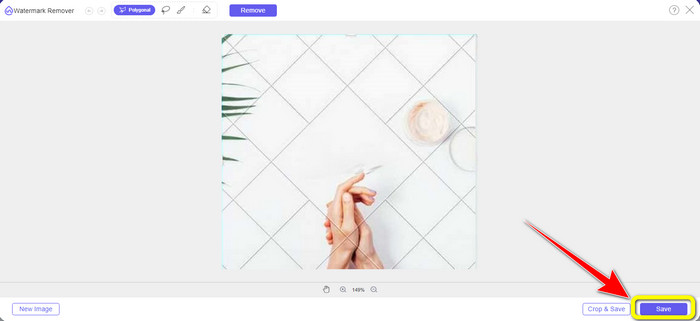
Usando essas três ferramentas de remoção de marca d'água, você pode eliminar rapidamente as marcas d'água do Canva da sua foto. Vamos usar a ferramenta Corte desta vez para remover a marca d'água do Canva da sua imagem.
Usando a ferramenta de corte
The Cropping tool is the best way to cut watermarks, especially if the area of the watermark is on the edge or corner of the photo. Follow the guides below to know how to remove Canva watermarks using the Cropping tool.
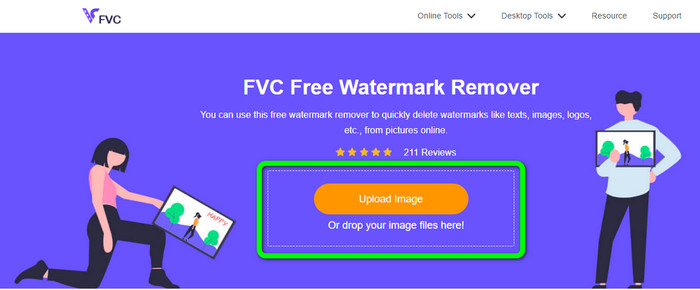
Step 1: Click the Upload Image button. Then, your folder will appear on the screen. Choose the image with the Canva watermark you want to erase.
Step 2: After choosing your image file, click the Crop&Save button. Then, go to the following process.
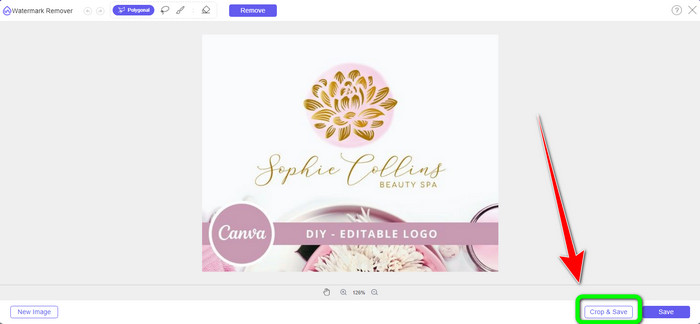
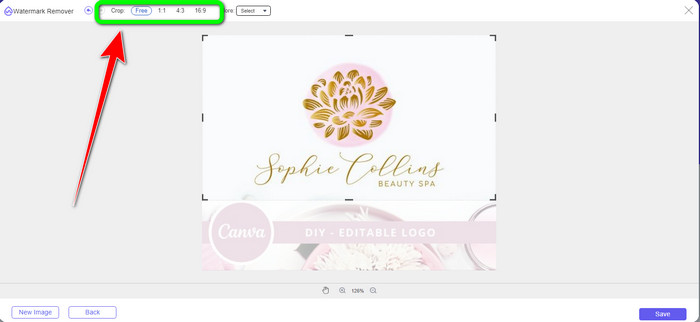
Step 3: Then, on this box, you can choose how you want to crop the photo. Also, if you select the Free option, you can manually crop your image the way you want.
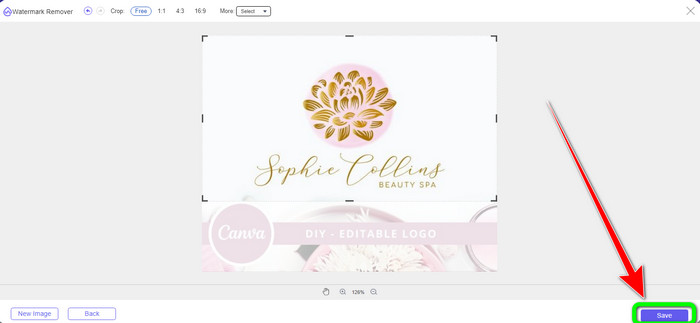
Step 4: After cropping the photo to cut the Canva watermark, you can click the Save button to save your final picture.
Parte 2: Remover marcas d'água do Canva usando o Photoshop
Outra maneira de remover a marca d'água do Canva das imagens é usar o Adobe Photoshop. Ele também pode apagar quaisquer objetos perturbadores de sua foto, incluindo marcas d'água, logotipos, texto, adesivos e muito mais. Além disso, esta ferramenta possui um processo de remoção rápido, para que você não precise gastar mais tempo eliminando objetos indesejados de sua foto. Além disso, softwares como o Adobe Photoshop são amplamente usados para design gráfico, edição de imagens raster e arte digital. As camadas adicionam profundidade e versatilidade aos processos de desenvolvimento e edição e fornecem ferramentas de edição essenciais que, quando combinadas, podem gerar resultados excelentes. No entanto, o Adobe Photoshop não é fácil de usar, especialmente se você for um novo usuário. O Photoshop é um software de edição avançado adequado para usuários avançados. Isso significa que usuários não profissionais acharão complicado ao utilizar a ferramenta. Além disso, o Adobe Photoshop não é gratuito. Ele só pode oferecer uma avaliação gratuita de sete dias. Então, você deve comprar o aplicativo para usá-lo continuamente.
Siga as etapas abaixo para remover a marca d'água do Canva usando o Adobe Photoshop.
Step 1: Download Adobe Photoshop on your computer and install it. Then launch the application.
Step 2: Go to File > Open to insert the photo with the Canva watermark.
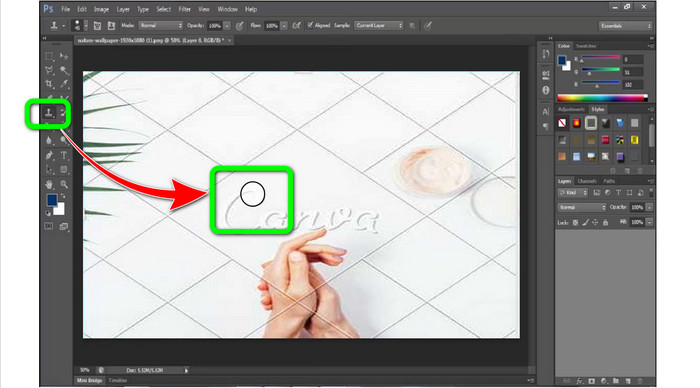
Step 3: On the left side of the interface, select the Clone Stamp Tool.
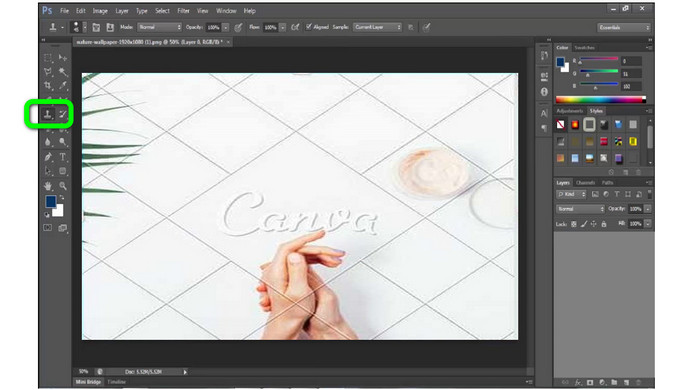
Step 4: After selecting the Clone Stamp Tool, use your mouse to click the Canva watermark until you erase all the watermarks.
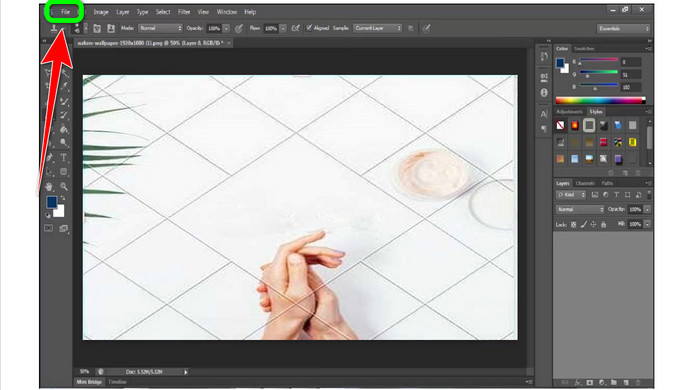
Step 5: When the Canva watermark is gone, go toFile > Save.
Relacionado a:
Easy Steps on How to Remove the WOW Slider Watermark [Solved]
Easy Methods on How to Remove Shootproof Watermark
Parte 3: Perguntas frequentes sobre como remover marcas d'água do Canva
1. Como removo a marca d'água gratuita do Canva?
Para remover a marca d'água de todos os seus designs, você deve adquirir o Canva Pro. Outra opção é utilizar uma avaliação gratuita do Canva Pro, que apagará a marca d'água. Além disso, você pode remover a marca d'água salvando seu design como um arquivo PDF ou PNG.
2. Qual é a diferença entre o Canva e o Canva Pro?
No Canva, o plano é totalmente gratuito. Você pode obter modelos gratuitos, layouts, elementos gráficos, fotos e muito mais. Mas na versão gratuita, existem limitações, como a falta de ferramentas de branding, sem filtros e opções de saída limitadas. No Canva Pro, há mais recursos excelentes que você pode aproveitar. Ele oferece mais modelos, fotos, gráficos e vídeos. Usar o Canva Pro é melhor do que a versão gratuita.
3. Qual é a melhor maneira de remover a marca d'água do Canva?
Use FVC Free Watermark Remover. This tool can quickly help you remove the Canva watermarks from your photo. It can also erase other unwanted elements, like logos, text, emojis, etc.
Conclusão
Canva is a fantastic graphic design tool. However, it leaves watermarks in almost all photos. But if you want to remove Canva watermarks, you can use FVC Free Watermark Remover. It is free and easier to use than Photoshop.
-
 Métodos mais fáceis sobre como remover marca d'água de fotos
 Você está irritado com as marcas d'água em suas fotos? Não se preocupe! Este artigo fornecerá métodos simples e fáceis para remover marcas d'água de suas fotos
-
 Maneiras de como remover facilmente marcas d'água do Reddit de imagens
 Se você está aqui, pode estar procurando um excelente removedor de marca d'água do Reddit. Nesse caso, mostraremos o método mais fácil de remover marcas d'água do Reddit
-
 Como remover marca d'água no Lightroom Mobile [Resolvido]
 Você quer aprender a remover marcas d'água de fotos no Lightroom? Aqui estão os métodos mais fáceis que você pode tentar usando seus telefones celulares e computadores
