


 Video Converter Ultimate
 Gravador de ecrã
 Reparo de vídeo
 Secure Download
Como redimensionar uma imagem ou imagem no Word [2 maneiras]
When we import images in Microsoft Word, we sometimes have the original size where it came from. And frequently, we do not need the original size in our document, as it ruins the flow of what we are working on. Moreover, when you have a large image on a document, it usually has a large file size. And we do not want that for our file. Therefore, in this article, we will teach you two methods of how to resize a picture or image in Word. And resizing an image can also be done using FVC Free Image Upscaler. So sit back and sip a cup of coffee as you read this page.

Parte 1. Como redimensionar uma imagem no Word
O Microsoft Word é um processador de texto comercial popular desenvolvido pela Microsoft. Com o Microsoft Word, você pode criar documentos que pode compartilhar com outras pessoas ou postar em diferentes plataformas. Muitos profissionais usam este programa em seu campo de trabalho. E há momentos em que você precisa redimensionar uma imagem importada no aplicativo. Portanto, leia esta parte continuamente se quiser redimensionar sua imagem no Microsoft Word.
Método 1
Muitas vezes, nosso erro ao trabalhar com as imagens no Word é redimensionar apenas a altura ou a largura da imagem, não as duas. Quando redimensionamos imagens, não devemos distorcer a imagem. Portanto, quando redimensionamos uma foto, devemos garantir que a largura e a altura do tamanho oposto sejam ajustadas automaticamente. Isso fala sobre a proporção da imagem.
Step 1. If Microsoft Word is not yet downloaded on your desktop, download it now. Then open an existing document containing an image, or you can create a new one and insert an image. To insert an image, go to Insert > Pictures, then open an image from your computer folders.
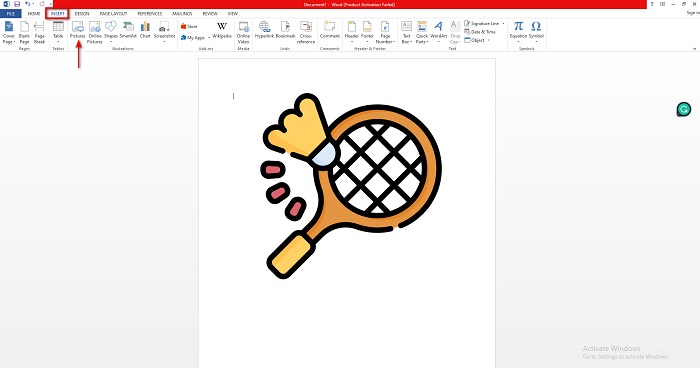
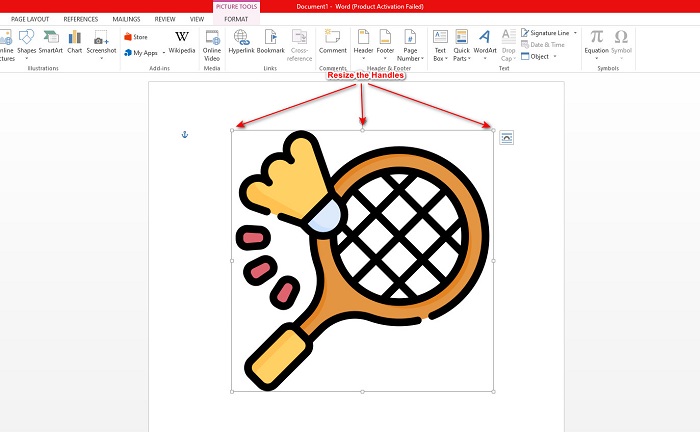
Step 2. Next, click the picture so that the resize handlebars will prompt. Then, you will now see the Picture Tools > Format tab will appear on the Ribbon. Click this to display the available options.
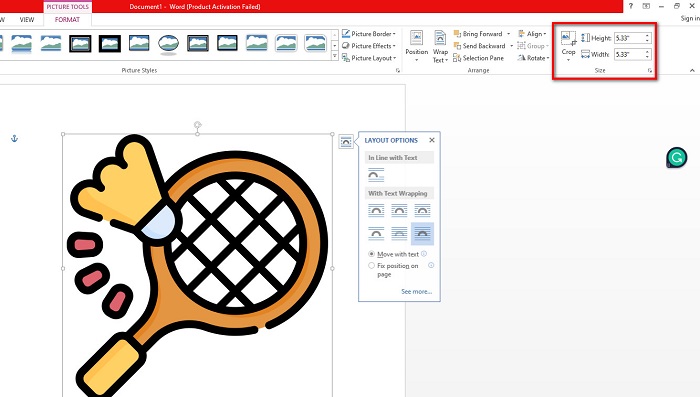
Step 3. Afterward, once you click the Format, you can now use the Size group functions to input the exact size of the height or width of your photo. You can tick the up and down arrows adjacent to the height and width to adjust the size based on your preference.
Step 4. But if you want to adjust the size of your image manually, you can use your mouse and manually hold and drag the handlebar resizers. Drag the handlebars to the middle of the image if you want to shrink or reduce the size. Drag the handlebars toward the edge of the screen if you're going to enlarge or increase the size.
Step 5. Always remember that when you manually resize your image in Word, it is best to use the corner resize handles. This will ensure that both the height and width of your picture are resized simultaneously and maintain your photo's height and width ratio.
Método 2
Outra opção que você pode usar para redimensionar uma imagem usando o Microsoft Word é usando porcentagens. Se você deseja redimensionar sua imagem com a proporção exata usando porcentagens, pode usar este método.
Step 1. Select the picture you want to resize by left-clicking the image.
Step 2. And then navigate to the Picture Format tab, then tick the Position them More Layout Options.
Step 3. After, click the Size tab. And on the Scale panel, tick the box for the Lock Aspect Ratio. You can now input the percentages you want for your image's height and width.
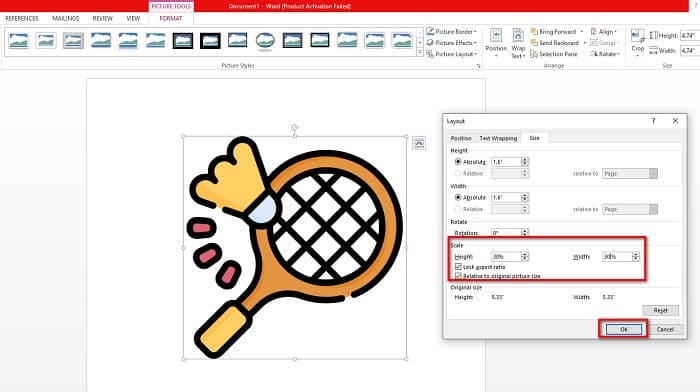
Step 4. Finally, press OK to save the changes you made to your image’s size.
Parte 2. Como redimensionar uma imagem online
Cuidamos de você se você quiser usar um aplicativo online para redimensionar uma imagem. Nesta parte, mostraremos o melhor redimensionador de fotos online e como você pode usá-lo para redimensionar sua foto.
FVC Free Image Upscaler is an online image resizer that you can use to adjust your image sizes. You can resize your photo with this tool by changing or increasing the magnification of your picture. For instance, if you have a blurry image, you can use FVC Free Image Upscaler to enhance it. Additionally, its AI (Artificial Intelligence) technology detects the low-quality part of an image, then enhances it. Also, this online tool supports the most common image formats, like PNG, JPG, JPEG, and WebP. It is also a beginner-friendly application because it has an easy-to-use interface.
Além disso, você pode aprimorar sua imagem em ampliações de 2x, 4x, 6x e 8x. E se você quiser verificar o resultado antes de salvar a saída, esta ferramenta permite que você tenha uma visualização da sua saída. O que é excelente sobre o FVC Free Image Upscaler é que ele é seguro de usar e não exige que você faça login em uma conta.
Como redimensionar uma imagem online usando FVC Free Image Upscaler
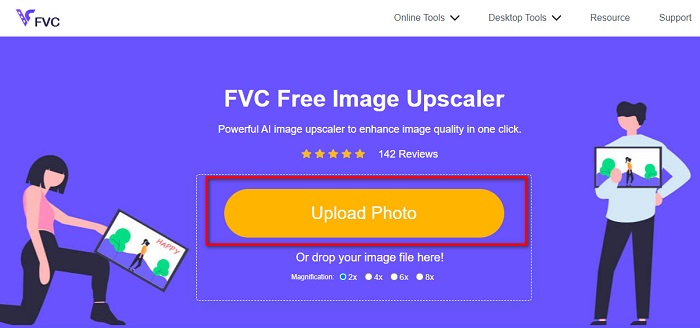
Step 1. Open your browser and search for FVC Free Image Upscaler in your search box. You can tick this link to visit their main page directly. Then, click the Upload Photo button to launch the program on your device.
Step 2. And then, click the Upload Photo button again to import the image you want to resize. On your computer files, locate the image, then click Open to upload it.
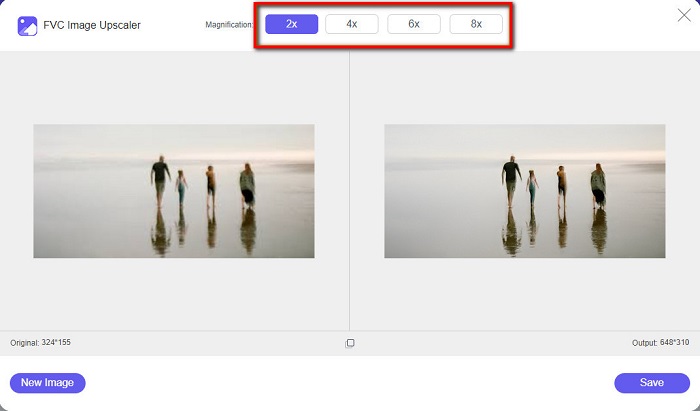
Step 3. Next, select the magnification that you want for your image. You can choose between 2x, 4x, 6x, and 8x. Always note that the higher the magnification, the larger the file size.
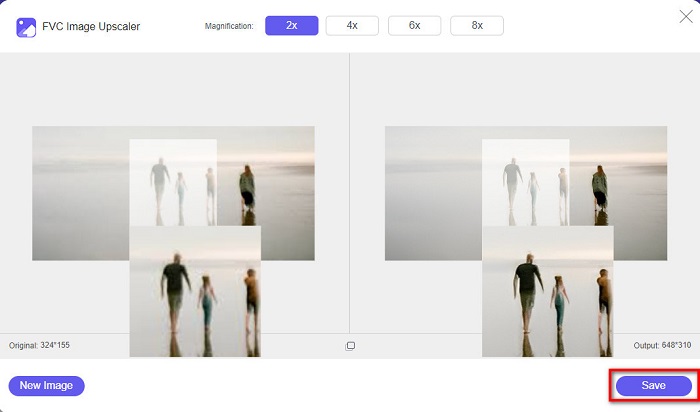
Step 4. And to preview your output, drag the cursor on the right side of your image to see the changes and improvements. Click the Save button once you are satisfied with the result from this photo resizer.
Parte 3. Perguntas frequentes sobre como redimensionar uma imagem no Word
A imagem ficará borrada depois que eu a redimensionar no Microsoft Word?
No. When you resize your photo in Microsoft Word, the quality of your image will not be affected. But if you encounter an issue like this, your picture may be blurry due to a compression issue.
O tamanho do arquivo diminuirá se eu reduzir minha imagem no Word?
Sim. O tamanho do arquivo do documento pode diminuir se você encolher a imagem nele contida. As imagens importadas para um documento podem ter alta resolução. Portanto, ao redimensionar uma imagem, o tamanho de todo o documento será afetado.
Posso redimensionar uma imagem no Excel?
É claro. Você pode redimensionar uma imagem ou objeto importado no Excel clicando na imagem e ajustando o guidão.
Conclusão
It is effortless to resize an image in Word, especially if you follow the above steps. So, the next time you import an image in Word and want to adjust the size, you know what to do. But if you prefer using an online application to resize an image for Word, you can use FVC Free Image Upscaler.
-
 5 dos melhores redimensionadores de GIF disponíveis em todas as plataformas #91;2022]
 Quer conhecer os redimensionadores de GIF que você pode usar? Nesse caso, as informações fornecidas abaixo falarão sobre os redimensionadores que você pode usar em seus GIFs em todas as plataformas.
-
 Melhor aplicativo de redimensionamento de fotos online, offline, Android e iPhone
 Quais são os melhores aplicativos de redimensionamento de fotos? Clique na página para conhecer os cinco principais aplicativos de redimensionamento de fotos mais poderosos que você pode usar para aprimorar ou redimensionar seu arquivo.
-
 Como redimensionar uma imagem no PowerPoint [maneira mais rápida de alterar o tamanho]
 Aprender a redimensionar imagens no PowerPoint é essencial, especialmente se você quiser usá-lo em sua apresentação. Leia este artigo para saber como fazê-lo.
