


 Video Converter Ultimate
 Gravador de ecrã
 Reparo de vídeo
 Secure Download
Melhore a qualidade da imagem usando esses métodos rápidos e fáceis
Do you have an image that is blurry or has a low quality? The best solution that you must do is to increase the quality of your image. Luckily, numerous tools can help you improve your image’s quality. However, not all applications or tools on a computer have the best features. That’s why we searched for the most popular photo enhancers online, offline, and on iPhone. To learn how to improve image quality, read this post.

Parte 1. Como melhorar a qualidade da imagem online
Usar um aprimorador de imagem online é mais conveniente do que baixar um aplicativo de software em seu computador. A vantagem de usar uma ferramenta online é que você pode acessá-la livremente em sua web. Esta parte mostrará como aumentar a qualidade da sua imagem usando o melhor aprimorador de fotos online.
FVC Free Image Upscaler is an online, free-to-use image enhancer popular with many. This online application can set the magnification to 2x, 4x, 6x, and 8x. In addition to that, it supports the most standard image formats, including PNG, JPG, JPEG, and BMP. You can also access it on all web browsers, including Google, Firefox, and Safari. Also, you do not need to worry about the safety of your data because this tool is safe to use.
Além disso, possui uma poderosa tecnologia de IA que reconhece automaticamente as partes borradas da sua imagem. Além disso, o FVC Free Image Upscaler pode corrigir os pixels perdidos, texturas de cores e mais detalhes. Se você quiser usar este excelente upscaler de imagem, siga o guia simples abaixo.
Como melhorar a qualidade da imagem online usando o FVC Free Image Upscaler:
Step 1. Open your browser and search FVC Free Image Upscaler on the search box. You can go directly to their main page by clicking the link provided.
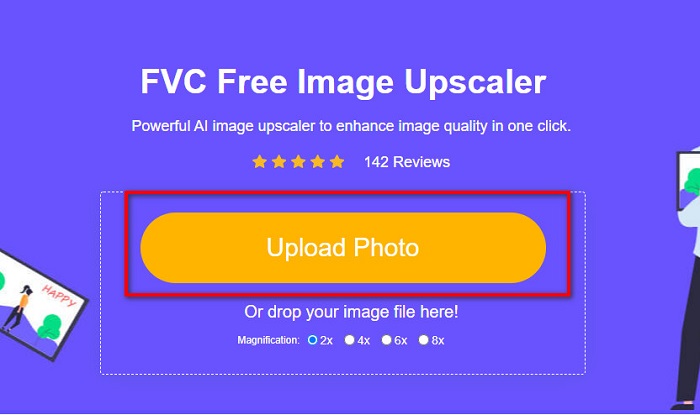
Step 2. Next, click the Upload Photo button on the main interface to upload the image you want to upscale. Wait for your image to upload, then proceed to the next step.
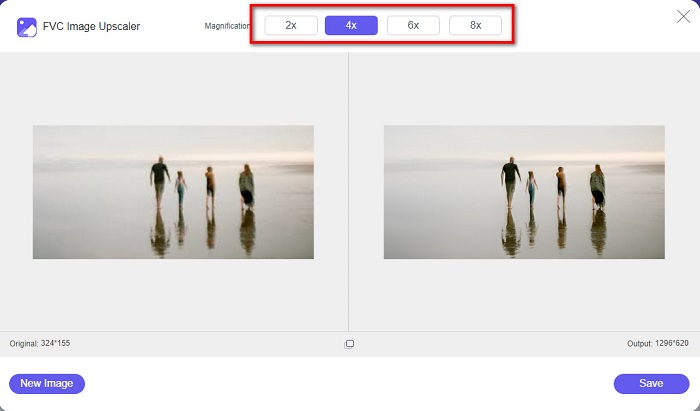
Step 3. And then, choose the Magnification that you want for your image. You can choose between 2x, 4x, 6x, and 8x.
Step 4. You can see the preview of your image, and if you are content with it, click the Save button to save your upscaled image on your device.
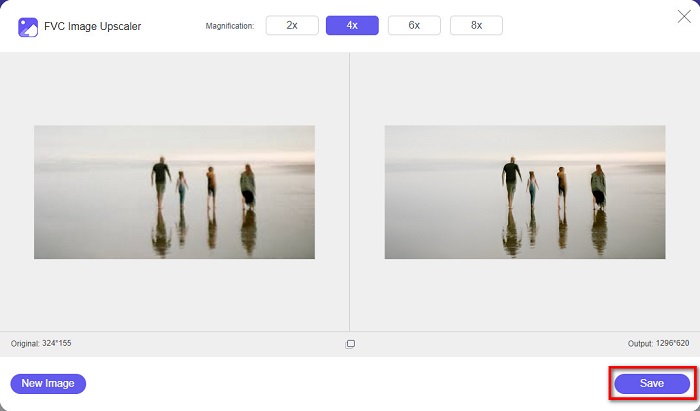
E é isso! Agora você pode visualizar sua imagem em seu computador com uma visualização de alta qualidade.
Parte 2. Como melhorar a qualidade da imagem no Photoshop
Temos o que você deseja se você gosta de usar uma ferramenta profissional para aumentar a qualidade da sua imagem. Esta parte ensinará como melhorar a qualidade da foto usando o Adobe Photoshop.
Adobe Photoshop is a professional editing app that you can use to enhance the quality of your image. Adobe Photoshop has many editing tools that you can use to edit images. Additionally, many professionals use this tool because it has many functions. Also, this application produces high-quality outputs that you can share on other social media platforms or websites. Moreover, Adobe Photoshop is one of the best creations of Adobe Company which you can download on almost all media platforms. By using this editing application, you can design logos, banners, brochures, and more. But many users do not know that it can also enhance an image. However, many users have difficulty using this tool because it has a hard-to-operate software interface and is a bit costly to download.
Passos sobre como melhorar a qualidade da imagem no Photoshop:
Step 1. First, download Adobe Photoshop on your computer. Follow the installation process, then open the app.
Step 2. Go to File > Open on the main interface and select the image you want to improve.
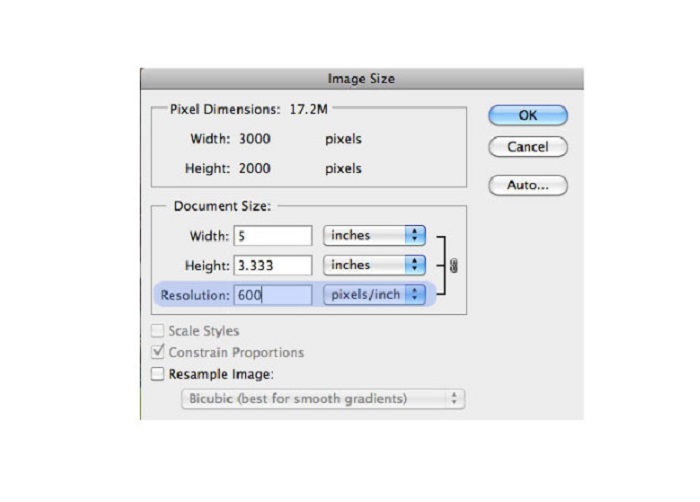
Step 3. And then, go to Image > Image Size. Then a dialog box will prompt where you will uncheck the Resample Image box so that it will only change the resolution of your image. And on the resolution option, type in the resolution that you want for your image.
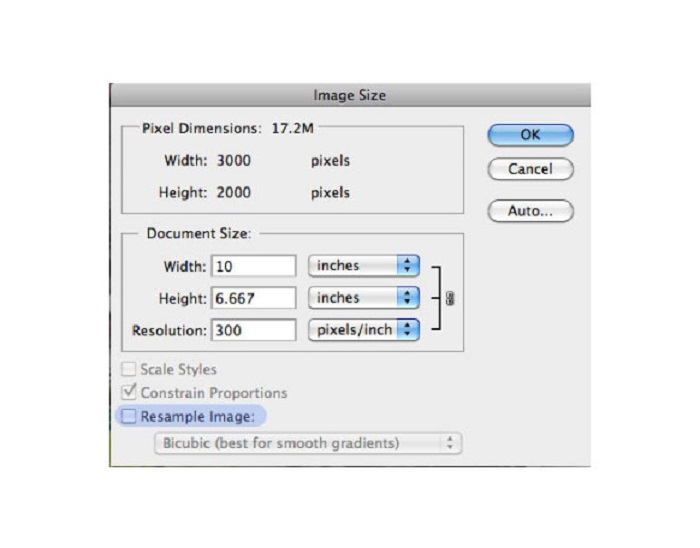
Step 4. Once you change the Resolution, the Width and Height of your image will also change. Then, click the OK button to save the change you made to your image. With this way, you can convert low resolution images to high.
Parte 3. Como melhorar a qualidade de uma foto no iPhone
Alguns aplicativos podem aprimorar sua imagem de baixa qualidade se você for um usuário do iPhone. Embora muitos aplicativos de aprimoramento de fotos estejam disponíveis na AppStore, escolhemos o mais famoso entre eles. Leia esta parte para saber como melhorar a qualidade de uma foto em um iPhone.
Remini is one of the best apps that you can use to enhance your low-quality image. This amazing app has a simple interface, making it a user-friendly app. Furthermore, it also uses AI technology that automatically detects the blurred parts of your image. It is also a safe-to-use app, so your files are safe when using this app. The downside of this app is that you need to watch an ad to view and download the result, or you can purchase its full version to download the results without watching an ad.
Como melhorar a qualidade da imagem no iPhone usando o aplicativo Remini:
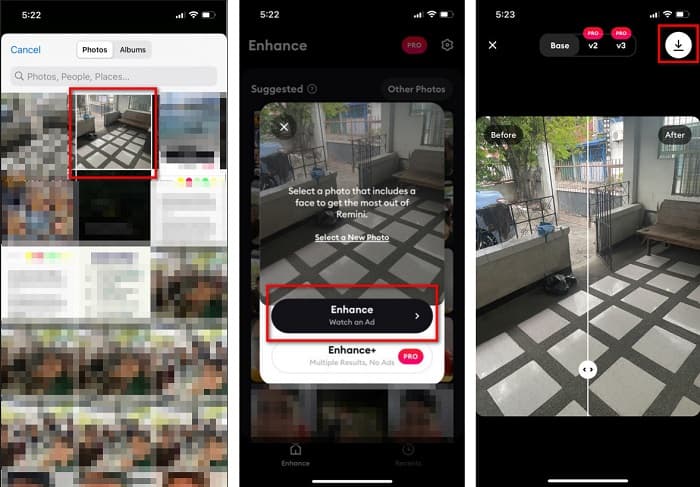
Step 1. Download the Remini app on AppStore. After downloading it, open the app on your phone.
Step 2. And then, on the main app’s interface, select the image you want to upscale.
Step 3. Next, tap the Enhance button to improve the quality of your image. If you avail of the pro version of the app, you do not need to watch an ad. But if not, it will require you to watch an ad to see and save the result.
Step 4. Now, you can view your improved image. Then, tap the Download icon in your screen's top-right corner. And voila! With those easy steps, you can improve the quality of your image.
Parte 4. Perguntas frequentes sobre como melhorar a qualidade da foto
Existe um aplicativo que pode melhorar a qualidade da imagem no Android?
A ferramenta Aprimorar qualidade de foto é um dos melhores aplicativos de aprimoramento de qualidade de imagem para melhorar sua qualidade de imagem. Usar os efeitos de embelezamento da foto dará à sua imagem uma aparência profissional.
Como melhorar a qualidade da foto no Lightroom?
Adobe Lightroom is another Adobe product that you can use to enhance the resolution of your image. Read the simple steps below to learn how to improve photo quality in Lightroom. 1. Download Adobe Lightroom on your computer. 2. Then, open your image in Lightroom. 3. Click Choose Photo > Enhance. 4. Next, select the Super Resolution, then click Enhance. 5. And then, you will see that Lightroom will increase the resolution of your image and save it as a DNG file.
Isso afetará o tamanho do arquivo se você aumentar sua imagem?
Alterar a resolução de impressão não alterará o número de pixels da imagem e não afetará o tamanho da imagem.
Conclusão
It is easy to improve image quality, especially now that you have a guide to follow. Also, many apps on a computer or iPhone can help you upscale your image. However, if you want to use a free image upscaler that automatically upscales your blurred image, use FVC Free Image Upscaler now.
-
 5 maneiras de remover a marca d'água B612 usando as melhores ferramentas
 Quer saber como remover marcas d'água B612 de suas fotos? Você pode remover sem esforço a marca d'água B612 de suas imagens usando essas ferramentas excelentes.
-
 Passos fáceis sobre como remover a marca d'água WOW Slider [Resolvido]
 WOW Slider é um aplicativo para criar uma apresentação de slides fantástica. No entanto, ele incorpora marcas d'água em sua saída. Leia abaixo para saber como remover a marca d'água WOW Slider.
-
 Métodos fáceis sobre como remover marca d'água à prova de tiro
 Remova a marca d'água à prova de tiro seguindo estes métodos fáceis. Use esses incríveis removedores de marca d'água para remover facilmente a marca d'água Shootproof da sua imagem.
