


 Video Converter Ultimate
 Gravador de ecrã
 Reparo de vídeo
Um guia completo sobre como tornar o fundo transparente no Paint
Imagine que você tirou uma foto de uma pessoa, animal ou objeto. Agora você precisa extrair o assunto da foto e inseri-lo em outro pôster ou apresentação do PowerPoint. Para evitar sobrecarregar a imagem com vários elementos sobrepostos e integrá-los perfeitamente, você precisará primeiro tornar cada elemento transparente antes de inseri-lo.
Se você estiver usando um computador Windows, o processo é simples: você pode simplesmente usar o Microsoft Paint fornecido pelo sistema.
To help you better understand this software and how to make the background transparent in Paint, we've prepared this guide, which explains the actual steps for using Paint and Paint 3D.

Parte 1. Como tornar o fundo transparente no MS Paint
A ferramenta Paint, integrada ao sistema Windows, possui uma aba chamada Selecionar no canto superior esquerdo. Clique nela e você verá a função Seleção Transparente, necessária para esta operação. O princípio desta função é recortar a imagem que você deseja manter do fundo e colá-la na nova imagem que você preparou.
Veja como tornar uma imagem transparente no Paint.
Step 1. Click the Start icon, find and launch Microsoft Paint.
Step 2. Click File > Open to upload the image you want to edit.
Step 3. Choose Select and ensure the Transparent selection option.
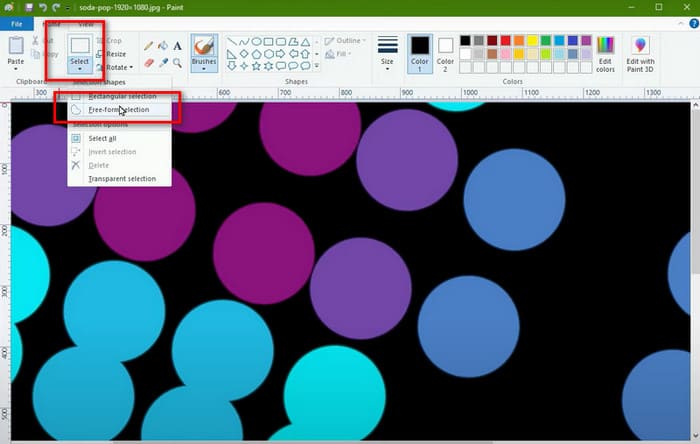
Step 4. Back to the Select menu and choose Free-form selection.
Step 5. Use the Free-form selection tool to mark the item you want to keep.
Step 6. After marking, right-click on the selected item and choose Cut. Now, the item will be removed from the image.
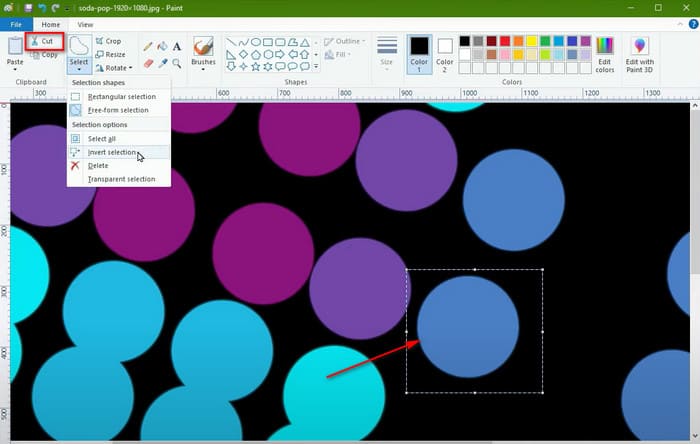
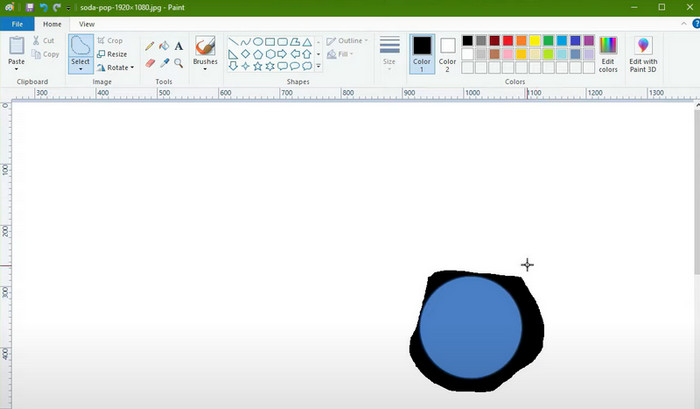
Step 7. Use Microsoft Paint to open your prepared new image. Press Ctrl + V to paste the cropped image on it.
Parte 2. Como tornar o fundo transparente no Paint 3D
Posso criar um fundo transparente no Paint 3D?
Claro. Este software pode ser considerado uma versão avançada do Microsoft Paint. Ele não só lida com imagens planas, como também cria modelos 3D. Observe que ele é compatível apenas com os sistemas Windows 10 ou 11. Ele não é mais instalado por padrão nos computadores. Você pode baixar a versão mais recente na Microsoft Store.
Para criar um fundo transparente no Paint 3D, você precisa seguir um conjunto de etapas completamente diferente.
Veja como tornar o fundo de uma imagem transparente no Paint 3D.
Step 1. Ensure you have Paint 3D installed on your computer. Launch the main interface, click Menu > Open > Browse files to add the image you want to edit.
Step 2. Click Magic Select and drag a bounding box around the object you want to cut out.
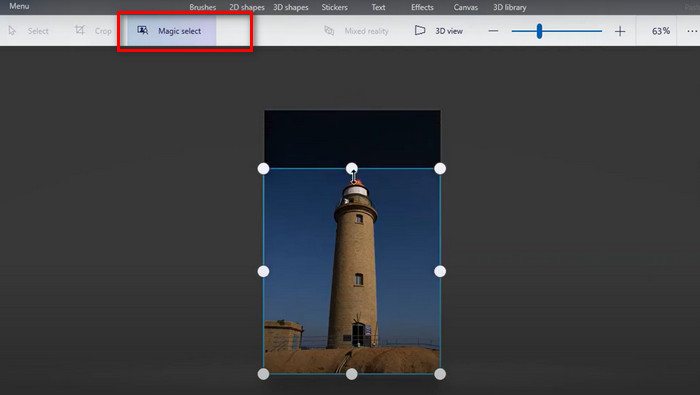
Step 3. Click Next > Done. The selected object will appear—move it aside.
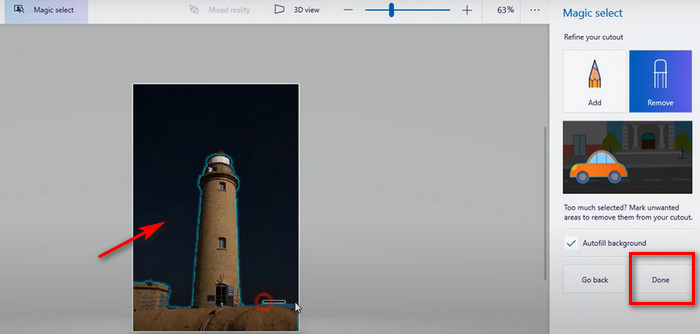
Step 4. Select all, right-click the bounding box, and choose Delete to remove the background.
Step 5. Move your cut-out object back onto the canvas.
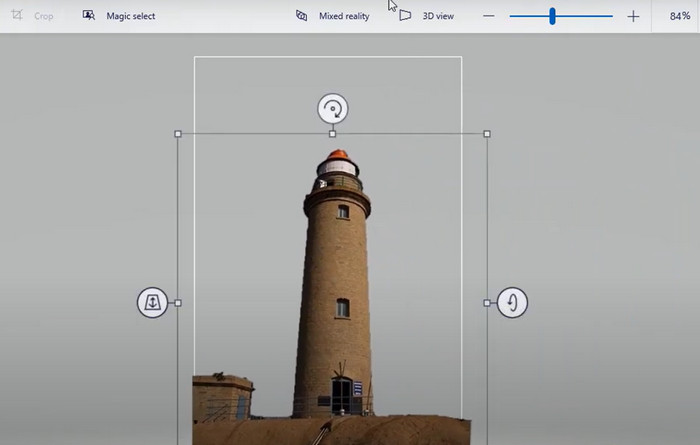
Step 6. Click Crop, adjust the canvas around the object, and click Done.
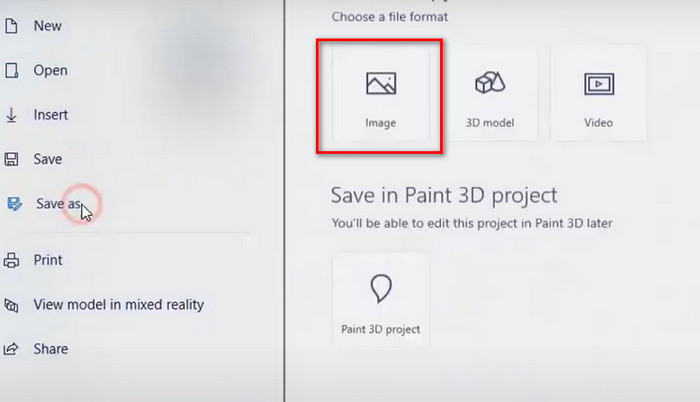
Step 7. Go to Menu > Save As > Image, choose PNG, tick Transparent option, and click Save.
Parte 3. Como tornar o fundo de uma imagem transparente online gratuitamente
Como tornar o fundo transparente no Paint? Um guia completo já foi fornecido na seção anterior.
Mas você já reparou? Embora ambos os métodos acima sejam eficazes, eles exigem uma quantidade considerável de trabalho manual. Ao usar o MS Paint para tornar o fundo transparente, você deve selecionar manualmente o perímetro do gráfico que deseja extrair, e isso deve ser feito com precisão. Mesmo assim, os limites do item extraído podem parecer desfocados, com áreas imprevisíveis adicionadas ou ausentes.
Actually, you might want to try a smarter, more automated tool: FVC Free Background Remover. This is an online tool that supports automatically removing backgrounds from PNG, JPG, and JPEG images or creating transparent backgrounds. You can even add a new background to the processed image directly here, such as the solid color options provided by the platform or an image you upload from your local device as the background.
Esta ferramenta online também suporta edição básica de imagens após a remoção do fundo.
Claro, nem tudo é definitivo. Se desejar personalizar a área de remoção, você pode usar a ferramenta de pincel fornecida pela plataforma. Simples de usar, 100% gratuito, com funcionalidade de pré-visualização... Sob muitos aspectos, o FVC Free Background Remover é o produto mais adequado.
Veja como tornar o fundo de uma imagem transparente online com o FVC Free Background Remover.
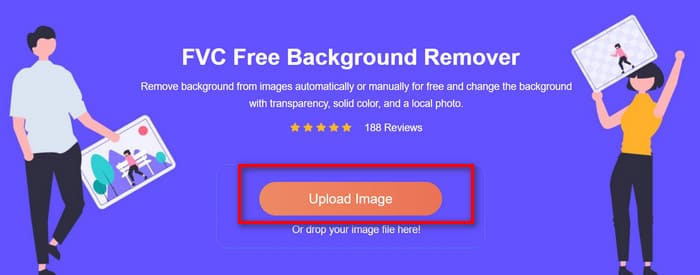
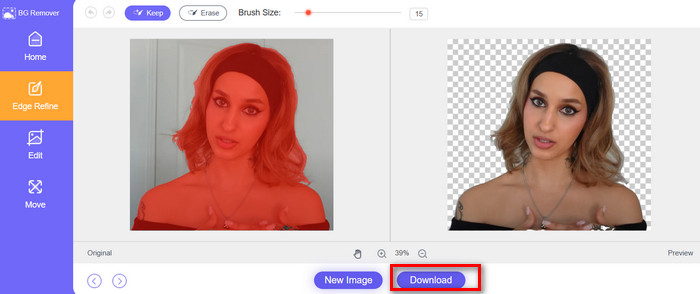
Step 1. Launch the FVC Free Background Remover with your browser. Click Upload Image to add the file you want to edit.
Step 2. FVC Free Background Remover will run automatically to make the picture background transparent. Preview the result and make some edition as you like.
Step 3. Click Download to save your edited image.
Parte 4. Perguntas frequentes sobre como tornar o fundo transparente no Paint
Como tornar o fundo do logotipo transparente no Paint?
Abra o Paint, ative a seleção transparente e use a ferramenta Seleção de forma livre para selecionar o logotipo que deseja extrair. Em seguida, recorte o logotipo e coloque-o sobre a imagem recém-preparada.
Qual é a alternativa para remover o fundo?
FVC Free Background Remover is a smarter, hands-free option. You don’t need to manually select the area or remove the background. Upload the image to it, and it will automatically remove the background and even add a new background to the image for you.
Posso remover o fundo de um GIF?
Of course. Tools like Adobe Express GIF Background Remover and Canva can help you remove the background of a GIF and create transparent works.
Conclusão
This article provides a detailed explanation of how to make the background transparent in Paint and Paint 3D. For both features, we have provided simple descriptions and detailed step-by-step instructions. We hope this helps you create images with transparent backgrounds locally.
Se preferir não selecionar o fundo manualmente, experimente o FVC Free Background Remover, que suporta remoção automática de fundo. É gratuito, fácil de usar e uma ótima opção.
-
 Remover imagem de fundo do PPT: 3 métodos disponíveis para você
 Remover a imagem de fundo do PPT é uma etapa essencial na criação. Neste artigo, mencionaremos três métodos que podem ajudar você a realizar essa operação.
-
 Os 9 principais removedores de fundo de imagem para resultados rápidos e precisos
 Experimente a rapidez e a precisão do apagador de imagens de fundo de alto desempenho. Diga adeus ao removedor de fundo complexo e adote nove maneiras eficientes hoje mesmo!
-
 Como fazer uma imagem transparente no Google Slides
 Aprenda a fazer uma imagem transparente no Apresentações Google nesta publicação. Siga estes passos simples para ajustar a transparência e criar apresentações mais atraentes.
