


 Video Converter Ultimate
 Gravador de ecrã
 Reparo de vídeo
 Secure Download
Aprenda a tornar uma imagem mais clara com esses métodos fáceis
When you capture an image that turns out to be blurry, it is considered a defect. And it is very dissatisfying when you have a blurry image. But luckily, there are tons of applications nowadays that can help you sharpen and unblur your image. Adobe Photoshop is among the famous photo editing applications. However, it is not a beginner-friendly tool. Therefore, we will present the more straightforward methods you can use to make your blurry picture have excellent quality. Read this passage below to learn how to make a picture clearer with easy steps.

Parte 1. Como tornar uma imagem mais clara online
Com o uso da tecnologia de IA, agora existem muitos upscaler de imagem on-line que podem aprimorar sua imagem automaticamente. Usar aplicativos online para tornar sua imagem mais clara é conveniente porque você não precisa baixar nada no seu dispositivo. Ele também economizará espaço de armazenamento em seu dispositivo, pois você pode acessá-lo em seu navegador.
FVC Free Image Upscaler is the most renowned online application if you want to sharpen or make your image clearer. This tool is easy to use because it has a straightforward user interface. In addition, you can enhance the quality of your image by 2x, 4x, 6x, and 8x magnification. Also, FVC Free Image Upscaler uses an AI (Artificial Intelligence) technology that automatically detects the blurry parts of your image, then enhances it. It enables you to precisely fix the lost pixels, color textures, and more details.
Além disso, ele suporta vários formatos de imagem, como PNG, JPG, JPEG e WebP. E o melhor dessa ferramenta online é que você não precisa de nenhuma conta para acessá-la. Também é gratuito e seguro de usar. E apesar de ser um aplicativo online, ele não contém anúncios irritantes que possam distraí-lo e é rápido e eficiente de usar. Portanto, se você está procurando uma ferramenta conveniente, o FVC Free Image Upscaler é a melhor ferramenta.
Como tornar uma imagem mais nítida online usando o FVC Free Image Upscaler:
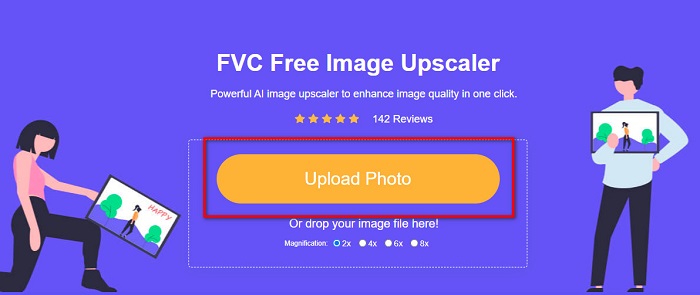
Step 1. On your computer, open your browser and search FVC Free Image Upscaler on the search box. Or, you can click the provided link to go directly to the app’s main page. Click the Upload Photo button to launch the app.
Step 2.0 After launching the app, click the Upload Photo again to add the image you want to upscale/sharpen. Your computer files will prompt where you will locate your image and open it.
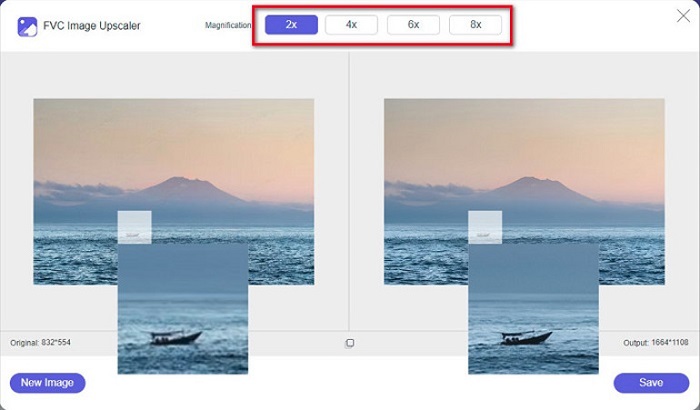
Step 3. And then, select the magnification preset that you prefer. The higher the magnification, the higher the sharpness of your image will become. But note that the file size will also increase as the quality increases. You can choose magnification between 2x, 4x, 6x, and 8x.
Step 4. You will see the results on the right side of the interface. And if you are content with your output, click the Save button to save your image output on your device.
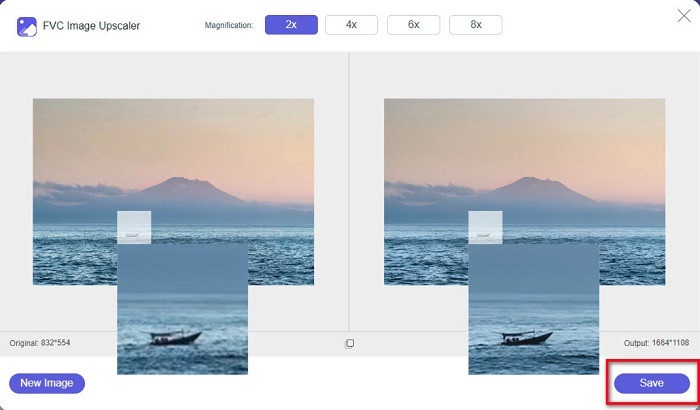
Basta esperar que sua imagem seja salva e pronto! Agora você pode compartilhar sua foto incrível com amigos ou em outras plataformas de mídia social.
Parte 2. Como Tornar uma Imagem Mais Clara Offline
Também é bom usar um aplicativo offline quando quiser afinar ou editar sua imagem. Muitos aplicativos de edição de fotos estão offline; você deve comprá-los antes de usá-los. Mas não se preocupe; nesta parte, forneceremos uma ferramenta offline gratuita que você pode usar em sua área de trabalho.
Paint.net is among the most used photo editing applications that is free and safe to use. This offline tool has an easier user interface than Adobe Photoshop, which many professionals use. Although it has a simple user interface, it can still produce exceptional outputs and enables you to sharpen your blurry image. Additionally, it has other editing features that can help you improve your image. With Paint.net, you can sharpen, color correct, and add background to your picture.
Além disso, movendo o controle deslizante, você pode escolher a nitidez da sua imagem e remover as partes borradas dela. No entanto, está disponível apenas em dispositivos Windows. No entanto, se você quiser aumentar a nitidez de uma imagem, use o Paint.net.
Como tornar uma imagem maior e mais clara usando o Paint.net:
Step 1. First, download and install Paint.net on your desktop, and open it once it is done installing. Then, upload your image by clicking File > Open.
Step 2. And then, go to Effects > Photo > Sharpen. Another tab will appear where you will adjust the sharpness of your image to deblur it.
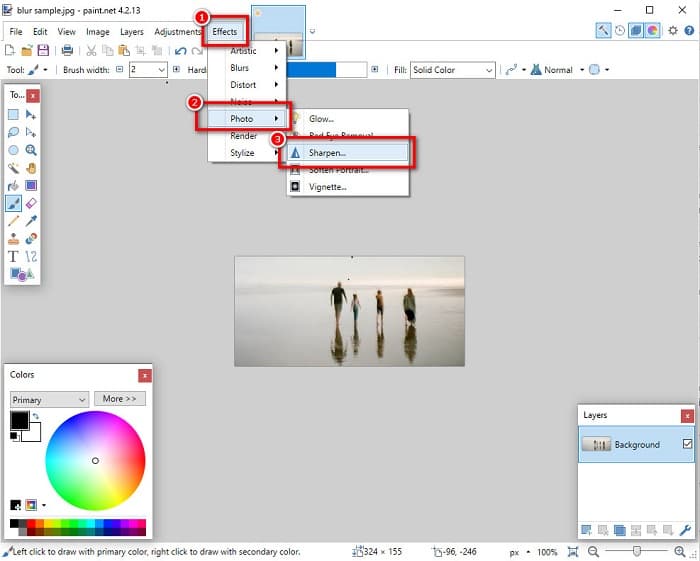
Step 3. On the Sharpen tab, move the slider head to select the preferred sharpness of your image. You can also tick the up/down arrow to choose the sharpness amount of your image numerically.
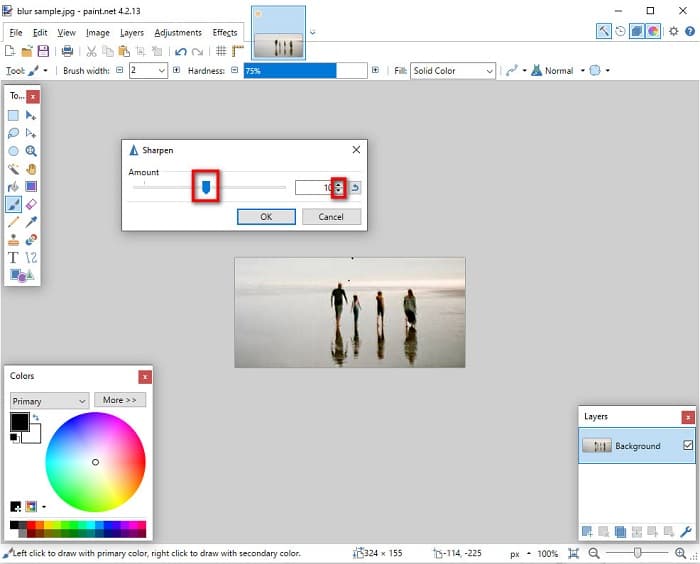
Step 4. Finally, click the OK button and go to File > Save to save your output on your desktop.
Parte 3. Como deixar uma imagem mais nítida no seu iPhone
E se você tiver uma imagem desfocada capturada usando seu iPhone, também poderá usar um aplicativo de desfoque para seu dispositivo iPhone. Vários aplicativos de edição de imagem que você pode baixar da AppStore podem ajudá-lo a desfocar sua imagem. No entanto, nem todos os aplicativos são gratuitos; você deve comprá-los antes de usá-los. Felizmente, encontramos um aplicativo de desfoque de imagem que pode ser usado gratuitamente na AppStore. Leia esta seção completamente para aprender como tornar uma imagem mais nítida no seu dispositivo iPhone.
If you are wondering what the free photo editing app that can help you deblur an image is, VSCO is the app you are looking for. VSCO is a known photo editing application available to download from AppStore. In addition, when you are unblurring an image using VSCO, there are some settings that you need to focus on. To unblur your photo using VSCO, you need to adjust your image’s clarity, sharpness, clarity, and exposure. VSCO also has other editing tools that you can use to edit your images. Furthermore, it supports iPhone's most common image formats, like HEIC and HEIF. A little setback of this app is that it only supports a few image formats, and you need to purchase it to use its other editing features.
Como tornar uma imagem mais nítida no iPhone usando o VSCO:
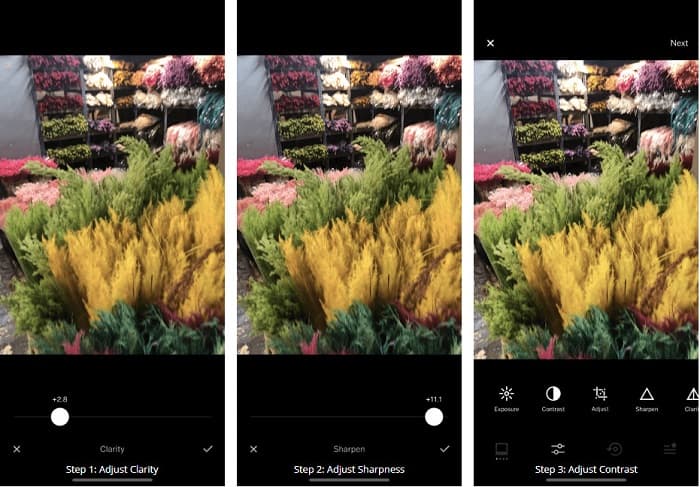
Step 1. Install VSCO from the AppStore, then open the app on your iPhone.
Step 2. Open your image, then go to Clarity. The Clarity option will help you remove the large-scale noise on your image. Just move the Clarity slider a little below the interface.
Step 3. Next, we will adjust the sharpness of your image. The Sharpen function will help you get the crispiness that you want on your image. And then, by moving the slider, you can select the sharpness you want for your image.
Step 4. Once you are done editing the clarity and sharpness of your image, let us know to adjust the Contrast. Move the Contrast option and the Contrast slider to select the brightness and darkness you want for your image.
Step 5. Lastly, we will now adjust your photo's Exposure to brighten it a little. Increasing the Exposure of your image will help you balance the darkness with the Contrast. And that’s it! By adjusting these features, you can unblur your blurry image. Click here to learn how to resize an image on an iPhone.
Parte 4. Como deixar uma imagem mais nítida no seu Android
Também existem aplicativos no Android que você pode usar para tornar uma imagem mais clara. Portanto, se você deseja salvar uma imagem borrada em sua Galeria, este aplicativo pode ajudá-lo a aprimorar sua imagem. Leia esta parte para saber como desfocar uma imagem no seu dispositivo Android.
Remini app (for Android) is probably one of the best photo editing apps you can use on your Android device. This app allows you to edit and even unblur your blurry image. Moreover, it is easy to use, and it is free. By using the Enhance option, you can make your picture clearer. However, you need to create an account first before you can use this app. And on its Pro version, you can access this app's advanced unblurring features.
Como desfocar uma imagem usando o Remini para Android:
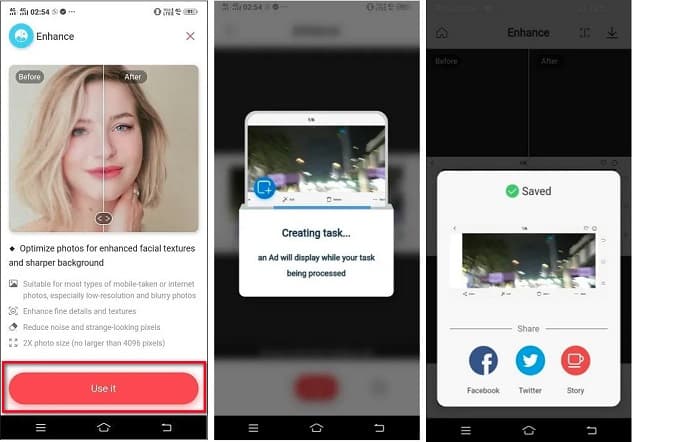
Step 1. Install Remini on your Android device. After installing the app, open it immediately. On the app’s main user interface, tap the Use it button to proceed to unblurring your image.
Step 2. And then, select the image and click the red button at the bottom of the interface. It will create a task and will display an ad while processing.
Step 3. After that, the final output will appear, where you can compare the before and after of your image. And if you are already satisfied with your output, save your image.
Parte 5. Perguntas frequentes sobre como tornar uma imagem mais clara
Posso usar o GIMP para desfocar uma imagem?
Sim. O GIMP é um incrível software de edição de fotos que você pode usar para desfocar sua imagem. Você também pode baixar este aplicativo no seu dispositivo Windows.
O desfoque de uma imagem aumenta o tamanho do arquivo?
Sim. A desfocagem de uma imagem significa aumentar a qualidade e a resolução da sua imagem. Quando a resolução aumenta, o tamanho do arquivo da sua imagem também aumenta.
Qual aplicativo posso usar para desfocar minha imagem?
YouCam Perfect é um aplicativo que pode ajudá-lo a desfocar sua imagem. Com sua tecnologia AI, você pode desfocar imediatamente sua imagem.
Conclusão
This post has written what you need to learn about how to make a picture clearer. So, if you are searching for applications that enable you to unblur an image, the methods above will help you with your goal. But if you prefer using an online tool with an easy-to-use interface, use FVC Free Image Upscaler.
-
 Revisão factual do PicResize, você deve saber disso 2022
 Quer saber se PicResize é a melhor opção na edição de imagem? Leia este artigo enquanto analisamos a ferramenta geral.
-
 Tudo o que você precisa saber sobre o Waifu2x e a alternativa
 Precisa saber mais sobre o Waifu2x? Este artigo fornece as informações que precisam ser destacadas neste aplicativo e sua alternativa.
-
 Como otimizar a imagem para a Web usando as melhores soluções [Rápido]
 Como otimizar a imagem para a web? Você precisará de um software confiável e um tutorial; todas as informações estão aqui.
