


 Video Converter Ultimate
 Gravador de ecrã
 Reparo de vídeo
6 ferramentas gratuitas para remover o fundo da imagem: rápidas e precisas
Removing backgrounds from images with such ease has become a game-changer in the photo editing industry. Additionally, looking for the right tool that suits and caters to your needs should be a user like you prioritizing; just imagine an innovative tool that empowers users to effortlessly remove image background to be able to transform later into visually striking masterpieces. Well, in this article, we delve into the art of background removal, exploring the six best background remover tools, from popular to underrated tools. Moreover, we will navigate through their features and simplified steps to effectively learn to navigate and choose the right tools for you. What are you waiting for? Start reading this article today and unravel the transformative power behind the removal of backgrounds from images for a seamless and time-saving process.

Parte 1. Como remover o fundo de uma imagem
Removedor de fundo gratuito de FVC
FVC Free Background Remover is a web tool designed for users seeking a cost-effective solution for background removal. This user-friendly tool caters to individuals on tight budgets, offering features comparable to or even surpassing those found in paid alternatives. FVC is renowned for its straightforward interface, ensuring comfortability to all. The tool prioritizes accessibility, making it available to users across various devices and platforms. Additionally, FVC Free Background Remover places a strong emphasis on security, providing a reliable and safe environment for users to enhance their images with confidence. Listed below are FVC Free Background Remover features and steps to utilize it.
◆ Automatic AI Background Remover. It uses AI to remove background from images, making it a kind of tool that automatically processes and intelligently identifies which part of your image should be removed. The AI goes under excessive testing to make sure to get results as perfect as it is.
◆ Background Remover and Changer. Other than removing background from images, it can also change the image to become a solid color. Resulting to become a versatile tool to use.
◆ Supports Editing. This user-friendly lets users simply edit their images for instances of cropping, rotating, and flipping. These simple detail features add up to the overall result of your processed images, allowing users to preview and edit their images.
◆ Quality Download. Experience high output quality when utilizing our background removal feature. Once the background is removed from your image, preserve its original quality when saving the edited result.
◆ Multiple-Format Supported. It supports input images from JPG, JPEG, and PNG with an output of PNG for lossless quality when saving your images to your desktop.
Step 1. Begin by accessing the FVC Free Background Remover website and uploading your desired image into the designated field labeled Upload Image.
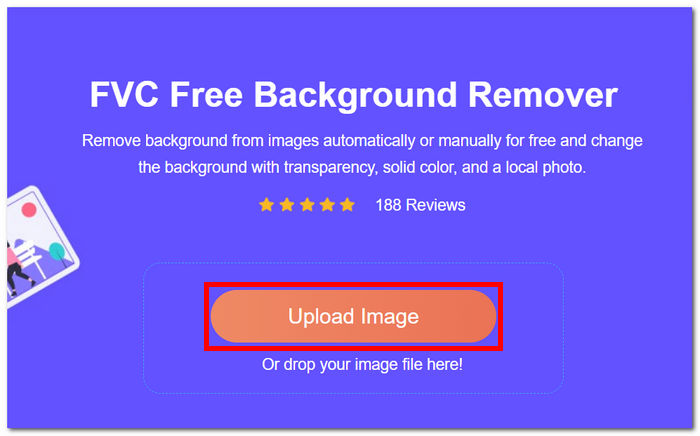
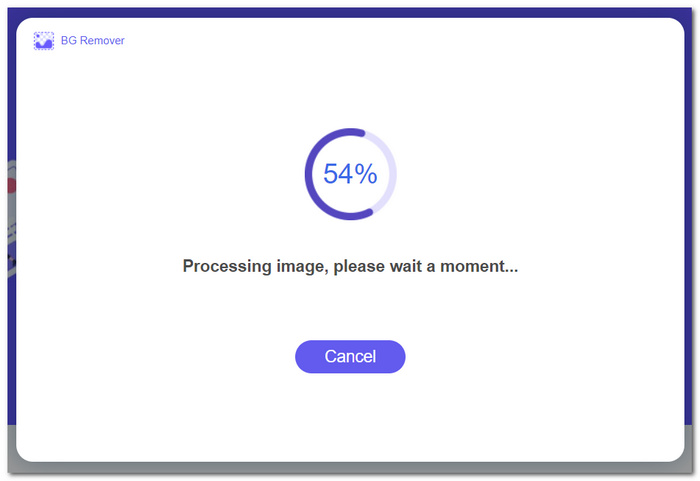
Step 2. Harnessing the power of AI, wait for the tool to identify and remove the background from your uploaded image autonomously.
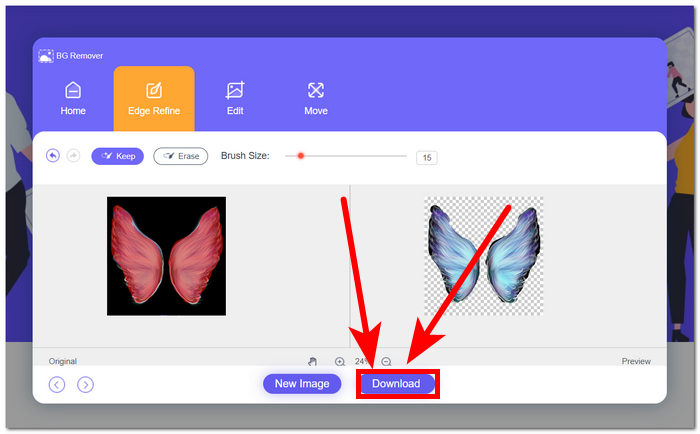
Step 3. Upon completion of the background removal process, save your image with the removed background by clicking the Download button.
FVC Free Background Remover se destaca como uma ferramenta subestimada, muitas vezes esquecida por muitos usuários. Apesar do seu estatuto menos conhecido, esta jóia escondida fornece um serviço valioso e gratuito, contribuindo para os esforços criativos dos utilizadores que descobrem as suas capacidades. Abraçando simplicidade e eficiência, continua sendo um aliado dedicado no processo de edição de imagens.
canva
Canva, onde a criatividade não tem limites! Sua plataforma intuitiva permite que os usuários removam fundos de suas imagens sem esforço, abrindo um mundo de possibilidades de design. Remover fundo de imagens no Canva pode ser um desafio para usuários que não estão familiarizados com a interface; isso se deve ao fato do Canva ser um software de edição, o que significa que muitas ferramentas estão presentes no software de remoção de fundo de imagem que podem sobrecarregar os usuários. Conseqüentemente, seu removedor de plano de fundo é considerado de primeira linha na categoria de software, pois a IA executa e alimenta a ferramenta. Abaixo estão alguns de seus recursos na remoção de fundo e etapas usando o Canva.
◆ Background Remover. Its background removal works in an instant with the additional tool of a magic eraser and magic replacement to polish your images in the tool effectively.
◆ AI Integrated Technology. Its AI is powerful enough to recognize distractions from your image and wipe them instantly.
◆ Multi-Editor Software. It is a tool that you can do almost anything: presentation, edit photos and videos, create documents, and create background remover.
Step 1. Download and install Canva on your desktop, or you can visit the web version of the software.
Step 2. On the main interface, Upload your image in the field provided on your screen.
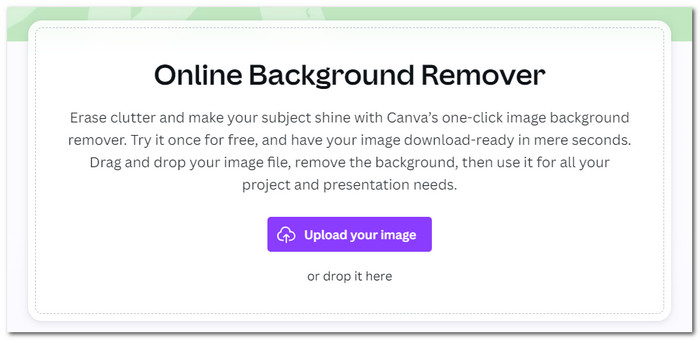
Step 3. Once your image loads in Canva, click on BG Remover to instantly remove the background from your image.
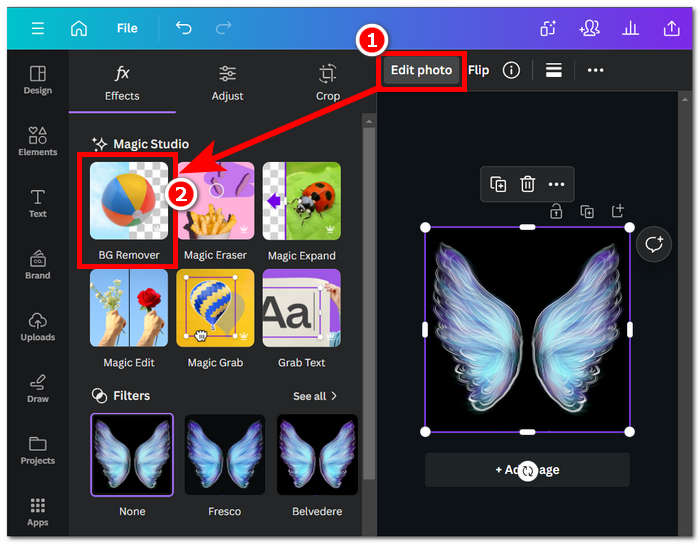
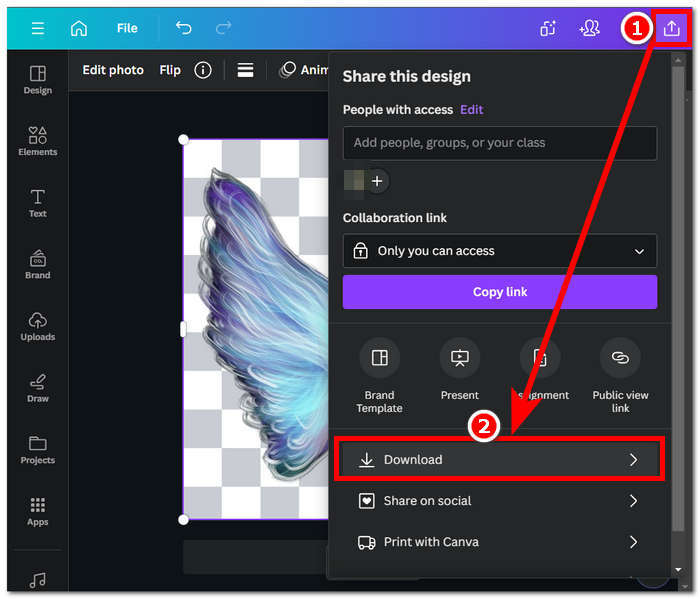
Step 4. When the process is done, click on the share icon located in your upper-right screen in proceed to click Download to be able to save it on your desktop.
Explorar a interface do Canva pode levar algum tempo em sua tarefa de remoção de fundo, mas vale a pena tentar experimentar esse impressionante recurso do software. No entanto, os usuários gratuitos podem não maximizar o potencial do Canva na remoção de segundo plano, pois o software oferece assinaturas pagas e tem uma marca d'água limitada no uso gratuito do software.
Adobe Express
Adobe Express, um recurso dinâmico do pacote Adobe Creative Cloud, redefine a edição de imagens com seus poderosos recursos de remoção de fundo. Projetada para acessibilidade fácil, esta ferramenta oferece uma experiência perfeita para eliminar fundos de suas imagens sem esforço.
◆ Professional Grade Background Remover. This tool removes the background from your image in a professional, quick, and seamless process.
◆ Straight Forward Interface. Simplicity in the interface makes this tool easy to use easily. No background needed in Adobe software is needed.
◆ Cutout Background. It highlights the subject in your image, resulting in a precise cutout background of an image.
Step 1. Go to the Adobe Express Background Remover website in your local browser and click on Upload your photo located in the interface of the website.
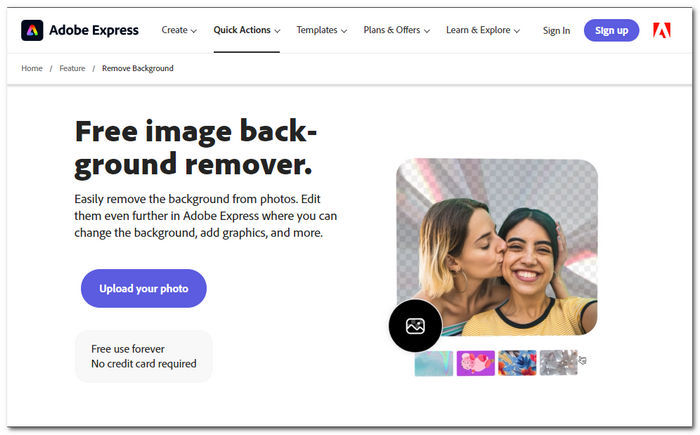
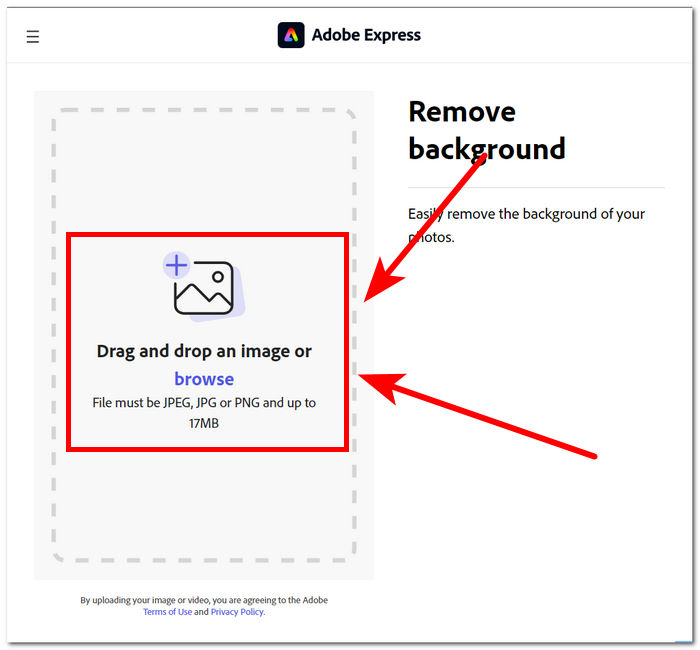
Step 2. After clicking on Upload your photo, you'll need to click the browse image field to upload your image in the tool.
Step 3. As your image uploads, it will automatically remove the background of your image.
Step 4. Click on Download, located right beside your image, to save it to your desktop.
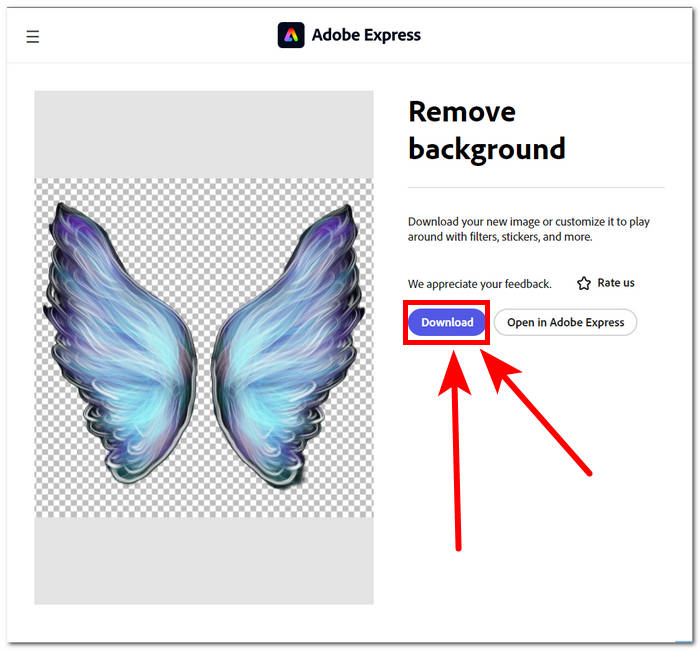
Concluindo, o Adobe Express surge como uma ferramenta de nível profissional poderosa o suficiente para remover os mínimos detalhes do fundo de suas imagens. Esta ferramenta pode ter uma abordagem direta em sua interface para o processo de remoção de fundo, mas ainda requer que você se inscreva para poder salvar sua imagem em sua área de trabalho.
Parte 2. Como remover o plano de fundo da área de trabalho de imagens
Adobe Photoshop
Adobe Photoshop emerges as one of the top-performing software in the image manipulation field, in this case, background removal from images. Providing users with wide variations of powerful tools and features to do almost any task in one software. A flawless execution of background removal starts with a good selection of cutouts between your subject and background, make sure to also familiarize yourself with how to use cutouts in Photoshop to be able to maximize Photoshop capability in background removal.
Step 1. Open your Adobe Photoshop on your desktop, and upload your photo by clicking on the Open button located in the software interface.
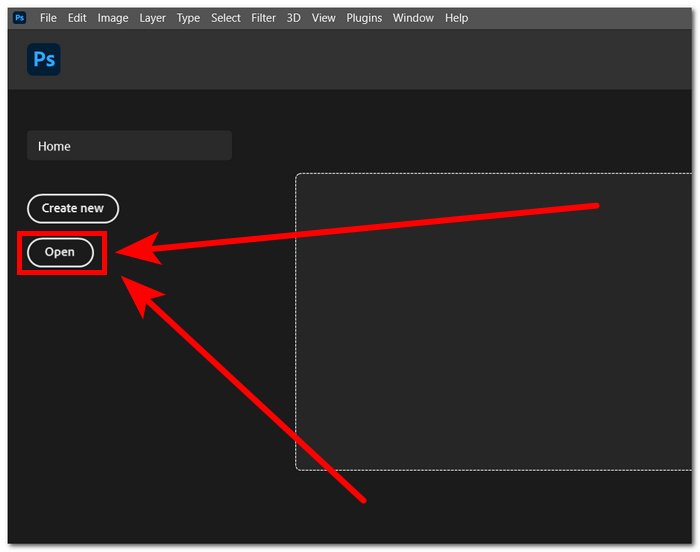
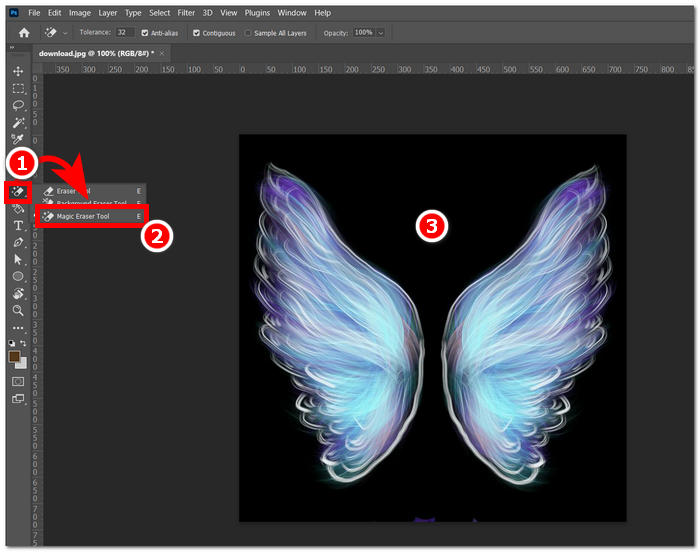
Step 2. Once the image loads in the software, locate the Eraser Tool in your left navigation tool and select the Magic Eraser Tool.
Step 3. Once the Magic Eraser Tool is selected, click the background of your image to remove the background automatically.
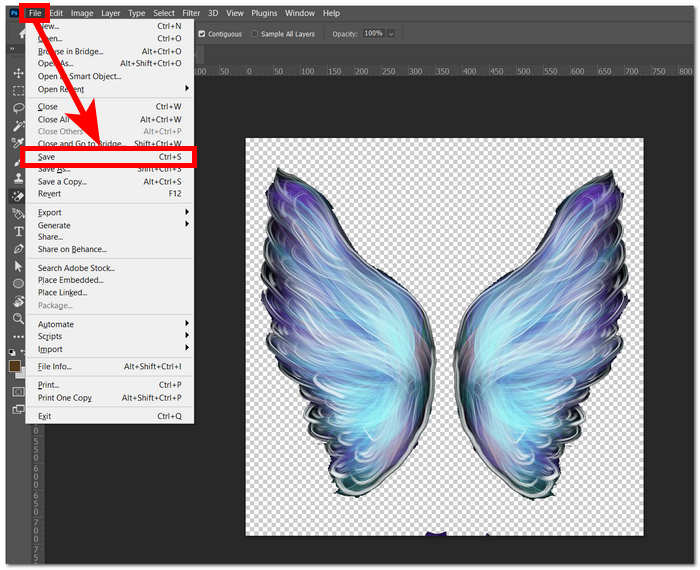
Step 4. Once the background is removed from your image, click on the File section located in your upper-left screen and click on Save or Export to download your image to your desktop.
Através de uma combinação de tecnologia e recursos avançados, o Photoshop capacita e libera o criador interior de cada usuário. A Adobe remove o fundo das imagens com sua interface intuitiva, garantindo que nenhuma tarefa difícil seja possível no software Adobe.
GIMP
GIMP é um aplicativo de código aberto que permite aos usuários remover fundos brancos de imagens ou qualquer fundo indesejado, tornando-o a escolha ideal para entusiastas gráficos e novatos em edição de imagens. Além de seus recursos de remoção de fundo, o GIMP possui um conjunto versátil de ferramentas e funcionalidades, e aprofundar-se nos recursos do GIMP pode ajudar a maximizar e se destacar na remoção de fundo e também facilita o espectro mais amplo de aprimoramento e manipulação visual.
Step 1. Open the GIMP software, then import your image through the File section located in your upper-left screen and click on Open to import your image.
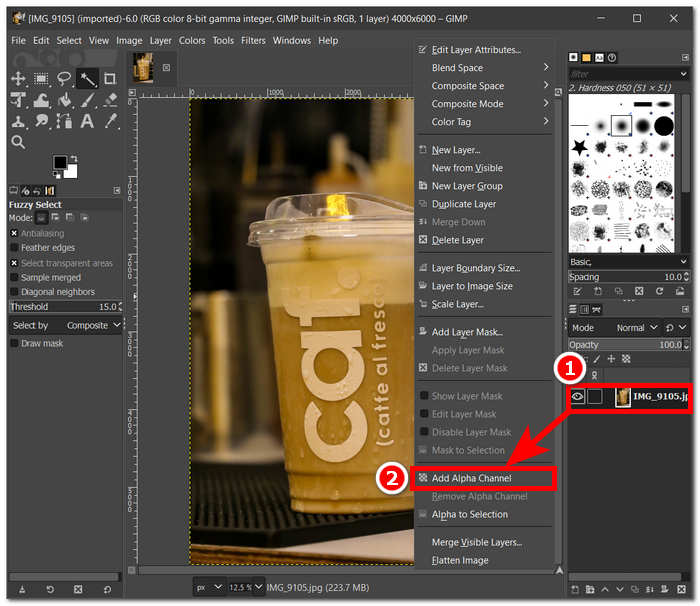
Step 2. After your image appears in the software, go to the bottom right, select the layer, right-click the layer, and choose Add Alpha Channel in the settings.
Step 3. Click on the Fuzzy Select tool in the upper-left corner. Once selected, drag the tool over the area you want to remove from the image.
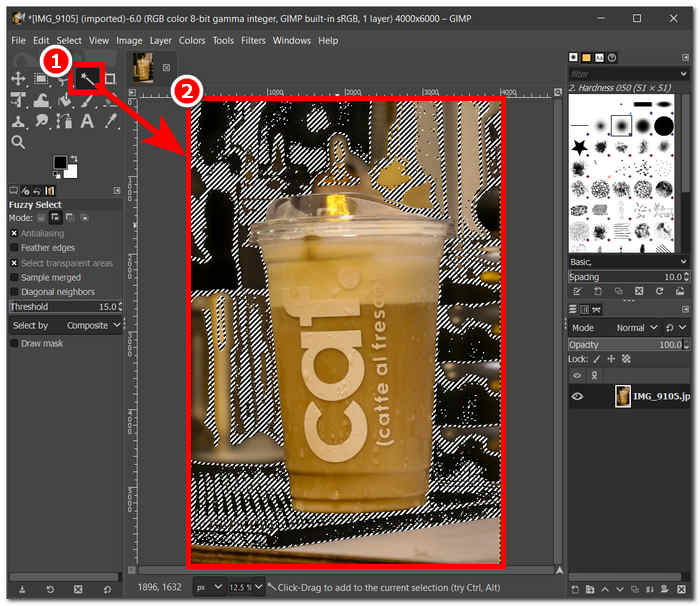
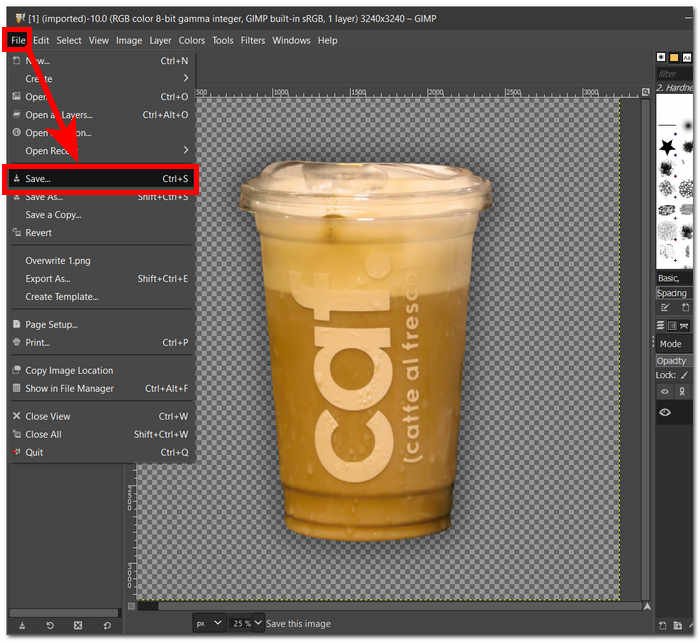
Step 4. A dotted outline will appear on the selected area, and to remove the background, just click the Del key on your keyboard. When satisfied, find Save in the File section on the upper-left of your screen to download your image to the desktop.
GIMP emerged as an ideal tool for both seasoned professionals and wanted-to-start users, thanks to its user-friendly interface. It houses multiple options for background removal, depending on your liking. It suits your convenience tools like color tools, path tools, layer masking, and fuzzy tools, making it versatile software.
Picsart
Picsart é uma ferramenta para iniciantes, popular por sua versão de aplicativo em dispositivos móveis. Sua ferramenta de remoção apresenta um resultado simples e instantâneo. Sua precisão na remoção de fundo e maneiras rápidas e eficientes de removê-lo vieram da IA que ele usa. Uma de suas características, além de remover o fundo, é que pode substituir ou adicionar um fundo às suas imagens, o que torna esta ferramenta agradável. Como deletar o fundo de uma imagem? Não se preocupe mais e basta seguir as etapas fáceis listadas abaixo.
Step 1. Head over to the Picsart Background Remover tool on your local browser and click on Browse Files to upload your image in the tool.
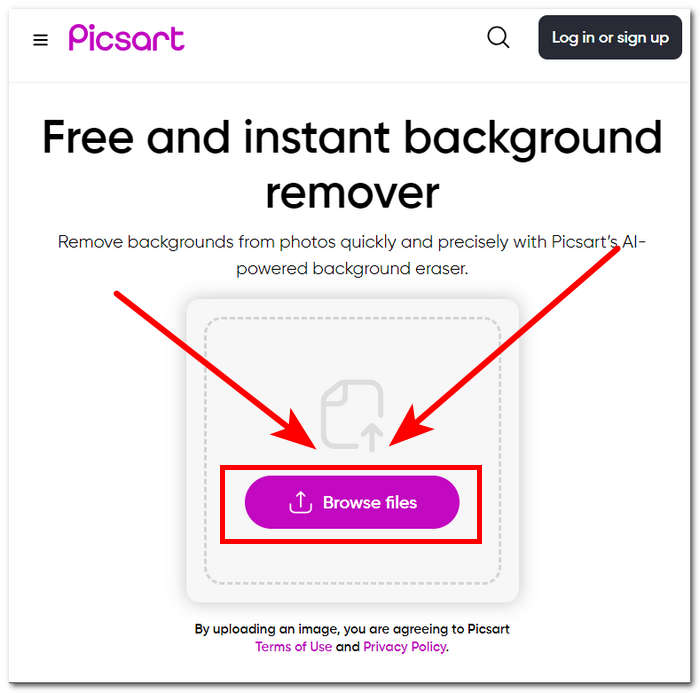
Step 2. Once uploading starts, it will automatically identify and analyze your image, which removes your background in the process.
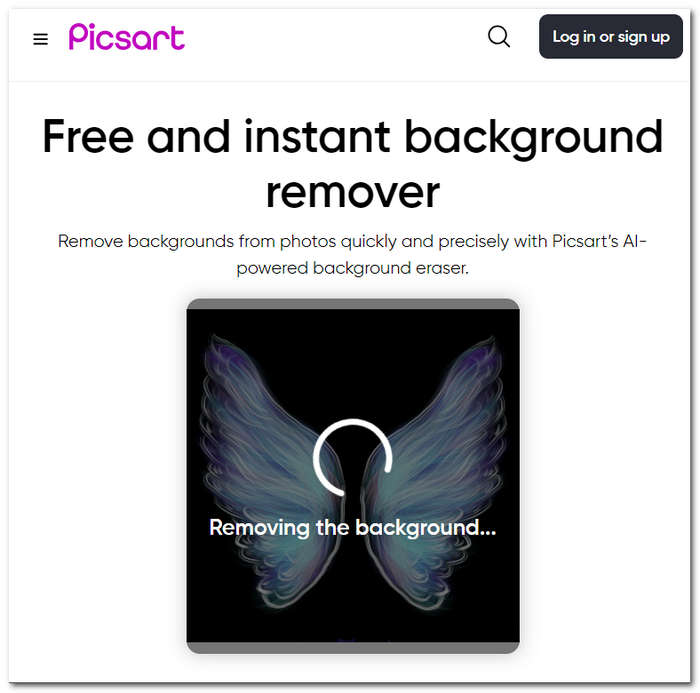
Step 3. Once the process is done, it will let you preview and edit your image; once satisfied with the result, save your images by clicking on the Download button.
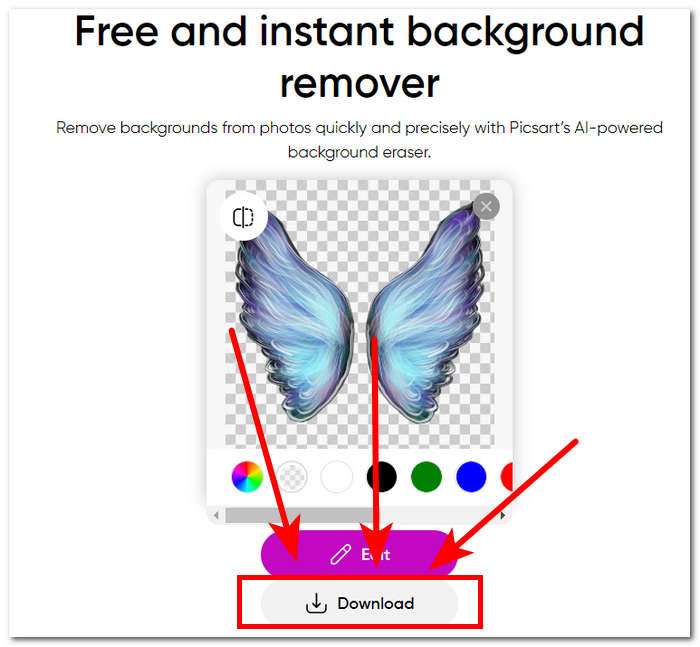
Concluindo, a popularidade do Picsart como aplicativo de edição de imagens se adaptou e investiu para que a ferramenta atendesse a todos os tipos de necessidades de edição visual. Seu removedor de fundo certamente faz seu trabalho em um instante com precisão. Portanto, você ainda precisará se inscrever para poder baixar sua imagem totalmente em alta resolução. Caso contrário, você ficará preso a resultados de baixa resolução.
Parte 3. Perguntas frequentes sobre como remover o fundo de uma imagem
Você pode remover o fundo da imagem automaticamente?
Sim, muitas ferramentas avançadas de edição de imagens, incluindo FVC Free Background Remover, Adobe Express e Canva, utilizam algoritmos de inteligência artificial para detectar e remover fundos de imagens automaticamente. Esse recurso agiliza o processo de edição, tornando-o mais rápido e eficiente para os usuários.
Você pode remover o Você pode remover o fundo da imagem automaticamente?
Sim, muitas ferramentas avançadas de edição de imagens, incluindo FVC Free Background Remover, Adobe Express e Canva, utilizam algoritmos de inteligência artificial para detectar e remover fundos de imagens automaticamente. Esse recurso agiliza o processo de edição, tornando-o mais rápido e eficiente para os usuários.
Você pode remover o fundo das imagens JPG?
Com certeza, as ferramentas de remoção de fundo suportam formatos de imagem JPG. A versatilidade das ferramentas se estende a vários formatos de imagem, garantindo que os usuários possam editar e aprimorar facilmente seus arquivos JPEG. Portanto, ainda depende de quais ferramentas ou software você está usando, porque alguns exigem uma assinatura para poder remover o fundo em formatos JPG e outros.
PNG é o único formato de imagem que suporta fundo transparente?
Embora PNG seja um formato comumente usado para imagens com fundos transparentes, outros formatos como GIF e TIFF também suportam transparência. No entanto, ferramentas semelhantes mencionadas acima geralmente fornecem resultados ideais com PNG devido à sua compatibilidade amplamente aceita com configurações de transparência.
O que posso usar para remover o fundo de uma imagem?
Você pode usar software de edição de imagens dedicado, como Adobe Express e Photoshop, ou ferramentas online especializadas, como FVC Free Background Remover. Essas ferramentas normalmente oferecem interfaces fáceis de usar e recursos avançados, permitindo obter resultados precisos e com aparência profissional.
Conclusão
In summary, the process of removing the background from an image does not rely on specific applications, software, or tools. Instead, its effectiveness comes from the user's ability to use and maximize the features of the available tools. Ultimately, the success of background removal lies in finishing a project, emphasizing that the choice of tools should align with the user's preferences, regardless of the specific tool used.
-
 Revisão do PicWish Photo Enhancer e ferramenta alternativa para experimentar
 Descubra a magia que o intensificador de imagens PicWish traz ao mundo da edição de fotos. Uma revisão aprofundada e exploração de alternativas viáveis para você experimentar.
-
 Como remover texto de imagem no Windows/Mac/Online
 Diga adeus aos textos que distraem suas imagens! Explore como apagar texto de imagens com essas soluções suaves projetadas perfeitamente para remoção de texto.
-
 Revisão do Fotor para removedor de fundo e intensificador de fotos
 Tudo o que você precisa saber sobre o Fotor Background Remover e o Photo Enhancer. Conheça algumas de suas funcionalidades e veja a alternativa sugerida que mais se adapta às suas necessidades.
