


 Video Converter Ultimate
 Gravador de ecrã
 Reparo de vídeo
Um guia sobre como remover o fundo da imagem na visualização
Como usuário de Mac, se você estiver se preparando para criar uma imagem com um fundo transparente ou precisar alterar o fundo de uma imagem atual, a ferramenta de visualização instalada no sistema pode ser sua primeira escolha.
A função principal deste software é ajudar você a visualizar imagens ou arquivos PDF armazenados no seu computador. No entanto, ele também inclui alguns recursos básicos de reparo e edição de imagens, incluindo o recurso de remoção de fundo que discutiremos hoje. O Preview oferece quatro funções que podem realizar essa operação.
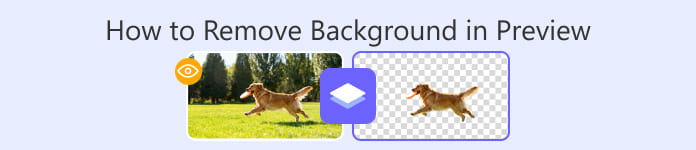
This guide is specifically designed to teach you how to remove background in Preview. We will provide detailed step-by-step instructions for each of the four methods, and additionally, we will introduce a more intelligent background remover.
Parte 1. Como remover o fundo da visualização no Mac
Vamos direto para como remover o fundo de uma imagem na Visualização.
Esta seção mostrará o processo passo a passo usando quatro métodos diferentes.
Use o Instant Alpha
O Alfa Instantâneo é adequado para imagens com fundo de cor sólida e alto contraste entre o fundo e o objeto. Em outras palavras, pode ser usado para remoção básica de fundo.
Veja como remover o fundo no Preview Mac com o Instant Alpha.
Step 1. Locate the file you want to edit, right-click it, select Open With, and choose Preview.
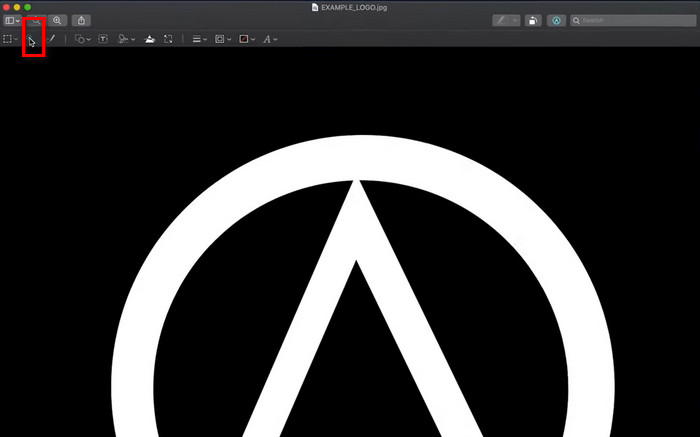
Step 2. On the toolbar, click the Show Markup Toolbar button to reveal the editing menu.
Step 3. Find the Instant Alpha icon on the left side of the toolbar and click it.
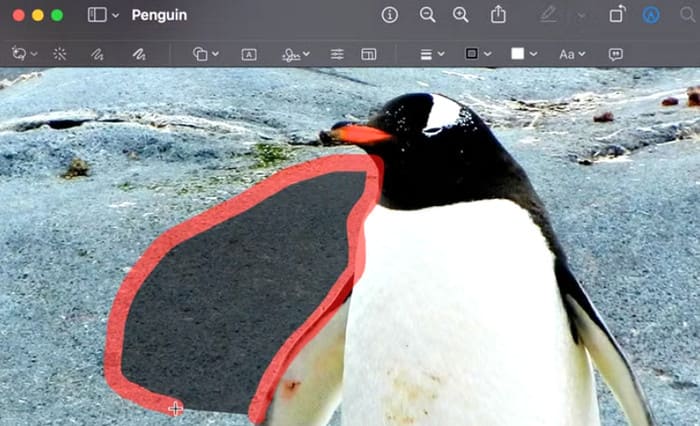
Step 4. Click and drag your cursor over the background area. The red highlight shows what will be selected for removal.
Step 5. Release your mouse to confirm the selection, then press Delete to remove it.
Step 6. When satisfied with the result, press Cmd + S to save the edited image.
Use a seleção retangular e elíptica
O recurso Mac Instant Alpha só pode remover automaticamente o fundo detectado, e as cores do fundo e do objeto não podem ser muito semelhantes.
Agora, vamos passar para o nível avançado, onde você seleciona manualmente o objeto que deseja manter. A Seleção Retangular e Elíptica do Preview permite cortar a parte que deseja manter em um oval ou retângulo e, em seguida, excluir o fundo original. Por fim, cole o objeto recortado de volta.
Veja como usar o Mac Preview para remover o fundo com Seleção Retangular e Elíptica.
Step 1. Right-click the file, choose Open With, and select Preview.
Step 2. Click the Show Markup Toolbar button on the right side of the toolbar.
Step 3. Click the Selection Tools button on the left, then pick Elliptical Selection or Rectangular Selection from the drop-down menu.
Step 4. Drag to highlight the object you want to keep, then press Cmd + X to cut it out.
Step 5. Choose Cmd + A to select the remaining background. Next, press Delete.
Step 6. Choose Cmd + V to paste the object back into place.
Step 7. When everything looks right, press Cmd + S to save the changes.
Use a seleção de laço
Agora chegamos a uma situação mais complicada: e se a cor do objeto que você deseja manter for muito parecida com a cor do fundo? Nesse caso, você pode precisar de uma ferramenta avançada: a Seleção de Laço. Com ela ativada, você pode desenhar linhas manualmente para contornar com precisão a parte que deseja manter e, em seguida, excluir o restante do fundo.
Veja como remover o fundo na Visualização com Seleção de Laço.
Step 1. Double-click the file or open it in Preview to start editing.
Step 2. Click the Show Markup Toolbar button on the left side of the toolbar.
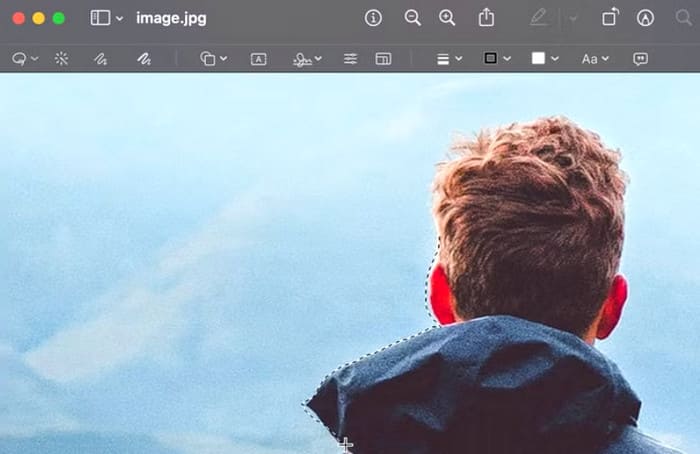
Step 3. Click Selection Tools and select Lasso Selection from the menu.
Step 4. Click and drag to draw freely around the object or section you want to remove.
Step 5. Press Delete to remove the outlined area from the image.
Use o Laço Inteligente
Um novo problema pode surgir: e se o contorno do objeto na imagem for muito complexo, fazendo com que a seleção manual demore muito?
Sem problemas, há outro recurso avançado esperando você experimentar: o Smart Lasso.
O Smart Lasso permite que você aproveite a seleção semiautomática. Você só precisa traçar o contorno do objeto, e o Preview detectará automaticamente a cor e o contraste para anexar ao contorno. Isso acelera bastante o processamento.
Veja como aplicar o Smart Lasso.
Step 1. In the toolbar, click the Markup button to reveal the editing tools.
Step 2. Open the Selection Tool menu and choose Smart Lasso from the options on the left.
Step 3. Trace around your subject, making sure the start and end points meet to complete the outline.
Step 4. Press Delete to remove the background, or copy the selected object to use elsewhere.
Parte 2. Melhor alternativa ao Preview para remover o fundo da imagem gratuitamente
Embora usar o Preview para remover fundos de imagens seja simples e prático, há problemas que não podem ser ignorados: as bordas do fundo removido não são precisas o suficiente, o que geralmente resulta na adição ou ausência de pequenas áreas.
If you want to achieve more perfect results, we recommend using the smarter online tool FVC Free Background Remover.
Esta plataforma exige apenas que você carregue sua foto — sem cliques, sem seleção manual da área — e, em segundos, o fundo da sua imagem será removido com sucesso. Os passos de uso são extremamente simples e as imagens resultantes não têm marca d'água.
Veja como remover o fundo de uma imagem com o FVC Free Background Remover.
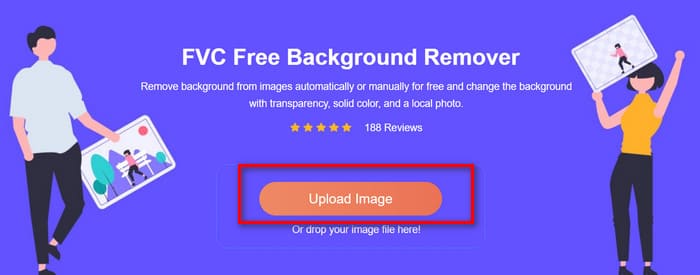
Step 1. Open your browser and go to FVC Free Background Remover. Click Upload Image to select the photo you wish to edit.
Step 2. The tool will automatically remove the background, making it transparent. Review the result and use the editing options to refine it if needed.
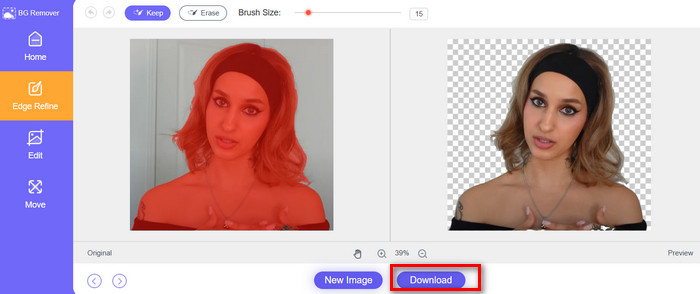
Step 3. When you’re satisfied, click Download to save your finished image to your device.
Parte 3. Perguntas frequentes sobre como remover o fundo na visualização
Como remover o fundo branco na visualização?
Nesse caso, você pode simplesmente usar o Instant Alpha. Habilite-o na Pré-visualização e clique com o mouse na área onde deseja remover o fundo. Ele removerá o fundo da imagem automaticamente.
Como faço para remover o fundo da imagem?
The smartest way is to use FVC Free Background Remover, which not only automatically removes the existing background for you, but also adds a new background to your image, either a solid color or another image.
Como remover o fundo da imagem GIF?
Preview's Instant Alpha can help you remove the background of a GIF. Third-party tools like Adobe Express GIF Background Remover and Canva are also good options.
Conclusão
This article provides four methods for removing backgrounds in Preview, including one for automatically removing the selected background, two for manually selecting and removing backgrounds, and one for semi-automatically removing backgrounds. The operations are simple, but the results may not be perfect.
If you need a smarter and more efficient method, we recommend trying FVC Free Background Remover. Simply upload the image, and it will handle the rest.
-
 Remover imagem de fundo do PPT: 3 métodos disponíveis para você
 Remover a imagem de fundo do PPT é uma etapa essencial na criação. Neste artigo, mencionaremos três métodos que podem ajudar você a realizar essa operação.
-
 Os 9 principais removedores de fundo de imagem para resultados rápidos e precisos
 Experimente a rapidez e a precisão do apagador de imagens de fundo de alto desempenho. Diga adeus ao removedor de fundo complexo e adote nove maneiras eficientes hoje mesmo!
-
 Como fazer uma imagem transparente no Google Slides
 Aprenda a fazer uma imagem transparente no Apresentações Google nesta publicação. Siga estes passos simples para ajustar a transparência e criar apresentações mais atraentes.
