


 Video Converter Ultimate
 Gravador de ecrã
 Reparo de vídeo
 Secure Download
Melhores maneiras de remover marcas d'água de retratos de prestígio
Prestige Portrait is a great tool for taking portrait photos. Almost all people use this type of program to take good-quality pictures. However, after taking a photo, there is a Prestige Portrait watermark on them, which is annoying. But you are fortunate because this guidepost will give you numerous solutions on how to remove watermarks from Prestige Portrait. This way, your portrait photo will be more satisfying to view without some disturbing elements from it. Don’t miss this out! Read this article to learn these helpful methods you can try.

Parte 1: Retratos de prestígio adicionarão marca d'água às fotos digitais que você comprar
Infelizmente sim. Quer você peça sua foto em cópias impressas ou digitais, haverá uma pequena marca d'água nas imagens que você comprar.
Mas se você estiver interessado em remover essas marcas d'água irritantes do seu retrato, basta ler as partes a seguir deste post.
Parte 2: Remova a marca d'água do Prestige Portraits Online
Usando o FVC Free Watermark Remover
The best solution to remove prestige portrait watermarks is to use an excellent watermark remover like FVC Free Watermark Remover. This web-based tool can remove irritating objects like watermarks, logos, signatures, text, and more. It has a fast removal process and offers cropping features. It also supports different file formats, such as BMP, JPG, JPEG, PNG, and more. You can also access this web tool in almost all browsers, like Google Chrome, Mozilla Firefox, Microsoft Edge, etc. FVC Free Watermark Remover offers a user-friendly interface and simple methods, which is good for every user.
Além disso, você pode garantir a segurança do seu arquivo porque este software não permite que outras pessoas vejam o seu arquivo. Além disso, você não precisa criar uma conta para operá-lo. Depois de visitar o site, você pode utilizá-lo imediatamente e remover objetos indesejados de suas imagens. Por fim, este removedor de marca d'água é 100% gratuito, não há necessidade de comprar nada.
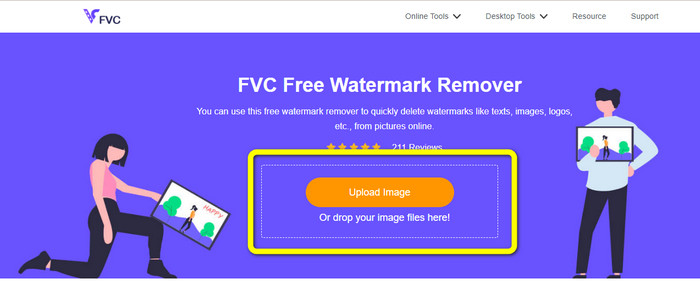
Step 1: For your first step, open your browser and go to the FVC Free Watermark Remover website. To insert your portrait with a watermark, click the Upload Image button.
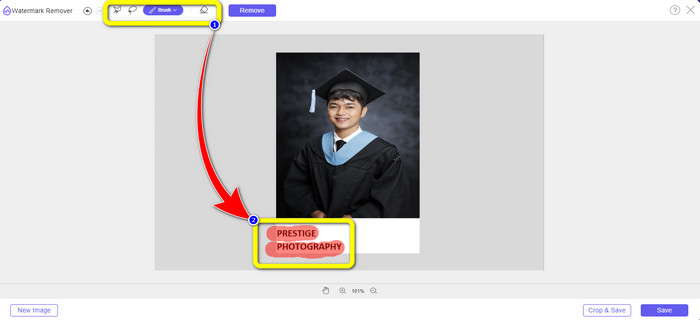
Step 2: After uploading your portrait with a Prestige Portrait watermark, highlight the watermark using remover tools, such as Lasso, Polygonal, and Brush
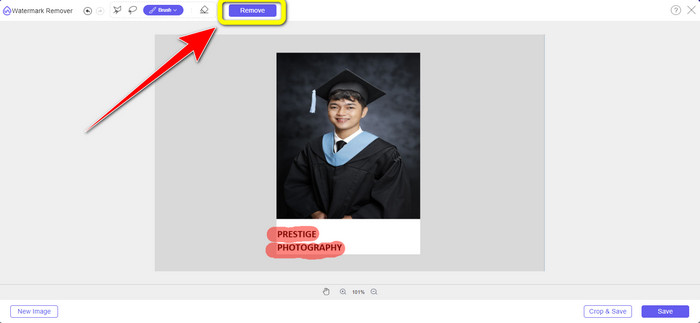
Step 3: The next process is to click the Remove button. This way, the watermark from your portrait photo can be deleted instantly. You can jump to the next step after the removal process.
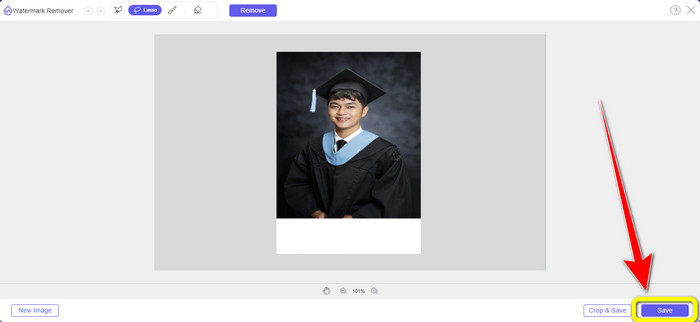
Step 4: After removing the watermarks, click the Save button to save your portrait photo without the Prestige Portrait watermark.
Usando Inpaint
Você gostaria de aprender mais sobre os métodos mais fáceis de remover marcas d'água do Prestige Portrait? Tente usar o Inpaint. É um dos grandes removedores de marca d'água online que você pode utilizar. Remover marcas d'água usando o Inpaint é descomplicado. Além de marcas d'água, você pode remover vários elementos de suas fotos, como logotipos, adesivos, emojis, fotos e muito mais. Além disso, oferece muitos recursos que você pode aproveitar. Você pode reparar fotos antigas, usar retoques faciais digitais, apagar rugas e manchas na pele, etc. O aplicativo Inpaint está disponível online e offline. O uso da ferramenta para download tem mais recursos a oferecer do que o outro. No entanto, a ferramenta online Inpaint só tem um tamanho máximo de imagem de 10 MB. Além disso, suporta apenas três formatos de arquivo de imagem, como PNG, JPG e WEBP. Siga as etapas simples abaixo para remover marcas d'água de seus retratos.
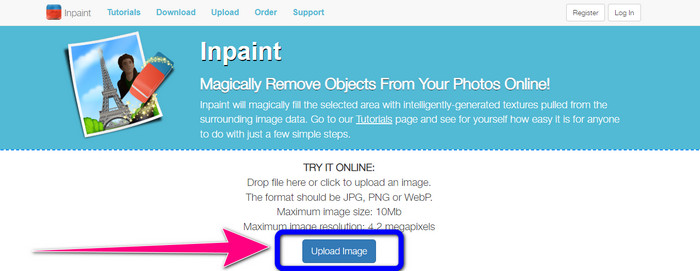
Step 1: Go and visit the Inpaint website. Click the Upload Image button to add your portrait photo. Dragging your file is also an option to upload.
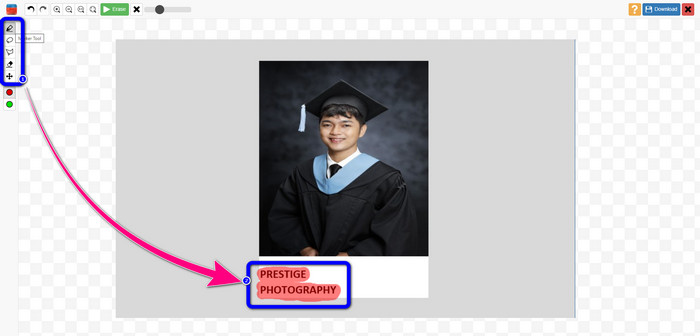
Step 2: Your next step is to highlight the watermarks from your portrait using the Marker, Lasso, or Polygonal tools.
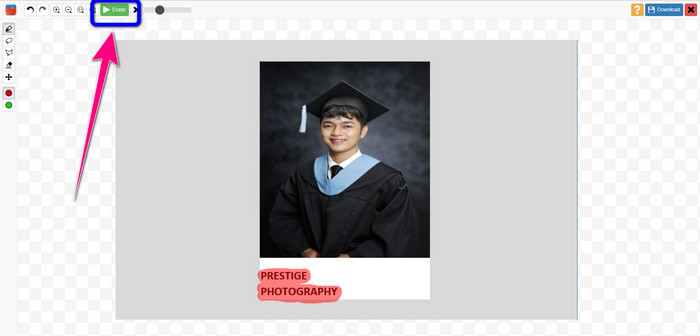
Step 3: If you are done highlighting all the watermarks, click the Erase button, and wait for the removal process.
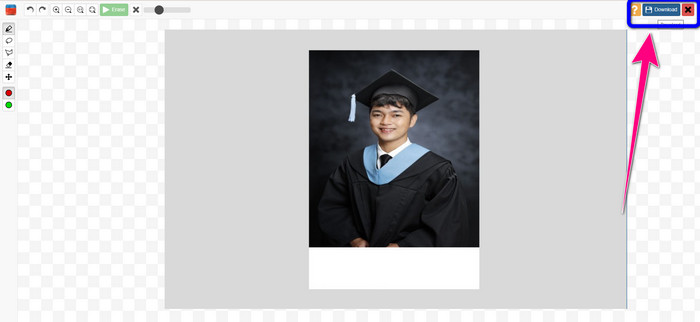
Step 4: For the final step, click the Download button on the right-upper part of your screen. After clicking, the file will be automatically saved.
Usando o Wondershare Pixcut
If you don’t want to get your image blurry after removing watermarks, you can use Wondershare Pixcut. You can easily efface any annoying objects without losing the quality of your portrait photo. Moreover, it supports almost all image file formats, including JPG, PNG, WEBM, etc. However, you can’t operate this online tool if you don’t have an account. You must sign up first to Wondershare Pixcut to utilize this application.
Se você quiser usar esta ferramenta, siga as etapas simples abaixo.
Step 1: Visit the Wondershare Pixcut website. Create an account and click the Upload Image button to insert your portrait with a Prestige Portrait watermark.
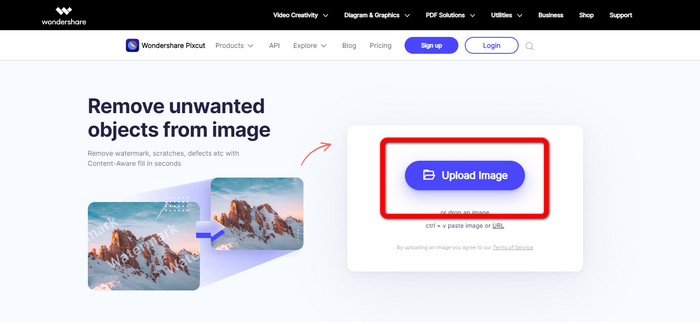
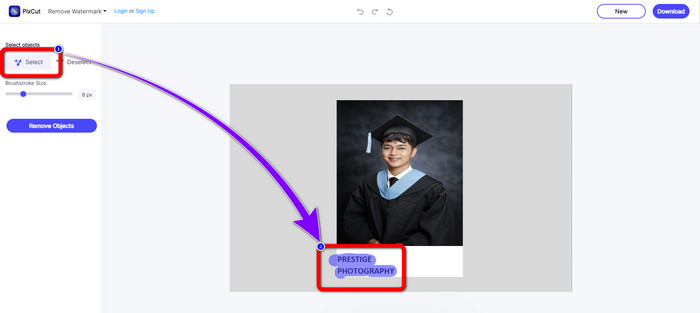
Step 2: After uploading the photo, click the Select option and highlight the watermarks using your mouse.
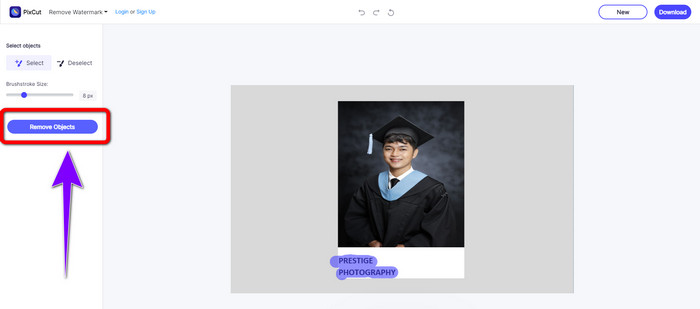
Step 3: Click the Remove Objects button to erase the highlighted watermarks.
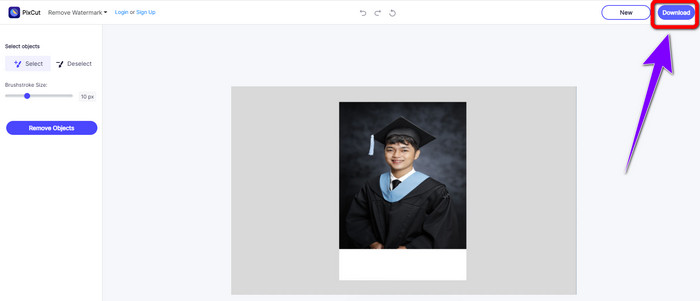
Step 4: When the watermark is already gone on your portrait photo, click the Download button to save it on your desktop.
Parte 3: Como remover marcas d'água de retratos de prestígio no Photoshop
Adobe Photoshop is an offline tool you can utilize to remove watermarks from Prestige Portrait. It has various remover tools you can use, like the Lasso tool, Brush tool, etc. It only has simple methods for removing watermarks and doesn’t require editing skills, which is suitable for all users. However, the free trial of this tool is good for seven (7) days only. You must purchase the software if you want to use this great application longer. But this is costly. If you want to try using Photoshop to remove watermarks from your portrait photo, follow the simple guide below.
Step 1: First, download and Install Adobe Photoshop on your device. Then, Go to File > Open to attach your portrait photo.
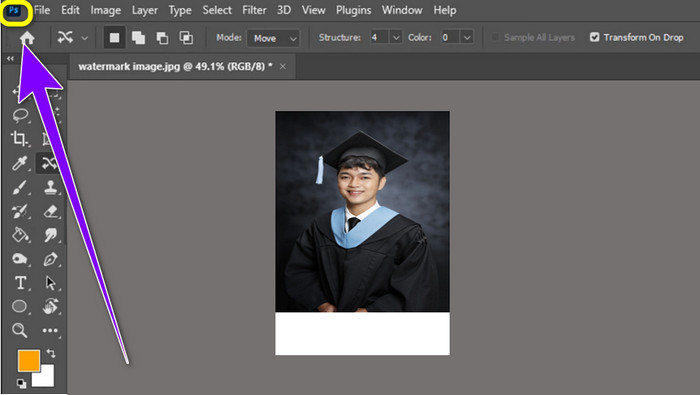
Step 2: After adding the photo, click the Content-Aware Move Tool. Use it to select the watermark area and press Delete.
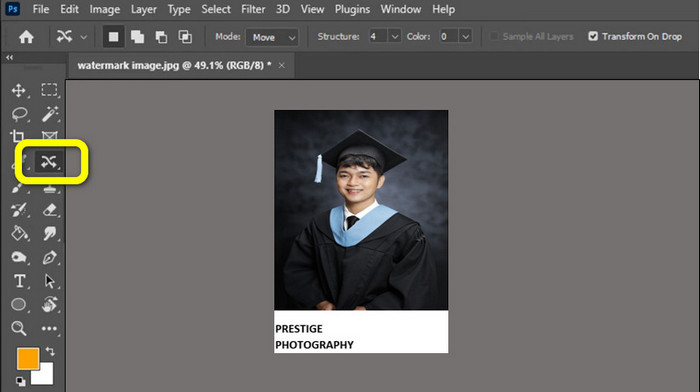
Step 3: When the Prestige Portrait watermark is erased, go to File > Save as button to save your final output.
Parte 4: Perguntas frequentes sobre como remover marcas d'água de retratos de prestígio
1. Qual é a vantagem de remover marcas d'água de Prestige Portraits?
A remoção de marcas d'água de retratos de prestígio pode tornar sua foto de retrato limpa e refinada. Dessa forma, você pode visualizar sua foto sem alguns elementos perturbadores.
2. O que deve conter na marca d'água?
Ao colocar uma marca d'água em sua foto, você deve colocá-la em uma área que não atrapalhe ou interfira na visualização de uma imagem. Você também deve usar um tamanho pequeno, não muito grande, para que não afete a própria imagem.
3. Posso remover marcas d'água de Prestige Portraits usando um telefone?
Sim você pode. Você precisa baixar um removedor de marca d'água em seus telefones, como Video Eraser, PicLab, Touch ReTouch e muito mais. Usando essas ferramentas, você pode apagar rapidamente as marcas d'água do Prestige Portraits.
Conclusão
As you can see, there are various methods you can learn on how to remove watermarks from Prestige Portrait using the applications above. But if you choose the most effective Prestige Portrait watermark remover, FVC Free Watermark Remover is for you.
-
 Métodos incríveis para remover marcas d'água da Getty Images
 Como remover a marca d'água Getty Images? Se esta é a sua dúvida, este artigo tem a melhor resposta. Não pisque e aprenda os melhores procedimentos que você pode tentar
-
 Como remover marcas d'água do Canva das fotos [métodos completos]
 Às vezes, as marcas d'água do Canva nas fotos são irritantes. Se você deseja removê-los, vá para esta postagem. Vamos orientá-lo a aprender como remover uma marca d'água do Canva
-
 Métodos online e offline sobre como remover marcas d'água Alamy
 Se você deseja encontrar um excelente removedor de marcas d'água Alamy, leia este post para aprender sobre os três métodos eficientes para apagar marcas d'água Alamy
