


 Video Converter Ultimate
 Gravador de ecrã
 Reparo de vídeo
 Secure Download
Maneiras fáceis de como remover marca d'água no Lightroom Mobile
Putting a watermark on your photo is great, especially if you want to secure your photo. However, sometimes you only want to keep the photo, but the watermarks become annoying. This post will show you several applications with simple methods you can use to remove watermarks from your images. Also, you will learn how to remove watermarks in Lightroom mobile. If you want to learn this kind of discussion, read this guidepost and learn more important details.

Parte 1: Como desativar o recurso de marca d'água do aplicativo móvel Lightroom antes de exportar
O Lightroom mobile é confiável para remover objetos perturbadores de suas imagens, como marcas d'água, logotipos, assinaturas e muito mais. Você pode removê-los em apenas alguns toques. Este software amigável é projetado para todos os usuários, especialmente usuários não profissionais. Se você quiser descobrir as maneiras mais fáceis de remover marcas d'água no aplicativo móvel Lightroom, veja como fazer isso. Siga os guias simples abaixo.
Step 1: Download and install the Lightroom application on your mobile phone. Launch it and open the timeline.

Step 2: To the upper-left corner of your screen, tap the Lr icon.
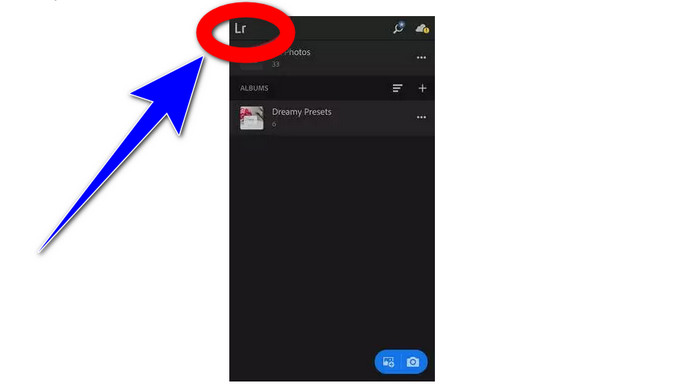
Step 3: For the next step, proceed to the sharing options, and click it.
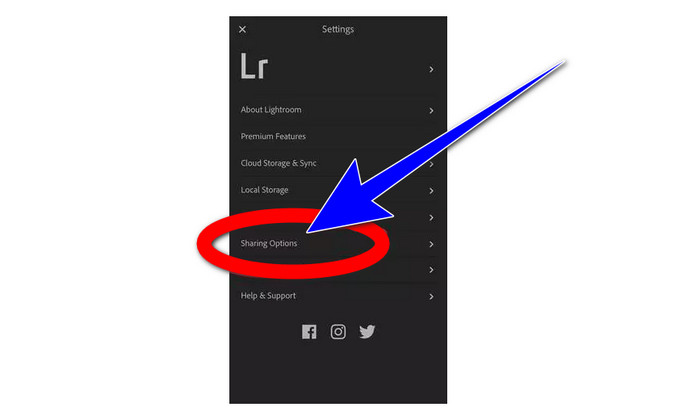
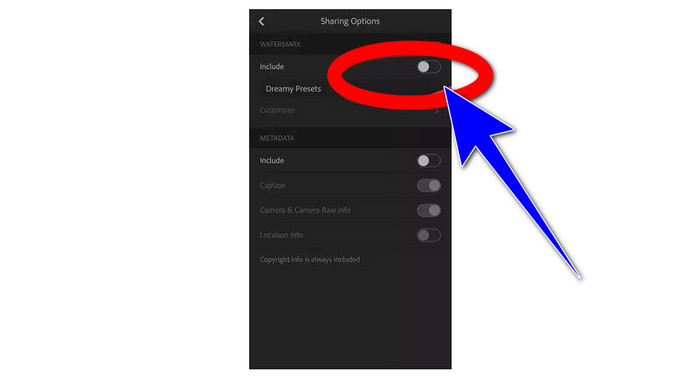
Step 4: After clicking the sharing options, turn off the Dreamy Prest option to turn off the watermark. Click this option and turn it off.
Parte 2: Como remover marca d'água de fotos sem lightroom
Aside from Lightroom mobile, you can remove watermarks from your images using FVC Free Watermark Remover. It is one of the great watermark removers you can use on the internet. It may also remove other annoying elements from your photos, such as logos, captions, stickers, stamps, signatures, and more, besides watermarks. You can also save your photo in the same format as the original after removing the watermark. Various remover tools, including Lasso, Brush, and Polygonal, make removing watermarks simple. Also, this watermark remover offers a Cropping tool, which you can use if the watermark area is at the edge or corner of your photo. In addition to that, this watermark remover is absolutely free. You don’t need to purchase a subscription, like other remover tools.
Além disso, possui uma interface simples e procedimentos para remover marcas d'água, o que é adequado para iniciantes. Por fim, seus arquivos garantem privacidade, você é o único que pode visualizar seu trabalho. Siga as etapas detalhadas abaixo para remover marcas d'água de suas imagens usando o FVC Free Watermark Remover.
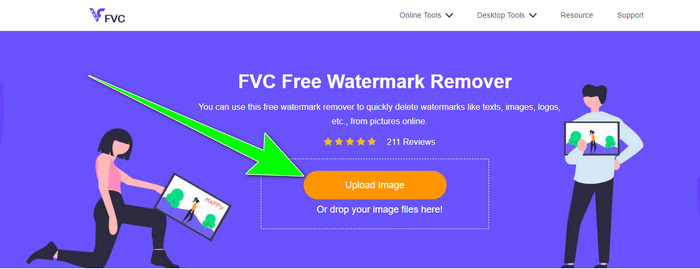
Step 1: Visit the website of FVC Free Watermark Remover. Upload your photo by clicking the Upload Image button.
Step 2: After uploading your photo, highlight the watermarks using watermark remover tools. As you can see, the watermark area is in the middle of the photo, which means you can’t use the cropping tool. This way, we will use the Polygonal tool, one of the watermark-removing tools.
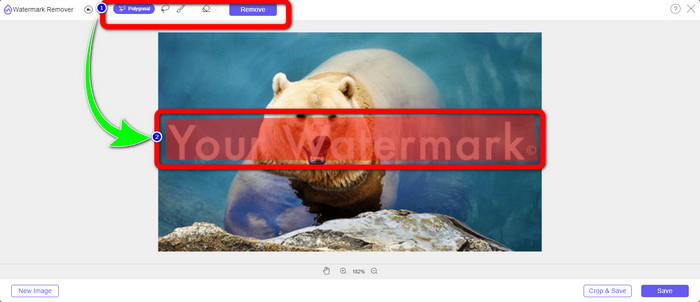
Step 3: If you want to re-select the highlighting area, use the Erase button. If you are done highlighting the watermarks from your photo, click the Remove button and wait for the removal process.
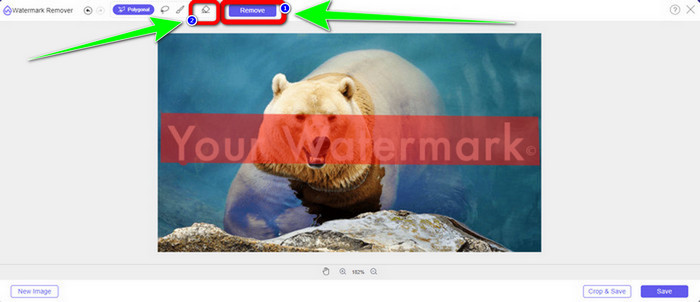
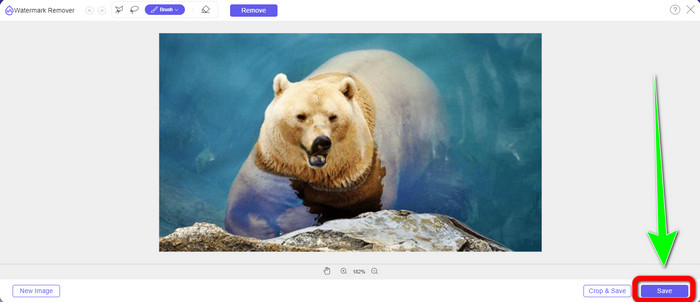
Step 4: When you have already removed the watermarks, you can click the Save button and download your photo on your desktop.
Usando WatermarkRemover.io
If you want to use another online tool to remove watermarks from your images, you can use WatermarkRemover.io. This online software is capable of removing any unnecessary objects from your photos, such as logos, texts, stamps, and more. Also, you can eliminate multiple watermarks from your photos. It also has a straightforward interface and basic ways suitable for new users. This online tool supports different image formats, like PNG, JPG, WEBP, and JPEG. However, it has limitations when using the free version. You can only upload up to 50 images, and it only has 25Gb storage. You must purchase a subscription if you want to upload more images and get more storage, which is a little pricey. If you want to erase disturbing elements from your images using WatermarkRemover.io, follow the simple steps below.
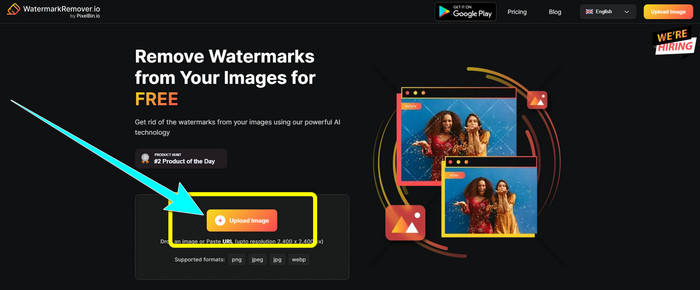
Step 1: Go to the website of WatermarRemover.io. Click the Upload Image button to add your photo with a watermark you want to remove.
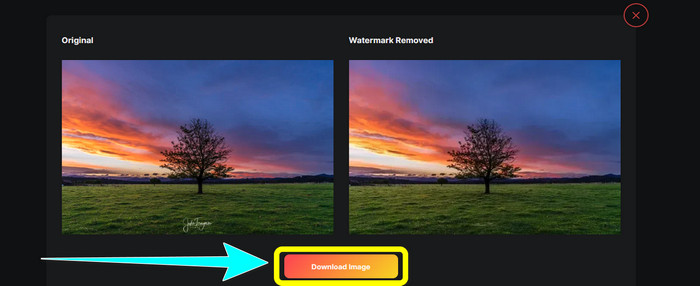
Step 2: After adding your photo, it will automatically remove the watermarks. Click the Download Image button to save the photo on your desktop.
Usando o Removedor de Marca d'água da Apowersoft Online
Apowersoft Video Watermark Remover Online is one of the useful tools if you're looking for another online solution to remove watermarks from your photos. You may simply erase watermarks from your photos with this online tool. Additionally, it is a straightforward and user-friendly application, making it suitable for beginners who wish to get rid of watermarks. Additionally, Apowersoft excels at more than just erasing watermarks from photos. Additionally, you may remove the watermarks from your videos, which is reasonably practical for users. Since it is an online program, you don't need to install it on your computer. Your file will be automatically deleted after you remove and save your output, so you don’t have to worry about your file. However, You must have a fast internet connection if you want this tool to perform well. Also, the removal process takes too long, which is time-consuming for users. Follow the steps below to remove watermarks using Apowersoft Online Watermark Remover.
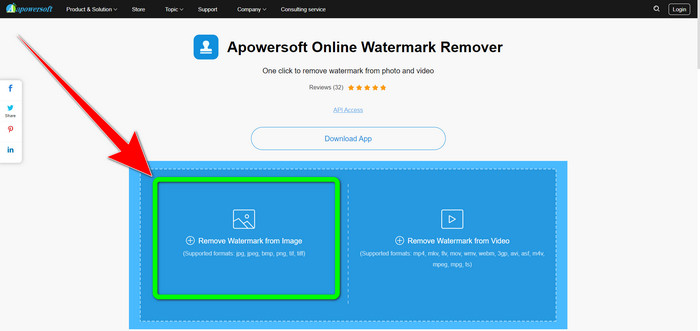
Step 1: Go to the website of Apowersoft Online Video Watermark Remover. Click the Remove Watermark from Image button to upload your photo with a watermark.
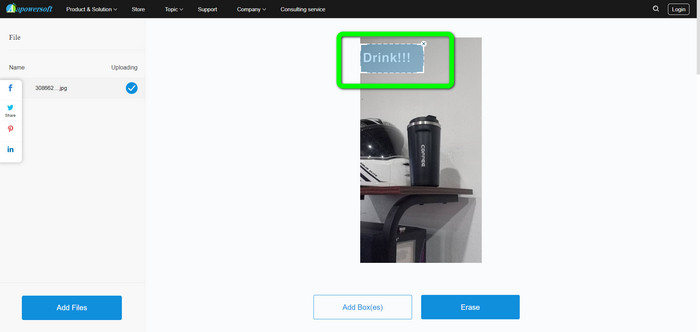
Step 2: You will see a square-shaped element after uploading your photo. Drag it to cover the watermarks from your image.
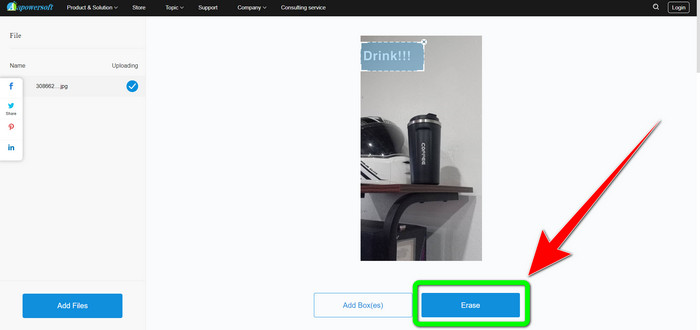
Step 3: When you are done covering the watermark, click the Erase button to remove it. Wait for the removal process and download your final photo without a watermark.
Parte 3: perguntas frequentes sobre como remover marcas d'água de fotos no Lightroom
Como remover uma marca d'água da borda da imagem?
If the watermark is in the edge or corner of your picture, you can easily remove it using the cropping tool. You can see the cropping tool on the upper part toolbar of your photo. But if you don’t want to cut any part of your photo, you can use a watermark remover application like FVC Free Watermark Remover. This tool can help remove irritating elements from your photos, such as watermarks, logos, signatures, and more.
As marcas d'água são protegidas por direitos autorais?
Para obter informações adicionais, a marca d'água em si não é um direito autoral. A marca d'água pode lembrar as pessoas de não roubar suas fotografias porque seu trabalho já está protegido por direitos autorais no momento em que é feito.
Posso remover uma marca d'água de uma captura de tela?
Sim você pode. Uma marca d'água de uma captura de tela pode ser facilmente removida usando ferramentas de remoção de marca d'água, como FVC Free Watermark Remover, WatermarkRemover.io, Apowersoft Online Watermark Remover, Inpaint e muito mais.
Qual é a diferença entre um logotipo e uma marca d'água?
A marca d'água é uma versão mais simplificada e translúcida do logotipo, que é sua principal distinção. Normalmente é colocado sobre sua imagem para evitar que outros a explorem como se fosse sua e geralmente é apenas uma cor, branco ou preto.
Existe uma borracha no Lightroom?
Sim existe. Esta opção nos permite corrigir e remover pinceladas sobre as quais pintamos involuntariamente. Você só precisa clicar em 'Eraser' para usá-lo. Assim como você faria se estivesse usando a ferramenta pincel, normalmente, passe pelas áreas que deseja remover.
Conclusão
This article shows you the best way to remove watermarks in Lightroom mobile. In addition, we introduced various methods you can try to remove watermarks aside from using the Lightroom application. If you prefer simple ways to instantly remove watermarks and any unnecessary elements from your photos, use FVC Free Watermark Remover.
-
 Guias passo a passo sobre como remover emojis do vídeo
 Sentindo-se irritado com emojis em seus vídeos? Este post trará para você os melhores procedimentos para remover instantaneamente emojis de seus vídeos usando ótimas ferramentas.
-
 Como remover marcas d'água de vídeos no After Effects facilmente
 Este artigo ajudará a remover marcas d'água do vídeo usando o After Effects. Além disso, fornecerá as melhores alternativas para eliminar objetos perturbadores.
-
 Maneiras de como remover facilmente marcas d'água do Reddit de imagens
 Se você está aqui, pode estar procurando um excelente removedor de marca d'água do Reddit. Nesse caso, mostraremos o método mais fácil de remover as marcas d'água do Reddit.
