


 Video Converter Ultimate
 Gravador de ecrã
 Reparo de vídeo
 Secure Download
Redimensione a imagem sem perder qualidade: compressão sem perdas
One of the biggest concerns when resizing an image is losing its quality. Well, the answer for this varies depending on how the photo was resized, what tool was used, and other factors. Fortunately, an underrated truth is that you can resize an image without losing quality when done correctly. By following best practices, understanding the nuances of image resizing, and finding the right tool, you can for sure maintain the clarity and sharpness of your images, regardless of the size adjustments you make.
Neste guia, abordaremos três métodos eficazes para redimensionar imagens, mantendo sua integridade visual e garantindo que a qualidade permaneça quase a mesma.

Parte 1. Maneira mais rápida de redimensionar uma imagem sem perder qualidade [com suporte em lote]
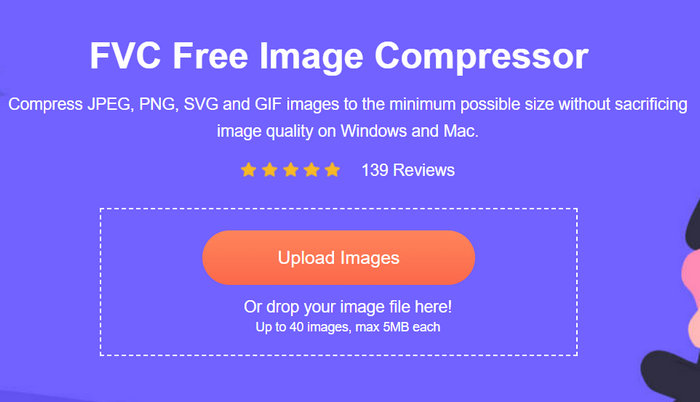
FVC Free Image Compressor is a free online image compressing tool ideal for users who are looking for a faster way to resize images without losing quality. With one click, your photos will be automatically resized and their quality will be retained almost as is. Also, this tool is super user-friendly, as any level of user can use it without feeling lost in the process. Lastly, when you have a bunch of image files to resize, this tool will allow you to compress up to 40 image files simultaneously.
Here’s how to resize image without losing quality using FVC Free Image Compressor
Step 1. Go to your browser and type in Free Image Compressor in your search bar.
Step 2. Once you are already on the website, click Upload Images to import the photos you want to resize. The tool will automatically compress all the photos you have uploaded.
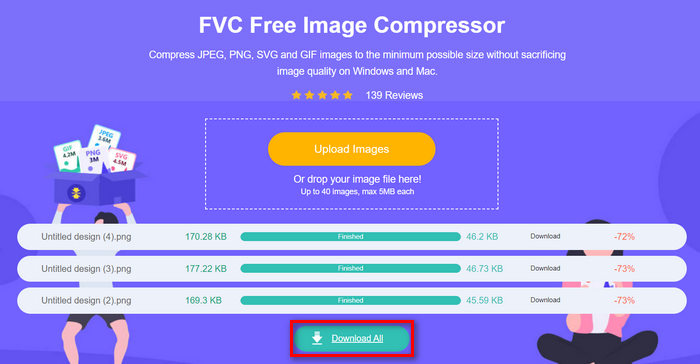
Step 3. Wait for the compression process to finish. Once done, you’ll see a bar status stating it’s finished and information on the before-and-after size of the compressed image. After that, click Download All to save your image.
Com o FVC Free Image Compressor, redimensionar uma imagem não vai pesar no seu esforço. Além disso, essa ferramenta é completamente gratuita e super acessível, então é de fato uma ferramenta de compressão portátil para todos.
Parte 2. Como reduzir uma imagem no Photoshop sem perder qualidade
Enquanto isso, quando você tem o Photoshop instalado no seu dispositivo, você pode usá-lo para reduzir seus arquivos de imagem. Esta ferramenta é um software de edição de fotos bem conhecido por causa de seu excelente conjunto de recursos e capacidades. Com o Photoshop, você pode não apenas editar e aprimorar fotos com precisão, mas também otimizá-las para vários propósitos, incluindo reduzir o tamanho do arquivo. Aqui estão os dois métodos que você pode tentar para redimensionar uma imagem sem perder qualidade.
Alterando o tamanho da imagem em pixels
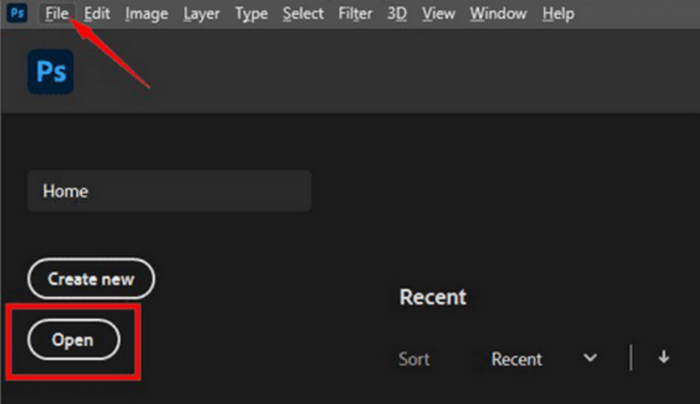
Step 1. Open your image in Photoshop by clicking Open or go to File and select the image that you want to resize.
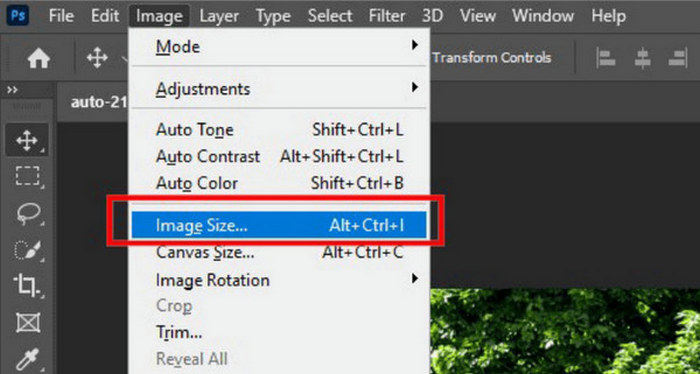
Step 2. Now, head to the Image tab and select Image Size from the menu.
Step 3. In the Image Size dialog box, choose Pixels from the drop-down menu. To set specific dimensions, enter values in width and height text boxes and click OK to resize the image.
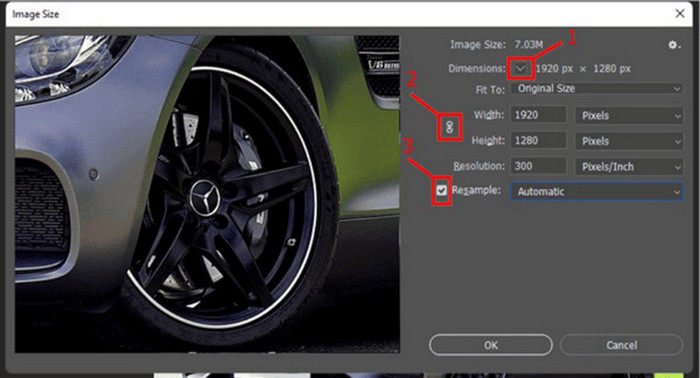
Step 4. Lastly, save your image file by clicking the Save As button under the File tab.
Salve o arquivo PSD no formato JPEG antes de salvá-lo.
Alterando o tamanho da imagem em polegadas
Step 1. Open your image in Photoshop by clicking Open or go to File and select your image.
Step 2. Now, head to the Image tab and select Image Size.
Step 3. In the Image Size dialog box, choose Inches from the drop-down menu. To set specific dimensions, enter values in width and height text boxes and click OK to resize the image.
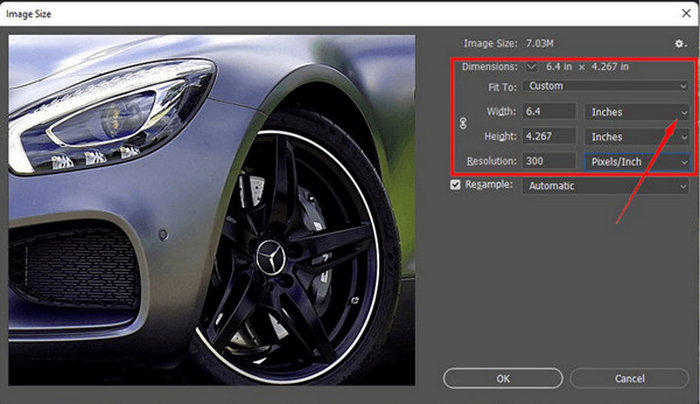
Step 4. Lastly, click the Save As button under the File tab to save the final image.
O Photoshop é uma ferramenta versátil e poderosa que permite aos usuários editar fotos e redimensioná-las sem perder qualidade. Além disso, os usuários podem aproveitar os algoritmos de alta qualidade do Photoshop para garantir que suas imagens permaneçam nítidas e claras mesmo após ajustes significativos de tamanho. No entanto, uma desvantagem de usar esta ferramenta é que ela pode ser bastante complexa, o que tornará difícil para iniciantes navegar por seus recursos.
Parte 3. Redimensione a imagem sem perder qualidade com o Upscaling de IA
The FVC Free Image Upscaler is an AI-powered tool designed to resize images without losing quality. It employs AI super-resolution technology, trained through millions of instances, to recognize and enhance blurred parts of an image automatically. This tool can fix lost pixels, colors, textures, and other details, ensuring the image is resized without losing quality.
Step 1. First, you need to access their official website.
Step 2. Once you have accessed them, import the image file that you want to resize by clicking the Upload Photo button.
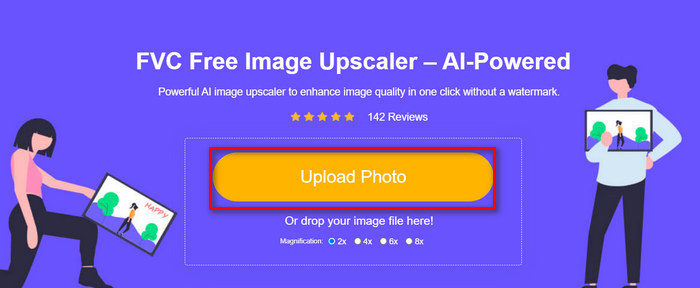
Step 3. Now, choose how you want to be upscaled. You can choose to upscale your image from 2x up to 8x. That way, you can resize your image without losing quality.
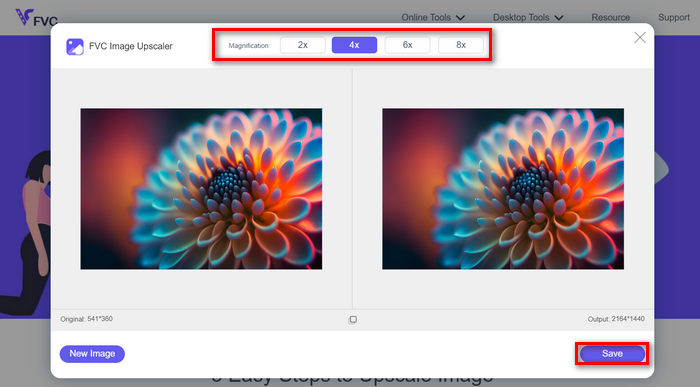
Step 4. Once done, click the Save button, and it will automatically download the new resized file to your computer.
This AI-powered image upscaler is a great tool for resizing images without losing quality. This feature does not just resize the image but also upscale or enhance it.
Parte 4. Comparação de 3 métodos para redimensionar uma imagem sem perder qualidade
| Ferramenta de redimensionamento de imagem | Compressão em lote | Rapidez | Facilidade de operação |
| FVC Free Image Compressor | Sim, até 40 imagens | Rápido | Extremamente fácil de usar |
| Photoshop | Não | Média | Bastante simples de operar |
| Upscaler de imagem gratuito FVC | Não | Rápido | Extremamente fácil de usar |
Parte 5. Perguntas frequentes sobre redimensionamento de imagem sem perda de qualidade
As imagens perdem qualidade quando são reduzidas?
Em parte, não. As imagens geralmente não perdem qualidade quando encolhidas. Encolher uma imagem ou reduzir seu tamanho retém os detalhes e a nitidez originais da imagem porque você não está perdendo informações de pixel. No entanto, a percepção de qualidade pode variar com base no método de compressão usado e na capacidade do software de lidar com o processo de redução de escala de forma eficiente.
Como redimensionar uma imagem no Paint sem perder qualidade?
Para redimensionar uma imagem no Paint sem perder qualidade, abra o Paint e carregue sua imagem. Depois disso, clique no botão de redimensionamento na guia inicial. Na caixa de diálogo de redimensionamento e inclinação, escolha a opção de porcentagem ou pixels. Certifique-se de que a caixa de seleção manter proporção de aspecto esteja marcada para manter as proporções da imagem. A partir daí, insira como deseja redimensionar sua imagem e clique em OK.
Qual é a melhor ferramenta para redimensionar imagens sem perder qualidade?
There are many excellent tools to resize images without losing quality. However, when it comes to the fastest way with a batch compression feature, the FVC Free Image Compressor tool is the best option. It allows you to resize up to 40 images simultaneously while maintaining high-quality results, making it highly efficient and user-friendly for all levels of users.
Conclusão
With the right methods and tools, you can resize images without losing quality. So, whether you choose any of those tools or not, the main goal is to find the right tool for you. Ready to enhance your images effortlessly? Try out these tools today and see the difference for yourself!
-
 Principais redutores de tamanho de imagem em desktops e dispositivos móveis
 Veja os aplicativos mais listados neste artigo para obter o melhor redutor de tamanho de foto em seu dispositivo favorito. Aprenda agora a melhor otimização de tamanho para imagens!
-
 5 melhores métodos para reduzir o tamanho da imagem em qualquer dispositivo
 Aprenda os métodos eficazes para redimensionar ou compactar o tamanho da imagem clicando nesta postagem. Descubra redimensionadores de fotos excepcionais e suas instruções passo a passo.
-
 Remover pessoas das fotos: edição de fotos rápida e simples
 Você quer se livrar das pessoas da sua foto? Leia este artigo, pois mostramos os melhores e mais fáceis métodos para remover pessoas de fotos usando aplicativos.
