


 Video Converter Ultimate
 Gravador de ecrã
 Reparo de vídeo
 Secure Download
Aprenda maneiras sobre como redimensionar fotos para o Instagram
Instagram is a famous social media application where you can upload and view amazing images of your friends' posts. Many millennials and adults use it among the leading social media applications. However, Instagram can only upload pictures with a ratio of 4:5 on portrait photos. This feature of Instagram cuts the very tall images that take up much vertical space on the feed. Although it is good that Instagram limits the photos with too much vertical size, many people have difficulty uploading their pictures. In this guidepost, we will help you upload photos with large vertical sizes on Instagram by resizing the image. Read this article thoroughly to learn the best ways to resize photos for Instagram.

Parte 1. Como redimensionar fotos para o Instagram online grátis
Redimensionar uma imagem não significa apenas reduzir ou ajustar as dimensões da sua foto. Se você tiver uma imagem desfocada, também será necessário redimensionar sua imagem. E nesta seção, discutiremos e mostraremos como redimensionar uma imagem usando o melhor aplicativo de redimensionamento de fotos online gratuito.
FVC Free Image Upscaler is an online application for resizing images. This photo resizing tool can upscale your low-quality image by 2x, 4x, 6x, and 8x magnification. In addition, you can resize your image without losing its quality. Also, it supports the most standard image formats, such as PNG, JPG, JPEG, and BMP. It is also a user-friendly program because it has a simple user interface. Plus, it uses an AI-enhancing process, automatically detecting the blurry parts of your image and then enhancing it.
Moreover, you can see the changes made to your image because it has a preview feature. And although it is an online application, you will not have a problem uploading images because it has a fast uploading process. What’s even excellent about this application is that it is accessible on all web browsers, including Google, Firefox, and Safari. So if you have a low-quality image that you want to upload on Instagram, read the steps below to learn how to resize your image using FVC Free Image Upscaler.
Como redimensionar fotos para o Instagram usando o FVC Free Image Upscaler
Step 1. Open your web browser and type FVC Free Image Upscaler in the search box. You can just click this link to head directly to the main website. Then, launch the application by clicking the Upload Photo button.
Step 2. After launching the app, click the Upload Photo button to add the image you want to resize.
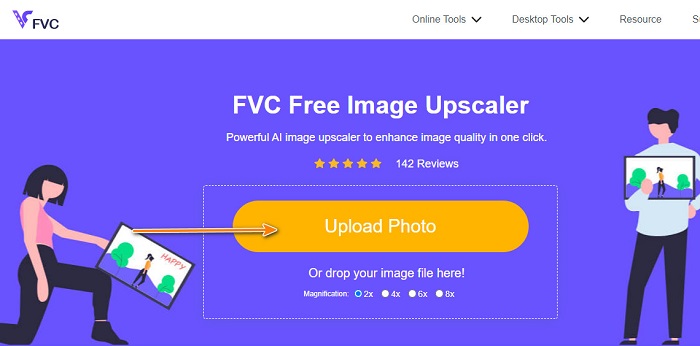
Step 3. And right after you upload your video, select the magnification you prefer for your image. You can choose between 2x, 4x, 6x, and 8x magnification.
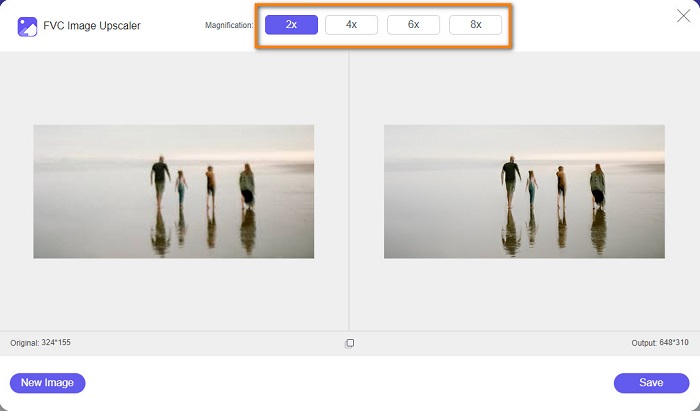
Step 4. Right after selecting the magnification, you will see that FVC Free Image Upscaler automatically resizes your image. If you want to check the result of your output, move your cursor to the right image.
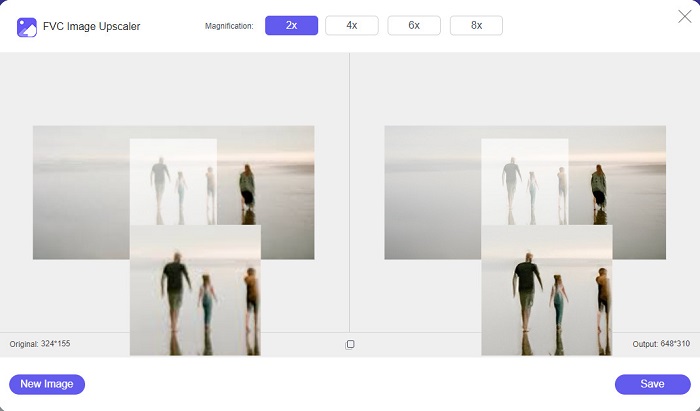
Step 5. And finally, tick the Save button at the bottom-right corner of the interface to save the output on your computer files.
Parte 2. Como redimensionar imagens para Instagram no iPhone
Como redimensionar uma imagem para o Instagram no iPhone usando o aplicativo Fotos
Se estiver usando um dispositivo iPhone, você pode usar o aplicativo Fotos integrado no seu dispositivo para redimensionar uma imagem. Usando o editor embutido no aplicativo Fotos, você pode cortar facilmente as dimensões da sua imagem com base no que o Instagram exige. Abaixo estão as etapas para redimensionar fotos para o Instagram usando o iPhone. Mostraremos outro método para redimensionar uma imagem usando um aplicativo.
Step 1. On your iPhone device, open the Photos app and find the image you want to resize. Then, tap the Edit button to proceed to resize your image.
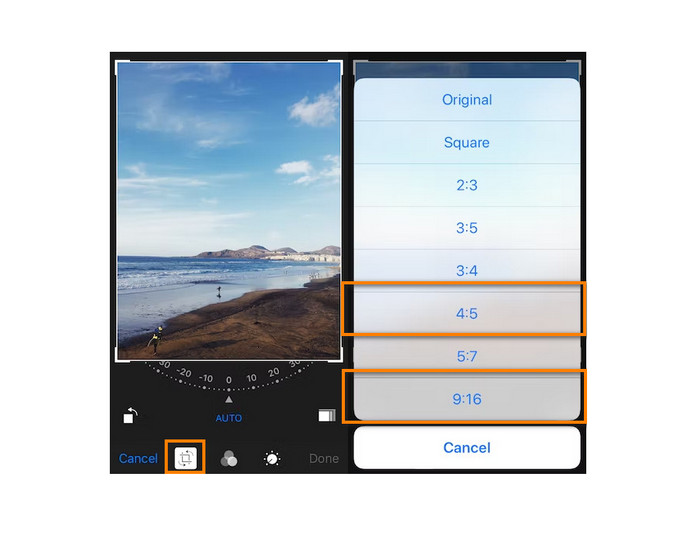
Step 2. Next, tap the Crop icon and the rectangular icon in the lower right corner of your screen.
Step 3. Select the aspect ratio that you prefer for your image. To upload it on Instagram, select the 4:5 or 9:16 ratio. Adjust your image, and tap the Done button to finish the process.
Como redimensionar uma imagem no iPhone para Instagram usando o aplicativo Resizer
Another way to resize your image on your iPhone is by using Resizer. Resizer is a photo resizing application that you can install on your PlayStore. It is easy to navigate because it has a simple GUI (Graphical User Interface). In addition, it has a feature where you can rotate and crop your image based on your preference. You can also choose many sizes that you can select from. Despite that, you can still resize your image in custom mode.
Furthermore, it has a fast exporting process, which makes it a convenient-to-use application. The downside of Resizer is that it contains many disturbing ads. Nonetheless, it is still a good photo resizer app because it is free and easy to use.
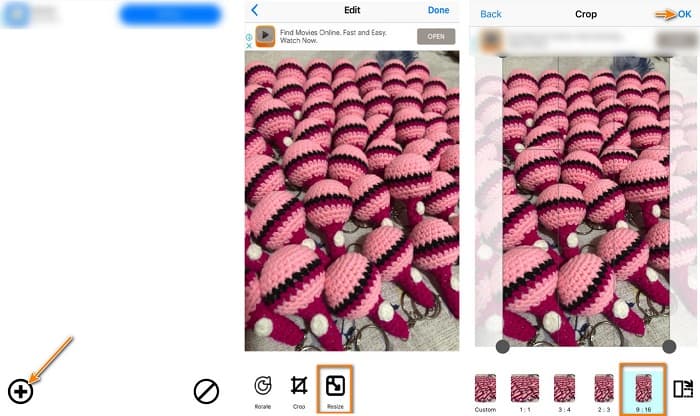
Step 1. To begin, install the Resizer app from your AppStore, and then open the app once it is installed. And then, on the first screen, tap the + icon to select your image.
Step 2. Next, tap the Resize icon from the editing options below. And then, a list of sizes will prompt. Select the 9:16 ratio, and proceed to the next step.
Step 3. After choosing the right ratio for your image, tap the OK button to download your output.
Parte 3. Como redimensionar fotos para Instagram no Android
Como redimensionar fotos para o Instagram usando o aplicativo Gallery
Existem também aplicativos e métodos que você pode usar se for um usuário do Android. Você pode instalar vários aplicativos de redimensionamento de fotos em seu Google Play ou Play Store gratuitamente. Mas se você não deseja instalar aplicativos e deseja economizar espaço no seu dispositivo, pode usar o editor de fotos integrado no seu aplicativo Galeria. Abaixo, mostraremos as etapas simples para redimensionar uma imagem usando seu telefone Android.
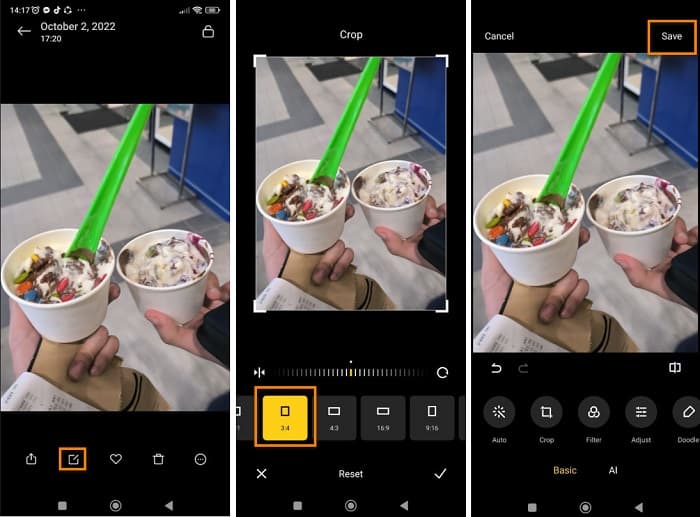
Step 1. Open the Gallery app on your Android. Select the image you want to resize for Instagram. Then, tap the Edit icon from the bottom part of the screen.
Step 2. And then, tap the Crop icon from the editing options. Select the ratio that you want for your image. Tap the 3:4 or 9:16 options, which are standard for pictures on Instagram. And then tap the Check icon.
Step 3. To save your output, tap the Save button at the screen's top-right corner. The output will be saved on your Gallery with its new ratio.
Como redimensionar uma foto para o Instagram usando o Photo & Picture Resizer
Photo & Picture Resizer is an application that many Android users use for resizing an image. This app can resize images from your gallery, and you can take photos and then resize them immediately. It has an easy-to-use screen interface, which makes it a beginner-friendly application. Moreover, you can choose to resize your image by percentage, width x height, file size, or resolution & file size. There are many sizes that you can select from. Also, you can download this application for free without signing in or logging in for an account. However, you need internet access to use this app. And it also contains tons of pesky ads that might distract you while you resize.
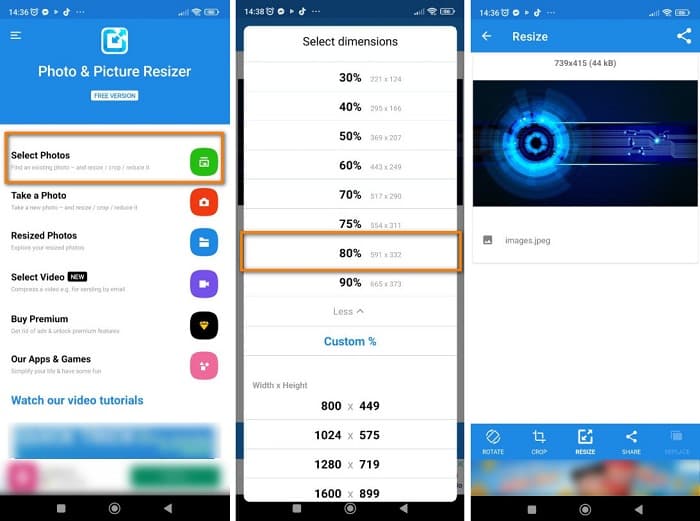
Step 1. Install Photo & Picture Resizer on your Android phone. Then on the app’s first interface, tap the Select Photos option to import the image you want to resize.
Step 2. Tap the Resize option from the options below to resize your image. And then, choose the new size for your image. Tap the 80%, which is the same value as the 4:5 ratio, an Instagram standard.
Step 3. Next, Photo & Picture Resizer will automatically save your output on your Gallery. Wait for the app to finish uploading, and that’s it! Your image is now resized.
Parte 4. Perguntas frequentes sobre como redimensionar fotos para o Instagram
O redimensionamento de uma imagem afeta sua qualidade?
Muitas vezes, reduzir ou redimensionar as dimensões ou o tamanho de uma imagem não afetará sua qualidade. No entanto, redimensionar uma foto maior que suas dimensões originais pode arruinar a qualidade da sua imagem.
Qual é o melhor aplicativo para redimensionar uma imagem em um iPhone?
PicsArt, Image Size é o aplicativo de edição de fotos mais usado e recomendado para usuários de Android e iPhone. Muitas pessoas usam este aplicativo para redimensionar suas imagens.
Posso usar o Instagram para redimensionar imagens?
Yes. If you want to resize an image using the Instagram app, tap the Edit option and select Adjust. Pinch to zoom in on your vision, and adjust your photo until you get the correct dimensions.
Conclusão
All in all, it is not hard to resize a photo for Instagram. You just need to be mindful of the applications that you will use. Whichever of the methods we presented above can help you achieve your goal. But if you prefer using a free and safe-to-use tool to resize images without losing quality, try FVC Free Image Upscaler now!
-
 Como usar o GIMP para redimensionar imagens: processo passo a passo
 Se você quiser redimensionar sua imagem, você pode usar o GIMP para fazer isso. Leia este post do guia completamente para aprender como usar o GIMP para redimensionar uma imagem online no seu PC.
-
 Como redimensionar imagem no Illustrator com 2 maneiras diferentes
 Aprenda as melhores maneiras de redimensionar uma imagem no Illustrator. Para começar, baixe e abra o aplicativo Adobe Illustrator no seu PC e siga estas etapas simples.
-
 FastStone Photo Resizer – Um aplicativo poderoso para redimensionar imagens
 FastStone Photo Resizer é um ótimo aplicativo para redimensionar imagens. Clique neste post para saber mais sobre o FastStone Photo Resizer e a melhor alternativa para a ferramenta.
