


 Video Converter Ultimate
 Gravador de ecrã
 Reparo de vídeo
 Secure Download
Como afinar rapidamente a imagem no Photoshop - um guia completo que você deve conhecer
With the best expert choice image editor, you can process every image you have to another level. Adobe Photoshop has been the most prolonged reliable software you can download on Windows, Mac, iOS, and Android. Thanks to its developer Adobe, it has already introduced and revolutionized editing to its maximum potential. Due to its advanced feature, the new editor became afraid of it because of its UI and overall functionality. It may seem hard to use, but it is not especially sharpening your image. Here, we will cover up a complete tutorial on how to quickly sharpen the image in Photoshop.

Parte 1. Um tutorial completo sobre como afinar a imagem no Photoshop [3 maneiras eficazes de afinar]
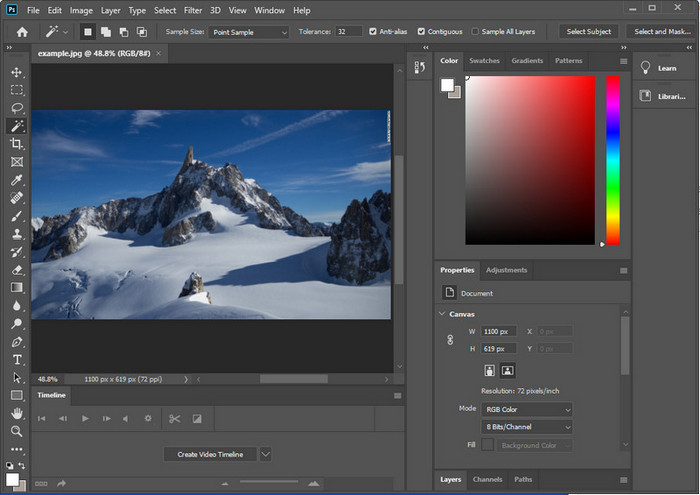
A nitidez das imagens do Photoshop pode sobrecarregar aqueles que não usaram este programa. Mas antes de prosseguirmos com o tutorial, você precisará baixar o software oficial na Adobe. Por favor, escolha o botão de download correto para tê-lo em sua área de trabalho. Se você não baixou este programa em sua área de trabalho, você pode usar sua avaliação gratuita, mas se você tiver concluído a avaliação, precisará adquirir um plano mensal ou anual. Depois de tudo a seguir, prossiga para as etapas de sua escolha de maneiras que incluímos abaixo.
1ª Via. Como tornar a imagem nítida no Photoshop usando High Pass:
O Highpass permite destacar a imagem e aplicar um filtro à imagem que pode ajudá-lo a aguçar as bordas da foto que você carrega no Photoshop. Você pode seguir o tutorial que adicionamos abaixo para aprender como aplicar e usar o highpass nas imagens que você possui.
Step 1. Launched the software, clicked File, and pressed Open to upload the image and start adding sharpening.
Step 2. Duplicate the layer of the image you upload on Photoshop.
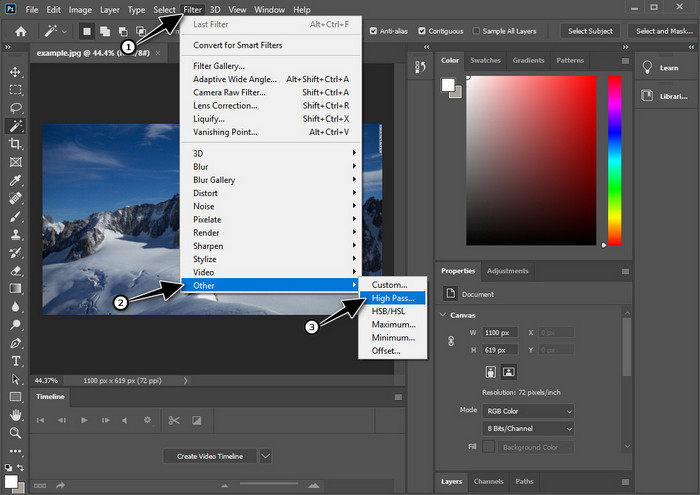
Step 3. On the upper section, click the Filter menu, press the Other, and High Pass. No need to worry if your image becomes gray because that will happen if you add a high pass on it.
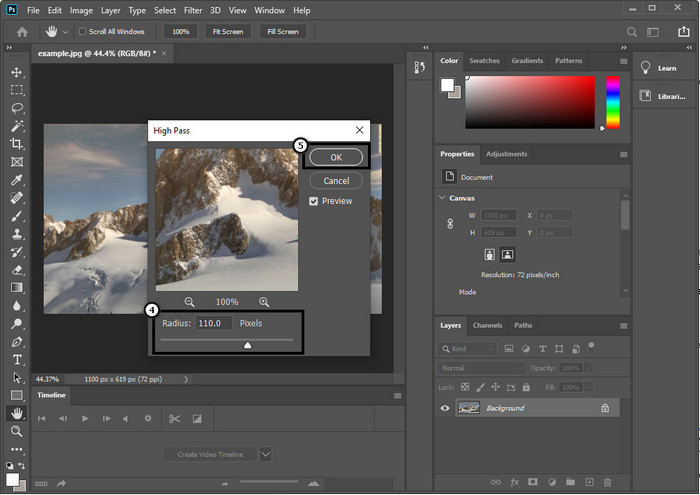
Step 4. A pop-up window will appear on your screen where you can start dragging the slider to increase the radius and have good details on your image. Then press OK to save it.
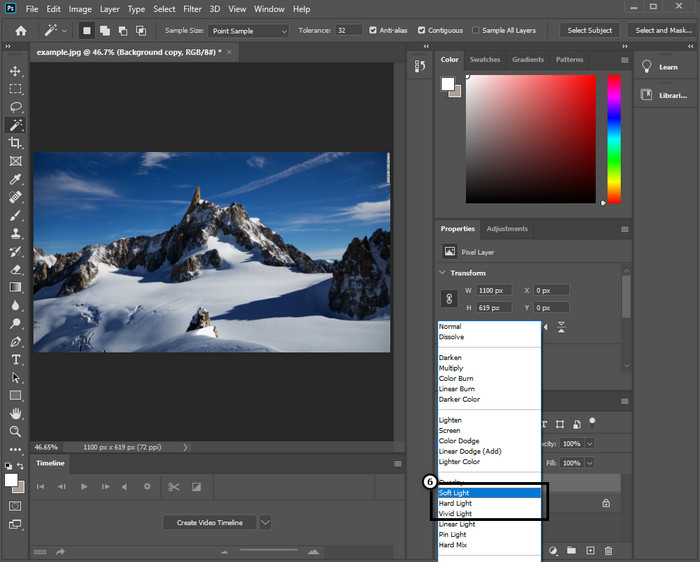
Step 5. Back to the layer, click the drop-down button, and choose what type of light you want to apply to your image, from soft, hard, and vivid light to sharpening. Repeat step 3 up to this step to make re-sharpening your image.
2ª Via. Como tornar a imagem mais nítida no Photoshop com o Smart Sharper:
Smart Sharper is an effective feature you can access on Adobe Photoshop to sharpen everything on your image. This feature is not an automatic solution, but you will need to tweak some parameters to make everything look sharp. So, if you want to use the feature on Adobe, you can follow the subsequent steps we included.
Step 1. After you've added the image, you want to sharp click the Filter menu.
Step 2. On the option that will show, click the Sharpen, then press Smart Sharpen.
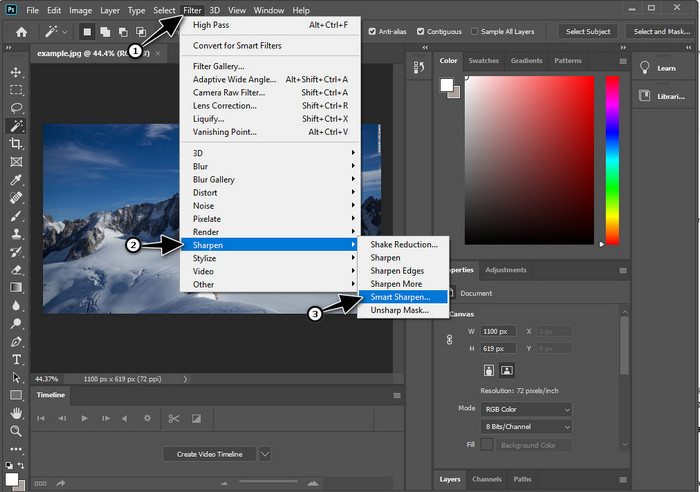
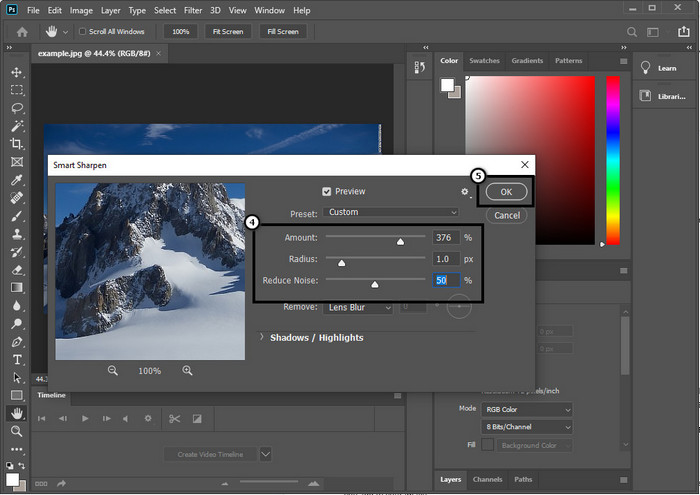
Step 3. Adjust the number of amount and radius of sharpness based on your preference and click OK to save the changes. As easy as that, you have sharpened the photo with this software's sharpening tool.
3ª Via. Como melhorar a nitidez da imagem na foto ajustando o brilho e o contraste:
Ao contrário das duas maneiras que apresentamos, o brilho e o contraste se concentram em destacar a imagem que você carrega para torná-la mais detalhada, como o que as ferramentas de nitidez fazem. Poucos usuários conhecem essa opção, portanto, se você quiser usar essa opção e começar a aprimorar a imagem que possui, siga as etapas abaixo.
Step 1. After uploading your image to Photoshop, proceed by clicking the Image menu.
Step 2. Several options will show; hit the Adjustment, then click the Brightness and Contrast.
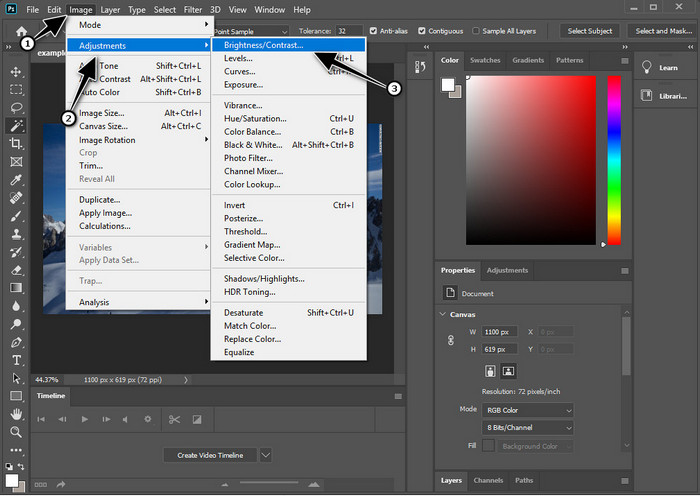
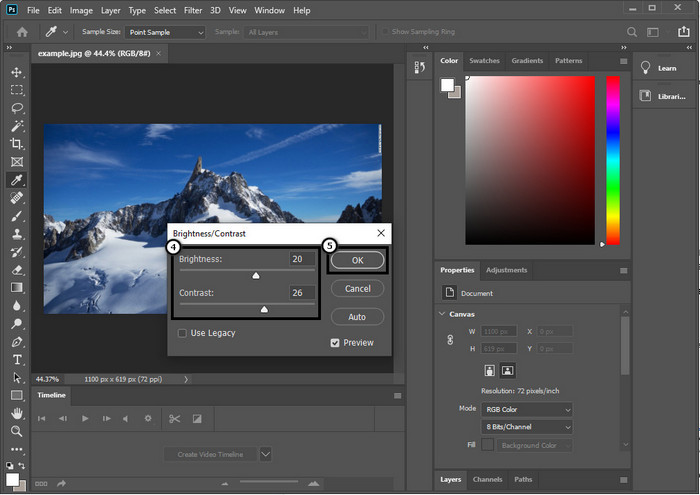
Step 3. Tweak the brightness and contrast by dragging the slider and pressing OK to save the changes you add to your image.
Related:
Simple Guide on How to Add Watermark to a Video in Photoshop Quickly
Parte 2. Melhor alternativa ao Photoshop para melhorar a nitidez da imagem online [serviço gratuito]
How to sharpen a blurry image in Photoshop without the app? You can use the FVC Free Image Upscaler. This online tool can save you from doing complicated things here. Upload the image and let the AI technology this software have to do the work for you. Also, you wouldn't need to purchase the software license key or premium version because it is free for all users who need to edit their pictures immediately. Even though you aren't an editing expert, you can still manage to sharpen your image by following the indicated steps below.
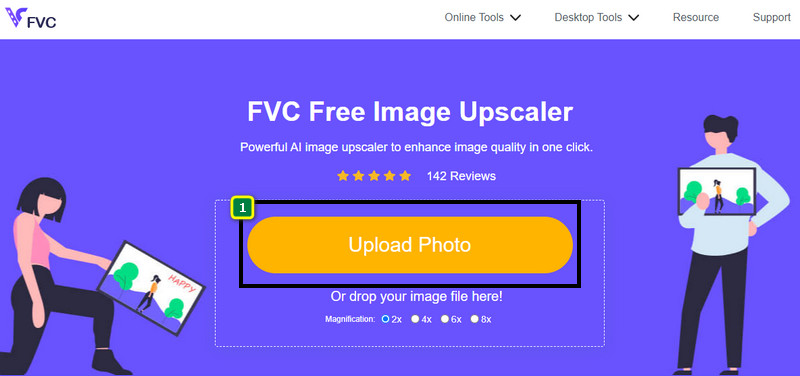
Step 1. You need to click this link to open the web tool and sharpen your photo.
Step 2. On the website, you will need to press Upload Image to insert the picture you want to sharpen. A folder will show on your display, select the image, then click Open to upload it.
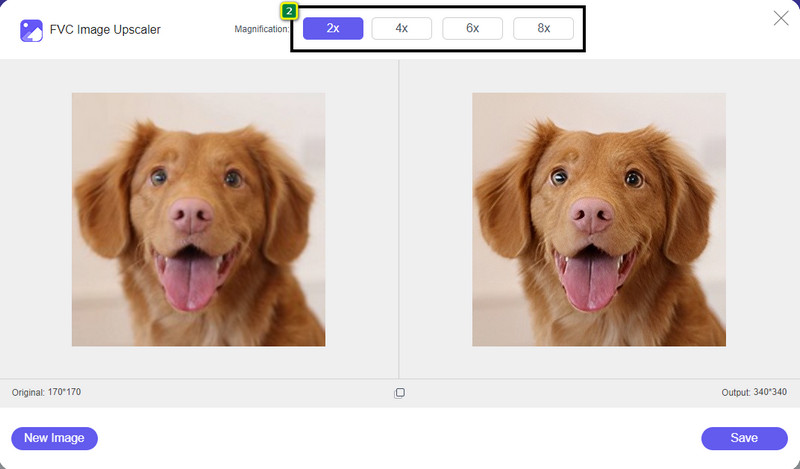
Step 3. There will be various magnification options to your image to sharpen the image easily with the help of AI technology.
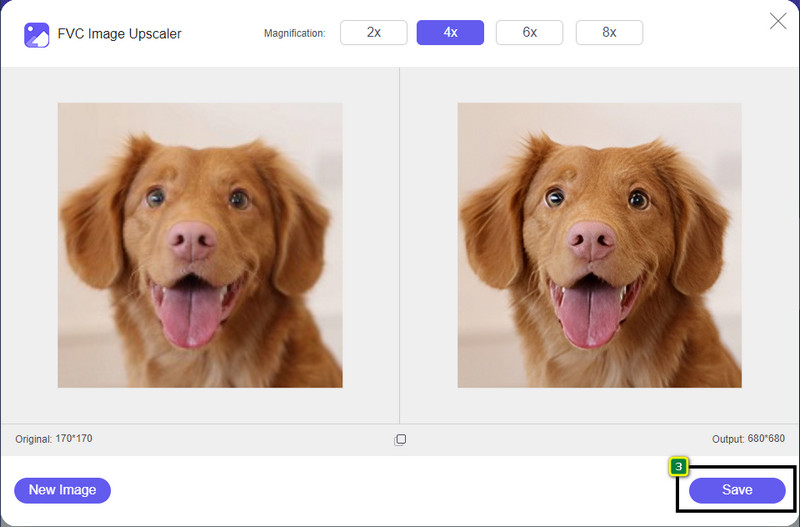
Step 4. On the lower part, click the Save button to download the sharpened image on your local drive.
Parte 3. Perguntas frequentes sobre como aprimorar imagens no Photoshop
O que devo fazer se uma avaliação gratuita do Photoshop for encerrada?
Suppose you want to continue using this professional image editor that Adobe develop. In that case, you will need to purchase a plan to continue using this editor. But if you want to experience the same editing features similar to Photoshop, start using the FVC Free Image Upscaler.
O que posso fazer com o Photoshop?
Você pode fazer uma infinidade de edição de imagem e vídeo aqui, que o outro editor não oferece. É um editor de imagens completo que você precisará para criar coisas incríveis, como transformar a imagem 2D em 3D e muito mais. No entanto, este software é um pouco complicado e você precisará dedicar seu tempo para dominar como usá-lo em geral.
Onde posso baixar o Photoshop?
O Adobe Photoshop oferece suporte ao Windows 10 com 64 bits ou posterior e Mac 10.15 Catalina ou posterior. Além disso, ele suporta uma versão móvel, o Photoshop Express Photo Editor.
Conclusão
With the tutorial we add on how to sharpen the image in Photoshop, you can now easily sharpen it in different ways using the best editor. What if your free trial is finished and wants to sharpen the image? What should you do? You shouldn’t worry because we add an online alternative to sharpen the image easier and free as long as you have internet, and that is FVC Free Image Upscaler.
-
 Faça Photo HD com as melhores maneiras que você pode encontrar no mercado
 Você está se perguntando ou quer fazer foto HD? Você pode seguir o tutorial que adicionamos abaixo com diferentes soluções que você pode usar.
-
 Os 4 principais redutores de qualidade de imagem que você pode usar online e offline
 Esses redutores de qualidade de imagem podem ajudá-lo a reduzir a qualidade de sua imagem por alguns motivos. Se você precisava de um, leia este artigo!
-
 Maneiras oficiais de aumentar a imagem para 4k com um tutorial prático
 Para aumentar a imagem para 4k, você precisará de um software no seu dispositivo. Se você não tiver um, precisará selecionar a ferramenta que incluímos aqui.
