


 Video Converter Ultimate
 Gravador de ecrã
 Reparo de vídeo
Melhores e fáceis de usar conversores que converte MOV para WMV Você deve tentar!
Apple created MOV files, and it is one of the most common file formats along with WMV, MP4, and AVI. MOV files can run through Windows through the use of Quicktime. Therefore, if you want to convert your MOV file, we suggest converting it to a WMV file. Because Windows System usually plays this file format. Therefore, if you want to know how to convert MOV to WMV, this is the perfect article for you to read.

Parte 1. Converta seu MOV para WMV usando o melhor conversor offline
When it comes to converting files, there is no doubt that FVC Video Converter Ultimate can do it best. This converter is an offline tool that allows you to convert your MOV file to WMV, AVI, MP4, M4V, WebM, and more. It also has fantastic features that allow you to edit, enhance, merge, and compress your MOV file. Moreover, this file converter has a feature to enable ultra-fast conversion and convert your MOV to WMV quickly.
Como converter MOV para WMV usando o FVC Video Converter Ultimate:
Step 1. Install FVC Video Converter Ultimate by clicking the Free Download icon below. You can download this converter in both Windows and MacOS. Then follow the installation process, then run the app.
Free DownloadFor Windows 7 or laterSecure Download
Free DownloadFor MacOS 10.7 or laterSecure Download
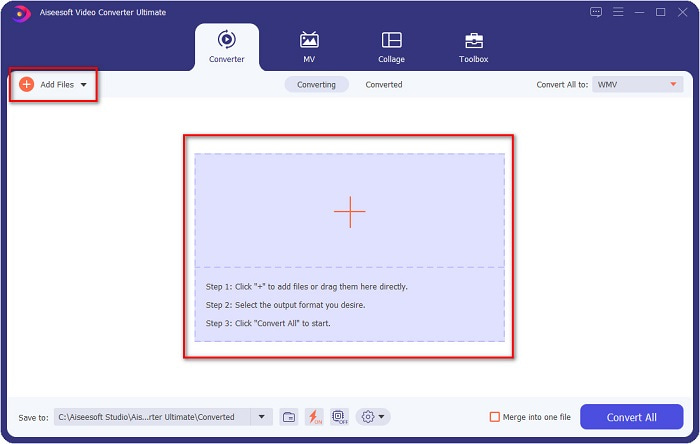
Step 2. After running the program, you will see the first interface of the converter. Click Add Files, or you can drag and drop your MOV file to the + sign to begin the conversion of your MOV file to the WMV file.
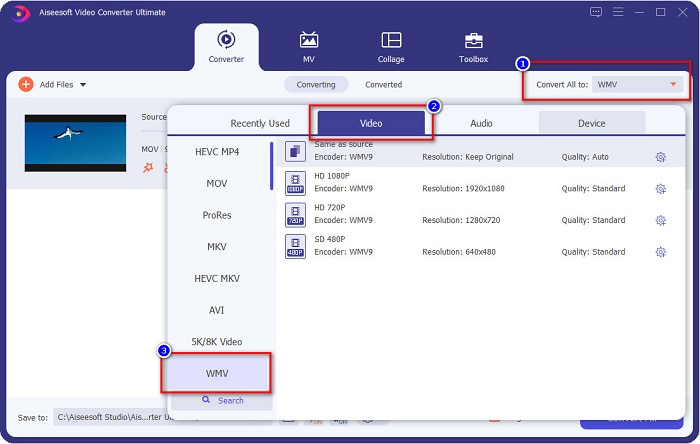
Step 3. Then click the Convert All to button. A list of file formats will appear where you can select your desired file format. And then click the WMV file format.
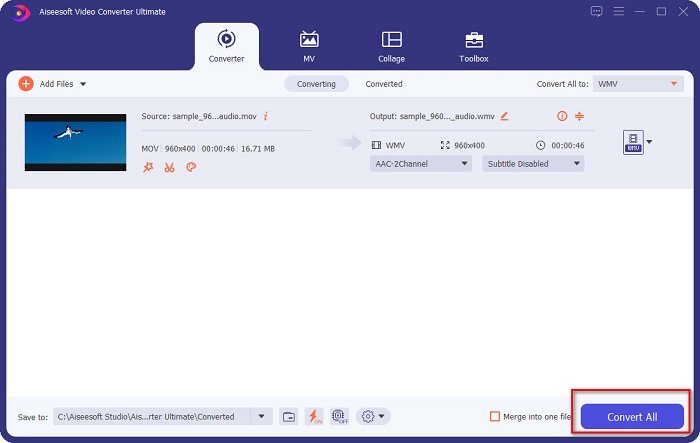
Step 4. After you select the WMV format, tick the Convert All button at the bottom right corner to begin your conversion. Then your MOV to WMV file will start to convert. Lastly, just wait for a few seconds, and that is it! With those simple steps, you can convert MOV to WMV files easily.
Prós
- Tem uma opção onde você pode ter uma conversão ultra-rápida.
- Permite editar, aprimorar e compactar seu arquivo.
- Pode converter vários formatos de arquivo, incluindo MOV, WMV, AVI, MP4, M4V, VOB, MPG e muito mais.
Contras
- Para acessar seus recursos especiais, você precisa comprar o aplicativo primeiro.
Parte 2. Converter MOC para WMV usando um freeware
Ao converter seu arquivo MOV para WMV, você também pode usar freeware já em sua área de trabalho. Um dos famosos conversores de freeware disponíveis hoje está usando o media player VLC como seu conversor. O reprodutor de mídia VLC é um reprodutor multimídia que permite reproduzir vários formatos de mídia. Além disso, este freeware também pode converter arquivos. Portanto, leia as etapas abaixo se você deseja converter MOV para WMV com freeware usando o VLC.
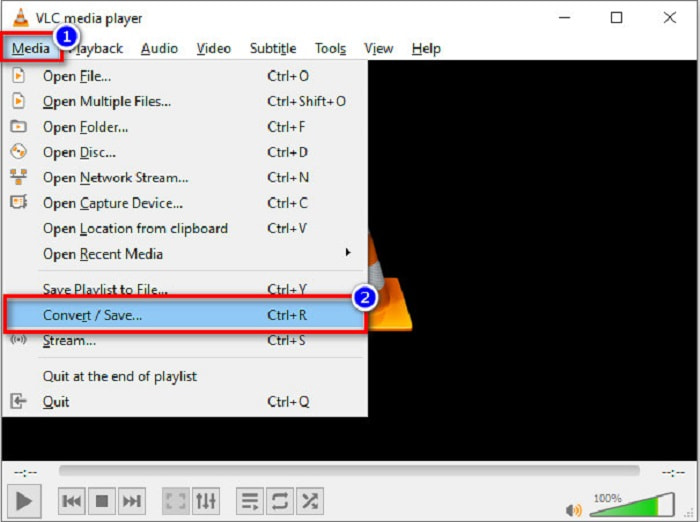
Step 1. Open the VLC Media Player, click the Media option located above the software's interface, and select Convert/Save.
Step 2. After, click the Add button to select your MOV format. The file format will appear in the list. Then click the Convert/Save button to proceed to the next step.
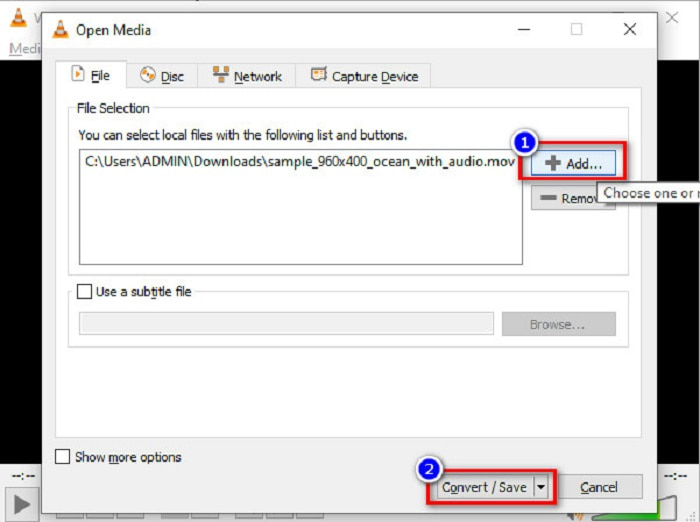
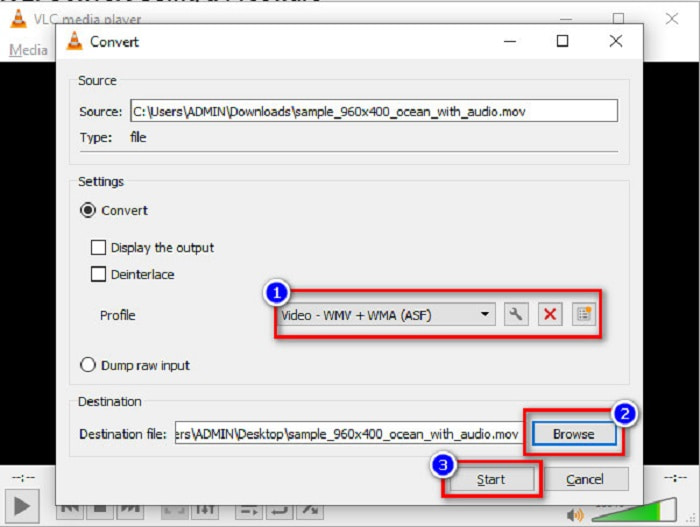
Step 3. Lastly, select WMV and choose your destination files by clicking Browse, then click the Start button to start the conversion.
Parte 3. Converter MOV para WMV usando um conversor online
If you wonder how you can convert MOV files to WMV files online, we have an online tool just for you. FVC Free Video Converter Online is an online converter that allows you to convert your MOV files to WMV, MP4, AVI, MPG, and more. This converter is easy-to-use, so you will not have difficulty converting files. However, you may encounter slow conversion because this converter is web-based. Nevertheless, it is an efficient converter to convert videos from MOV to WMV online, and many people use it.
Aqui estão os passos sobre como você pode converter usando este conversor online:
Step 1. First, open your browser, then search FVC Free Video Converter Online.
Step 2. After opening the converter in the browser, click Add Files to Convert. Then the converter will start to launch. And then you will be directed to your computer files, where you will choose your MOV file, to be converted.
Download the Desktop Version to convert files in batch.
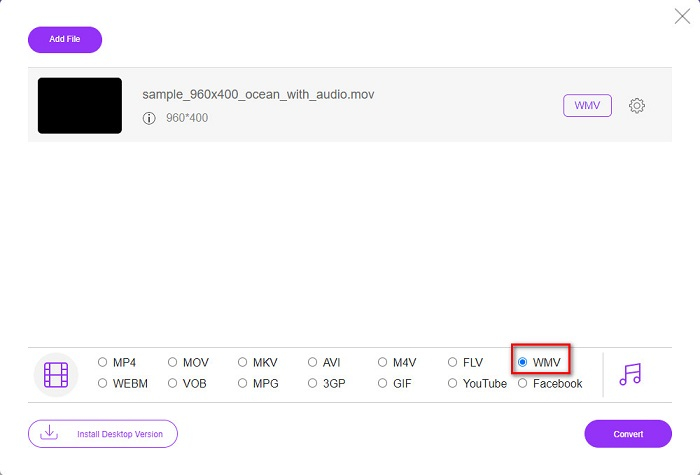
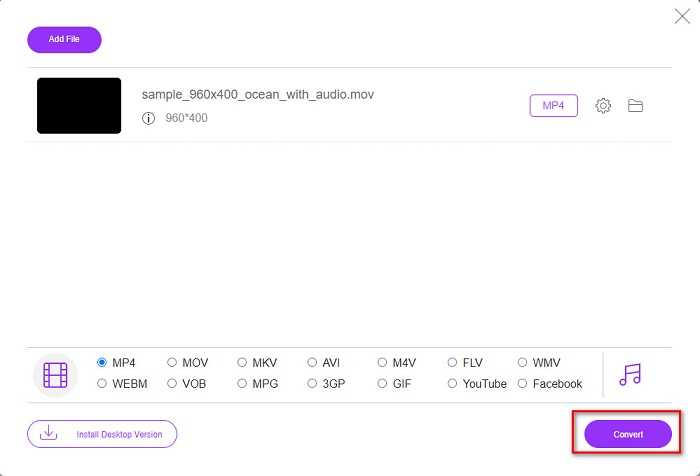
Step 3. In the second interface of the software, below, you will see the list of file formats where you can choose the WMV file format that you want.
Optional. By clicking the setting button, you can change the resolution and the video bitrate of your file. Then click OK to set your adjustments.
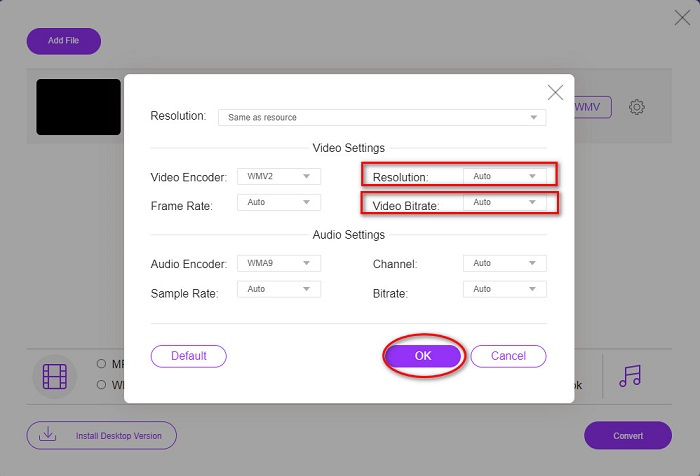
Step 4. After selecting WMV format, tick the Convert button to convert your MOV file to a WMV file. Lastly, wait for your conversion to be completed. And there you go! As simple as that, you can convert MOV to WMV.
Parte 4. Conhecimento estendido de arquivos MOV e arquivos WMV
MOV is a file format that MacOS widely supports. Although you can play MOV files in Windows, you still need the support of Quicktime. In addition, the MOV file is saved in the Quicktime File Format. Since it is mainly supported by Quicktime and Mac platforms, it has grown to be one of the most common file formats present today. In comparison, WMV or Windows Media Video is supported by many devices, primarily the Windows System. Moreover, this file format uses a compressor, which allows you to make your file size smaller, without the quality being affected.
MOV vs. WMV
O formato MOV pode ser usado para armazenar um filme, programa de TV, videoclipe curto ou filme caseiro. Na verdade, ele é salvo no formato de arquivo QuickTime (QTFF), que foi introduzido pela Apple em 1991. Os arquivos MOV são frequentemente usados quando as pessoas desejam salvar um vídeo com alta qualidade.
Produzido pela Microsoft, o WMV era um dos formatos de vídeo mais comuns nos anos 2000. Ele pode ser visto na web e reproduzido por vários players de mídia no Windows. E também é o formato de arquivo de vídeo padrão do Windows Media Player. Mas foi assumido por outros formatos recentemente.
Parte 5. Perguntas frequentes sobre como converter MOV para WMV
A conversão de MOV para WMV afeta a qualidade do meu arquivo?
Existem alguns casos em que a qualidade do seu arquivo será afetada, dependendo do conversor que você usará. Existem conversores que não suportam vídeos de pixel de alta qualidade.
O QuickTime suporta arquivos WMV?
QuickTime players cannot support WMV files. However, you can convert your WMV files to file formats that are supported by Quicktime, including MOV, MP4, M4V, and more. For more information on converting WMV to MOV, click this link.
Você pode compactar arquivos MOV?
Using a ZIP file can compress MOV files and other files. However, compressing MOV files using ZIP will only reduce a small percentage of it. Therefore, we recommend converting your file to a smaller size file format using the converters presented above.
Conclusão
As presented above, there are varieties of converters to choose from. You can choose if you want an online, offline, or freeware converter. These converters have different distinctions and features that you can try. However, we recommend using FVC Video Converter Ultimate because it has more features than other converters. Also, it can convert ultra-fast and efficiently. Download it now to experience these fantastic features that his converter offers.
-
 [Free & Online] 4 Métodos para Converter MOV para MP4
 Quer converter arquivos MOV (Apple QuickTime Movie) para MP4? Esta postagem compartilha 4 métodos gratuitos para converter seus arquivos de vídeo MOV para o formato MP4 no Windows 10/8/7 / XP e Mac OS X.
-
 4 melhores métodos para converter MOV para MP3 no Windows e Mac facilmente
 Quando você deseja extrair os arquivos de áudio MP3 de arquivos MOV, você pode aprender mais sobre os 4 conversores MOV para MP3 mais eficientes para obter os arquivos desejados do artigo.
-
 2 maneiras fáceis de converter arquivos MOV para FLV no Windows / Mac
 Como converter MOV para FLV gratuitamente? Aqui estão os melhores conversores de vídeo para desktop e online para converter seu arquivo MOV para FLV em segundos, sem pagar um centavo.

