


 Video Converter Ultimate
 Gravador de ecrã
 Reparo de vídeo
Ferramentas excelentes que resolvem dúvidas sobre como converter MPEG para MOV
As a video and audio file compression standard, it also handles the transmission of these files in a more efficient manner. The Moving Picture Experts Group (MPEG) is given to experts who set the MPEG standards. These adaptations all have their specifications and use cases in the industry, making it difficult to know which. This will be a sneak peek at what this article talks about. Most of the topics talk about how to convert MPEG to MOV and some of its details and information provided. Continue reading as we discuss the differences and comparisons between the two video formats.
Parte 1. MPEG VS. MOV - Uma Introdução
MPEG is an outdated video file type that compresses video data using MPEG-1 or MPEG-2 compression. Internet video and DVD distribution are two common uses for this technology. The fact that it does not provide lossless compression and some of the flexibility offered by other formats makes t a poor format for video editing. Due to the fact that MPEG has been a standard for a long time, it is well supported by major browsers and video players and allows for streaming. It is an excellent choice for end-product video distribution over the Internet and DVD.
However, video in the MOV format is usually connected with the QuickTime multimedia player. Apple is the company that created this video extension. It compresses video and audio by utilizing an algorithm. Even though it is an Apple product, it is compatible with both MAC and Windows operating systems. Now that you know all about these two video formats, the next part will discuss all the best software and online tools you can use to convert MPEG to MOV and vice-versa.
Parte 2. Como converter MPEG para MOV no Mac
If you're looking for the right software you can use on Mac to convert MPEG to MOV, this article recommends Video Converter Ultimate. This software is free to download and available on both Windows and Mac. It is software that a wide range of users can use since it has a very accessible tool and user-friendly interface.
Além de outros softwares e ferramentas online que podem converter, este software tem um conversor que suporta vários formatos de vídeo e pode converter arquivos em menos de um minuto. Exceto por seu excepcional recurso de conversor, este software oferece diferentes ferramentas para aprimorar ainda mais o seu vídeo. Chega de detalhes descritivos sobre o software, vamos nos aprofundar nos procedimentos que você precisa seguir:
Step 1: Right-click on the Free Download icon that is provided below to begin the download process. Windows and Mac operating system computers are both supported with this software. After completing the download, you can install it and start using the software by clicking the Start Now button.
Free DownloadFor Windows 7 or laterSecure Download
Free DownloadFor MacOS 10.7 or laterSecure Download
Step 2: When you have downloaded the software, open it. It will appear in a window when the software is launched for the first time. Begin the conversion process by entering your video file here.
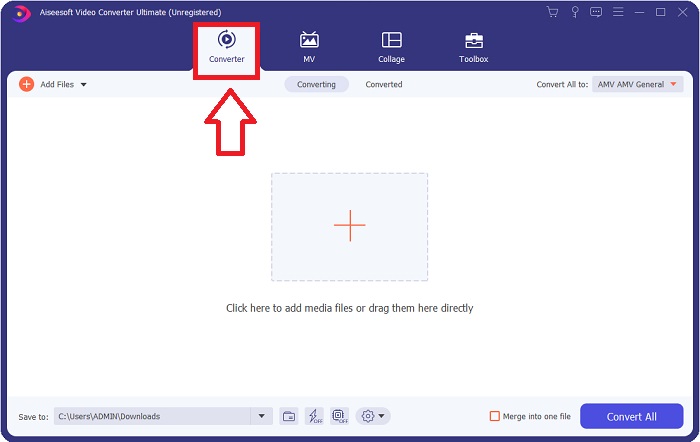
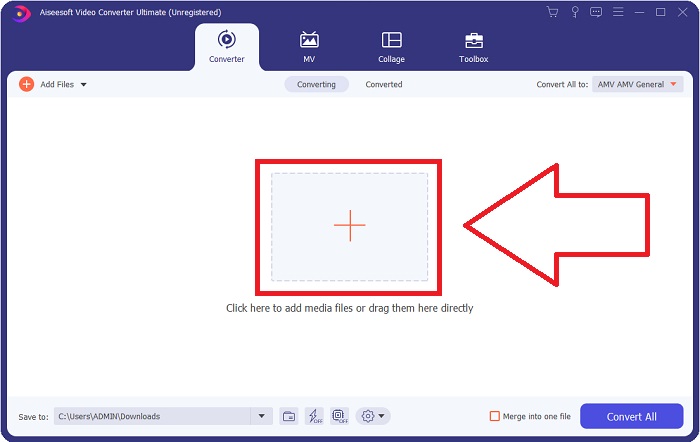
Step 3: Start the conversion process by uploading the files you want to convert into the converter. By doing this drag the video or you can click the + symbol.
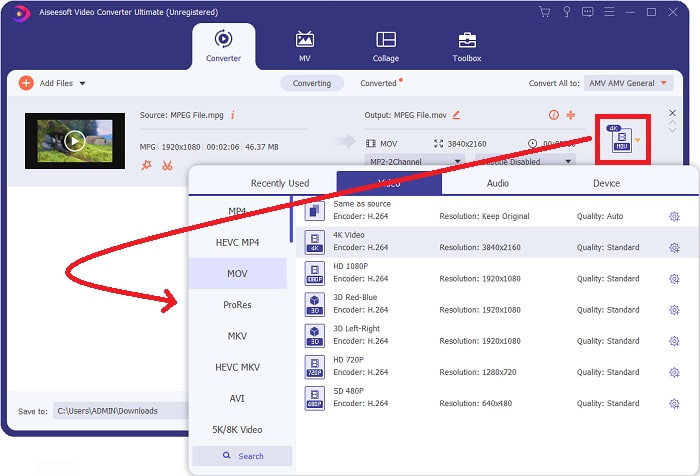
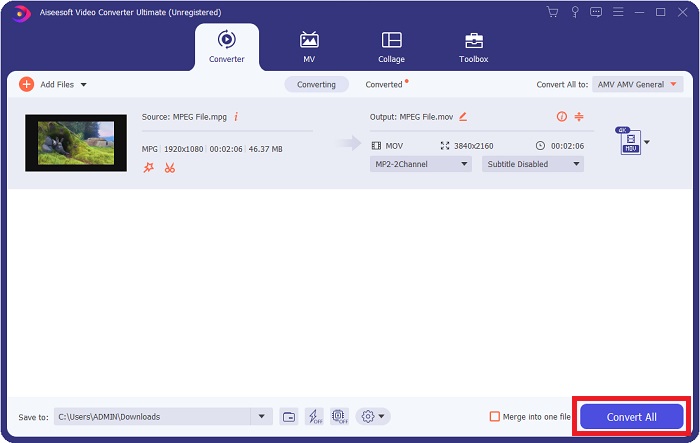
Step 4: The screen's upper-right corner displays an options menu, from which you can select a video format. On the drop-down menu of Convert All you can now select MOV as the video format. Depending on the MOV file you've chosen, you can choose from a range of video quality settings. You can also, however, change the quality settings if your preferred video output isn't provided. It is possible to alter the display's frame rate and audio quality by clicking on the gear icon. To save your changes, use the Create New button.
Step 5: When you've completed editing the video, and it's ready to be converted, click Convert All to begin the transfer.
Parte 3. Excelentes conversores online que ajudam a converter MPEG em MOV
Método 1. Use o Free Video Converter Online
FVC Free Video Converter Online is a multimedia converter that is free to use and supports wide range of. If you have high-definition video, you can easily convert it to formats like MP4, FLV, and WMV without losing quality. If you have a lot of videos or audio that you want to convert, you can do it without losing quality. This free video converting application is popular for converting and editing, giving users a wide range of options to fine-tune their videos. Let's buckle up and learn all the steps needed:
Step 1: This link will take you to the main page of the FVC converter's website.
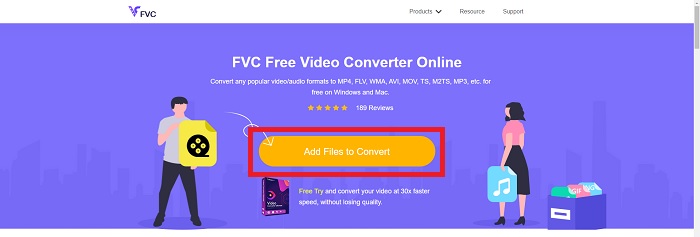
Step 2: For the first time, click on Add Files to convert to your right to acquire the launcher for your machine. Upon a second download, it will automatically begin. In your folder, locate the file and click Open to begin the download process again.
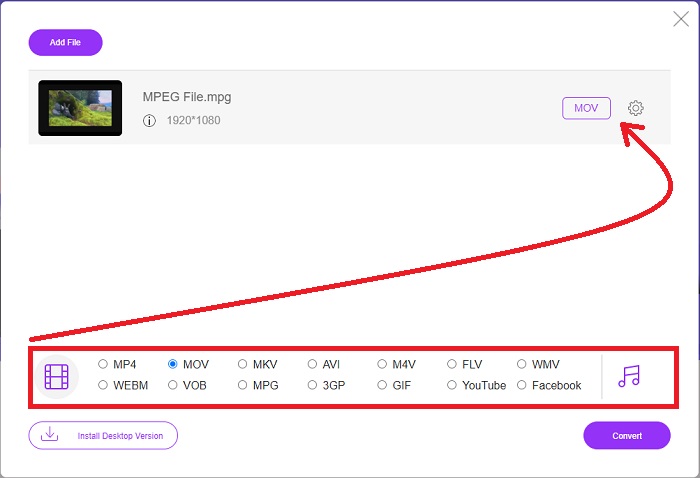
Step 3: To begin the conversion process before it ever begins, select a format from the drop-down option below and click on it.
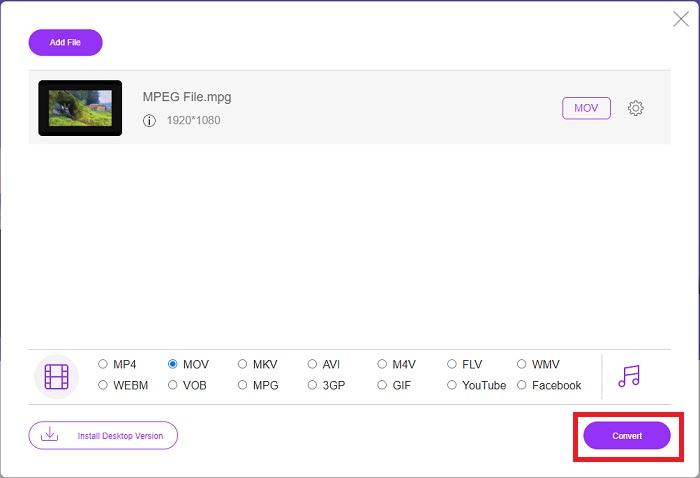
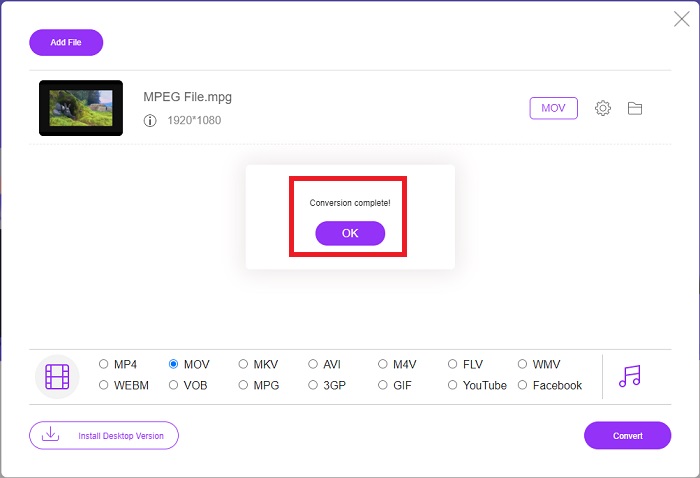
Step 4: After you've picked the MOV format to convert, click Convert to begin the conversion process.
Step 5: A few minutes later, you'll see a folder with the converted file, which you may then open and begin viewing.
Métodos 2. Use CloudConvert
CloudConvert is a file converter that works online. It is possible to play almost any kind of music or video file on our system. Converting files has never been easier with CloudConvert. It is possible to play almost any kind of music or video file on our system. You can also use our web tool without the need to install any software on your computer. With all being said, here are the steps you need to know:
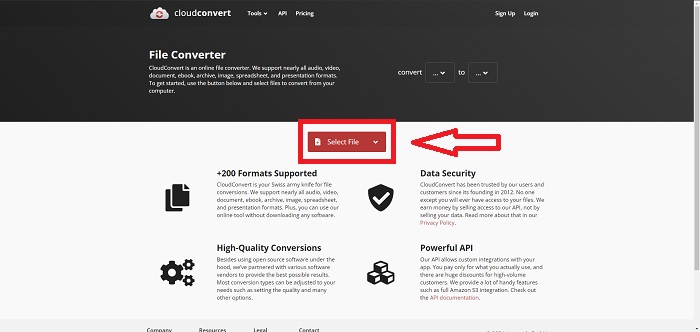
Step 1: At its main interface, you can already set the video format of your video file and the video format your video you want to convert to. Click Select File to upload a file from your computer.
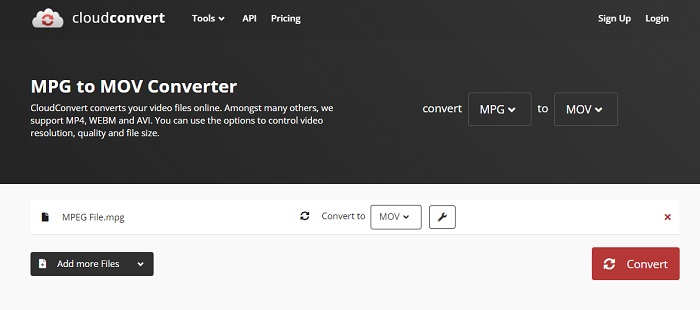
Step 2: You can choose what kind of video format you want to convert by clicking the ellipses beside the Convert button.
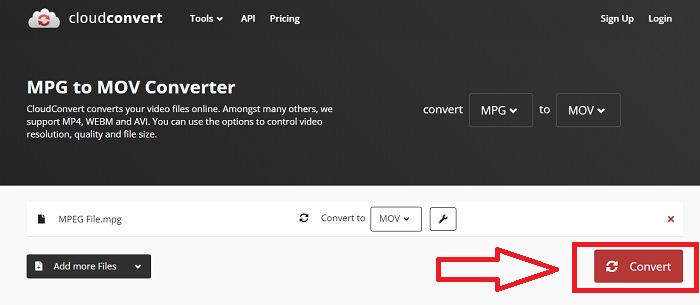
Step 3: After all the adjustments have been made, to start the conversion process, click the Convert button.
Parte 4. Gráfico de comparação: MPEG e MOV
| Extensão de arquivo | MOV | MPEG |
| Tipo de arquivo | Apple QuickTime Movie | Filme MPEG |
| Desenvolvido por | maçã | N / D |
| Prós | Filmes de alta qualidade e | Um dos poucos formatos |
| Multimídia pode ser compactada de forma mais eficaz com a ajuda de vários codecs. | Reconhecido por praticamente todos os leitores de DVD; permite uma melhor compressão. | |
| Contras | Apesar do fato de que muitos reprodutores de vídeo gratuitos podem reproduzi-lo, ainda tem problemas porque é um formato de contêiner contendo vários codecs. | Em geral, o formato MPEG possui um número menor de aplicativos e desenvolvedores por ser um padrão mais rígido. |
Parte 5. Perguntas frequentes sobre a conversão de MPEG em MOV
Como faço para reduzir o tamanho de um arquivo MOV?
Usando VideoConverter, você só precisa fazer é localizar o arquivo MOV que deseja editar e clicar com o botão direito do mouse para selecionar Propriedades no menu de contexto. Em seguida, selecione Geral e prossiga com Avançado no menu suspenso. Para economizar espaço de armazenamento, marque a caixa de seleção ao lado de Compactar conteúdo no menu suspenso. Clicar em OK fará com que o arquivo seja salvo em um tamanho menor do que o original.
Como comprimir arquivos MOV?
A MOV file can be compressed and archived on Windows by choosing it and pressing and holding the right mouse button until a popup window appears, then selecting Send to from the menu that appears. The compressed (zipped) folder should be chosen as the destination from the drop-down menu. Or you can use a video compressor to compress your MOV files.
MPG e MPEG são iguais?
As extensões de arquivo MPEG-1 e MPEG-2 também são usadas para se referir a arquivos MPG. Como um meio de manter os dados de áudio e vídeo sincronizados, os arquivos MPG de ambos os tipos atuam como arquivos contêineres para esses dados. Devido à sua compatibilidade com vários aplicativos, o MPEG-2 se tornou uma escolha popular para compactar arquivos.
Conclusão
Para resumir tudo o que discutimos, é difícil usar um formato de vídeo desconhecido para reproduzi-lo em alguns reprodutores de mídia, por isso um software excelente em que você pode confiar é o que você precisa. Video Converter Ultimate é o que este artigo mais recomenda, especialmente no processo de conversão e muito mais, com suas ferramentas diferentes e úteis que podem torná-lo um editor profissional.
-
 Como converter arquivos MPEG para MP4 gratuitamente no Windows, Mac, Online
 Leia e obtenha 3 maneiras gratuitas de converter arquivos MPEG para MP4 em seu computador. Você pode usar conversores de vídeo online e de desktop para transformar o formato MPEG em MP4 com facilidade.
-
 [2021] Melhores ferramentas e maneiras fáceis de converter MPEG para MP3
 Este artigo fala principalmente sobre como você pode converter seus vídeos MPEG em MP3 com o uso das ferramentas mais confiáveis da lista.
-
 Como converter AVI em MOV com etapas e ferramentas fáceis
 Você quer saber como converter AVI em um MOV jogável? Você deve seguir este artigo para saber como fazê-lo e dicas para ter uma conversão bem-sucedida.
