


 Video Converter Ultimate
 Gravador de ecrã
 Reparo de vídeo
Processo de conversão de arquivo WebM para MOV: métodos sem complicações que você deve conhecer
Quando se trata de produção e streaming, nem todo formato de vídeo é compatível com todas as plataformas digitais. Ao tentar inserir, produzir, carregar ou baixar arquivos relevantes, isso pode causar grandes problemas. A Apple, por exemplo, não usa os navegadores tradicionais nos quais crescemos antigamente – ela tem sua própria plataforma chamada Safari. É por isso que os formatos de vídeo suportados apenas pelo Google Chrome, Mozilla Firefox, Opera e Microsoft Edge nem sempre são acessíveis para usuários de Mac no navegador.
One of such is a WebM video, which is a format that provides open video compression for HTML5. It requires a third-party media player to watch it if you are a Mac user. However, a MOV file format is what you seek if you want to play your videos without any hassle as it is Apple's own development for Apple QuickTime Player. So, what you want is to convert WebM to MOV on your Mac which in this article we provide the best ways for you to do so.
Parte 1. Uma Visão Geral: WebM e MOV
Se você foi exposto ao consumo de vídeo e streaming há algum tempo, deve ter assistido a muitos vídeos de diferentes formatos em diferentes plataformas. Você já deve ter se perguntado o que essas extensões de arquivo representam ou como elas são diferentes umas das outras. Certamente você já tentou reproduzir um determinado vídeo em seu navegador, mas não o fará, dizendo que não é compatível. O WebM, por exemplo, é suportado apenas por vários navegadores modernos, como Chrome, Firefox e edge, pois normalmente é incorporado em páginas da Web usando um HTML5
Parte 2. Melhor conversor que ajuda a converter WebM para MOV
Converting video files isn't as difficult as you may think. Although there are numerous software and programs that can help you, there is still one of these that gets the job done quickly and easily. FVC Video Converter Ultimate is a free to download software that saves you all the time from searching through the internet finding the best converter online. Well, we ought to bring the best to you. You do not have to worry about the format of the video you wish to convert because this software supports various formats and not to mention, provides a lot of options for you to edit your video during conversion proper. So, these are the steps you need to follow to use this software:
Step 1: Before the conversion process, you first need to download the software and you can do this by clicking the Free Download button. You can choose either it for Windows or Mac. In this case, choose For Mac OS. Wait for the .exe file to finish downloading and open it once it is done to start installing it.
Step 2: If the software has finished installing, launch it and it will show you an interface. Automatically once the software has been launched, you will find yourself on the Converter tab. If not, click on it.
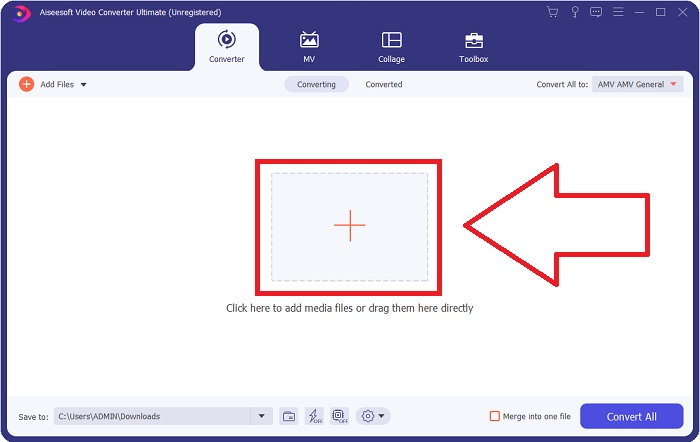
Step 3: There will be a + button in the middle of the interface for you to click to import the video file you wish to convert. Also, you can just drag and drop your videos with ease.
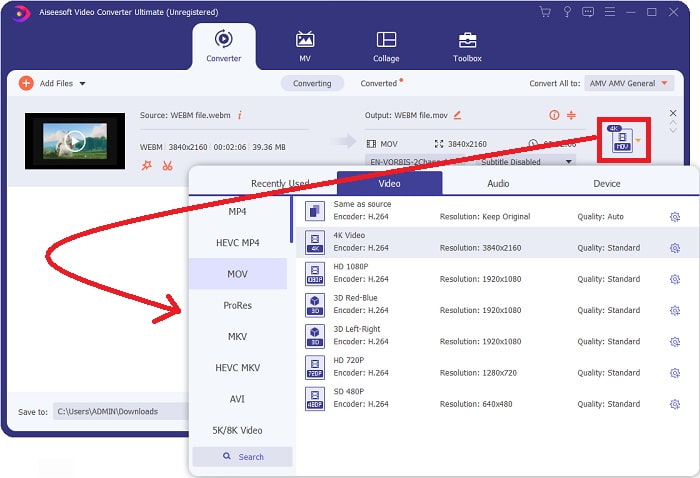
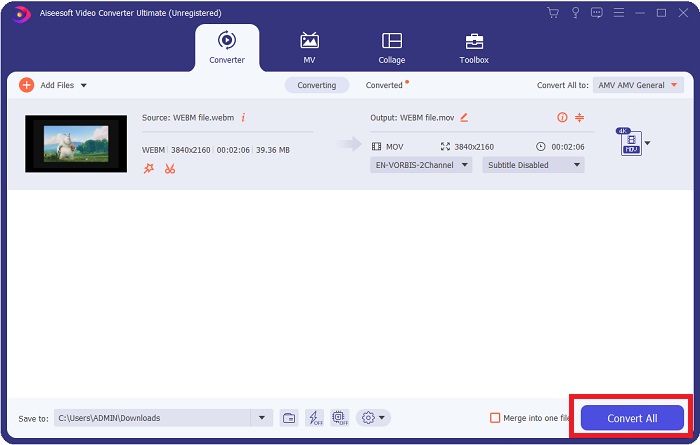
Step 4: Another interface will appear once your video is successfully imported. From there, you can see the current format your video is in on the far right. There is a drop-down arrow beside it, click on it and various options will appear. You can choose whichever format you want for your video to be converted but in this case, select MOV. There are options for you to choose from namely resolution and audio quality. For more, click the gear icon beside the quality or resolution you chose and you can further edit your video depending on what you need. To save the changes made, click Create New.
Step 5: Once you are done and satisfied with the changes, you can now find the Convert All on the lower right corner of the interface and click on it to export your converted video.
Parte 3. Dicas de bônus: outros conversores online que convertem WebM para MOV
Método 1: Use a conversão gratuita
Se você não quiser mais baixar o software e continuar com o processo de conversão, podemos mostrar alternativas para este. Isso é feito puramente online enquanto ainda oferece os recursos que você precisa para suas necessidades de edição. Se você deseja um método sem complicações, esta ferramenta da Web é um caminho a percorrer.
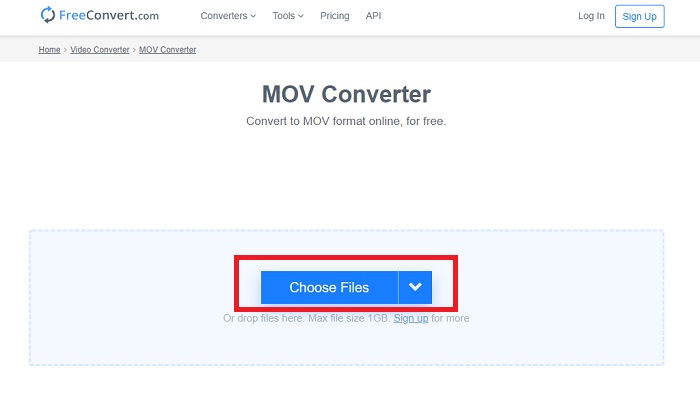
Step 1: Go to the site proper and you will find yourself in an interface in which a Choose Files button is in the middle of the page. Click on it to import the video file you want to convert.
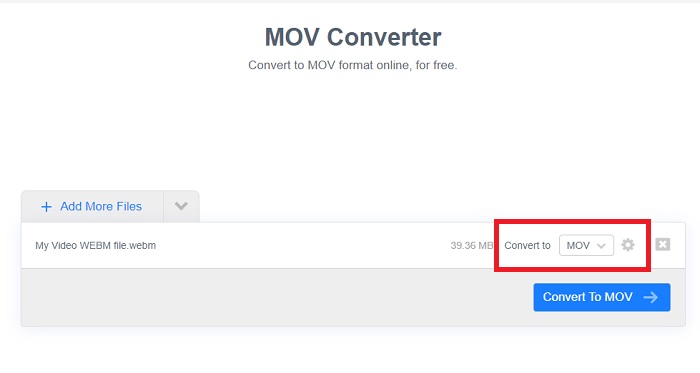
Step 2: Just like in the software itself, you can see the current format of your video on the right and beside it, there is a drop-down arrow. Click on it and choose from the formats you want your video to be converted to. For more options, click the gear icon to further edit your video. Click the Apply Settings button to keep the changes you have made.
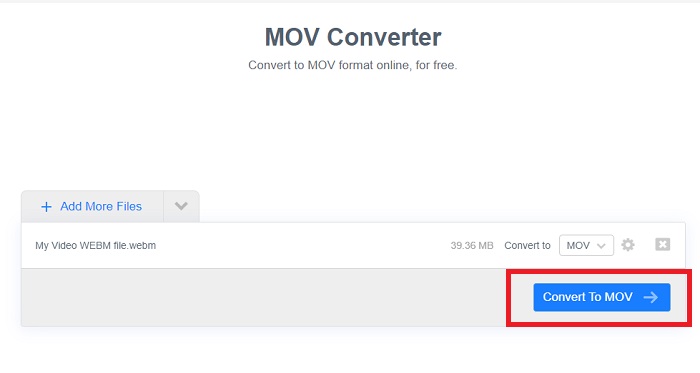
Step 3: If you are done with all the changes, you can now start the conversion by clicking the Convert to MOV button just below and wait for it to finish. Then, you can now export your converted video by clicking the Download MOV.
Método 2: use o Cloud Convert
Esta ferramenta web oferece mais algumas opções para você enquanto você converte seu arquivo WebM para MOV online. Você pode não apenas editar a resolução ou a qualidade do áudio, mas também fps, legendas e muito mais. Siga estas etapas fáceis para usar este conversor online:
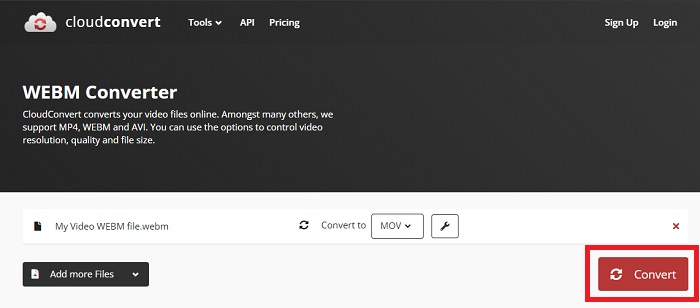
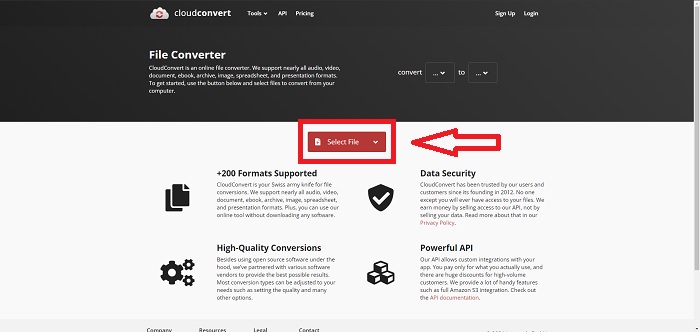
Step 1: First you have to import the video file you wish to convert by clicking the Select File button in the middle of the page. If you want to convert files simultaneously, click Add more Files.
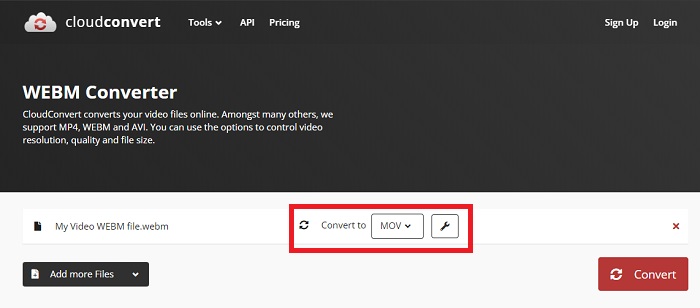
Step 2: Beside the file, you can select which video format by clicking the drop-down arrow. Also, click the wrench icon for more options. From there, you can edit certain aspects of your video and its audio. Then, click okay to save the changes.
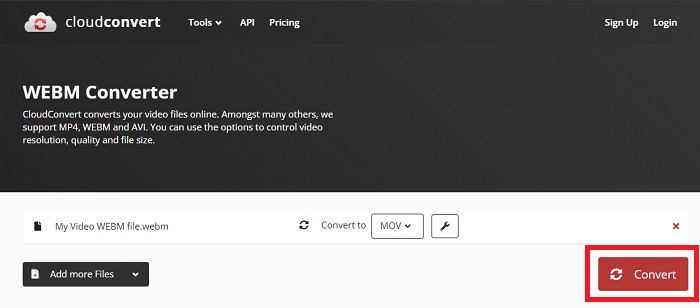
Step 3: Once you are done with all the edits, click the Convert button highlighted in red and wait for it to finish. Finally, click Download highlighted in green to export your fully converted video.
Método 3: Use o ZamZar Convert
Esta ferramenta da web oferece menos opções para o seu vídeo, pois converte apenas o formato de vídeo e áudio. No entanto, ele faz o trabalho mais rápido do que os outros métodos mencionados. Para usar este conversor online, siga as etapas fornecidas:
Step 1: In the middle of the page, there are only three buttons to click for your video to be converted. First, click the Add files to import your video file.
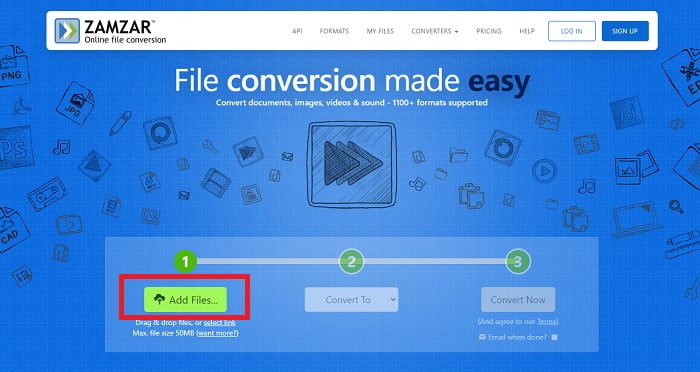
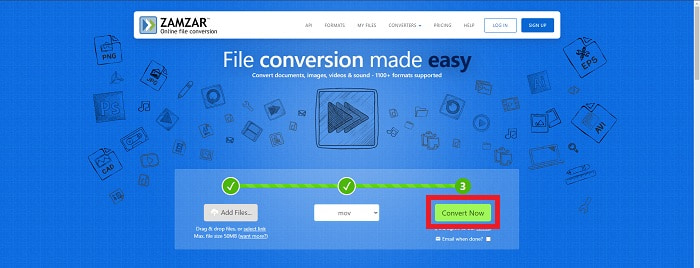
Step 2: For the second button, you can choose which video and audio format you want for your video. In this case, select MOV format.
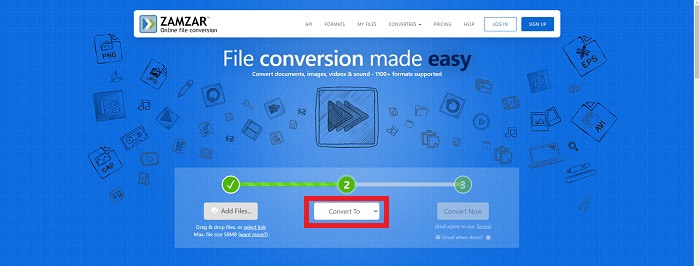
Step 3: Lastly, click the third and final button, Convert Now, to start the conversion proper and wait for it to finish. Once it is done, click Download to finally export your video to your desktop.
Parte 4. Perguntas frequentes sobre a conversão de WebM para MOV
O que exatamente é o formato WebM?
WebM é um formato de arquivo de mídia aberto específico da Web que inclui fluxos de vídeo compactados com codecs de vídeo VP8 ou VP9, fluxos de áudio compactados com codecs de áudio Vorbis ou Opus e textos WebVTT. A estrutura do arquivo WebM é baseada no contêiner de mídia Matroska. A maioria dos navegadores da Web aceita arquivos WebM, pois às vezes são usados em sites HTML5 para reproduzir filmes online. Por exemplo, o YouTube emprega o formato de arquivo WebM Video para todos os vídeos em sua página, variando de 360p a outras qualidades extremamente altas. Wikimedia e Skype são os mesmos.
Quais players de mídia preciso para reproduzir vídeos WebM caso não queira convertê-los para MOV?
There is an alternative if you do not want to go through all the conversion process to play your WebM video. You can use a third-party application or what we call cross-platforming. A few of these third-party media players are VLC, KM Player, Media Player Classic, Winamp, jetAudio Basic, Moovidia, Persian, and XBMC which you can download on their corresponding sites to play your WebM files.
O MOV é de alta ou baixa qualidade?
A reprodução de vídeo é de alta qualidade com arquivos MOV. O MOV é especialmente útil, pois pode conter mídia mista, como imagens, vídeos e animações de 360 graus. Ele também contém todas as informações de vídeo e áudio. Isso torna a edição do arquivo muito mais simples.
Conclusão
De fato, existem muitas ferramentas que você pode usar para converter seu vídeo de um formato para outro, seja através do uso de um software ou de uma ferramenta da web que você pode encontrar online. No entanto, eles ainda andam de mãos dadas em termos de opções ou conveniência que oferecem. Alguns apenas fazem o trabalho e alguns oferecem várias opções para você escolher. Este artigo se concentra nisso para ajudá-lo a saber qual deles você deve usar, dependendo de suas necessidades. É por isso que recomendamos o Video Converter Ultimate, pois oferece todas as opções adicionais que você talvez nunca saiba quando precisará. É melhor ter este software ao seu lado o tempo todo para poupar todo o trabalho de encontrar um conversor online sempre que precisar de um.
-
 Como alterar o formato GIF para WebM sem perder a qualidade dos arquivos
 Converta seus Gifs em um formato de vídeo WebM para ter uma tag de vídeo HTML5. Conte com a ferramenta abaixo para saber qual é a melhor para o trabalho.
-
 3 maneiras de converter WebM em MP3 sem perder a qualidade do som
 Tendo um problema porque os arquivos WebM não podem ser usados para reproduzir o áudio que você salvou? Então leia este artigo, pois fornecemos uma ajuda eficaz convertendo WebM para MP3.
-
 3 Software impressionante usado para converter arquivo WebM em formato AVI
 Não tem ideia de como converter WebM em AVI? Então vamos começar a ler este artigo. Como especificamos todos os detalhes no WebM e os três conversores que você pode usar para converter.
