


 Video Converter Ultimate
 Gravador de ecrã
 Reparo de vídeo
 Secure Download
Principais conversores de MP3 para M4A: conversão de áudio rápida e fácil
Are you unsatisfied when listening to low-quality audio that doesn't do justice to your favorite songs? It's time to upgrade your audio experience with the power of MP3 to M4A conversion! By converting your audio files to M4A, you can unlock the true potential of your music library and hear the difference for yourself. In this guide post, we'll guide you through the benefits of MP3 to M4A conversion and provide you with the best software converters to ensure a seamless conversion process. Get ready to transform your audio experience and enjoy your music like never before.

Parte 1. Melhores maneiras de converter MP3 para M4A
Aqui estão alguns dos melhores conversores de áudio de MP3 para M4a. Existe uma forma offline, que é um aplicativo de desktop, e outra ferramenta online, que é um programa baseado na web. Confira-os para saber mais.
1. Video Converter Ultimate
Video Converter Ultimate is a flexible software that offers an array of features for audio and video conversion. When it comes to converting MP3 to M4A, Video Converter Ultimate is an excellent choice, providing users with a simple and straightforward process to convert their audio files. The tool supports a wide range of audio formats, and its advanced audio codec technology ensures high-quality output. Whether you need to convert audio files for personal or professional purposes, Video Converter Ultimate makes the process fast, allowing you to focus on what matters most - enjoying your high-quality audio files.
Step 1. Get the program and install
To begin, select one of the Free Download buttons and then follow the on-screen instructions to save the file to your computer. The next step is to start the app and familiarize yourself with the intuitive controls.
Free DownloadFor Windows 7 or laterSecure Download
Free DownloadFor MacOS 10.7 or laterSecure Download
Step 2. Add audio files
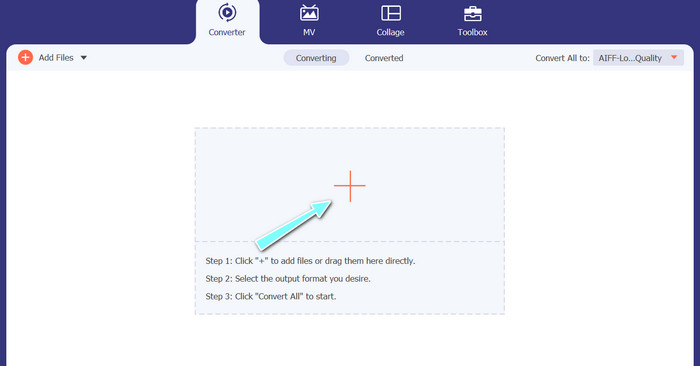
Next, select the plus sign from the main interface and navigate to the location of the audio file you wish to convert. After a file is uploaded, a preview of it will appear on the user interface. If you wish to batch-convert MP3 to M4A, you can upload a folder of files.
Step 3. Choose an output format
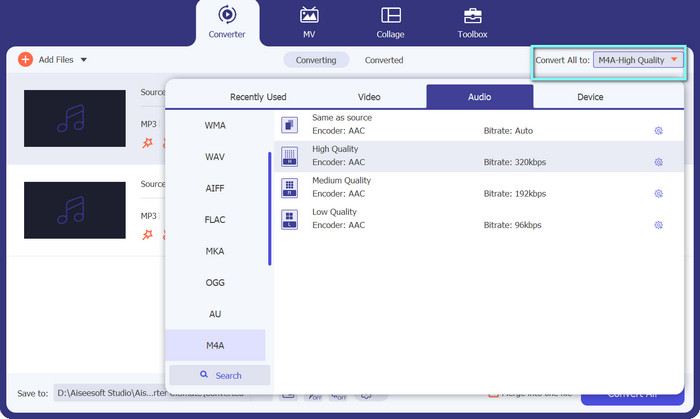
Next, choose the output format by clicking the Audio tab in the Profile menu (located in the tool's upper right). You can convert to or from MP3 using either the MP3 or M4a format.
Step 4. Save the output
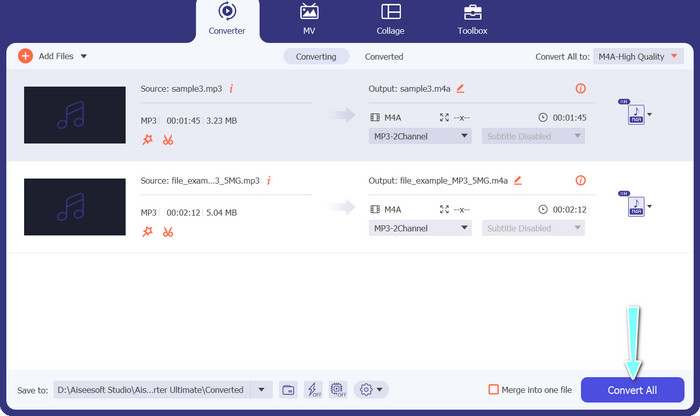
At the bottom of the screen, choose the destination folder. When you're ready to begin the conversion, click the Convert All button.
2. Conversor de Vídeo Gratuito Online
No space allotted for another program? Worry not because you can opt for an online tool to help you convert files without downloading a program. The Free Video Converter Online web-based app enables you to convert from your browser directly. Additionally, it has a lot of supported formats both for video and audio files. Not to mention, you can do a bulk conversion process with this online tool. On top of that, customizing the output of the audio file is another great feature of the tool. Check out how this MP3 to M4A online converter works.
Step 1. In order to begin using Free Video Converter Online, you should first open your favorite web browser and go to the website directly.
Step 2. Then, select the MP3 file you wish to convert to M4A by clicking the Add Files to Convert button.
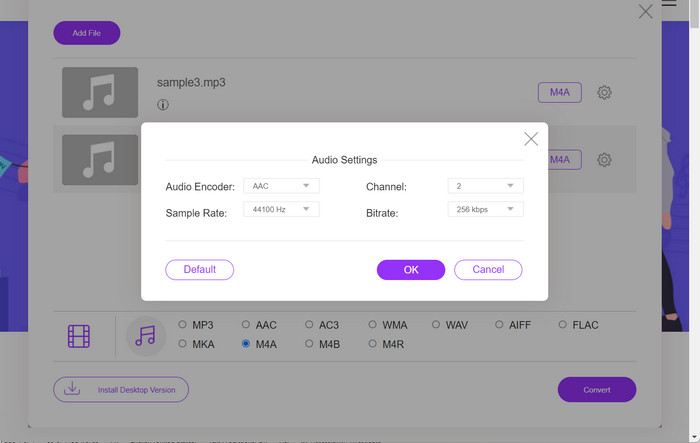
Step 3. From the Audio format option, select M4A as your desired output file. The M4A file's output quality, or bitrate, can also be modified.
Step 4. Click the Convert button to begin the process of converting. That is how you convert MP3 to M4A online.
Parte 2. Converter MP3 para M4A no Windows
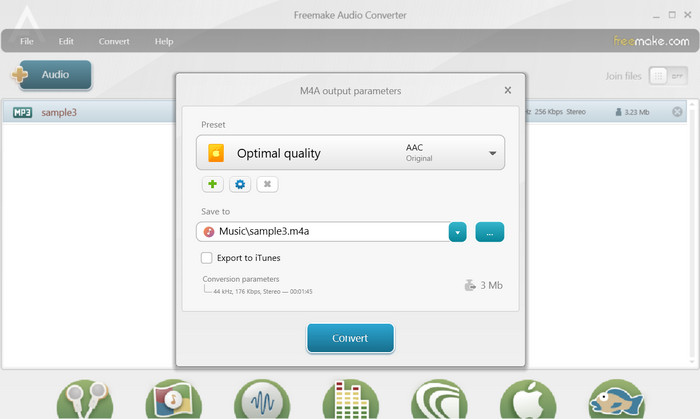
O Freemake Audio Converter é um programa gratuito e fácil de usar que permite aos usuários converter arquivos de áudio para vários formatos, incluindo M4A, MP3, WAV e muito mais. Com sua interface simples de arrastar e soltar, os usuários podem facilmente adicionar seus arquivos MP3 e convertê-los em M4A sem configurações complicadas. A ferramenta também possui uma variedade de opções de personalização, permitindo que os usuários ajustem parâmetros como taxa de bits e taxa de amostragem para obter a qualidade de saída desejada. Em suma, é um dos melhores conversores de MP3 para M4A que você pode usar.
Step 1. Download and install Freemake Audio Converter on your Windows computer.
Step 2. Launch the program and click on the +Audio button to add your MP3 file(s) to the program.
Step 3. Select to M4A from the list of available formats at the bottom of the program window. Use the drop-down menu to choose the desired quality settings for your output file.
Step 4. Choose the output folder where you want your converted file to be saved. Finally, tick on the Convert button to start the conversion process.
Parte 3. Converta MP3 para M4A no Mac
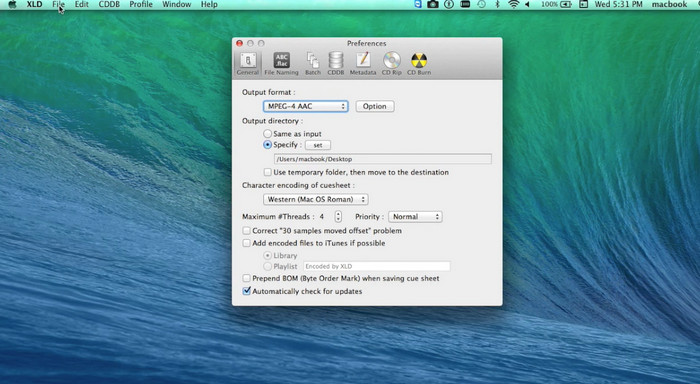
O XLD é um programa gratuito e fácil de usar que permite aos usuários de Mac converter arquivos de áudio para vários formatos, incluindo M4A, MP3, FLAC e muito mais. Com sua interface simples de arrastar e soltar, os usuários podem facilmente adicionar seus arquivos MP3 e convertê-los em M4A sem configurações complicadas. O XLD também oferece uma variedade de opções de personalização, permitindo que os usuários ajustem parâmetros como taxa de bits e taxa de amostragem para obter a qualidade de saída desejada.
Step 1. Download and install XLD on your Mac computer.
Step 2. Launch the program and click on the Open button to add your MP3 file(s) to the program.
Step 3. Select M4A from the list of available formats in the program preferences. You can use the drop-down menu to choose the desired quality settings for your output file.
Step 4. Next, choose the output folder where you want your converted file to be saved. Lastly, hit the Convert button to start the conversion process. This is how to convert MP3 to M4A on Mac for free.
Parte 4. Converter MP3 para M4A no Android
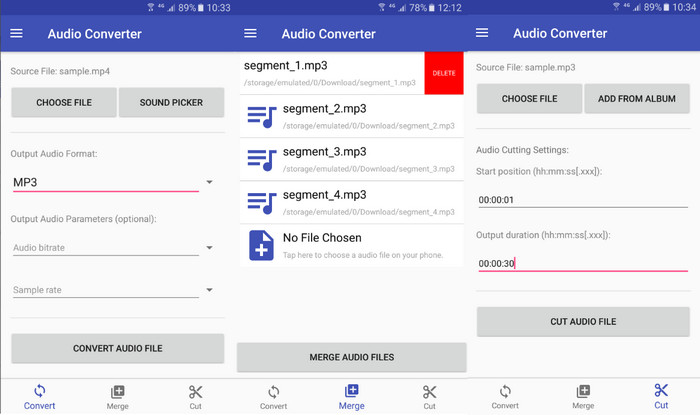
Quando se trata de converter arquivos de áudio, o software gratuito e direto para Android Audio Converter da Online-Convert.com é difícil de superar. Os usuários podem simplesmente arrastar e soltar seus arquivos MP3 na interface do programa para iniciar o processo de conversão para M4A. A qualidade de saída de um arquivo de áudio pode ser ajustada alterando configurações como taxa de bits e taxa de amostragem no Audio Converter. Aqui estão as etapas para alterar MP3 para M4A no Android:
Step 1. Download and install Audio Converter by Online-Convert.com from the Google Play Store on your Android device. Launch the app and tap on the Convert Audio button.
Step 2. Then, select MP3 as the input format and M4A as the output format.
Step 3. Now, tap on the Select Files button to add your MP3 file(s) to the app. At last, tap on the Start Conversion button to start the conversion process. It is that easy! Now you have learned how to convert MP3 to Android on Android.
Parte 5. Converter MP3 para M4A no iOS
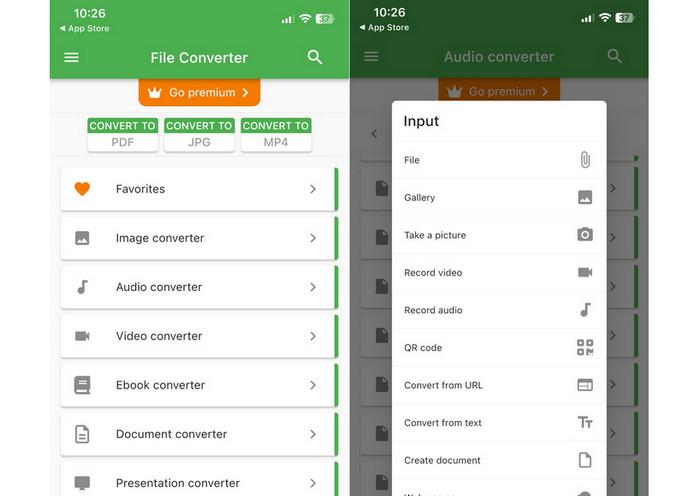
Arquivos de áudio, como MP3, podem ser convertidos para o formato M4A mais portátil e sem perdas com a ajuda do File Converter Free, um software iOS gratuito e direto. Seu design simples torna simples para qualquer pessoa carregar arquivos MP3 e convertê-los em M4A sem ter que mexer em nenhuma configuração ou configuração.
Step 1. File Converter Free may be found on the App Store and is free to download and use. Start the program up and hit the Audio tab.
Step 2. Choose MP3 for both the input and output formats and M4A for Apple's AAC format. Select the desired output file quality using the drop-down menu. To import an MP3 into the program, select the Add File button.
Step 3. To initiate the converting process, click the Convert button.
Parte 6. Perguntas frequentes sobre a conversão de MP3 para M4A
Posso converter MP3 para M4A usando o Windows Media Player?
Yes, you can convert MP3 to M4A using Windows Media Player, but it requires a few additional steps since M4A is not a natively supported format in Windows Media Player. Or, you can simply apply a Windows Media Player alternative.
A conversão de MP3 para M4A resultará em perda de qualidade de áudio?
A conversão de MP3 para M4A pode resultar em uma pequena perda de qualidade de áudio devido às diferenças nos algoritmos de compactação usados pelos dois formatos.
Posso converter M4A de volta para MP3?
Yes, many audio conversion programs and tools allow you to convert M4A to MP3 if needed. However, be aware that converting between formats multiple times can result in quality loss.
Conclusão
MP3 to M4A conversion is a valuable process for anyone looking to improve the quality and compatibility of their audio files. By following the steps and tips outlined in this discussion, you can easily convert your MP3 files to M4A and enjoy high-quality audio on any device.
-
 Grátis e online | Como converter MP4 em M4A no Windows / Mac
 Como faço para converter MP4 para M4A online? Posso extrair o áudio de arquivos MP4? Leia esta postagem e você obterá todas as respostas sobre a conversão de MP4 para M4A.
-
 Melhores ferramentas que você pode usar para converter arquivos MP3 em M4R em lote
 Procurando um conversor que pode transformar seu arquivo MP3 em um toque M4R para seu iPhone ou iPad por lote? Leia o artigo para descobrir alguns dos melhores que existem.
-
 5 cortadores de MP3 para cortar qualquer áudio facilmente [2023 atualizado]
 Você precisa de um cortador de MP3 para cortar o áudio? Nesse caso, leia este artigo porque fornecemos as ferramentas nas quais você pode confiar que facilitam o corte do áudio.
