


 Video Converter Ultimate
 Gravador de ecrã
 Reparo de vídeo
 Secure Download
Como converter WAV para MP3 com os 5 principais conversores gratuitos
WAV, como o principal formato usado em sistemas Windows para áudio bruto e não compactado e CDs, é de tamanho grande. Nas extremidades opostas do WAV, o MP3 é compactado e tem um tamanho pequeno. Além disso, é mais aceitável do que WAV em streaming ou outros players.
Com isso em mente, você está vindo ao lugar certo.
Esta página é o guia detalhado para converter WAV em MP3 com os 5 principais conversores gratuitos.

Parte 1. Conversão gratuita de WAV para MP3 online
There are many converter programs available and the top 1 in the list is Free Audio Converter. It is the online tool to change WAV to MP3. Compared with other online WAV to MP3 converters, this freeware is 100% free without any ads on Windows and Mac computer. You can benefit from this WAV to MP3 converting software as follows:
- 1. Converta WAV para MP3 sem limites de tamanho ou número.
- 2. Converta WAV para MP3 gratuitamente sem inscrição.
- 3. Mudança em lote de WAV para MP3 para economizar seu tempo.
- 4. Ajuste a taxa de bits para comprimir o tamanho do arquivo de saída.
- 5. Extraia áudio de fundo de vídeos do YouTube e outros filmes.
As etapas de transcodificação de WAV para MP4 são muito fáceis.
Step 1. Open this site on your computer. Click Add Files to Convert and download and install a converter launcher, which can combine the whole conversion with the downloading process.
Download the Desktop Version to convert files in batch.
Step 2. After the successful installation, the Open dialog will pop up and you should select the WAV file or files on your computer to add to this freeware.
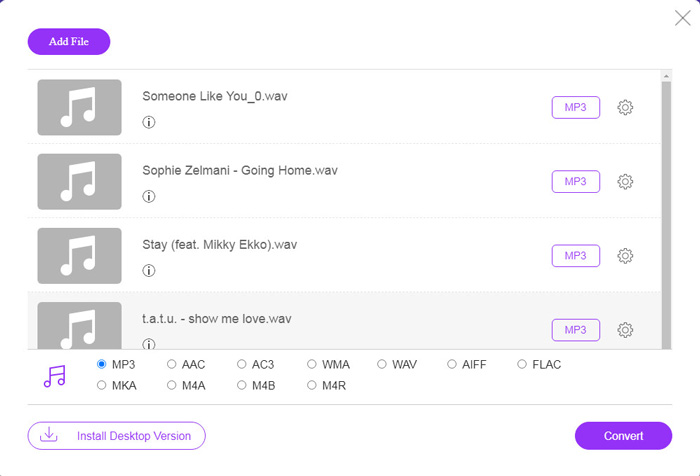
Step 3. Select the checkbox of MP3 at the bottom as the output format, and click Convert to choose the destination path for saving the converted MP3 files. And click Convert again to start converting WAV to MP3 online.
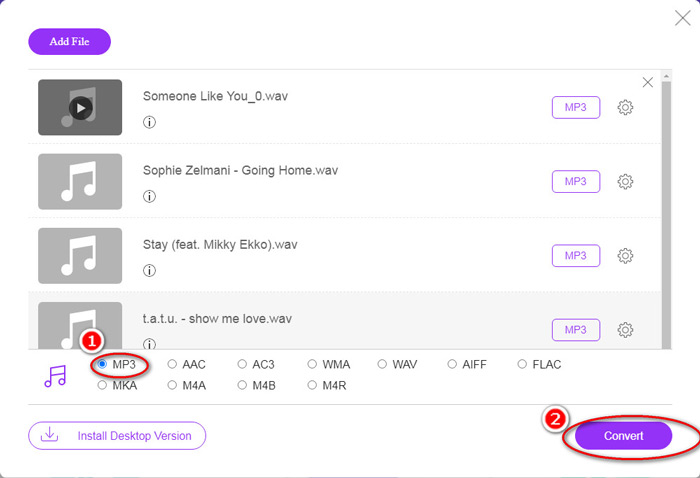
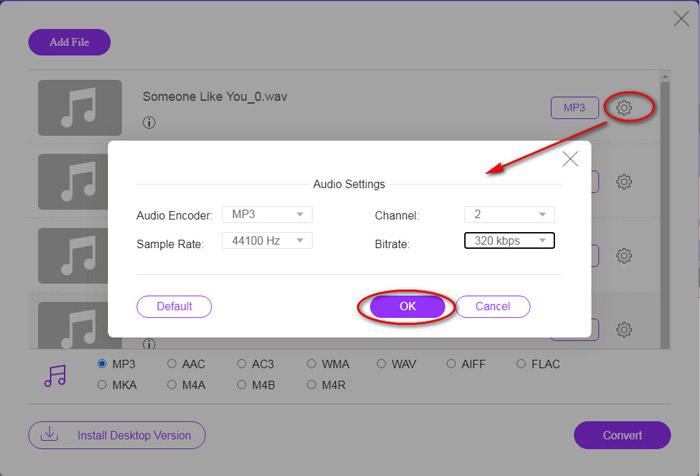
Se você deseja compactar o arquivo MP3, basta clicar no ícone de engrenagem e ajustar o valor da taxa de bits de 96 a 320 kbps.
The added bonus of this method is that you can convert video to MP3 to extract any background music freely.
Parte 2. Converter gratuitamente WAV em MP3 no iTunes
iTunes é outro freeware para converter WAV em MP3. Com este programa, você pode facilmente converter WAV em MP3, AAC, AIFF e Apple Lossless. Pelo contrário, pode transformar MP3, AAC, AIFF, etc., em WAV.
Siga as etapas simples mencionadas abaixo para saber como.
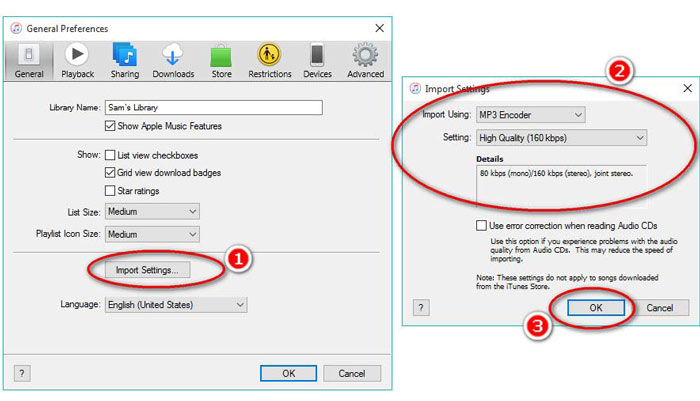
Step 1. Run iTunes on Windows or Mac computer. Click Edit in the menu to select Preferences. Click Import Settings to make the output MP3 settings.
Select MP3 Encoder from the Import Using drop-down option.
Select MP3 quality from Settings drop-down option (from 16 to 320 kbps).
Click OK to save and close the settings.
Step 2. Drag and drop the WAV files into iTunes Library. Select the WAV song or songs that you want to convert to MP3, choose File in the menu, select Convert, then Create MP3 Version.
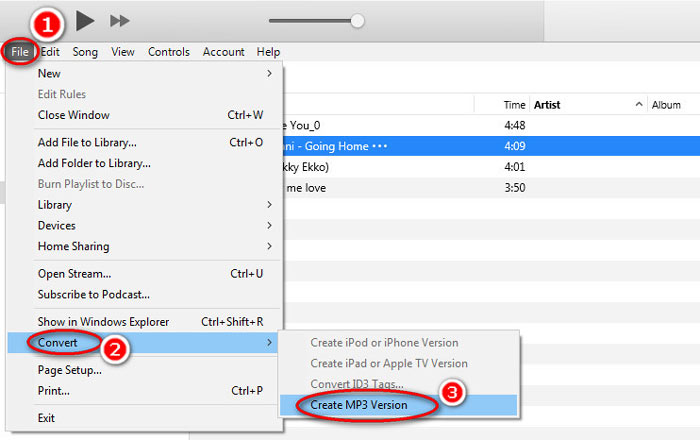
That’s it! New MP3 song files appear in your library next to the original WAV files. You can tell the two versions apart by right-clicking the file and selecting Get Info.
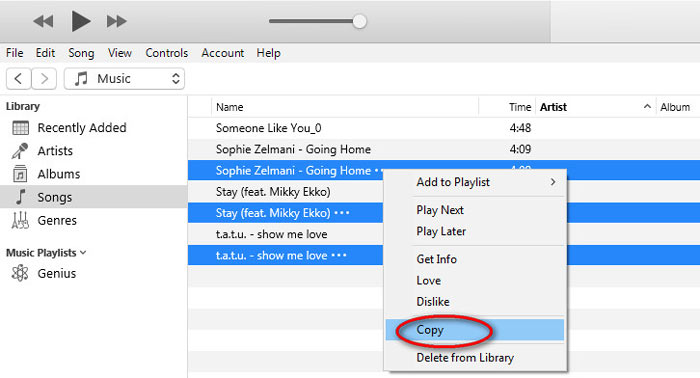
Step 3. Then you can copy the created MP3 songs (Right-click the songs and select Copy) in iTunes Library and paste them in other places on your computer.
É importante lembrar que o iTunes não lida com nenhum arquivo de música com direitos autorais.
Parte 3. Converter gratuitamente WAV em MP3 via Windows Media Player
O Windows Media Player, como o reprodutor embutido no computador Windows, pode abrir arquivos WAV diretamente. Aqui, ele realiza a conversão de MP3. Além da conversão de WAV para MP3, ele também suporta CDs que contêm a conversão de áudio WAV para MP3.
Veja como começar:
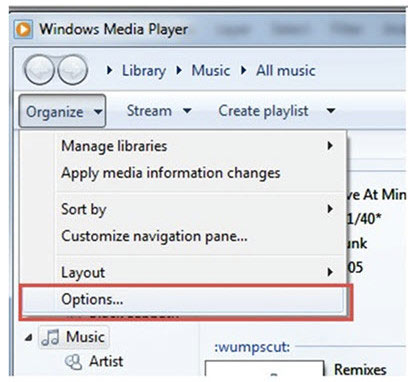
Step 1. Run Windows Media Player on your computer, locate the WAV files you loaded on the sidebar. Click Organize from the left panel of the screen and follow Options.
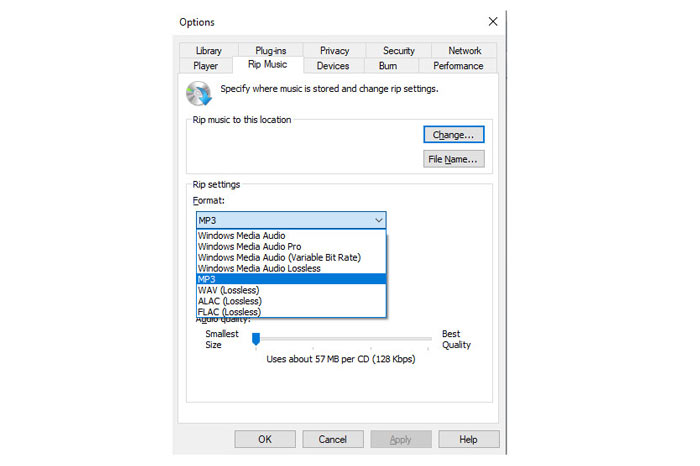
Step 2. Navigate the Rip Music tab, and select MP3 under Format in the Rip settings section.
Step 3. Optionally, adjust the audio quality and click Apply to start turning WAV to MP3.
Then Windows Media Player will start the conversion and the converted MP3 files will be saved as the location specified in the Rip music to this location menu within the Rip Music tab.
There’s only one caveat: This method of making WAV to MP3 is only available for Windows 10/8/7 users because Windows Media Player is only working on Windows computer.
Parte 4. Converter gratuitamente WAV em MP3 com VLC
VLC, você pode estar usando-o como reprodutor de mídia para abrir arquivos WAV. No entanto, ele também pode funcionar como um conversor de WAV como o Windows Media Player. As etapas de conversão de WAV em MP3 são diferentes daquelas no Windows Media Player.
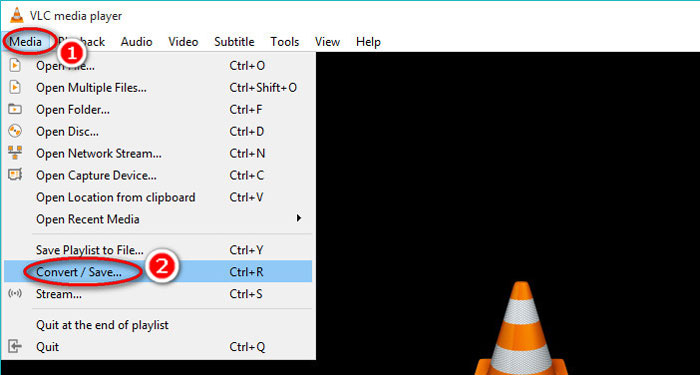
Step 1. Run VLC on your computer, and find Media in the menu at the top, and select Convert / Save to launch the Open Media window.
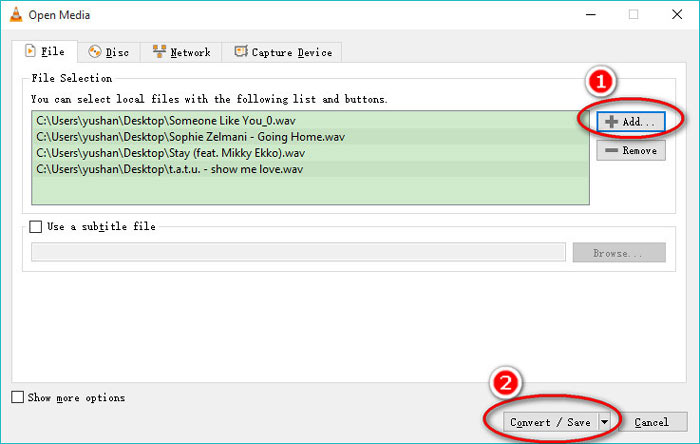
Step 2. In the Open Media window, click the Add to import the WAV files you want to transfer to MP3. Click Convert/Save to continue.
Step 3. Click on the down arrow next to Profile to select MP3 as the output file.
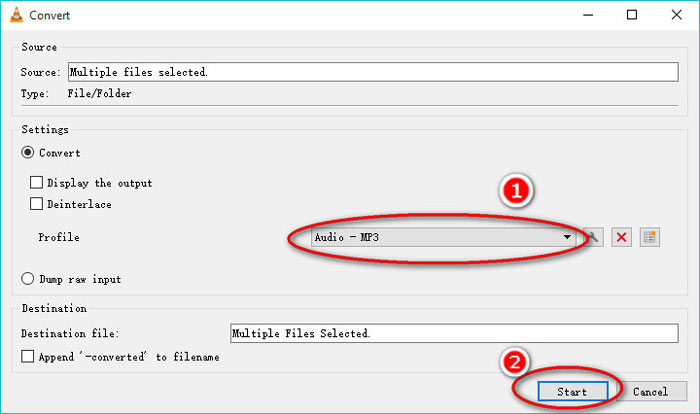
While using VLC, you are also allowed to convert audio to Vorbig (OGG), FLAC, and CD. You can find the converted MP3 files are in the same folder as the original WAV files.
To be clear: Though VLC can be used on a computer and mobile phone, the conversion feature is only for computer users, and you cannot convert WAV to MP3 on iPhone or Android phone.
Parte 5. Converta gratuitamente WAV para MP3 com o Audacity
O Audacity é um software de edição de áudio gratuito com o qual você deve estar familiarizado. Além dos poderosos recursos de edição, o Audacity também pode ajudá-lo a exportar WAV para MP3.
Vamos agilizar o processo.
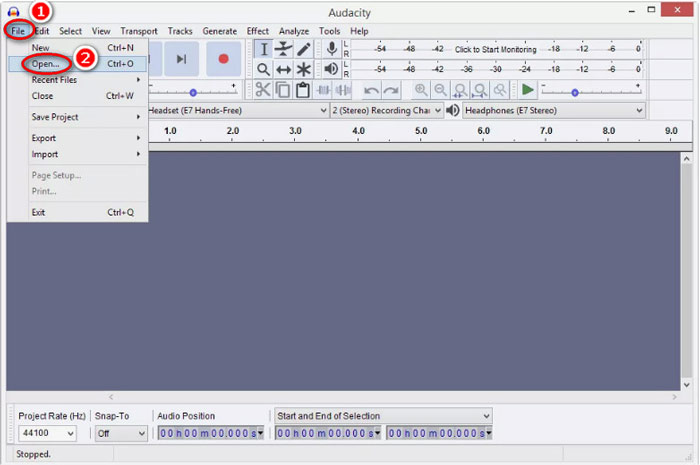
Step 1. Download Audacity on your Windows or Mac computer. Go to File menu at the top, and select Open to select the WAV file stored on your computer.
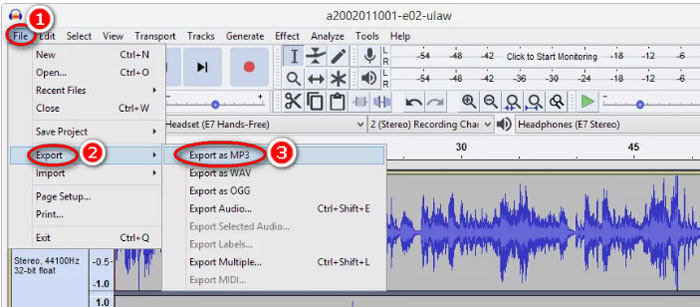
Step 2. Again, click File, select Export and Export as MP3.
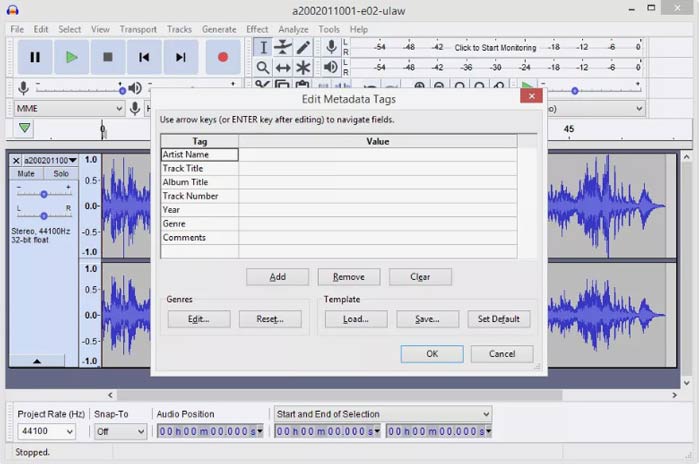
Step 3. Select the location to save the converted MP3 file, edit the metadata tags optionally, and click OK to start changing WAV to MP3.
Uma coisa você deve notar que o Audacity não permite conversão em lote, e você tem que converter WAV para MP3 um por um.
WAV vs. MP3
WAV, também conhecido como formato WAVE, é baseado no Resource Interchange File Format (RIFF). Ele é desenvolvido pela Microsoft e IBM juntos no início da década de 1990. É uma opção para salvar áudio bruto e não compactado no Microsoft Windows. Assim, os arquivos WAV são reproduzidos com mais frequência em computadores Windows.
O formato MP3 foi lançado em 1993 pelo Moving Picture Experts Group (MPEG). Era o padrão para armazenar música, pois podia compactar áudio em um tamanho muito menor do que outros formatos não compactados. Ainda é amplamente utilizado hoje em dia, especialmente para distribuição de áudio online.
Parte 6. Perguntas frequentes sobre a conversão de WAV em MP3
WAV VS MP3, qual é o melhor?
The better one depends on what you need.
1. In the terms of file size, WAV is a larger size than MP3.
2. In the terms of audio quality, WAV is lossless and uncompressed while MP3 is a lossy format, and WAV carries a better audio quality than MP3.
3. Considering the compatibility, MP3 is widely used on streaming services and players, while WAV is mainly used on the Windows system and CDs.
A conversão de WAV em MP3 perde qualidade?
sim. Ao converter um arquivo WAV sem perdas em um arquivo MP3 com perdas, ele perderá qualidade.
Você consegue ouvir a diferença entre MP3 e WAV?
Se você comparar um arquivo MP3 de baixa taxa de bits com um arquivo WAV de alta taxa de bits, poderá ouvir uma ligeira diferença. No entanto, depois de ouvir um arquivo MP3 de alta taxa de bits e um arquivo WAV de baixa taxa de bits, você pode não perceber a diferença.
Devo fazer upload de MP3 ou WAV para o YouTube?
WAV é recomendado para carregar no YouTube. Porque depois de carregar um arquivo de vídeo ou áudio no YouTube, o arquivo carregado será compactado novamente. Para garantir a melhor qualidade de áudio, WAV sem perdas é mais recomendado do que MP3.
Conclusão
WAV e MP3 são os arquivos de áudio que você encontra com frequência. Devido ao grande tamanho do WAV e à compatibilidade menos popular, muitos de vocês desejam converter WAV para MP3. Esta página reúne os 5 principais conversores WAV para MP3 gratuitos para ajudá-lo a transformar WAV em MP3 no computador.
Qual conversor WAV para MP3 grátis desta lista você tentará primeiro?
Você quer uma conversão online grátis?
Ou talvez você queira transcodificar WAV para MP3 no Windows Media Player?
De qualquer forma, deixe-me saber na seção de comentários abaixo.
-
 Como posso converter MP4 para WAV online gratuitamente
 Está tentando converter MP4 para WAV? Não sabe qual conversor pode ajudá-lo perfeitamente com isso sem pagar um centavo? Leia esta postagem e todas as suas perguntas serão respondidas.
-
 Como converter MP3 em MP4 com imagem no Windows 10 e Mac
 Como converter MP3 para MP4 em alta qualidade? Este post mostra 3 métodos eficientes e gratuitos para mudar de MP3 para MP4 com imagens no Windows e Mac.
-
 De 50 MB a 5 MB - Como compactar arquivo MP4 em segundos
 O vídeo MP4 é muito grande para ser enviado? Quer reduzir o tamanho do vídeo? Aqui estão 3 maneiras eficientes de compactar um arquivo MP4 em um tamanho menor sem limite.

