


 Video Converter Ultimate
 Gravador de ecrã
 Reparo de vídeo
 Secure Download
3 melhores métodos para converter facilmente H. 264 para MP4 [2024]
Você está com dificuldades para reproduzir seus vídeos no formato H.264 devido a problemas de incompatibilidade? Bem, você não está sozinho. Muitos usuários passam pelo mesmo problema e optam por converter o arquivo para um formato que é amplamente suportado por vários dispositivos, como MP4.
So, if you’re one of them and are looking for ways to convert this file to have a seamless playback experience on your device, this article will provide you with the best methods to easily convert H.264 to MP4. Ready to make your videos universally compatible? Let’s dive in!

Parte 1: H.264 é o mesmo que MP4?
Tanto H.264 quanto MP4 são formatos de vídeo, mas atendem a propósitos diferentes. H.264, também conhecido como AVC (Advanced Video Coding), é um padrão de compressão de vídeo comumente usado para gravar, comprimir e distribuir conteúdo de vídeo de alta definição. Por outro lado, MP4 (MPEG-4 Parte 14) é um formato de contêiner que pode armazenar vários tipos de dados, incluindo vídeo, áudio, legendas e imagens estáticas.
Enquanto H.264 se refere especificamente à tecnologia de compressão de vídeo, MP4 abrange uma gama mais ampla de conteúdo multimídia. Em termos mais simples, H.264 é como o método de codificação usado para comprimir dados de vídeo, enquanto MP4 é como o contêiner que contém o vídeo comprimido junto com outros componentes multimídia.
Parte 2: Maneira rápida e fácil de converter H.264 para MP4
The quickest and easiest way to convert H.264 to MP4 is by using the FVC Video Converter Ultimate. This desktop software tool is designed to handle various video and audio files like MP4, MKV, MOV, AVI, FLV, WMV, WEBM, M4V, TS, MXF, MPG, 3GP, VOB, and more. With these, you have a range of options as to what format you want your H.264 file to be converted. Moreover, It also has a custom profile that you can use to edit the output settings like the video codec, resolution, frame rate, bitrate, and more. Lastly, you can guarantee a fast conversion process and lossless quality output as this supports up to 4K resolution with a 30× conversion speed compared to other converter tools.
Step 1. First, download the software tool and install it on your computer.
Free DownloadFor Windows 7 or laterSecure Download
Free DownloadFor MacOS 10.7 or laterSecure Download
Step 2. On the Converter tab, click on the Add Files button and import your H.264 files.
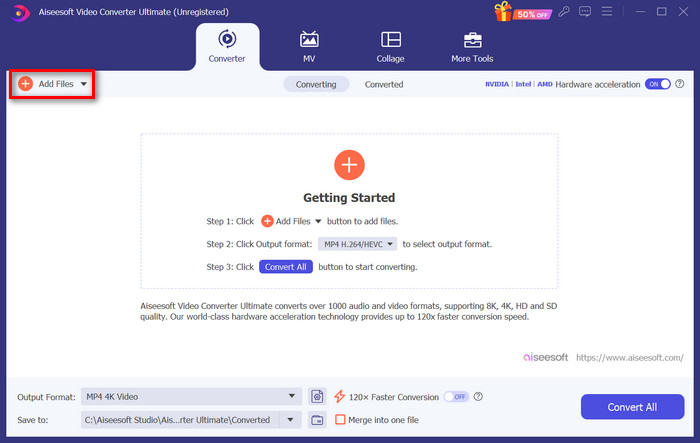
Step 3. Once the H.264 video file is imported, select MP4 among the list of formats by clicking the Output format button.
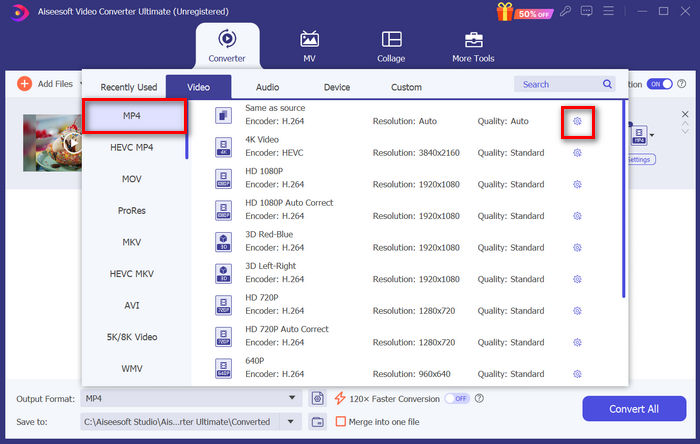
Meanwhile, if you want to customize the Custom Profile, go to the Settings dialog box. From there, you can edit the video codec, quality, file name, etc. When done, just click the Create New button to save.
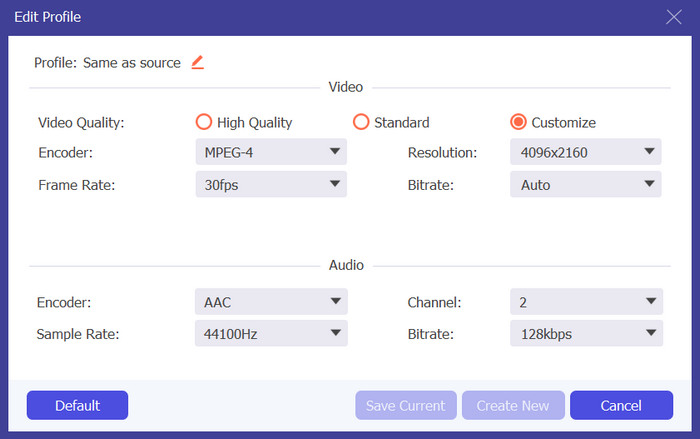
Step 4. Once done, just click the Convert All button.
With FVC Video Converter Ultimate, conversion of H.264 to MP4 can be done quickly without consuming much of your time and effort. Moreover, you can convert other formats like H.265, and AVCHD to MP4. Other than that, you can be assured of maintaining high-quality output throughout the process.
Parte 3: Converter H.264 para MP4 usando FFmpeg
FFmpeg é uma ferramenta de linha de comando usada para gerenciar arquivos multimídia, oferecendo recursos que vão da reprodução à conversão e edição. Com seus recursos versáteis, esta ferramenta permite que os usuários convertam eficientemente H.264 para o formato MP4, fornecendo uma solução conveniente para aqueles que se sentem confortáveis com interfaces de linha de comando.
Step 1. First, you need to obtain the FFmpeg executables on your computer.
Step 2. Next, open the command-line window in the folder with executables. A terminal window pop-up will open.
Step 3. After that, add the H.264 file that you want to convert to MP4.
Step 4. Lastly, enter the command: ./ffmpeg.exe -i inputfilename.mkv outputfilename.mp4 and press Enter.
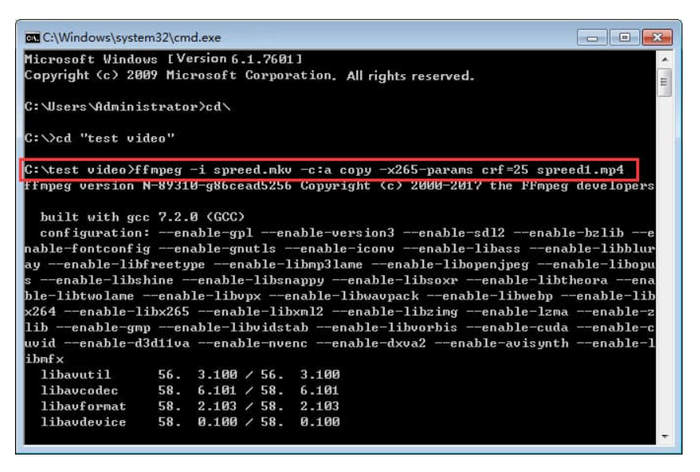
Se você estiver familiarizado com linhas de comando, o FFmpeg pode funcionar melhor para você quando estiver convertendo H.264 para MP4. No entanto, se não estiver, você achará essa ferramenta difícil de navegar, o que é um dos seus lapsos quando se trata de usabilidade para novos usuários.
Parte 4: Converter H.264 para MP4 online
If you are looking for a tool to convert H.264 to MP4 online, the best tool that you can use for this is the FVC Free Video Converter Online. This tool offers a quick and very intuitive way of converting H.264 files to the format that you want, as you are only required to just import the file and select your preferred format and everything is magic.
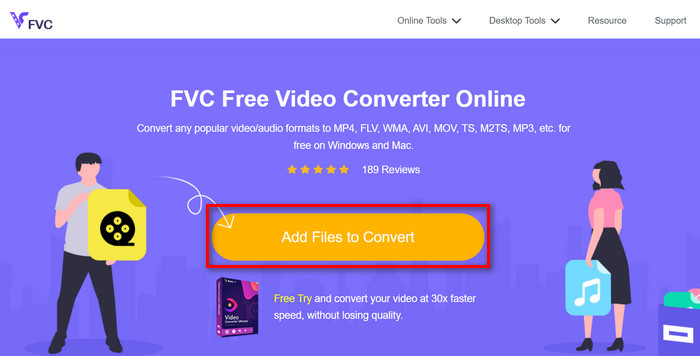
Step 1. First, you need to import H.264 file that you want to convert by clicking the Add Files to Convert button
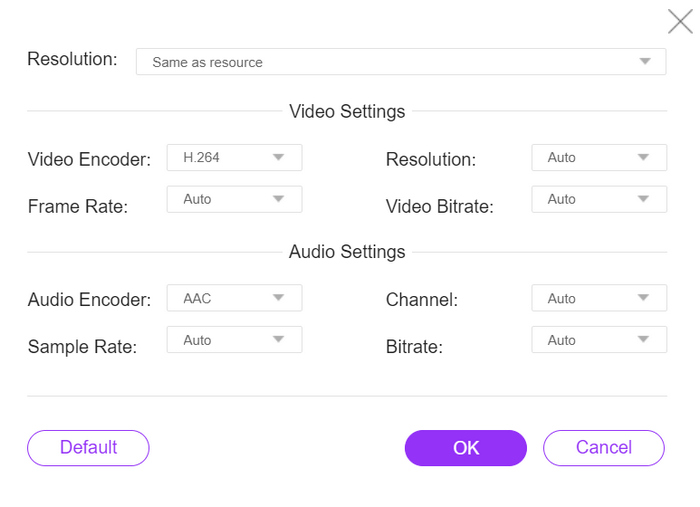
Step 2. Now, for the output format, choose MP4. Also, if you want to manually set the resolution, video encoders, bitrate, etc, just click the Gear icon on the side of the output format. If done, click the OK button.
Step 3. Lastly, to start the conversion process, just click the Convert button.
Você não precisa se preocupar com a qualidade de saída do arquivo H.264 convertido, pois esta ferramenta suporta uma resolução de vídeo de até 1080P. Além disso, a velocidade de conversão não demorará tanto, pois é 30× mais rápida em comparação com outras ferramentas de conversão.
Parte 5. Perguntas frequentes sobre a conversão de H.264 para MP4
H264 vs mp4, qual é melhor?
Quando se trata de compatibilidade, MP4 parece ser ótimo, dado que as pessoas frequentemente escolhem converter H.264 para MP4 para melhor suporte ao dispositivo e experiência de reprodução. No entanto, ambos os formatos têm seus pontos fortes e atendem a propósitos diferentes de forma eficaz.
Posso manter a qualidade original do meu vídeo H.264 ao converter para MP4?
Sim, você pode manter a qualidade original do seu vídeo H.264 ao converter para MP4, especialmente se você usar uma ferramenta de conversão confiável como FVC Video Converter Ultimate ou FFmpeg. Essas ferramentas oferecem opções para ajustar configurações como resolução, taxa de bits e codec para garantir uma saída de alta qualidade.
Quais players de vídeo são compatíveis com o formato H.264?
Vários reprodutores de vídeo são capazes de reproduzir o formato H.264, incluindo VLC Media Player, Windows Media Player e QuickTime Player.
Conclusão
That's it! Now you have all the tools and methods in converting H.264 to MP4 effortlessly. Whether you prefer desktop software, a command-line tool, or an online converter, the choice is yours. Get started today and ensure compatibility with any device!
-
 Melhor conversor gratuito de MPG para MP4 em 2024 (revisão aprofundada)
 Por que você precisa mudar de MPG para MP4? Obtenha a resposta neste post e conheça o conversor MPG para MP4 de alto nível do mercado.
-
 Áudio para MP4: Convertendo qualquer arquivo de áudio para o formato MP4
 Converta suas músicas, podcasts e gravações favoritas em formato MP4 para uma combinação única de áudio e imagens. Descubra como converter WMA para MP4 ou outro áudio em formato de vídeo.
-
 Os 5 melhores conversores de FLV para MP4 gratuitos e pagos (2.024 avaliações)
 Continue neste post e conheça as atualizações em relação aos arquivos FLV e MP4. Além disso, selecionamos o conversor FLV para MP4 mais confiável.
