


 Video Converter Ultimate
 Gravador de ecrã
 Reparo de vídeo
Saiba como fazer o download do iFunny Link para o formato MP4 [online e offline]
As we all know, iFunny is the new supplier of memes over the web. It also featured daily updated memes in different categories as well. But if you export videos from here there is always a watermark on the bottom left side of the video. Moreover, in this article we will talk about how to download and save iFunny to MP4 format without any watermark. Without any more delay let's proceed to the tools you may use to save videos.

Parte 1. Melhores métodos para salvar vídeos iFunny em MP4 no PC e Mac
1. Gravador de tela livre FVC
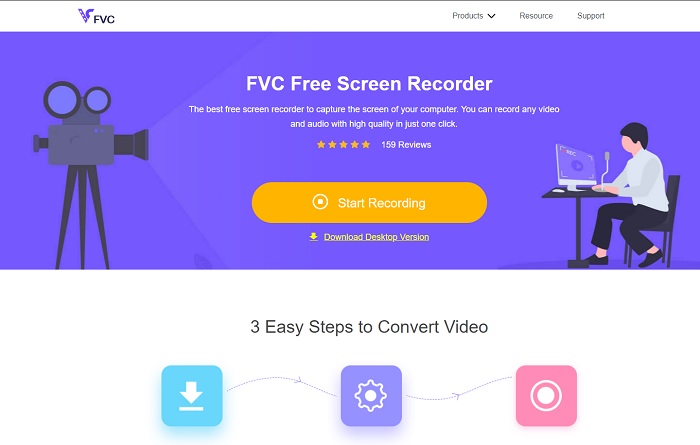
If downloading iFunny videos to MP4 is not your forte then recording the video must be it. FVC Free Screen Recorder gives you the full control over recording video through your screen. Also, you can change the format if you want to but there's only a limited option with this feature. Nevertheless, it is safe and secure not only because it has a built-in library to access the recording easily. So, make way for the best web tool you can find on the internet. Stick to the instructions below as we talk on how to use this tool.
Step 1. Go to the link provided for you and a website will be open.
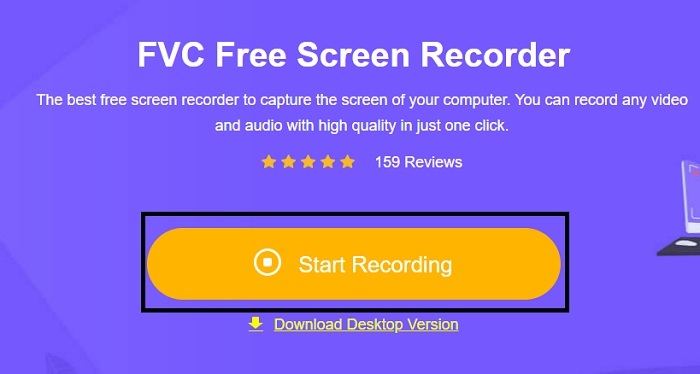
Step 2. To start the tool, click the Start Recording and allow the tool to be launched.
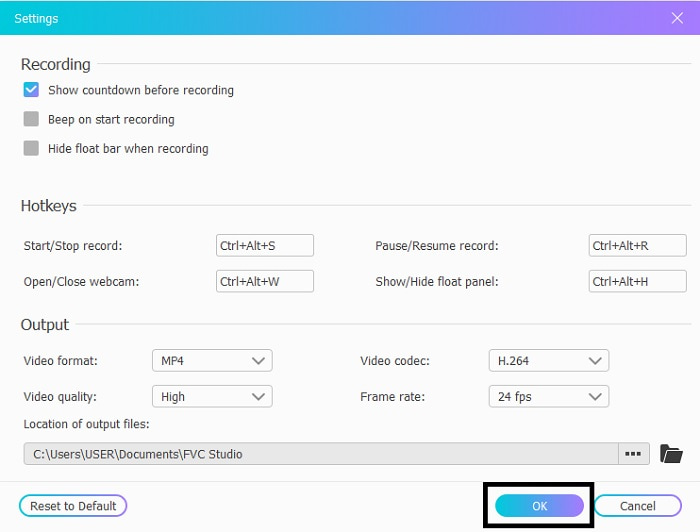
Step 3. In the mini toolbar, click the gear icon to change recording, hotkeys, and output if you want. To save the changes click OK.
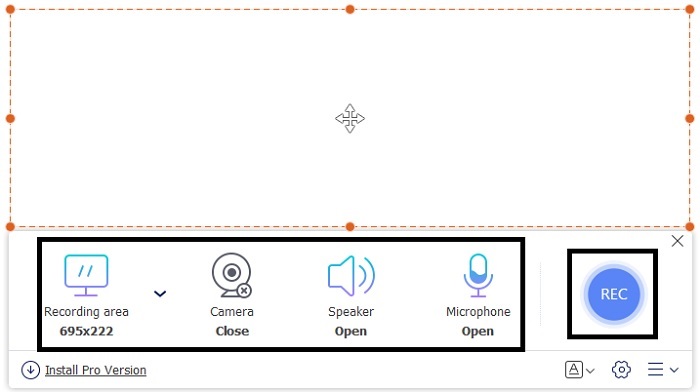
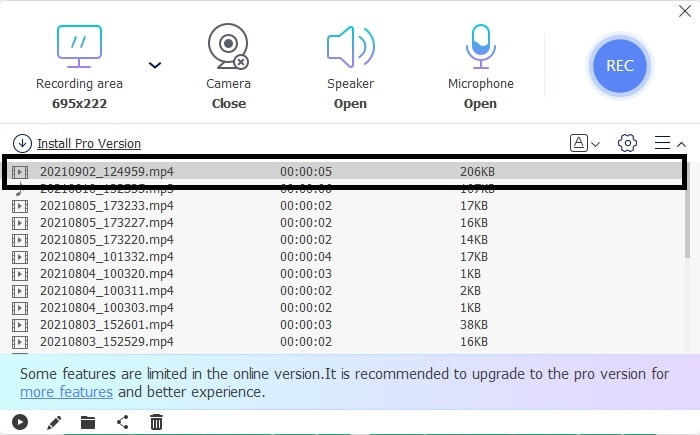
Step 4. Now adjust the length and width of the recording in the Recording Area, if you want to add the reaction of your face click the Webcam, Add the sounds of the video by opening the System Sound, and to add your own sound open the Microphone. Click the round REC button to start the recording.
Step 5. If your recording is done, click the cube button to stop. It will automatically be saved into your drive but you can check the recorded file on the History List and watch.
2. Gravador de tela FVC
We know that web tools only give you limited features which means you can't add and explore. But what if we tell you that you can record at the highest level even without breaking a sweat? Introducing FVC Screen Recorder, a multi-purpose screen recorder that focuses only on innovation and a more futuristic interface. The best method to save iFunny videos without losing the quality of it is to record iFunny to MP4. Because if you share a video to other platforms using iFunny there is a chance that the quality of the will be lost especially when you download the link.
Talvez você esteja se perguntando se esta ferramenta não é amigável ou se é fácil de usar, ela não pode gravar como as ferramentas profissionais fazem. Para ser honesto, não existe tal ferramenta que desenvolva esse tipo de recurso além do FVC Screen Recorder. Esta ferramenta se orgulha de três coisas porque é fácil, eficiente e de baixo custo, além de apresentar excelente gravação. Portanto, sem nos gabarmos disso, vamos prosseguir sobre como usá-lo seguindo as etapas abaixo.
Step 1. Choose which program that supports your desktop or laptop to download it. This will take a minute or two to be downloaded to your drive. Install it and set-up the tool according to your wants and click finish to save.
Free DownloadFor Windows 7 or laterSecure Download
Free DownloadFor MacOS 10.7 or laterSecure Download
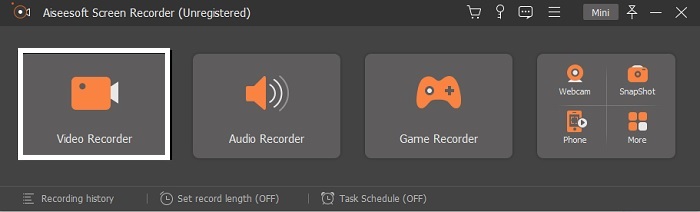
Step 2. The tool will automatically launch into your screen. Click the Video Recorder to record the iFunny videos.
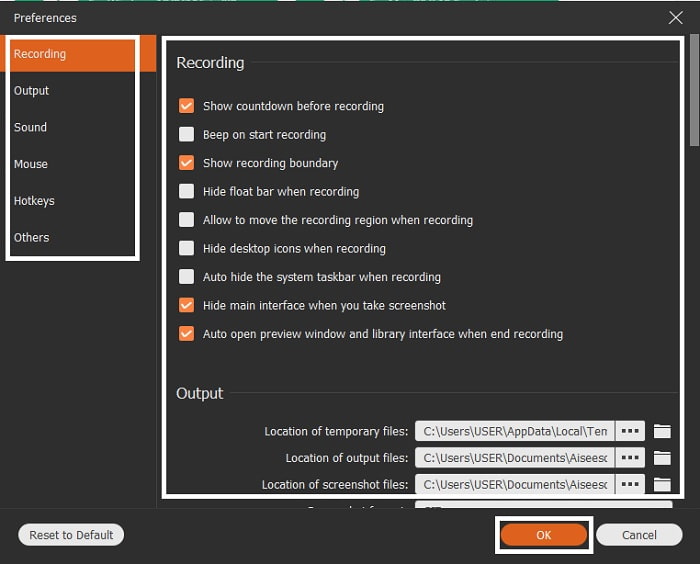
Step 3. In the toolbar go to the cog icon and change the preferences. To save the modification you've made click OK.
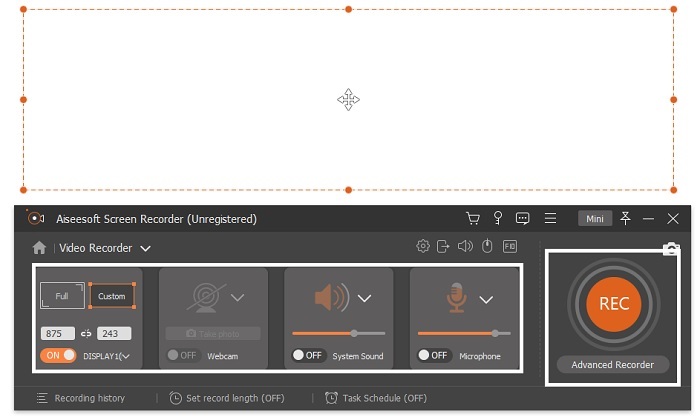
Step 4. Change the screen ratio of the recording based on what you want. Other features, to add your reactions open the Webcam, to add the audio of the video you've recording click the System Sound, and lastly to add your voice click the Microphone. If everything is settled, click the REC button to start the recording.
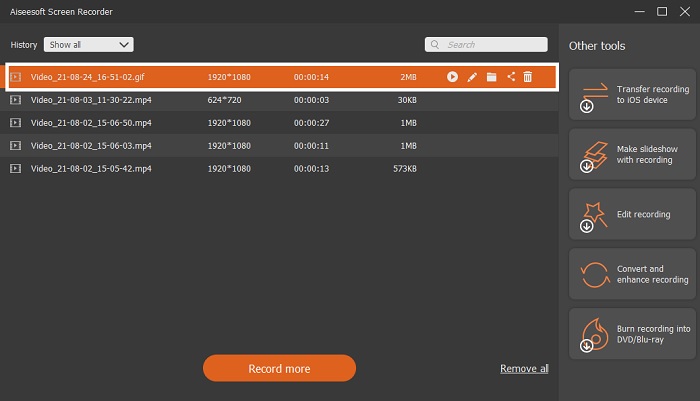
Step 5. To stop the recording click the square button. To save the iFunny video and directly save it as MP4 format, click Save and Next. So, if you want to watch the iFunny recording you did, go to the Recording List and click the first one.
Parte 2. iFunny Link para MP4 Downloader Web-Tool
All of the ones that are on the list are one of the best tools you can use to download via link. Copy the iFunny link to save MP4 format with the help of these tools.
1. TubeOffline

Convert the iFunny link with the help of TubeOffline. This tool helps you to convert at ease but the downside of this tool is that the ads are everywhere. Also, there is no age limit for the ads it shows on the tool. As we try to test this tool, the interface of it is not suitable for the ages of 18 and below because of the sexual ads content. As long as you stay on the website the ads will keep on popping up nowhere. But if you are not annoyed by the ads then you must try to use this.
2. EspecialistasPHP
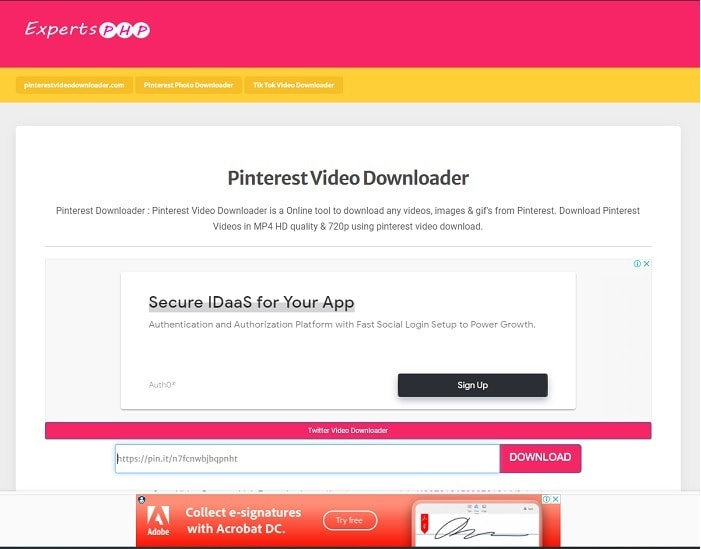
This tool has an ad on it but it is much less than the TubeOffline. ExpertsPHP might be your iFunny link to MP4 downloader if you may like to use it. This web tool is on point, which means even a beginner can use it. But it offers only two options: choose between the two and download it. Although this tool might be your choice and saving iFunny there are still mishaps if the file is not downloaded correctly. Still, this is much better than the first one especially if you are annoyed by the ads.
3. DoremiZone
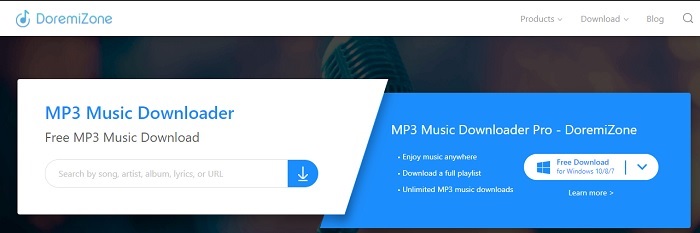
If the first two tools to download iFunny have ads DoremiZone has no ads. This tool is very informative as it shows how to use the tool. The blue and white is perfectly fit on its website. Also, unlike inserting a URL and downloading it, this tool has a unique search engine for music only. If you search their song, the artist's name, and the lyrics. But even though the tool provides this advanced feature, still if your connection has been interrupted there is a big chance that some of the code of the file will go missing.
Further Reading
Parte 3. Perguntas frequentes sobre iFunny para MP4
O iFunny é apropriado para ser acessado por menores de idade?
O limite de idade exigido para acessar o iFunny é de 13 anos ou mais, mas se você não tiver feito login no site. Não há chance de o desenvolvedor iFunny monitorar esse limite de idade e as atividades de menores.
Posso compartilhar meus memes ou vídeos no iFunny?
Sim, você pode compartilhar seus memes ou vídeos feitos através desta plataforma. Compartilhe os memes que você criou aqui e deixe o mundo usá-los para expressar melhor suas emoções.
Posso criar GIFs no iFunny?
You can create GIFs on iFunny but there is a much better tool that supports making a meme. FVC Ultimate Video Converter one of its features is a GIF maker you can create the most hilarious GIFs you've ever seen. You must download this tool and go to the toolbar to access it.
Conclusão
To sum it up, recording is the ideal and the best way to save iFunny videos to MP4. But choosing between the two might be hard for you. As we are looking for the best tool that can give you the most amazing output you've been looking for. FVC Screen Recorder is the best in the area of recording video, audio and even gameplay as well. If you buy this tool it is like you've already prepared for the future. As FVC Screen Recorder promises you to have more futuristic features as we continue to step our game.
-
 2 maneiras gratuitas de converter ARF em MP4 em Mac e PC (100% funcionando)
 Obtém um arquivo ARF, mas não sabe como abri-lo? Este post pode te ajudar exatamente. Aqui estão 2 maneiras gratuitas de converter ARF para MP4 em detalhes no Mac e PC.
-
 Guia sobre como converter RMVB para MP4 no Windows / Mac (3 formas gratuitas)
 Deseja converter RMVB em MP4 para fácil reprodução em seu computador ou telefone celular? Você encontrará maneiras simples de converter seus arquivos RMVB em MP4 neste guia.
-
 4 melhores conversores MP4 para M4V para transformar vídeos MP4 em M4V com facilidade
 Quando precisar alterar arquivos MP4 para M4V, você deve aprender mais detalhes sobre as diferenças entre os dois formatos, bem como os melhores conversores MP4 para M4V no artigo.
