


 Video Converter Ultimate
 Gravador de ecrã
 Reparo de vídeo
 Secure Download
Como converter M4V para MP4
É fácil abrir os arquivos M4V no iTunes e QuickTime Player. No entanto, quando se trata de iMovie, Final Cut Pro, telefone Android, Windows Media Player, VLC, etc., os arquivos M4V tornam-se incompatíveis.
To solve the problem, you need to convert M4V to MP4, the most popular format accepted by almost players and editors.
É o que falaremos neste post, 6 maneiras de converter M4V para MP4 com conversores.
[
Parte 1. O que é M4V?
M4V, semelhante ao MP4, é o container de vídeo desenvolvido pela Apple para codificar arquivos de vídeo em sua iTunes Store. Um arquivo M4V protegido por FairPlay pode ser reproduzido em um computador autorizado usando o iTunes via iTunes e QuickTime. As produções M4V não autorizadas serão impedidas de tocar.
Pelo contrário, os arquivos M4V podem ser abertos com muitos reprodutores como VLC, Media Player Classic, MPlayer, etc.
Parte 2. Como mudar M4V para MP4
Para reproduzir arquivos M4V em alguns reprodutores de vídeo que possam reconhecê-lo, a maneira mais fácil é alterar a extensão de .m4v para .mp4.
Just right click the M4V video file name, and click Rename, after that, change the extension directly.
Depois disso, experimente o reprodutor reproduzir o arquivo MP4 diretamente.
Certamente, se o reprodutor de vídeo não reconhece a extensão do MP4, você precisa de etapas extras para converter M4V para MP4 na próxima parte.
Parte 3. 4 maneiras de converter M4V em MP4
Para esses arquivos M4V, você deve encontrar o conversor M4V para transformar M4V em MP4 para reproduzir em VLC, Zoom Player, RealPlayer, etc.
Converta M4V para MP4 Online com Freeware Desktop
FVC FLV to MP4 Converter is an easy-to-use converter that allows you to convert M4V, FLV, MOV, or other common formats to MP4 quickly. It is totally free to use and it supports the batch conversion to save your time.
Step 1: Free download the software on your computer. After the installation, open it and then click the Add File(s) button to add your M4V files to the program.
Free DownloadFor Windows 7 or laterSecure Download
Free DownloadFor MacOS 10.7 or laterSecure Download
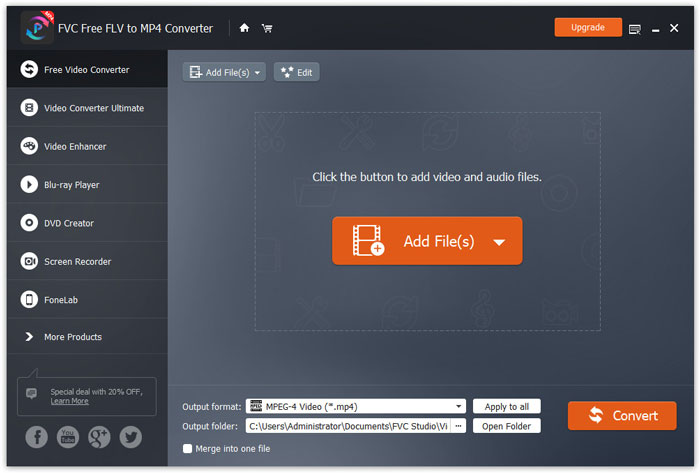
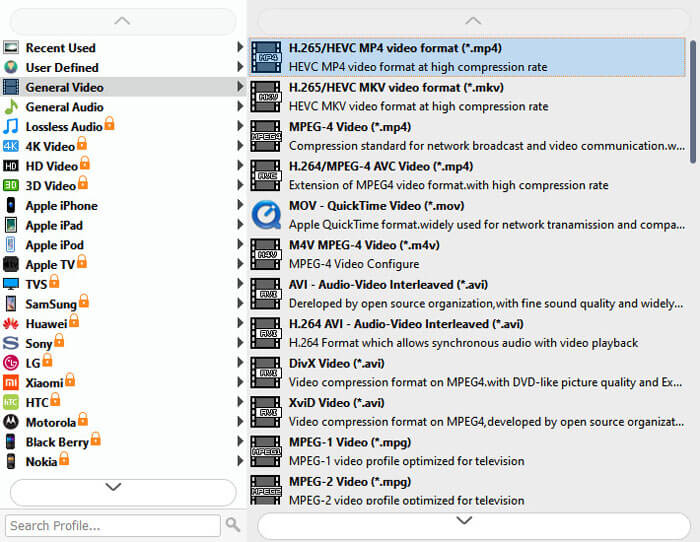
Step 2: Go to the Output format field and choose the MP4 format from the General Video tab.
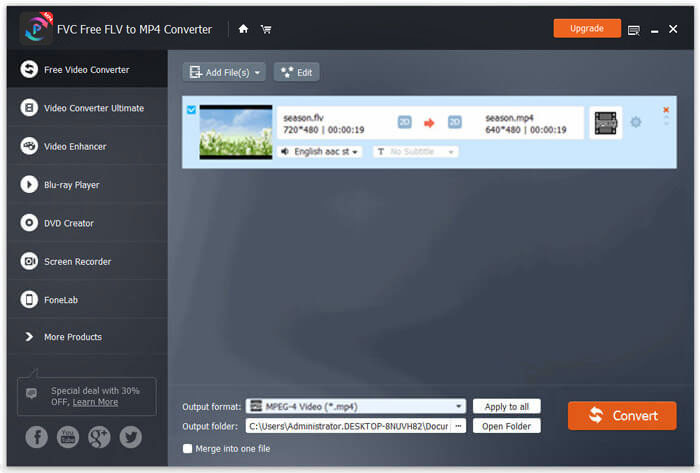
Step 3: In the end, hit Open Folder to choose the destinaltion for saving your converted file, and then click the Convert button to start the conversion from M4V to MP4.
Converter gratuitamente M4V para MP4 online
A maneira mais fácil de converter M4V em MP4 é usando o conversor online gratuito.
Free Online Video Converter is the free M4V to MP4 converting software online. It can transcode non-protected M4V files to MP4 videos in batch. Moreover, it lets you adjust the output video and audio codec and select the resolution for your device. Only 3 steps, you can finish the whole process on Windows and Mac computer.
Step 1. Go to this free M4V to MP4 converter online, and click Add Files to Convert button to download the converter launcher on your computer.
Download the Desktop Version to convert files in batch.
Step 2. In the pop-upped Open-Source window after the successful installation of the launcher, you need to pick up the M4V files on your computer.
Step 3. Select the checkbox of MP4 and click Convert to find the location to store the converted MP4 files, and it will start converting M4V to MP4.
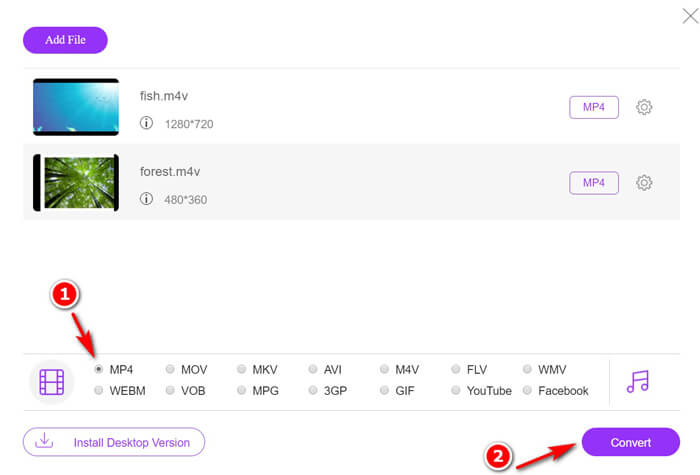
Enquanto o processo de conversão é feito, os arquivos MP4 convertidos serão baixados para o seu computador automaticamente.
Transcode M4V para MP4 grátis via VLC
VLC é um reprodutor de mídia popular para reproduzir arquivos M4V diretamente. Além disso, pode ser o conversor M4V para MP4 para alterar os arquivos M4V não protegidos para MP4 no seu computador.
Step 1. Download VLC on your computer. It is compatible with Windows, Mac, and Linux, and you can download whatever version into your computer.
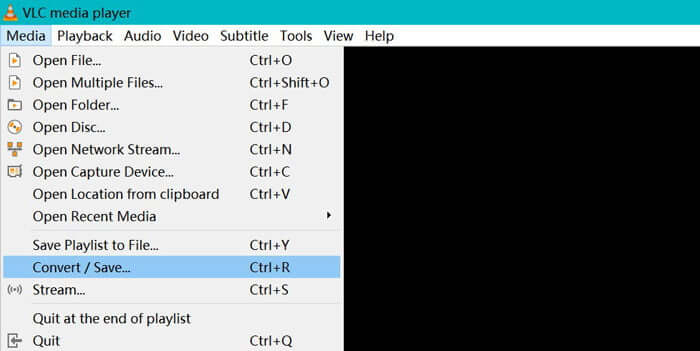
Click Media in the top menu, and select Convert / Save… option.
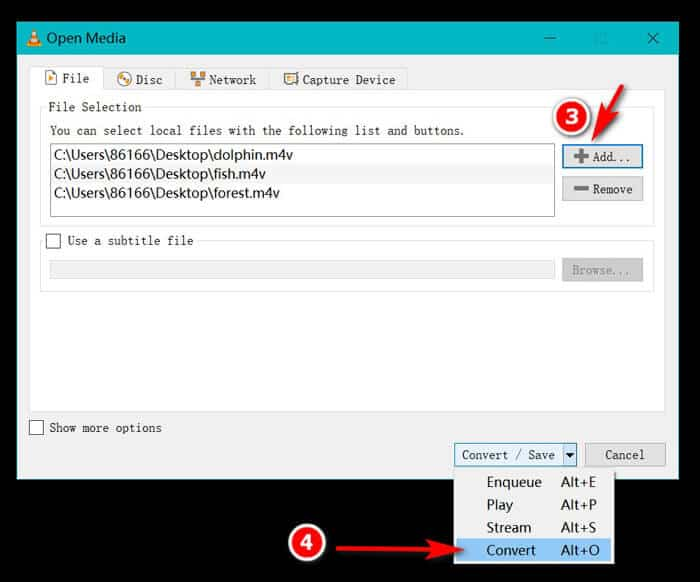
Step 2. Click the Add button to import the M4V files from your hard drive on your computer.
After that, select Convert from the drop-down option of Convert / Save option at the bottom.
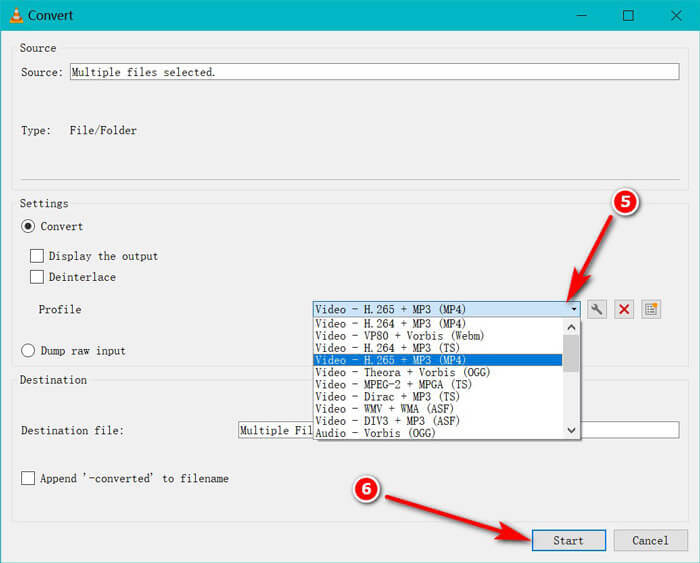
Step 3. Select the MP4 as the output format from the drop-down list of Profile. Click Start to turning M4V into MP4 immediately in VLC.
Você pode verificar a barra de progresso no VLC para ver se as conversões de M4V para MP4 foram feitas.
Converter gratuitamente de M4V para MP4 com HandBrake
Outro conversor gratuito de M4V para MP4 para computadores Mac, Windows e Linux é o HandBrake.
HandBrake é o conversor de DVD, Blu-ray e vídeo de código aberto. Ele pode converter quase qualquer vídeo em MKKV e MP4.
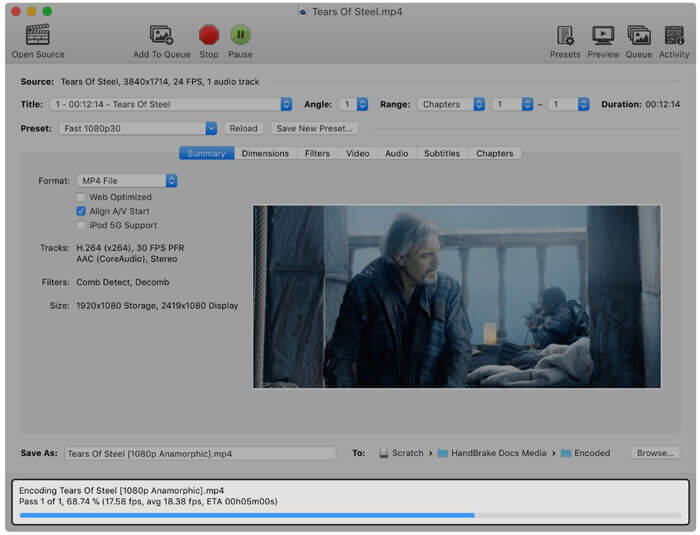
Step 1. Download the Handbrake software on your computer. By default, Open Source dialog launches while starting this software, which lets you select the M4V videos you want to open.
Step 2. Next, click the Summary tab and choose MP4 from the Format drop-down menu as the output format. Filters, video codecs, and other file parameters are optional for you to edit.
Step 3. Set the destination to store the converted MP4 files under the Destination section, and click Start button on the toolbar to start converting M4V into MP4.
Você pode notar que às vezes os arquivos convertidos terão a extensão .m4v no computador Mac. Por que o HandBrake salva MP4 como M4V?
Parte 4. Como converter M4V para MP4
Os conversores de M4V para MP4 acima podem resolver a conversão de M4V. Além disso, você pode usar a forma de gravação para salvar os arquivos M4V em vídeos MP4 ou outros formatos de arquivo populares.
Existem muitos gravadores de tela online que podem gravar o que está sendo reproduzido no seu computador e exportar vídeos MP4.
Here, take FVC Free Screen Recorder as the example to show you how to record M4V videos and export MP4 videos.
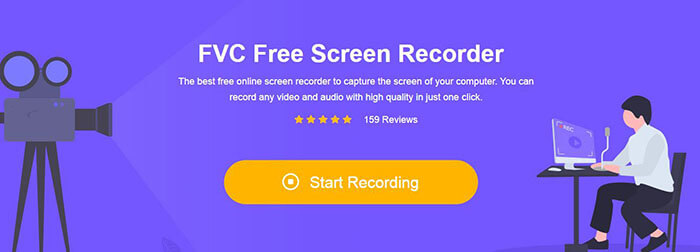
Step 1. Visit https://www.free-videoconverter.net/free-screen-recorder/ on your browser , click Start Recording, and it will pop up the launcher that you need to install.
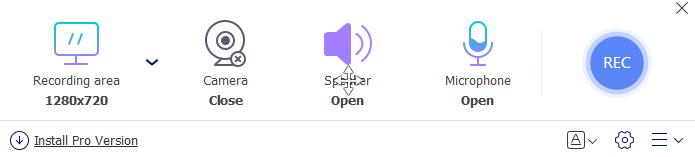
Step 2. After the successful installation, you can see the main interface. Here, you need to select the recording area, enable the System Sound and disable Microphone to record the iTunes video audio only.
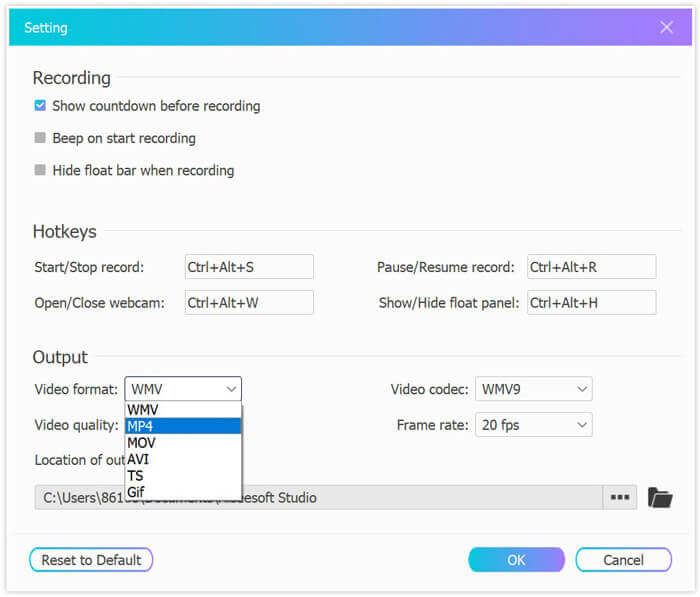
Click Settings to set hotkeys for recording, select MP4 as the output format, adjust the video quality, video codec, frame rate, etc., and set the destination to save the recorded MP4 video.
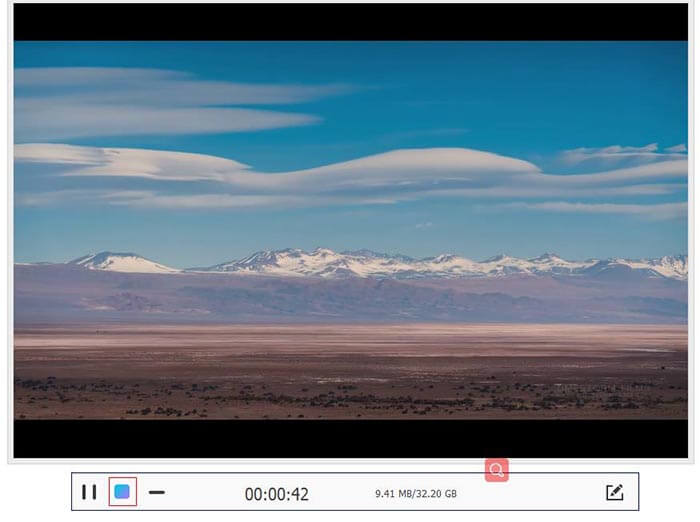
Step 3. While all the settings are satisfied, play the iTunes videos via QuickTime or iTunes, and just click REC button to start record the iTunes videos. While the stop button will discontinue the video recording and save the M4V video as MP4 file.
M4V vs. MP4
O M4V é desenvolvido pela Apple, que também usa MPEG 4. Os arquivos M4V são frequentemente usados para armazenar os vídeos baixados da loja Apple iTunes, como videoclipes, episódios de TV, etc. Você pode encontrar alguns arquivos M4V protegidos contra cópia, pois usa Proteção de direitos autorais FairPlay DRM da Apple.
Lançado pelo Moving Picture Experts Group (MPEG) em 2001, o formato MP4 pode ajudá-lo a salvar dados de vídeo, áudio, legenda e imagem em faixas separadas. É a abreviação de MPEG-4 Part 14. Além disso, é um dos formatos mais populares usados para streaming e compartilhamento de vídeos.
Parte 5. Perguntas frequentes sobre a conversão de M4V em MP4
Com o que o M4V é compatível?
Os arquivos M4V protegidos por DRM são compatíveis apenas com iTunes e QuickTime. Para os arquivos M4V não protegidos, você pode reproduzi-los no Media Player Classic, K-Multimedia Player, RealPlayer, Zoom Player, VLC media player, MPlayer, DivX Plus Player, Nero Showtime, o reprodutor de vídeo da web para uso no Palm Pre e smartphones Palm Pixi e telefone Android. Os vídeos M4V produzidos pelo HandBrake podem ser reproduzidos no PlayStation 3 com suporte total para surround Dolby Digital 5.1.
Existe alguma diferença entre M4V e MP4?
A principal diferença entre M4V e MP4 é que os arquivos M4V podem ser opcionais por proteção contra cópia DRM, enquanto o MP4 não é criptografado.
Você pode enviar M4V para o YouTube?
Sim. O YouTube permite que você carregue os arquivos M4V não protegidos por DRM, enquanto os arquivos M4V protegidos por DRM não são aceitos por ele.
Por que o HandBrake salva MP4 como M4V?
Por padrão, quando você produz arquivos MP4 são codificados com AC3 e legendados com SRT ou marcadores de capítulo habilitados, a extensão de .mp4 será alterada para .m4v.
Conclusão
Os arquivos M4V são protegidos por DRM e você só pode reproduzi-los via iTunes ou QuickTime player por meio da autorização da conta do iTunes. Além disso, o arquivo M4V não é tão popular quanto o MP4. Converter M4V em MP4 é a ideia inteligente para abrir os arquivos M4V em qualquer reprodutor ou editor. Esta postagem compartilha 6 maneiras de converter M4V em MP4. Você pode alterá-lo diretamente online com o conversor de vídeo online gratuito. Além disso, você pode baixar o software de desktop para transformar M4V em MP4 no Windows, Mac e Linux.
Qual solução é a sua favorita?
Deixe-me saber deixando seus comentários abaixo.
-
 Como converter M2TS em MOV no Windows / Mac (online / offline)
 Precisa converter M2TS em MOV para reproduzir arquivos de vídeo em vários reprodutores e plataformas? Este artigo o ajudará a encontrar o melhor método Online / Offline para converter M2TS em MOV no Windows / Mac.
-
 Como converter seus arquivos de vídeo MP4 em imagens GIF animadas sem perda de qualidade
 Procurando a melhor maneira de converter seu vídeo MP4 em GIFs animados? Aqui está um guia detalhado para fazer isso no Photoshop, Windows Movie Maker, conversor de vídeo online e muito mais.
-
 Como converter seus arquivos de vídeo FLV para MP4 sem pagar um centavo
 Este guia compartilha quatro métodos gratuitos para converter seus arquivos de vídeo FLV para o formato MP4 no Windows 10/8/7 / XP e Mac OS X, para que você possa desfrutar dos vídeos em qualquer dispositivo.

