


 Video Converter Ultimate
 Gravador de ecrã
 Reparo de vídeo
 Secure Download
MP4 para M4V - 4 conversores eficientes de MP4 para M4V que você nunca deve perder
Você pode simplesmente alterar a extensão do arquivo de MP4 para M4V diretamente? Quais são as diferenças entre MP4 e M4V? Quando você renomeia MP4 para M4V, provavelmente você pode reproduzir os arquivos M4V com a maior parte do reprodutor de mídia sem nenhum problema. Mas alterar uma extensão de arquivo não converte o arquivo em M4V. Saiba mais sobre os 4 conversores eficientes de MP4 para M4V no artigo e escolha o desejado de acordo.

Etapa 1: 4 métodos para converter MP4 em M4V no Windows / Mac
Método 1: como converter MP4 em M4V online gratuitamente
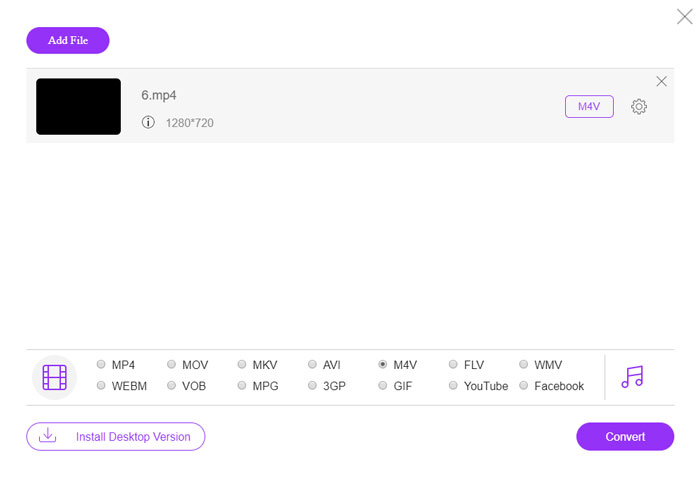
When you want to convert MP4 to M4V online for free without any limitation, FVC Free Online Video converter is a versatile video converter to convert most of the video formats, tweak the video/audio settings, and even remain the original video quality with ease.
- 1. Converta MP4 para M4V, AVI, MKV e mais outros com a qualidade original.
- 2. Ajuste a taxa de quadros, codec de vídeo, qualidade de vídeo, codec de áudio e muito mais.
- 3. Fornece interface simples e intuitiva para converter os arquivos de vídeo com cliques.
- 4. Permite que você converta os vídeos sem marca d'água, restrição de tamanho, etc.
Step 1. Go to the online MP4 to M4V converter, you can click the Add Files to Convert button to load the MP4 files you want to convert. You have to download the video converter installer for the first time.
Download the Desktop Version to convert files in batch.

Step 2. Choose the M4V file format from the user interface. When you need to tweak the video settings, you can video encorder, resolution, video bitrate, frame rate, sample rate and more other settings as desired.

Step 3. After that, you can click the Convert button to convert MP4 to M4V. It might take a few seconds to get the desired file, which you can save the video to your computer or share to social media websites.
Método 2: Como converter MP4 em M4V com o VLC Media Player
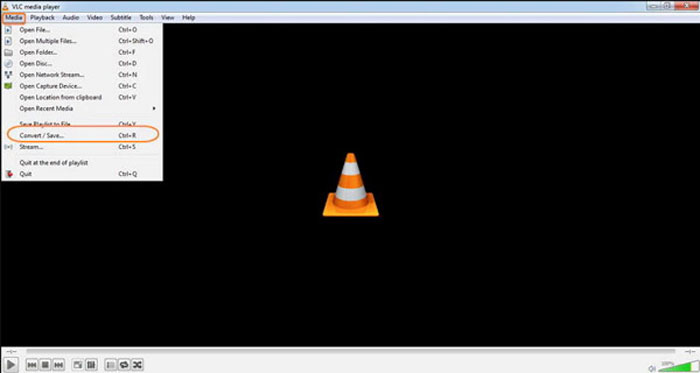
O VLC Media Player é um conversor de MP4 para M4V de código aberto que permite converter os vídeos no Windows e Mac. Ele funciona para a maioria dos formatos e codecs, que você pode converter vídeos entre diferentes formatos. Aqui está o processo detalhado que você deve conhecer.
Step 1. Open VLC Media Player on your computer, choose the Media menu and select the Convert/Save option to enter the Media dialog box. After that, you can click on the Add button to browse for the files.
Step 2. Once you have imported the videos, you can click the Convert/Save button or just hit enter on your keyboard. After that, you can choose the M4V as the output format and adjust the other parameters.
Step 3. Select a destination filename, the one that is converted and saved. Hit the Browse option to select a location. Just provide a name like final and click on Save before clicking the Start button to convert MP4 to M4V.
Método 3: Como converter MP4 em M4V via FFmpeg
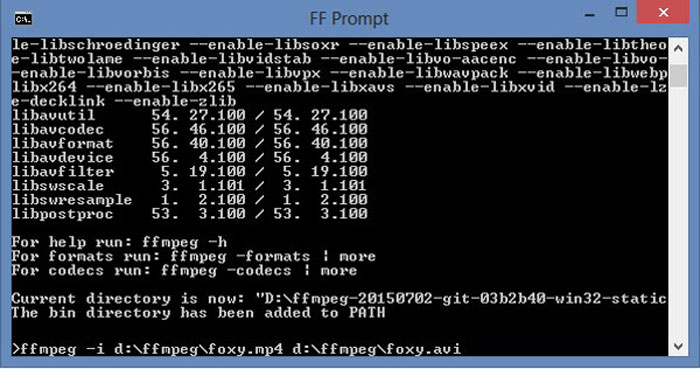
FFmpeg é um conversor de MP4 para M4V que permite transcodificar o vídeo com codec. Se você estiver familiarizado com o codec, poderá alterar os arquivos de vídeo com a qualidade original. Saiba mais detalhes sobre o método para converter MP4 em M4V conforme abaixo.
Step 1. Open the command prompt window on your Windows PC and install FFmpeg with command line to install the free video converter. It has a whole series of command line to transcode the video.
Step 2. Enter the following command to convert MP4 to M4V. Moreover, you can also tweak the video codec, frame rate and more other settings to get the desired video.
ffmpeg \-i input.mp4 \
-vcodec copy \
-acodec cópia \
output.m4v
Método 4: Como converter MP4 em M4V com HandBrake
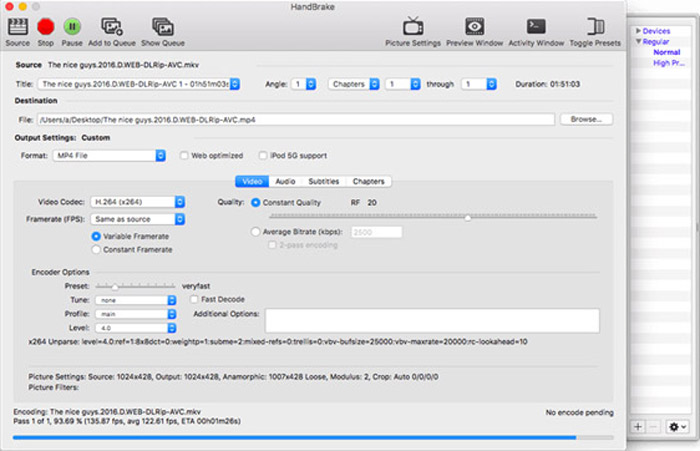
HandBrake é outro conversor de MP4 para M4V de código aberto. Ele não apenas permite transcodificar os arquivos de vídeo, mas também remove a proteção DRM do Windows e Mac. Claro, você também pode extrair os arquivos de vídeo do disco DVD de acordo com suas necessidades.
Step 1. Download and install the HandBrake, you can launch the program on your computer. Choose the Source option at the top to select the MP4 videos into the program.
Step 2. Navigate to Output Settings option, set the format as MP4 files. Of course, you can also adjust the video codec, quality, FPS, bitrate, preset and more other encoder options.
Step 3. After that, you can click the Start button to convert MP4 to M4V with ease. When you get the desired M4V files, you can simply save the videos to iTunes or transfer to iOS devices.
MP4 vs. M4V
Lançado pelo Moving Picture Experts Group (MPEG) em 2001, o formato MP4 pode ajudá-lo a salvar dados de vídeo, áudio, legenda e imagem em faixas separadas. É a abreviação de MPEG-4 Part 14. Além disso, é um dos formatos mais populares usados para streaming e compartilhamento de vídeos.
O M4V é desenvolvido pela Apple, que também usa MPEG 4. Os arquivos M4V são frequentemente usados para armazenar os vídeos baixados da loja Apple iTunes, como videoclipes, episódios de TV, etc. Você pode encontrar alguns arquivos M4V protegidos contra cópia, pois usa Proteção de direitos autorais FairPlay DRM da Apple.
Etapa 2: Perguntas frequentes sobre a conversão de MP4 em M4V
1. Quais são as diferenças entre MP4 e M4V?
Assim como mencionado acima, a principal diferença entre MP4 e M4V é a restrição de Fairplay DRM. O formato de arquivo M4V é um formato de contêiner de vídeo desenvolvido pela Apple para codificar arquivos de vídeo em sua iTunes Store. Quando precisar reproduzir os vídeos para dispositivos iOS ou MacBook, você pode converter MP4 para M4V.
2. Você pode usar os mesmos métodos para converter M4V em MP4?
No. Because the DRM protection of the iTunes store, you cannot convert M4V to MP4 directly. You can simply change MP4 to M4V file extension, which is workable for most of the media players. But the DRM protection of M4V only enables you to play the videos with the authorized device only. You need to use the professional video converter to remove the protection instead.
3. Posso converter MP4 em M4V com QuickTime Player no Mac?
sim. Como o QuickTime Player não oferece suporte a M4V como formato de saída, quando você precisar converter MP4 em M4V com QuickTime Player, precisará instalar alguns plug-ins para obter o vídeo desejado em seu MacBook gratuitamente com facilidade.
Conclusão
Quando você precisa importar vídeos para a biblioteca do iTunes para outros dispositivos iOS, você deve converter MP4 para M4V. Aprenda mais detalhes sobre os 4 métodos mais usados para converter arquivos M4V com facilidade. Se você só precisa converter vídeos MP4 online com a qualidade de vídeo original, o FVC Free Online Video Converter é a melhor opção que você deve levar em consideração.
-
 Como converter M4V para MP4 com / sem DRM
 Este post é o guia detalhado para converter M4V em MP4 para qualquer jogador. Você pode mudar de M4V para MP4, até mesmo os arquivos M4V protegidos, para que você possa reproduzir vídeos M4V sem limite.
-
 Qual é a diferença entre MP3 e MP4
 MP3 ou MP4, o que é melhor? Qual é a diferença entre MP3 e MP4? Este artigo irá comparar o MP3 com o MP4 em todos os aspectos que você pode imaginar.
-
 Como converter MP4 em WMV para Mac / Windows
 Esta postagem mostra como converter vídeo MP4 para o formato WMV no Mac ou Windows. Também ofereceremos várias opções, incluindo software de desktop e conversores on-line baseados na web. Pronto para conhecer as melhores ferramentas de conversão de MP4 em WMV?

