


 Video Converter Ultimate
 Gravador de ecrã
 Reparo de vídeo
 Secure Download
Quatro maneiras de converter gratuitamente MP4 em MOV
MP4 is one of the most popular video formats which highly supported by most players, editors and devices. But in some cases, you still need to convert MP4 to MOV. Do you know how to change MP4 to MOV?

When you Google how to convert MP4 to MOV on the internet, you can see many video converters can help you make the video conversion, including some free online converting tools. Here in this post, we will tell you 4 free ways to help you convert MP4 to MOV with ease.
Parte 1. Como converter gratuitamente MP4 para MOV no Mac / PC sem perda de qualidade
Even though there are a large number of MP4 to MOV converting software offered on the market, many of them will lose some image and sound quality during the conversion. If you want to convert MP4 to MOV without quality loss, you should choose the Free Video Converter.
Free Video Converter é especialmente projetado para lidar com todos os tipos de conversões de vídeo e áudio. É altamente compatível com quase todos os formatos de vídeo / áudio, incluindo MP4, MOV, MKV, FLV, AVI, WMV, MP3, AAC, FLAC e mais. Ele permite que você converta gratuitamente MP4 em MOV no Mac ou Windows PC, mantendo a qualidade original.
Free DownloadFor Windows 7 or laterSecure Download
Free DownloadFor MacOS 10.7 or laterSecure Download
Step 1. Double click the download button above and then follow the instructions to install and run this free MP4 to MOV converter on your Mac/PC. Make sure you download the right version based on your system.
Step 2. When you enter the main window, you can click Add File(s) to import the MP4 file(s) you want to convert. This free MP4 to MOV converter is equipped with a batch conversion feature which allows you to convert one or more MP4 files at a time.
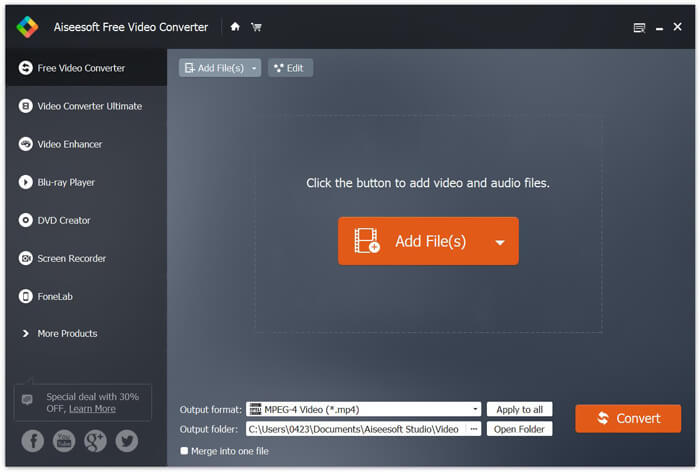
Step 3. Click Output format and choose MOV as your target format from the drop-down list. Now you can simply click the Convert button to start the conversion from MP4 to MOV.
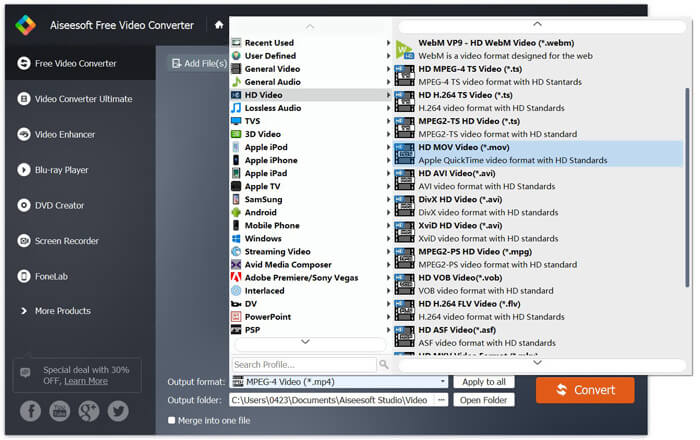
Apenas alguns segundos depois, o MP4 original será convertido para o formato MOV. Além de MOV, você também pode converter MP4 em MKV, FLV, AVI, etc. com alta qualidade. Este conversor de vídeo gratuito também possui alguns recursos básicos de edição. Antes da conversão final de MP4 em MOV, você pode usá-los para editar seu (s) vídeo (s) MP4.
Parte 2. Como alterar MP4 para MOV grátis com o conversor de vídeo online
Como mencionado acima, existem muitos conversores de vídeo online gratuitos oferecidos no mercado que podem ajudá-lo a transformar MP4 em MOV. Aqui nesta postagem, apresentaremos 2 métodos de como alterar o MP4 para MOV online.
1. FVC Free Online Video Converter
If you want to convert MP4 to MOV online for free, FVC Free Online Video Converter will be your best choice. With 3 simple steps, you can complete the conversion and get the lossless converted file in seconds.
Step 1. Click the link above and navigate to FVC Free Online Video Converter. Then click Add Files to Convert in the middle of banner. Then download and install FVC launcher to your computer.
Download the Desktop Version to convert files in batch.

Step 2. After selecting and uploading the video you want to convert, you need to choose MOV as the output format for the converted video file.
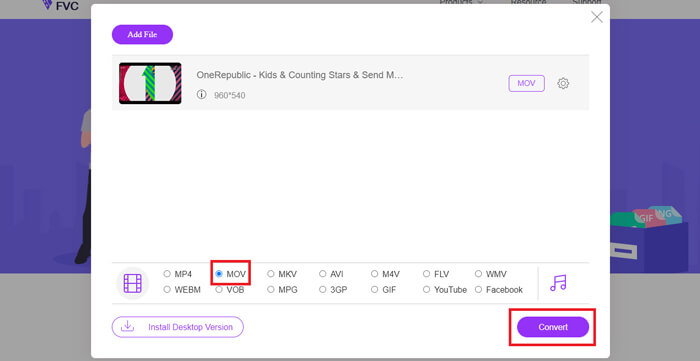
Step 3. Click Convert. And you can choose to save the converted file to your desktop. After that, just wait for a while to get your MOV video.
2. CloudConvert
CloudConvert é uma ferramenta de conversão de vídeo online muito popular e fácil de usar. Ele tem a capacidade de converter mais de 200 formatos, incluindo formatos de áudio, vídeo, documento, ebook, arquivo, imagem, planilha ou apresentação. Além disso, este conversor online confiável protegerá seus dados e privacidade.
Step 1. Open your browser and navigate to the official site of CloudConvert. It is designed with a concise interface which can offer you a comfortable converting experience.
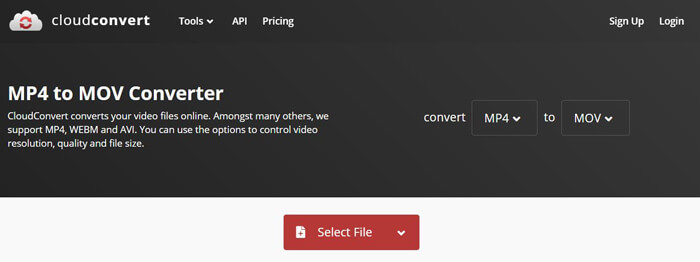
Step 2. Click the Select File button to upload the MP4 file you want to convert. Here you can add file from computer, URL, Google Drive, OneDrive or Dropbox. During this step, you are allowed to add more files for the converting.
Uma coisa que você deve se preocupar é que, este conversor MP4 para MOV gratuito só permite converter um vídeo com menos de 1 GB. Você precisa comprar um pacote para converter arquivos maiores.
Step 3. Click the Convert button to start uploading and converting your MP4 file. Then you can click the Download button to save the converted MOV video on your computer.

Usando o CloudConvert para converter MP4 para MOV online, você precisa gastar mais tempo no processo de upload, conversão e download de vídeo, especialmente quando estiver convertendo um arquivo grande.
Parte 3. Como converter MP4 para MOV com o VLC Media Player
VLC Media Player is a popular and open-source multimedia player. More than just a media player, VLC can also work as a video converting tool to help you make various video conversions. If you get VLC installed on your computer, You can rely on it to convert your MP4 file to MOV video.
Step 1. Open VLC Media Player on your computer. If you don’t have VLC, you can go to its official to free download it.
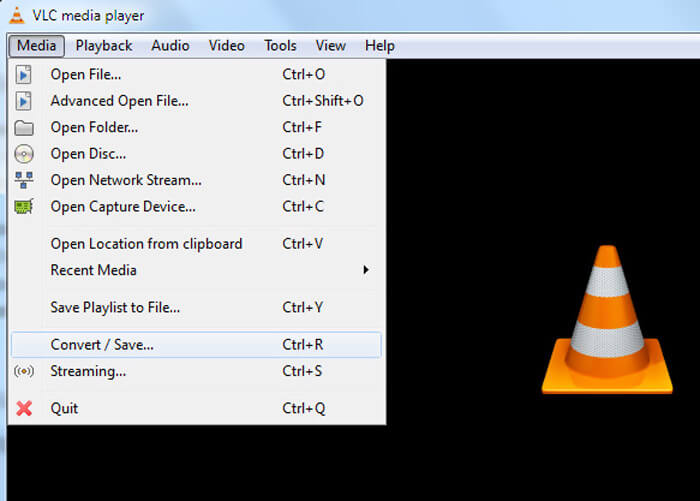
Step 2. Click the Media button on the menu bar and then choose the Convert/Save option from the drop-down list.
Step 3. A new Open Media window will pop up. Here you can click File > Add to import the MP4 file you want to convert.
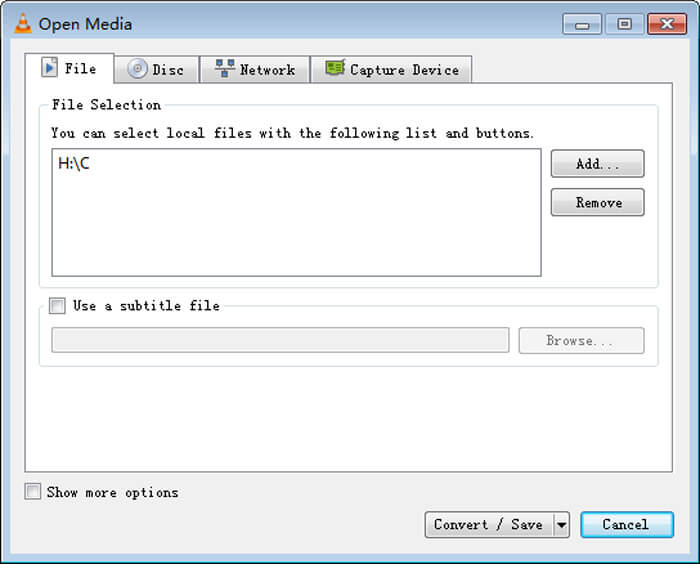
Step 4. Click the Convert/Save button on the bottom to confirm the operation. Then you will be guided to a Convert window where you can select the destination file folder and output format for the converted video.
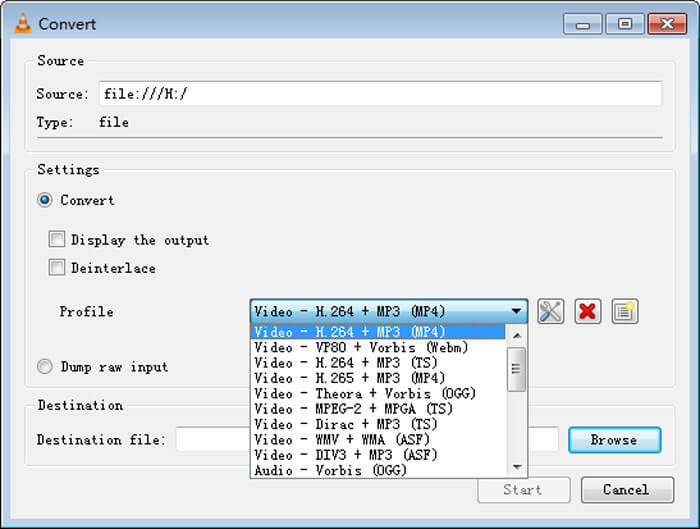
Step 5. Choose MOV as the output format from the Profile drop-down list. Then click Start to make the video conversion from MP4 to MOV on VLC.
MP4 vs. MOV
Lançado pelo Moving Picture Experts Group (MPEG) em 2001, o formato MP4 pode ajudá-lo a salvar dados de vídeo, áudio, legenda e imagem em faixas separadas. É a abreviação de MPEG-4 Part 14. Além disso, é um dos formatos mais populares usados para streaming e compartilhamento de vídeos.
O formato MOV pode ser usado para armazenar um filme, programa de TV, videoclipe curto ou filme caseiro. Na verdade, ele é salvo no formato de arquivo QuickTime (QTFF), que foi introduzido pela Apple em 1991. Os arquivos MOV são frequentemente usados quando as pessoas desejam salvar um vídeo com alta qualidade.
Parte 4. Perguntas frequentes sobre a conversão de MP4 em MOV
Pergunta 1. O QuickTime pode converter MP4 para MOV?
Quando você precisar converter MP4 para MOV no Mac, pode experimentar o QuickTime. Você pode abrir vídeo MP4 com QuickTime Player. Em seguida, clique no botão Exportar e escolha o formato MOV. Você pode renomear o arquivo, selecionar o local e a resolução do vídeo. Em seguida, você pode clicar no botão Exportar para converter gratuitamente MP4 para MOV no Mac.
Questão 2. Qual é melhor, MOV ou MP4?
MP4 is one of the most popular multimedia file storage formats. It is a digital container file, only a wrapper around the video, not the video itself. Similar to MP4, MOV is also a digital container file. MOV is encoded with the MPEG-4 codec.The main difference between MOV and MP4 is that, MOV is mostly used for Mac environments. MOV is specially designed for QuickTime. MP4 is an international standard which can be supported by most media player and systems. Generally speaking, MOV video is often higher in quality and larger in size. MP4 file is typically more compressed and smaller in size. So you can’t simply say MOV is better than MP4, or MP4 is the better one.
Pergunta 3. A conversão de MOV em MP4 perde qualidade?
Quando você deseja converter MOV para MP4, ou mudar MP4 para MOV, você deve escolher algum conversor de vídeo profissional. Na maioria dos casos, você não verá nenhuma perda de qualidade após a conversão.
Pergunta 4. Existe algum conversor MP4 para MOV grátis?
Existem muitos conversores de vídeo gratuitos oferecidos na Internet que podem ajudá-lo a converter MP4 em MOV. Além do CloudConvert recomendado, você também pode contar com FFmpeg, HandBrake, ZAMZAR, Convert Files e mais para fazer a versão de conversão.
-
 Como converter seus arquivos de vídeo MP4 em imagens GIF animadas sem perda de qualidade
 Procurando a melhor maneira de converter seu vídeo MP4 em GIFs animados? Aqui está um guia detalhado para fazer isso no Photoshop, Windows Movie Maker, conversor de vídeo online e muito mais.
-
 MOV VS MP4 - Qual é o melhor
 MOV VS MP4, qual é o melhor? Este post mostra a diferença entre MP4 e MOV, para que você tenha a melhor escolha para usar em seus arquivos de vídeo.
-
 Como converter MOV para MP4 sem perder qualidade
 Quer converter arquivos MOV (Apple QuickTime Movie) para MP4? Esta postagem compartilha 4 métodos gratuitos para converter seus arquivos de vídeo MOV para o formato MP4 no Windows 10/8/7 / XP e Mac OS X.

