


 Video Converter Ultimate
 Gravador de ecrã
 Reparo de vídeo
 Secure Download
Conversores VLC para MP4: as ferramentas mais rápidas e perfeitas que você deve conhecer
The VLC Media Player is not just your ordinary media player for watching movies and listening to tunes, for it is a lot more versatile than you think. If you are a VLC fan, chances are you have a bunch of movies stored in its library. Did you know that you can actually use VLC to convert your videos into different formats like MP4? Thus, if you ever thought about converting these movies or videos in VLC to MP4 format so that you can watch them on your phone or other portable devices, then you are in luck! This post will teach you the quickest and easiest conversion process that you can do on your computer. So, cutting this to the chase, proceed to read the entire content below to catch the learning ASAP!

Parte 1. Maneira mais rápida de converter arquivos VLC para MP4
If you are looking for great software that handles video conversions like a champ without sacrificing quality, then look no further since we have let you meet this FVC Video Converter Ultimate. This ultimate converter not only swiftly transforms VLC videos into various formats like MP4, MKV, WMA, AVI, MOV, and more, but it does so without any loss in image quality. Furthermore, it is super fast, up to 120x faster, since it comes with hardware acceleration support.
Mas espere, tem mais! Este conversor de VLC para MP4 também funciona como um editor de vídeo de primeira linha. O editor permite que você corte, corte, gire, adicione marcas d'água e muitas outras edições que você conhece. Além disso, ele vem com recursos importantes que você não vai querer perder. Recursos que ajudarão você a criar colagens de vídeo impressionantes com seus clipes, fotos e músicas! Enquanto isso, vamos passar para um processo de conversão rápido trazido a você pelo FVC por meio das etapas abaixo.
Step 1. Let’s start by grabbing the software on your computer. You may use the Download buttons below according to your system device. Yes, you can convert VLC to MP4 on Mac or Windows with this software.
Free DownloadFor Windows 7 or laterSecure Download
Free DownloadFor MacOS 10.7 or laterSecure Download
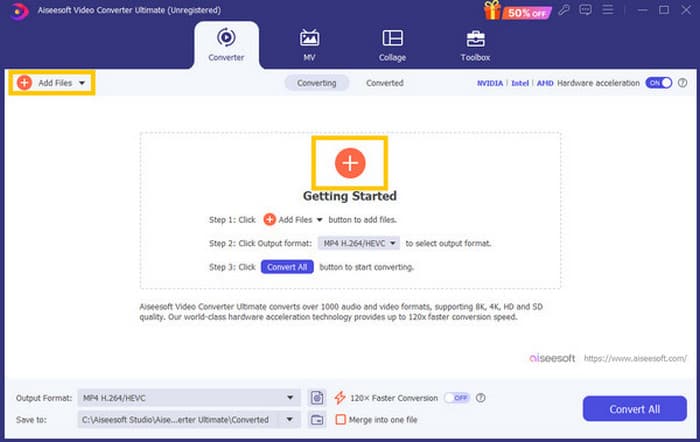
Step 2. After your acquisition, launch the software and start importing all the VLC files that you need to convert. Simply click the red Plus button at the center of the workspace or the Add Files button at the upper right part.
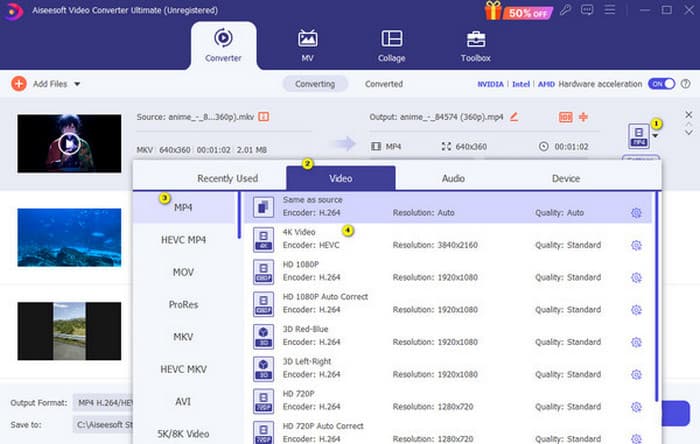
Step 3. After the bulk importation of files, it’s time to change the output format to MP4. To do so, click the inverted triangle button at the tail part of each file. Then, navigate to Video>Select MP4>Select Encoder.
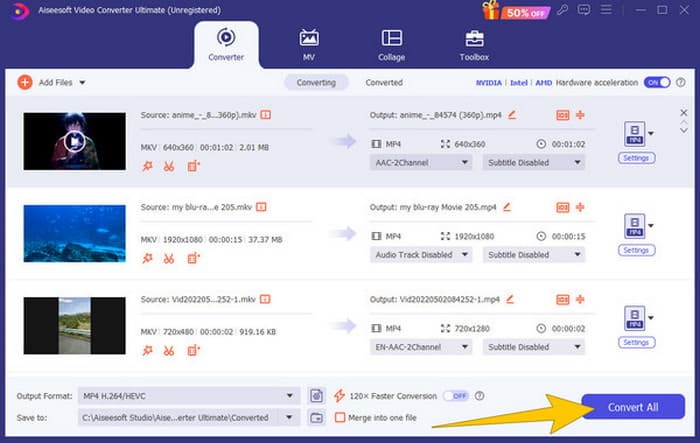
Step 4. As easy as that, you can now navigate the Convert All button to start the ultrafast conversion process.
Prós
- Um bom software multifuncional para converter, editar e criar arquivos de vídeo.
- Ele oferece uma versão de teste gratuita que fornece o mesmo poder de conversão.
- Permite a conversão em massa de arquivos VLC.
- Converta seus arquivos VLC 120x mais rápido.
- Vários formatos de entrada e saída são suportados.
Contras
- Você precisará adquirir uma assinatura para os recursos avançados.
Parte 2. Etapas completas para converter arquivos para MP4 no VLC
Como você está trabalhando com arquivos VLC, é realmente uma boa opção convertê-los usando o próprio VLC. No entanto, diferentemente do conversor VLC para MP4 anterior, o VLC pode ser um pouco desafiador de operar quando se trata de conversão. É por isso que tornamos o processo mais fácil de seguir com as etapas abrangentes que fornecemos abaixo.
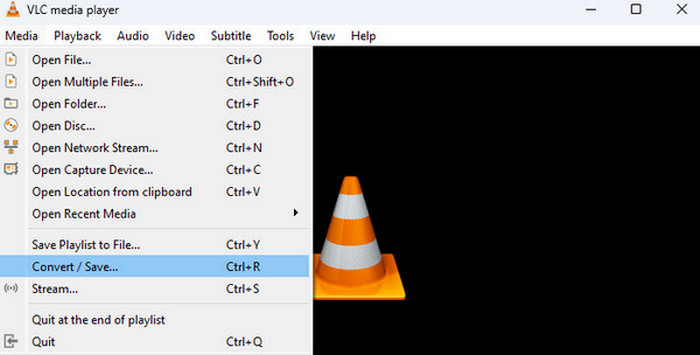
Step 1. Open the VLC on your computer device, then bring the video file on, too. How? Navigate to the Media menu and click the Convert/Save sub-menu.
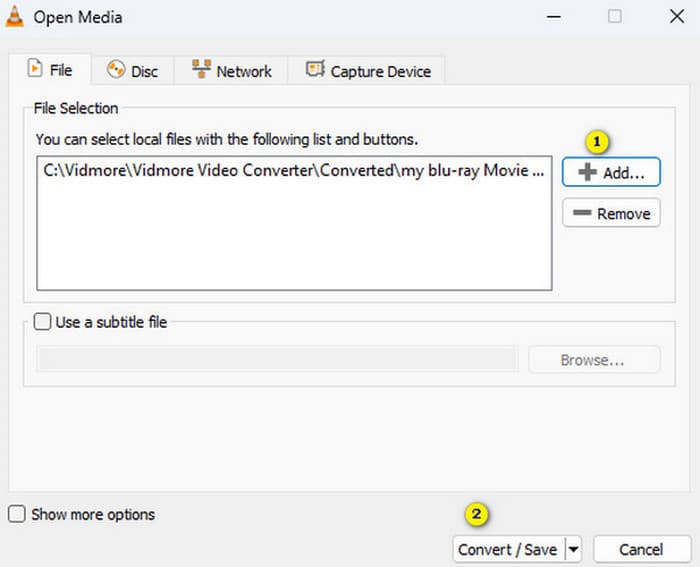
Step 2. On the Open Media window, click the +Add button to bring the file on. When the file is loaded, click the Convert/Save button at the bottom.
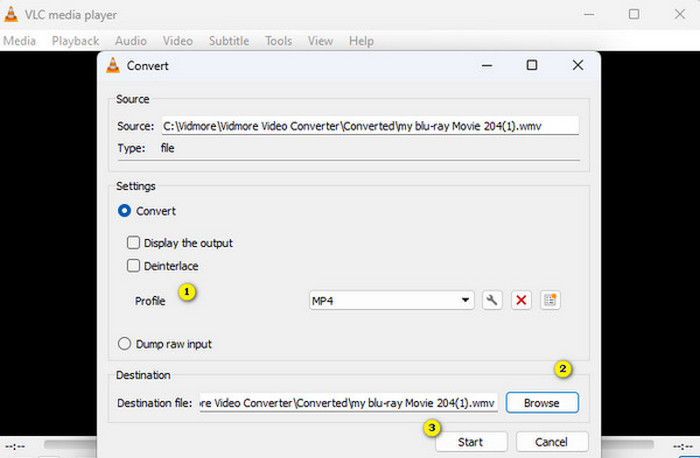
Step 3. After that, VLC will bring you to the next window, where you need to choose the MP4 as your output format. To do this, go to the Profile section. Then, go to the Browse section to set your file destination, then click the Start button to start the conversion process.
Prós
- É um conversor e reprodutor de mídia gratuito.
- É um conversor multiplataforma de VLC para MP4.
- Você pode trabalhar diretamente com seus arquivos VLC sem uma ferramenta de terceiros.
- Você pode trabalhar com vários formatos de vídeo.
Contras
- O processo de conversão não é tão rápido.
- Ele vem com uma limitação de tamanho de arquivo na conversão.
Parte 3. Converta arquivos de VLC para MP4 online
Suppose you want to go the extra mile to convert video files online. If that’s the case, you must learn to convert files with FVC Free Video Converter Online. This web-based converter is all about making multimedia conversion easy and free. It can convert almost any video and even audio file to various formats without losing quality. With this converter, you can quickly turn your HD videos into popular formats while preserving their original clarity. Furthermore, it lets you convert multiple files in a jaw-dropping, fast conversion process!
Esta ferramenta também oferece recursos de edição onde você pode ajustar as configurações de vídeo como taxa de quadros, taxa de bits e resolução, bem como configurações de áudio como taxa de bits e volume. Isso significa que você pode ajustar seus vídeos do jeito que quiser e exportá-los sem nenhuma perda de qualidade! Siga os passos abaixo para converter de VLC para MP4 online.
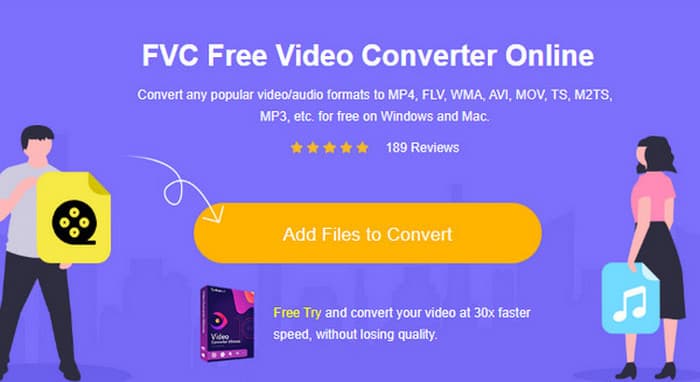
Step 1. Upon reaching the official website of the online converter, click the Add Files to Convert button. This will enable you to upload your initial video files.
Step 2. When your files are shown, click them and choose MP4 as your output format from the options given at the bottom of the interface.
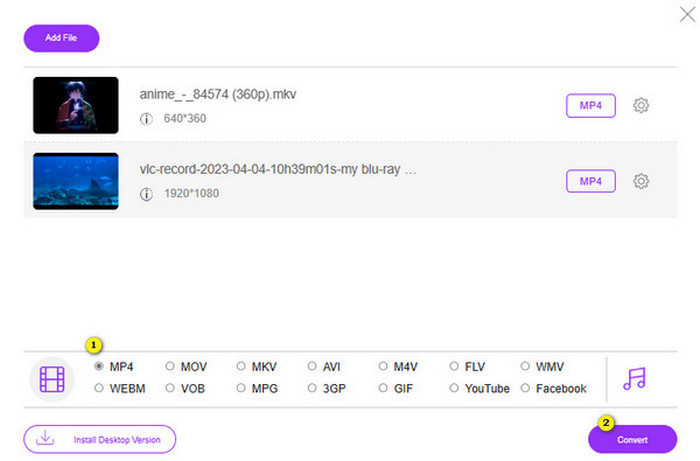
Step 3. After setting all the files into MP4, it’s time to click the Convert button.
Prós
- É muito mais acessível de usar.
- Não requer instalação de nenhum software.
- Você pode converter todos os seus arquivos simultaneamente.
Contras
- Você precisa ter uma conexão de internet estável para um processo de conversão tranquilo.
Parte 4. Perguntas frequentes sobre a conversão de VLC para MP4
Como converter VLC para MP4 no Mac?
Use the Mac version of FVC Video Converter Ultimate to convert your video files to MP4 without a quality lost.
Posso usar o VLC para converter vídeos criptografados ou protegidos por DRM?
No. Unfortunately, VLC cannot convert encrypted or DRM-protected videos to MP4 or any other format.
O VLC faz uma conversão sem perdas?
O VLC oferece opções para ajustar as configurações de vídeo e áudio para manter a melhor conversão sem perdas.
Conclusão
You see, converting your VLC to MP4 is actually pretty simple as long as you know the right things to do. But if you're aiming for fast and top-notch quality output, you must cling to a powerful converter like the FVC Video Converter Ultimate. This converter won’t require you to use detailed settings just to produce nice outputs, which you are likely to have with VLC.
-
 Processo para ripar e gravar DVD com VLC para digitalizar o formato reproduzível
 O VLC oferece suporte a vários formatos de arquivo compactados de áudio e vídeo, incluindo a gravação em DVDs. Apenas mantenha a bola rolando para mais discussão e detalhes até o final.
-
 Excelentes maneiras possíveis | Como corrigir atraso de áudio VLC [2024]
 Você tem dificuldade em assistir seu filme favorito em seu reprodutor de mídia VLC por causa da incerteza de áudio? Continue lendo este artigo para saber todas as maneiras possíveis de corrigir o atraso de áudio do VLC.
-
 Como usar o VLC para reparar vídeos. Seu guia definitivo
 Você tem vídeos quebrados presos em seus arquivos? Explore o guia definitivo para reparo de vídeo VLC para reparar seus vídeos e reproduzi-los novamente com facilidade.
