


 Video Converter Ultimate
 Gravador de ecrã
 Reparo de vídeo
 Secure Download
Como reproduzir vídeos em DVD no iPad sem leitores de DVD externos
When you ask “Is there a DVD player for iPad?” in the Apple community, you will only get the answer “No” or “Why not just rip DVDs to MP4 or MOV for iPad?”, etc. In fact, there is no designed DVD player software or external DVD players for iPad. But it doesn’t mean that you can’t play DVD videos on your iPad.

Neste artigo, você aprenderá duas maneiras eficientes de reproduzir vídeos em DVD em seu iPad sem leitores de DVD externos ou outros reprodutores de vídeo de terceiros. Você pode escolher copiar vídeos em DVD para os formatos suportados para iPad ou simplesmente converter o formato de DVD em vídeos compatíveis para reproduzir DVD no iPad. Dessas maneiras, você pode reproduzir vídeos em DVD no iPad com tamanhos menores.
Parte 1: A melhor maneira de ripar vídeos em DVD para reproduzir no iPad
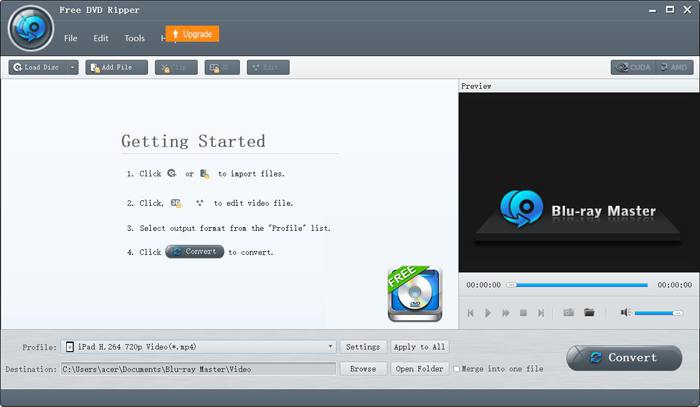
Blu-ray Master Free DVD Ripper is free and powerful software that supports ripping DVD discs to more than 200+ formats, including MP4, MOV, and M4V, which are the compatible formats for iPad. Even the DVD disc is protected by DRM, you can also rip the videos to play DVDs on the iPad. Moreover, it provides flexible edit settings to add multiple effects and filters to your DVD videos. Here are the detailed steps to rip DVD and play DVD videos on your iPad:
Step 1: Download Blu-ray Master Free DVD Ripper on your computer and directly launch it after the installation. After inserting the DVD disc into the computer, click the Load Disc button and choose the DVD Navigator Mode option. Then click the OK button to load your disc automatically.
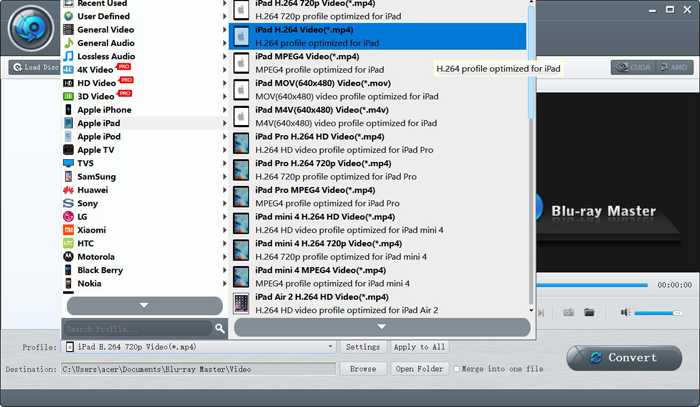
Step 2: Click the Profile menu to choose the Apple iPad option in the left list. Then you can choose the MP4, MOV, or M4V format for the desired iPad model. You’d better choose the MP4 format because it has a small size and high quality. By clicking the Settings button, you can adjust the advanced profile settings.
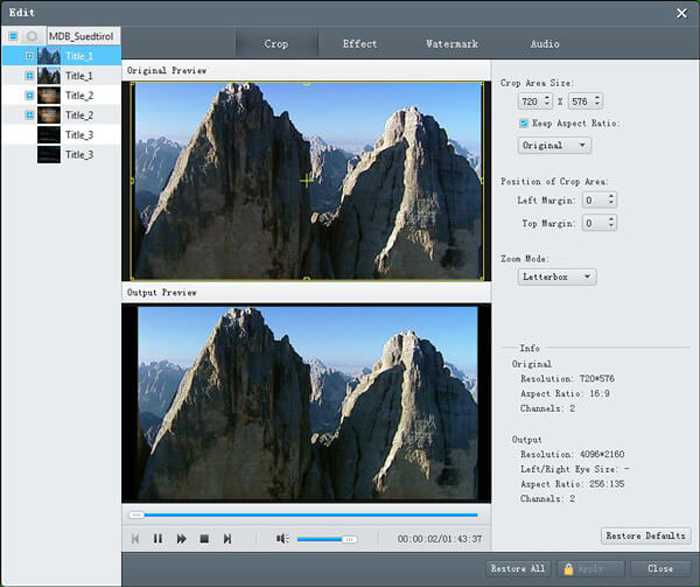
Step 3: Before exporting the DVD videos, you can also click the Edit button to crop the videos, add effects and watermark to the videos.
Step 4: Back to the main interface and choose the storage path. Then click the Convert button to start ripping DVD videos to play DVD on the iPad.
Parte 2: Perguntas frequentes sobre DVD Players para iPad e como reproduzir DVDs no iPad
1. Existe algum reprodutor de DVD externo para iPad?
Embora o iPad não suporte a conexão de reprodutores de DVD ao iPad por meio de um cabo USB. Existem leitores de DVD externos que podem ser ligados ao iPad remotamente através de Wi-Fi, e os leitores de DVD externos devem estar sempre carregados. Você pode pesquisar DVRP-W8AI2 na Amazon.
2. Qual formato devo escolher ao converter DVDs para reproduzir no iPad?
Os dispositivos Apple, incluindo iPad, iPhone e iPod, são compatíveis com os formatos MP4, MOV e M4V. Dentre esses três formatos, o formato MP4 é o mais adequado. Isso porque o formato MP4 tem um tamanho relativamente menor e qualidade superior. Além do mais, o formato MP4 também é compatível com outros dispositivos portáteis, para que você possa enviar e divulgar os vídeos facilmente.
3. Como ripar vídeos de DVD para MP4 para reproduzir DVDs no meu iPad?
To rip DVD VOB videos to the MP4 format for iPad, Blu-ray Mater Free DVD Ripper is your best choice. It provides the preset settings for iPad, so you can easily rip DVD videos to play on iPad with one click.
Conclusão
Embora não haja reprodutores de DVD projetados para o iPad, e o iPad não oferece suporte à conexão de reprodutores de DVD externos, você pode optar por copiar ou converter DVDs para os formatos compatíveis para reproduzir DVD em seu iPad. E então você pode curtir os vídeos em DVD no seu iPad. Se você tiver alguma outra dúvida, por favor, deixe seu comentário abaixo.
-
 5 Soluções de trabalho 100% para corrigir vídeos que não são reproduzidos no iPad
 Seus vídeos não estão sendo reproduzidos no iPad? Aqui estão cinco soluções para ajudá-lo a se livrar desse problema e, em seguida, você pode desfrutar de seus vídeos favoritos no aparelho facilmente.
-
 Como reproduzir arquivos MKV no iPad 2021
 Como reproduzir arquivos MKV no iPad 2? Posso converter MKV em MP4 para jogar no iPad Pro / Air / 2? Esta postagem compartilha 2 maneiras fáceis de jogar MKV no iPad.
-
 Download grátis do software do DVD Player para Mac 2021
 Como reproduzir um DVD no Mac sem uma unidade de DVD? Como faço para usar um DVD player externo com meu Mac? Esta postagem compartilha 5 DVD players gratuitos para Mac.
