


 Video Converter Ultimate
 Gravador de ecrã
 Reparo de vídeo
 Secure Download
3 dicas para corrigir o VLC não reproduz DVD
VLC Media Player is one of the most popular video and audio playing software. Besides various digital media formats, VLC is also capable of playing DVDs, Audio CDs, and VCDs. However, many users have encountered the VLC not playing DVD problem. Are you facing the same situation?

In fact, many reasons may cause the VLC Media Player does not play DVD. This post will discuss how to solve it in 3 different ways, whether VLC can’t read DVD disc, video and audio files of DVD are choppy, or VLC does not play the whole DVD.
Parte 1. Atualizar ou reinstalar o VLC para corrigir o VLC não reproduzindo o DVD
When the VLC Media Player does not play DVD, you should first restart computer and VLC to check if the problem is still there. If the VLC not playing DVD issue is still existing, you can choose to upgrade VLC to its latest version.
Open VLC Media Player on your Windows 10/8/7 PC or Mac. Click Help tab on the top menu bar. From the drop-down list, choose the Check for Updates option. If there is an available one, you can follow the on-screen instructions to upgrade your VLC to the latest version.
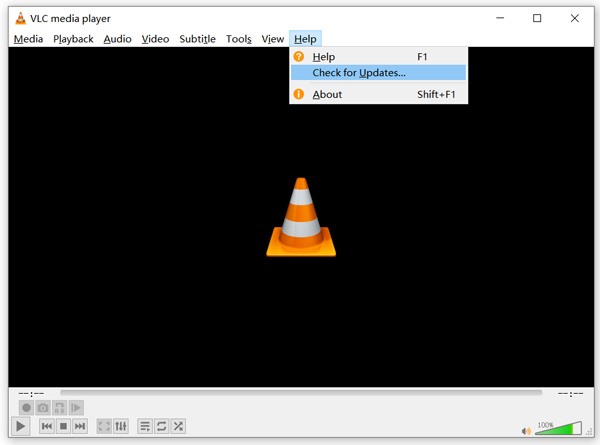
Here you can also uninstall VLC and then re-install it on your computer. You can go to the VideoLAN site to free install a suitable version.
Quando você instala uma nova versão do VLC, pode reproduzir seu DVD e verificar se ele pode abrir o DVD normalmente.
Parte 2. Redefinir as preferências para corrigir o problema de VLC não reproduzindo DVD
Em alguns casos, você pode personalizar ou redefinir as preferências do VLC para resolver o problema de VLC não reproduzindo DVD. O guia a seguir mostrará como definir as preferências de VLC.
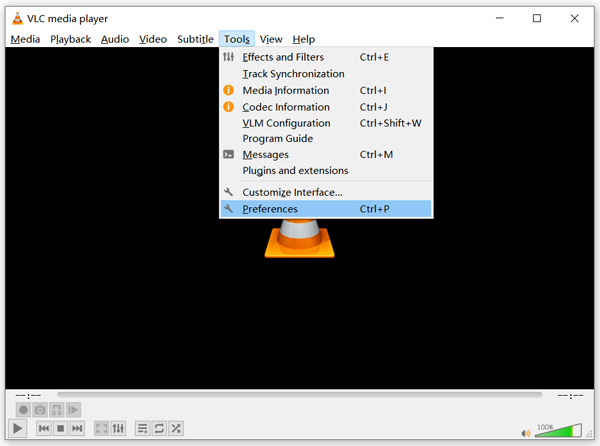
Step 1. Open VLC and choose the Tools menu. Select the Preferences option from the drop-down list.
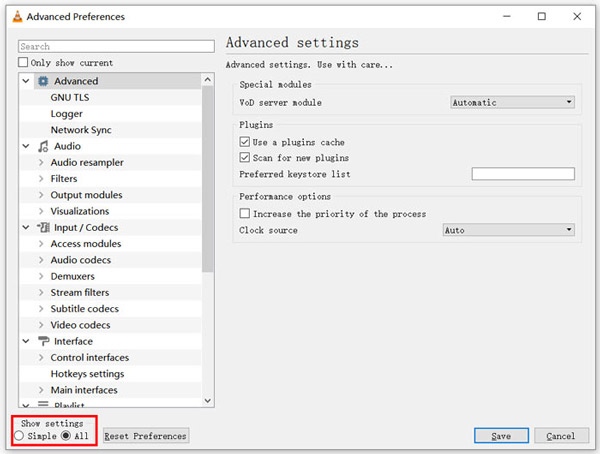
Step 2. Now you will be guided to the Simple Preferences window. Tick All under the Show Settings at the bottom left corner to enter the Advanced Preferences window.
Step 3. Here you can click on the Reset Preferences button to try fix VLC not playing DVD issue. Also, you can go to the Video section on the left, click Filters and then choose Deinterlacing video filter option on the right. Click Save button to confirm your operation.
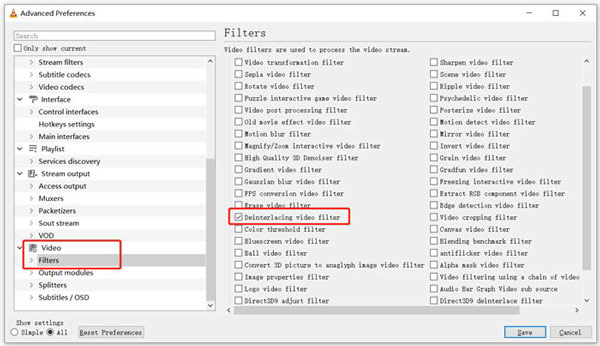
Whether you choose to reset or custom VLC preferences, after all your operations, you should restart VLC and then use it play DVDs.
Parte 3. Obtenha uma ferramenta alternativa VLC para reproduzir DVDs
If VLC is still not playing DVD on Windows 10/8/7 PC or Mac, you should find a VLC alternative player to help you watch DVD movies on computer. Here we strongly recommend the Free Online DVD Player for you to watch any DVDs with high quality.
É um reprodutor de DVD totalmente gratuito que permite a você reproduzir discos DVD, pastas de DVD e arquivos de imagem ISO em PCs e Macs com Windows 10/8/7. Este DVD player gratuito pode reproduzir seu DVD diretamente em qualquer navegador da web, como Chrome, IE, Firefox e Safari. É equipado com todos os recursos de reprodução de DVD de que você precisa. Além disso, permite tirar instantâneos, adicionar, ajustar e selecionar legendas e faixas de áudio.
Step 1. When you want to play DVD, you can go to this Free Online DVD Player page and click on the Play Now button to install a Launcher for the DVD playback. Once the installation is finished, the DVD player will be initiated automatically.

Step 2. When you enter this DVD player, you can choose Open Disc or Open File according to your need. To play a DVD disc, you should insert your DVD disc and select the Open Disc option. To open DVD folder or DVD ISO file, you can use the Open File.
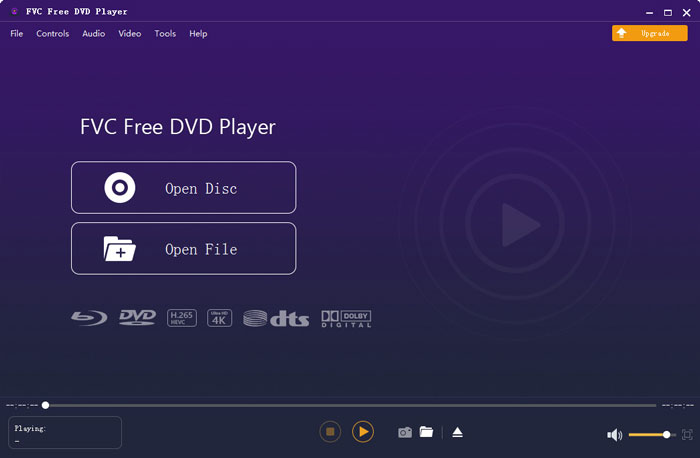
Step 3. You are given the full control of the DVD playing. You can forward, backward, pause, and stop it anytime you like. You are also able to take screenshots of your favorite scenes. Also, you can change the audio track, video track, and subtitle track based on your need.
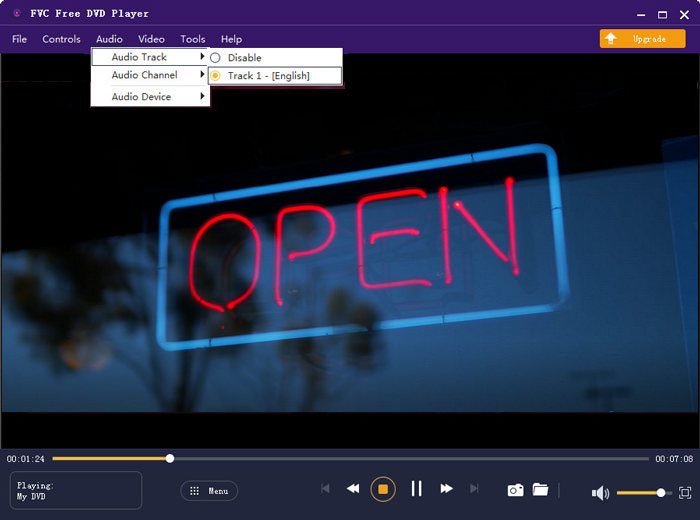
Esta alternativa VLC Media Player tem a capacidade de reproduzir qualquer filme em DVD com alta qualidade de imagem e som. Ele é projetado com a tecnologia de codificação de vídeo avançada e oferece suporte a DTS-HD e Dolby TrueHD. Portanto, quando você enfrentar o problema de VLC de não reproduzir DVD, pode contar com este DVD player para assistir seus DVDs.
More VLC alternatives are here.
Parte 4. FAQs do VLC Media Player não reproduz DVD
Questão 1. Como reproduzir DVD com VLC?
Para reproduzir o filme em DVD no VLC Media Player, você pode inserir o disco DVD na unidade de disco do computador, abrir o VLC Media Player e clicar no menu Mídia. Escolha Abrir disco e DVD e, a seguir, clique no botão Procurar para carregar o arquivo de DVD. Depois disso, o VLC começará a reproduzir seu DVD.
Pergunta 2. Por que não consigo reproduzir DVDs no Windows 10?
O suporte de reprodução de DVD integrado da Microsoft não está mais disponível no Windows 10. É por isso que você não pode reproduzir DVDs em um PC com Windows 10. Em vez disso, a Microsoft oferece o software Windows DVD Player que custa $14.99 para você assistir a DVDs.
Pergunta 3. Como copiar um DVD para MP4?
When you want to watch DVD on computer, you can also choose to convert DVD to a digital video file like MP4. You can rely on the powerful DVD to MP4 converter to rip your DVD to MP4 without quality loss.
Conclusão
VLC can work as a free DVD player to help you play DVDs on Windows 10/8/7, Mac and Linux computer. It can easily access DVD menu, chapters, and other related contents. However, many users complained about the VLC not playing DVD problem.
Here in this post, you can get 3 effective solutions to fix the VLC Media Player does not play DVD issue. Hope you can better watch your DVD movies after reading this page.
-
 Como gravar arquivo de vídeo _TS em DVD no Mac / Windows 10
 Como faço para converter e gravar arquivos TS em um disco DVD? Este guia passo a passo mostrará como copiar arquivos e pastas TS para DVD no Windows / Mac para que você possa assistir arquivos TS no DVD player ou TV.
-
 Como gravar vídeo na tela com áudio com o VLC Media Player
 É um guia passo a passo sobre o uso abrangente do recurso de gravação de tela VLC. Você pode encontrar o processo detalhado, a solução de problemas e a melhor alternativa no artigo.
-
 Os 5 melhores players de vídeo para iPhone que você não deve perder em 2021
 Para reproduzir vídeos em todos os formatos e ter uma melhor experiência de visualização em seu iPhone, você deve ler este artigo e aprender sobre os 5 melhores reprodutores de vídeo para iPhone 12/11 / X / 8/7/6.
