


 Video Converter Ultimate
 Gravador de ecrã
 Reparo de vídeo
 Secure Download
3 maneiras de reproduzir arquivos MKV no Windows Media Player
Can't open MKV file in Windows Media Player?
MKV is one kind of popular video format. You may get many high-quality movies, TV shows or other videos that saved in MKV. However, as a Windows user, the default video player, Windows Media Player doesn't natively support the splitting (opening) MKV containers. Now we back to the question, how to play MKV files in Windows Media Center?

Mesmo depois de atualizar o Windows Media Player para a versão mais recente, não há garantia de que você não encontrará problemas de reprodução do MKV. Considerando isso, este artigo gostaria de compartilhar 3 maneiras eficazes de ajudá-lo a reproduzir arquivos MKV em seu PC com Windows.
Parte 1. Como abrir arquivo MKV no Windows Media Player
Windows Media Player can't play MKV files mainly due to the mismatch of codec. You should know that, MKV is actually a media container for video streams, audio streams, subtitles, and more. You need to give WMP the correct splitter for MKV, and codecs and filters for the video and audio file. This part will guide you to play MKV file in Windows Media Player.
Step 1. Open Windows Media Player and open the MKV file with it. Here you can also right click on the MKV file and select open with WMP.
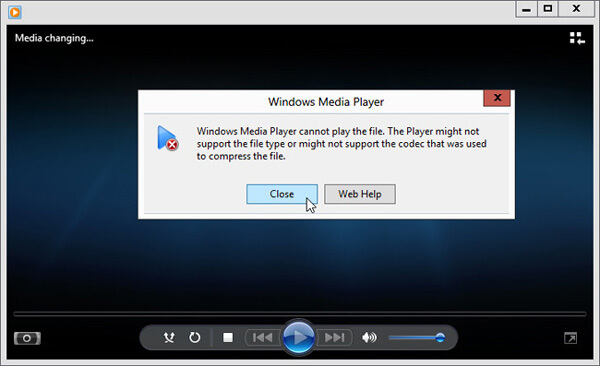
Step 2. Now you will see an error message saying that Windows Media Player cannot play the file. Click the Web Help option in the dialog box.
Step 3. Click the codec link under Codec is Missing. Copy and paste the link on your browser. This will guide you to get the right Windows Media Player MKV codec. After downloading, you should follow the instructions to complete the Windows Media Player MKV setup process.
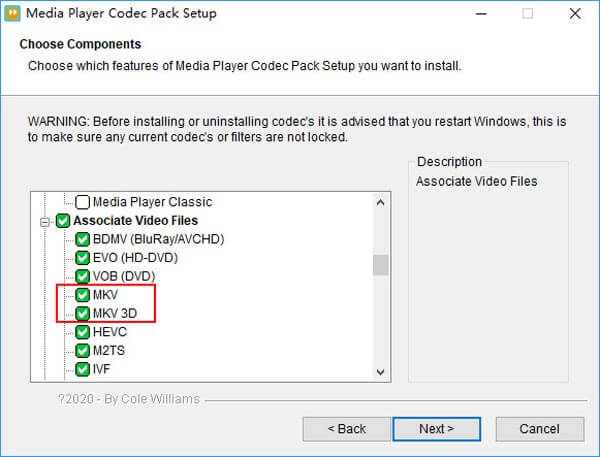
Step 4. Restart Windows Media Player and then try playing your MKV file again.

Parte 2. Melhor maneira de reproduzir arquivos MKV no Windows Media Player Alternative
Com o codec MKV certo, você pode abrir facilmente o arquivo MKV no Windows Media Player. No entanto, muitos usuários relataram que ainda existem alguns outros problemas de reprodução durante a reprodução de MKV com WMP. Nesse caso, você pode escolher uma alternativa do Windows Media Player para ajudá-lo a reproduzir arquivos MKV.
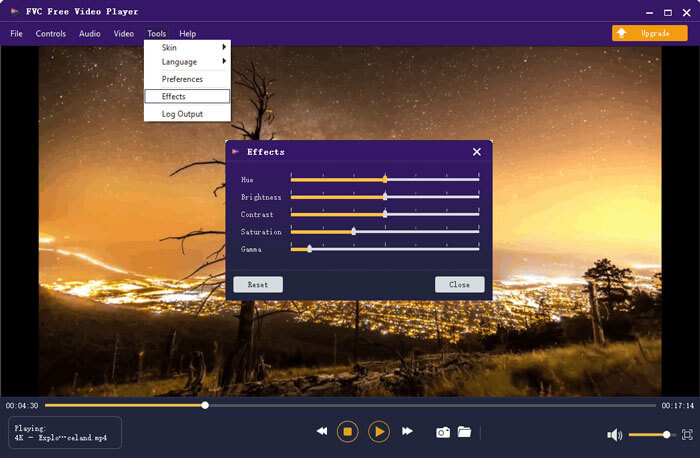
FVC Free MKV Player is a great alternative tool to Windows Media Player. It natively supports any frequently-used video and audio formats, such as MKV, MOV, MP4, FLV, AVI, RMVB, MPEG, AAC, MP3, M4A, WMA, and more. You can rely on it to watch MKV movies with high quality.

Step 1. Open your browser and navigate to this free MKV player site. Click on the Play Now button to install a small-size launcher file for the MKV playing. After that, the main MKV playing window will appear on the screen.

Step 2. Click on the Open File button to browse and import your MKV file to it. After that, the video will be automatically played. With the adoptions of the advanced video encoding technology, it can play MKV file smoothly with high quality. In addition, it supports DTS-HD and Dolby TrueHD.

Você recebe todos os controles de reprodução de MKV. Além das operações básicas como reproduzir, pausar, retroceder, avançar, ajustar o volume e muito mais, ele também permite ajustar efeitos, alterar faixa de áudio e legenda e personalizar outras configurações.
Parte 3. Converter MKV para reprodução no Windows Media Player
To play MKV file in Windows Media Player, you can also choose to convert MKV to a supported video format like MP4. Here we introduce you with the Free Online Video Converter to help you convert MKV to MP4 without quality loss.
Step 1. Go to this free online MKV to MP4 converter page on your browser. It is compatible with any popular web browser including Chrome, IE, Safari and Firefox.
Step 2. When you get there, click the Add File to Convert button. During this step, you need to install a small launcher for the MKV conversion. After that, a pop-up window will appear on the screen for you to select your MKV file.
Step 3. You can see many popular video formats like MP4, MOV, AVI, MKV, FLV, etc. are listed there. Make sure the output format is MP4 and then click on the Convert button.
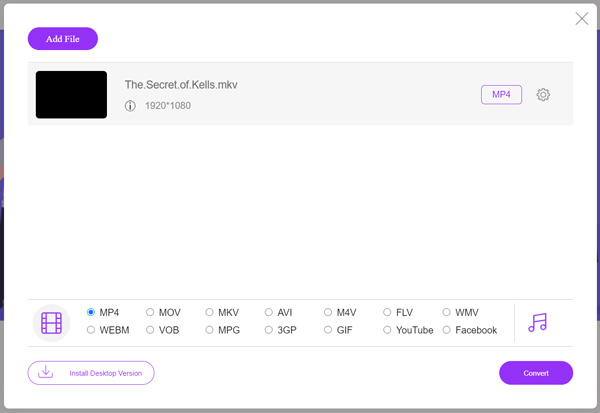
After the MKV to MP4 converting, you can play it with your Windows Media Player. There won't be any image or sound quality loss during the conversion.
Parte 4. Perguntas frequentes sobre como reproduzir MKV no Windows Media Player
Pergunta 1. Como altero o formato de um vídeo no Windows Media Player?
Abra o Windows Media Player e carregue o arquivo de vídeo que deseja converter. Clique na pequena seta na guia Copiar no menu superior. Selecione Mais opções e clique no menu suspenso denominado Formato. Aqui você pode escolher um formato de saída adequado e iniciar a conversão.
Pergunta 2. Qual é o formato de vídeo do Windows Media Player?
O formato de arquivo padrão do Windows Media Player é WMV, Windows Media Video e WMA, Windows Media Audio. Além disso, ele suporta o formato de sistemas avançados e seu próprio formato de lista de reprodução baseado em XML, lista de reprodução do Windows.
Pergunta 3. O Windows 10 pode reproduzir arquivos MKV?
Não. O Windows Media Player 12 integrado no Windows 10 não pode reproduzir arquivos MKV. Você precisa instalar o codec MKV para obter a reprodução.
Conclusão
When Windows Media Player could not understand the MKV codec, it simply shows an error. To play MKV file in Windows Media Player, you need to install right codec. Also, you can get a third-party player or convert MKV format for the playing. If you still have any questions about how to open MKV file in Windows Media Player, don't hesitate to leave us a message.
-
 Os 8 melhores jogadores MKV para reproduzir arquivos MKV com a legenda desejada
 Quando quiser reproduzir o vídeo MKV com a legenda desejada, você pode aprender mais sobre os 8 principais reprodutores de arquivos MKV para PC / Mac e escolher o desejado de acordo com suas necessidades.
-
 MKV para MOV - Como converter MKV para MOV
 Como faço para converter MKV para MOV no Mac? O iMovie consegue ler MKV? O que significa o formato MOV? Esta postagem mostra 2 maneiras simples de ajudá-lo a converter MKV em MOV com conversores de vídeo profissionais e online gratuitos.
-
 AC3 Player - Revisão dos 10 Melhores Jogadores AC3 Gratuitos de 2021
 Qual é o melhor jogador AC3? O MX Player pode abrir o AC3? Esta postagem faz uma lista de 10 jogadores AC3 grátis para Mac, Windows PC, iOS e dispositivos Android.
