


 Video Converter Ultimate
 Gravador de ecrã
 Reparo de vídeo
 Secure Download
3 dicas para MP4 não reproduzindo no Google Drive
Google Drive is a cloud-native collaboration service which allows you to back up and access all your files from any device and anywhere. It gives you 15GB free storage, shared across Google Drive, Gmail, and Google Photos to store all types of data. You can upload MP4 files to Google Drive and then directly play them on it.
In general, you can easily play MP4 in Google Drive by double clicking on it. However, there are some MP4 not playing in Google Drive errors, such as This video cannot be played or Whoops! There was a problem playing this video.

If you can’t play MP4 files in Google Drive with the regular way. You can rely on the 3 other methods below to play your Google Drive videos.
Parte 1. Jogue MP4 no Google Drive com uma nova janela
Quando você quiser reproduzir MP4 no Google Drive, você pode clicar duas vezes nele para começar a jogar, com seu reprodutor de vídeo embutido. No entanto, se você não conseguir reproduzir arquivos MP4 com esse método, poderá escolher reproduzir o vídeo do Google Drive em uma nova janela.
Step 1. Open Google Drive and find the MP4 video you want to watch. Right click on it and select Preview.
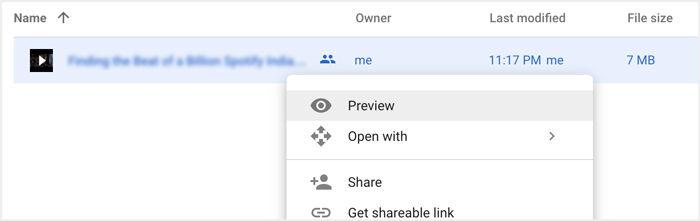
Step 2. Now you can arise the menu by clicking three-dot icon in the top-right corner. From the drop-down list, choose the Open in new window option.
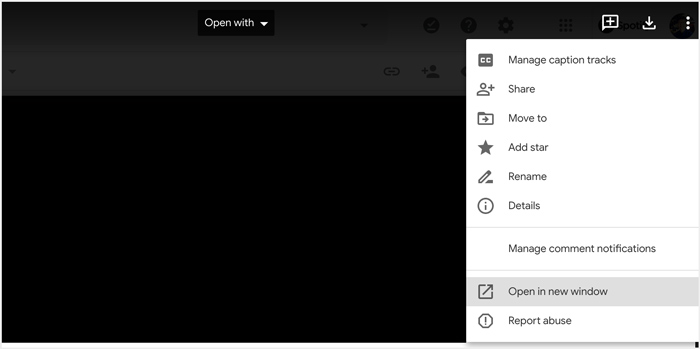
Após todas as suas operações, o arquivo MP4 no Google Drive será reproduzido em uma nova janela. Você pode verificar se este vídeo pode ser reproduzido normalmente.
Parte 2. Remova contas para reproduzir arquivos MP4 no Google Drive
Em alguns casos, o erro de arquivos MP4 não reproduzidos no Google Drive é causado por várias contas do Google. Portanto, você pode tentar remover algumas contas indesejadas para consertar.
Step 1. To sign out the unwanted accounts, you can go to your Google Account on Google site. You can locate it in the top right corner. Click on your profile and check all Google accounts there.
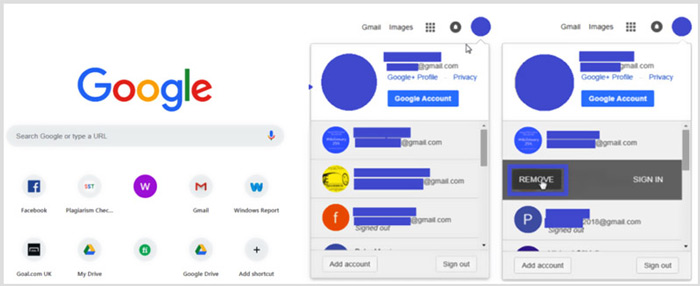
Step 2. Locate the unwanted account and then choose the Remove button. Here you can only keep one useful account signed in. After that, you can refresh the Google site and then back to your Google Drive. Find the MP4 file you like to watch and play it.
Parte 3. Converter vídeo para reproduzir MP4 no Google Drive
Even though Google Drive supports MP4 format, when your MP4 files can’t be played in Google Drive, you should check video file size, resolution and other related elements. To convert your video to a Google Drive supported file, you can rely on the professional Video Converter Ultimate. It is able to convert any video and audio files without quality loss.
- 1. Converta qualquer vídeo, incluindo MP4 para arquivo compatível com o Google Drive com alta qualidade.
- 2. Converta vídeos 8K / 5K / 4K, 1080p / 720p HD e SD para mais de 500 formatos como MP4, MOV, AVI, FLV, MP3, FLAC, AAC e muito mais.
- 3. Edite vídeo, ajuste efeitos, melhore a qualidade, comprima vídeo, edite informações ID3 e crie GIFs com desenvoltura.
- 4. Tecnologia de aceleração de hardware sem precedentes para oferecer velocidade de conversão super rápida.
Free DownloadFor Windows 7 or laterSecure Download
Free DownloadFor MacOS 10.7 or laterSecure Download
Step 1. To convert video to Google Drive supported file, you should free install this converter to your computer first. You can double click on its download button and then follow the instructions to do that.
Step 2. Open this Google Drive video converter tool and use its Converter feature. Click big + or the Add Files to load your MP4 file(s).
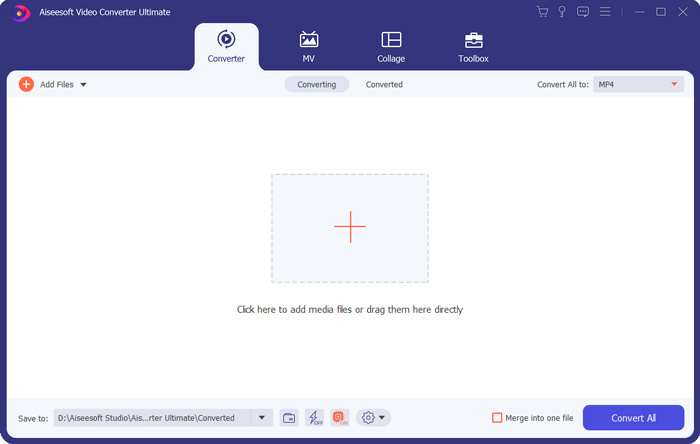
Step 3. The output format will be set as MP4 by default. You can click on it to select another suitable format.
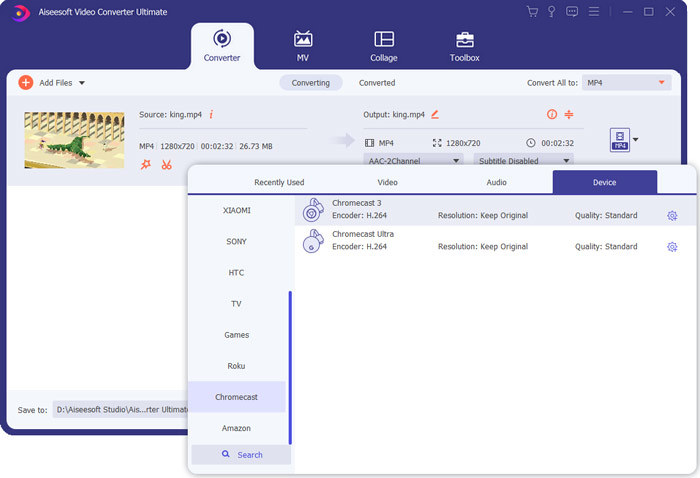
During this step, you are allowed to click the Custom Profile icon to custom more settings.
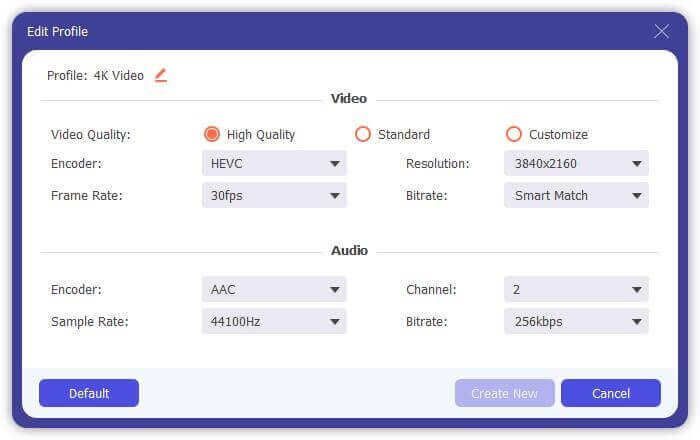
Step 4. After all these operations, you can click the Convert All button to start the video conversion. Before converting, you are able to rename the output file, select a right destination file folder, edit video and adjust the image and sound effects.
Parte 4. Perguntas frequentes sobre como reproduzir arquivos MP4 no Google Drive
Qual resolução de vídeo o Google Drive suporta?
Você tem permissão para armazenar e reproduzir vídeos no Google Drive. Você pode facilmente fazer backup de vídeos de qualquer resolução. Mas você deve saber que a resolução máxima de jogo do Google Drive é 1920x1080.
Por que não consigo reproduzir vídeos no Google Drive?
Muitos motivos diferentes farão com que os vídeos não sejam reproduzidos em seu Google Drive. Um dos principais motivos é o formato de vídeo sem suporte. Além disso, alguns outros fatores como navegador desatualizado, baixa velocidade da Internet, resolução de vídeo mais alta, tamanho de arquivo maior, configurações de segurança do roteador e plug-ins de terceiros e assim por diante causarão problemas de reprodução de vídeo no Google Drive.
Onde gerenciar minha conta do Google?
O Google permite que você adicione e use uma ou mais contas. Quando quiser gerenciar sua (s) conta (s) do Google, você pode abrir o navegador Chrome e clicar no ícone da sua Conta do Google no canto superior direito. No menu suspenso, clique no botão Gerenciar sua Conta do Google.
Como posso fazer upload de MP4 para o Google Drive?
Para fazer upload de arquivos incluindo vídeo MP4 para o Google Drive, você pode simplesmente clicar no ícone Novo no canto superior esquerdo e selecionar Upload de arquivo ou Upload de pasta para adicionar seus arquivos a ele.
Conclusão
Google Drive offers a convenient way to backup, manage and view all types of files. This post mainly talked about 3 tips for some Google Drive video playback errors. Hope you can better play MP4 in Google Drive after reading this page.
-
 Como converter gratuitamente Cisco WebEx ARF para MP4 no PC e Mac
 Obtém um arquivo ARF, mas não sabe como abri-lo? Este post pode te ajudar exatamente. Aqui estão 2 maneiras gratuitas de converter ARF para MP4 em detalhes no Mac e PC.
-
 Os 5 melhores players de vídeo para iPhone que você não deve perder em 2021
 Para reproduzir vídeos em todos os formatos e ter uma melhor experiência de visualização em seu iPhone, você deve ler este artigo e aprender sobre os 5 melhores reprodutores de vídeo para iPhone 12/11 / X / 8/7/6.
-
 5 melhores jogadores WAV gratuitos para Android, iOS e computador
 Como reproduzir arquivos WAV no telefone Android? Qual jogador pode jogar WAV? Esta postagem compartilha os 5 melhores reprodutores WAV gratuitos para Android, iPhone, Mac e PC.
