


 Video Converter Ultimate
 Gravador de ecrã
 Reparo de vídeo
 Secure Download
Como consertar o som do iPhone que não funciona [3 maneiras fáceis]
Have you tried countless ways to get the sound back up in your iPhone videos, yet the audio sound still isn’t working? Well, it is not that there’s no way that the video sound on your iPhone cannot be resolved. It’s just that you’ve been resolving it in a way that isn’t supposed to be done.With that, in this article, we are going to look into 3 easiest ways to fix my iPhone has no sound on video problem. We understand that this problem is really annoying and frustrating. So, if you’re into this and can’t wait to solve this sound issue on your iPhone video, read this article, understand why your audio is not playing on your videos, and fix the issue accordingly.

Parte 1. Por que meu iPhone não tem som nos vídeos
Por que meu iPhone não tem som em vídeos é realmente uma questão e um problema enfrentado por muitos. Bem, há várias razões pelas quais isso ocorre, mas você realmente entende por que isso geralmente acontece? A seguir estão as razões pelas quais o iPhone não tem som ao reproduzir vídeos:
O vídeo do iPhone não tem som nas fotos
Fotos é um aplicativo de gerenciamento e edição de fotos amplamente conhecido feito pela Apple. É onde os usuários podem armazenar suas fotos e vídeos, visualizá-los e editá-los, e muito mais! Embora Fotos seja uma plataforma respeitável para visualizar e reproduzir vídeos, em alguns casos, reproduzir vídeos neste aplicativo não tem som. A seguir estão algumas das causas pelas quais o vídeo do iPhone não tem som no Fotos:
• The volume might be muted or too low. Ensure the iPhone's volume is turned up and the ringer switch isn't set to silent.
• The video file might be corrupted, causing the audio track to malfunction or not play at all.
• There could be a software issue or bug in the Photos app that is preventing sound from playing.
• The Photos app might have difficulty reading the video’s audio codec, especially if the format is not fully supported.
• The iPhone might be connected to a Bluetooth device, like a headset or speaker, that is not in use, causing the sound to be rerouted.
O vídeo do iPhone não tem som no rolo da câmera
Ao filmar diretamente no seu iPhone, você pode visualizar seu vídeo reproduzindo-o do rolo da câmera. No entanto, alguns usuários do iPhone não ouvem som ao reproduzir seus vídeos do rolo da câmera, o que os deixa irritados e confusos sobre o motivo pelo qual seus vídeos não têm som. A seguir estão alguns dos motivos pelos quais o som no iPhone não funciona quando reproduzido no rolo da câmera:
• The microphone might have been blocked or malfunctioning during the recording, resulting in no audio being captured.
• If your iPhone is in Do Not Disturb mode, it might prevent sounds from playing when videos are previewed in the Camera Roll.
• The iPhone might be in silent mode, which could cause the video to play without sound.
iPhone não tem som ao reproduzir vídeos no IG
Reproduzir vídeos no Instagram pode às vezes ser um problema. Alguns experimentam uma incapacidade de reproduzir o vídeo; há alguns casos em que apenas o som não está sendo reproduzido quando os vídeos são reproduzidos no IG. Agora, para entender melhor por que isso acontece, abaixo estão os motivos pelos quais o iPhone não tem som ao reproduzir vídeos no IG:
• Instagram might have muted the video by default, requiring users to tap on the speaker icon to enable sound.
• The volume inside the Instagram app might be turned down or muted, separate from the iPhone’s system volume.
• There might be a temporary glitch or bug in the Instagram app, requiring a restart or update.
• Poor or unstable network connection might cause the video to load incorrectly, resulting in no sound.
• The iPhone might be set to silent or vibrate mode, which can affect sound output within the Instagram app.
Parte 2. Soluções para consertar a falta de som no iPhone que não funciona
Agora que você entende alguns dos motivos pelos quais seu iPhone não tem som nos vídeos, é hora de aprender como corrigir esse problema.
Método 1: usando reparo de vídeo FVC
When your iPhone has no sound on videos because you are playing a corrupted video, the perfect solution for this is to use the FVC Video Repair tool. We all know that when a video is corrupted, it doesn’t only affect the playability of the video, but it also impacts the audio, leading to issues like no sound. Corruption in a video file can disrupt the synchronization between the audio and video tracks or even completely remove and disrupt the audio track, resulting in silent playback. With that, the FVC Video Repair tool is designed to address these issues, restoring both the video’s visual integrity and the accompanying audio, ensuring a smooth and sound-filled playback experience.
Step 1. First, visit their official website. Then, Download the tool and Install it on your device.
Free DownloadFor Windows 7 or laterSecure Download
Free DownloadFor MacOS 10.7 or laterSecure Download
Step 2. Next, add the damaged video by clicking the Red Plus button, the same way you clicked the Blue Plus button to add the sample video. After that, click the Repair button to start repairing the audio problem.
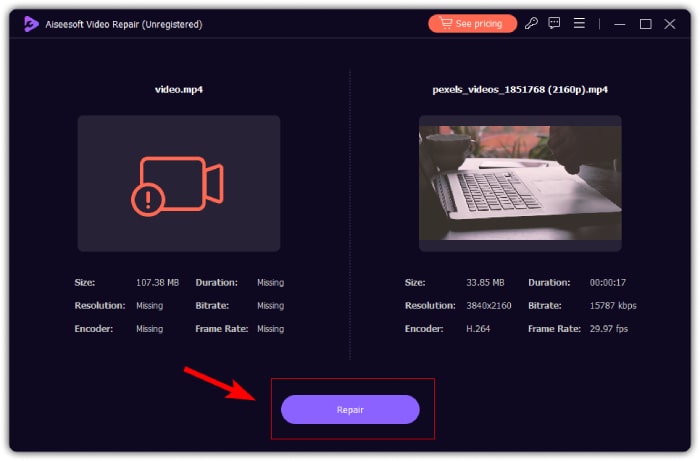
Step 3. Lastly, click the Preview button to preview the video that was repaired and check if the audio is now restored. When the repair process is successful, you can save it by clicking the Save button.
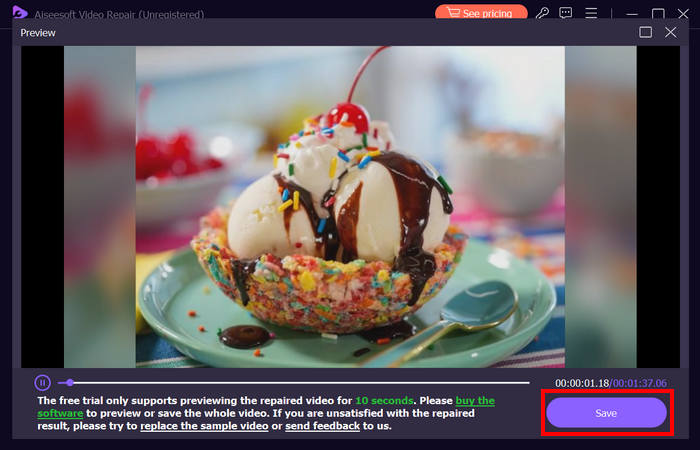
O FVC Video Repair pode realmente consertar facilmente o problema de iPhone sem som em vídeos. Com seu algoritmo de IA mais recente e sua detecção automática de informações vitais e corrigi-las diretamente, ele pode efetivamente restaurar o som do vídeo em seu iPhone.
Método 2: Usando FVC Picked Video Converter Ultimate
Meanwhile, if your problem is due to a missing audio track, which means that the audio component of your video is either lost, corrupted, or not properly encoded, you can use the FVC picked Video Converter Ultimate. This tool can help you fix the missing audio track by converting your video to a compatible format. To fix the iPhone not playing sound due to a missing audio track, follow the steps below:
Step 1. If you don’t have the tool installed on your computer, download and install the tool on your computer device first.
Free DownloadFor Windows 7 or laterSecure Download
Free DownloadFor MacOS 10.7 or laterSecure Download
Step 2. Next, add the video the sound is not playing in your iPhone by clicking the Add Files button.
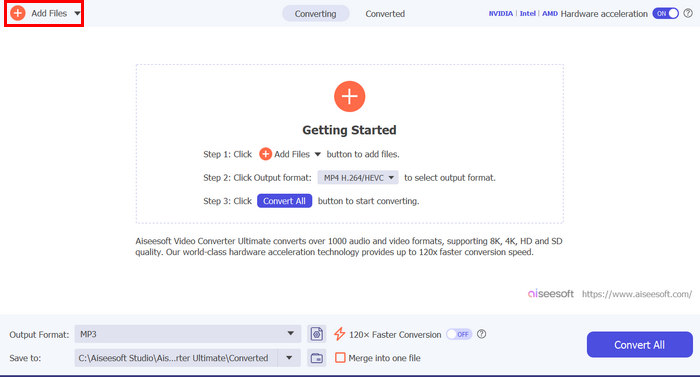
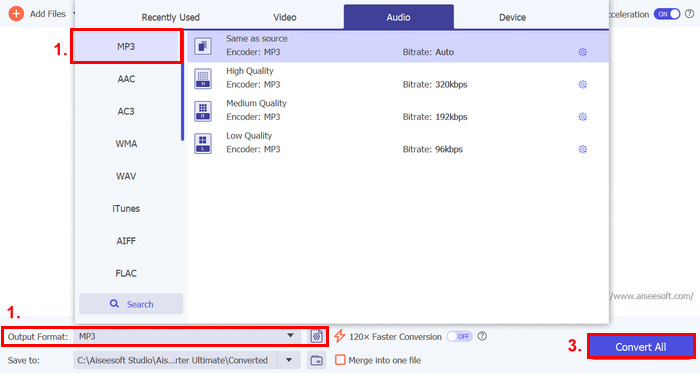
Step 3. Now, click on the Output Format, choose MP3, and select from the menu the audio format you want for your video. Lastly, click on the Convert All button to save your file.
Esta ferramenta completa escolhida pelo FVC Video Converter Ultimate é realmente uma ferramenta para qualquer problema relacionado a vídeo e áudio. Independentemente do problema, seja um arquivo corrompido, codec incorreto ou formato não suportado, esta ferramenta pode realmente ajudar.
Método 3: Reiniciando o iPhone
Se o seu iPhone estiver com algum problema de sistema que afeta o áudio ao reproduzir vídeos, você pode simplesmente reiniciá-lo. Dessa forma, você pode atualizar o sistema operacional do dispositivo, o que pode limpar falhas temporárias ou bugs que podem estar causando o problema de som. Veja como você pode simplesmente reiniciar seu iPhone para corrigir o problema de falta de som no vídeo do iPhone:
For iPhones X and later
Step 1. To restart your iPhone, hold the side button and either one of the volume buttons until the power-off slider appears on the screen.
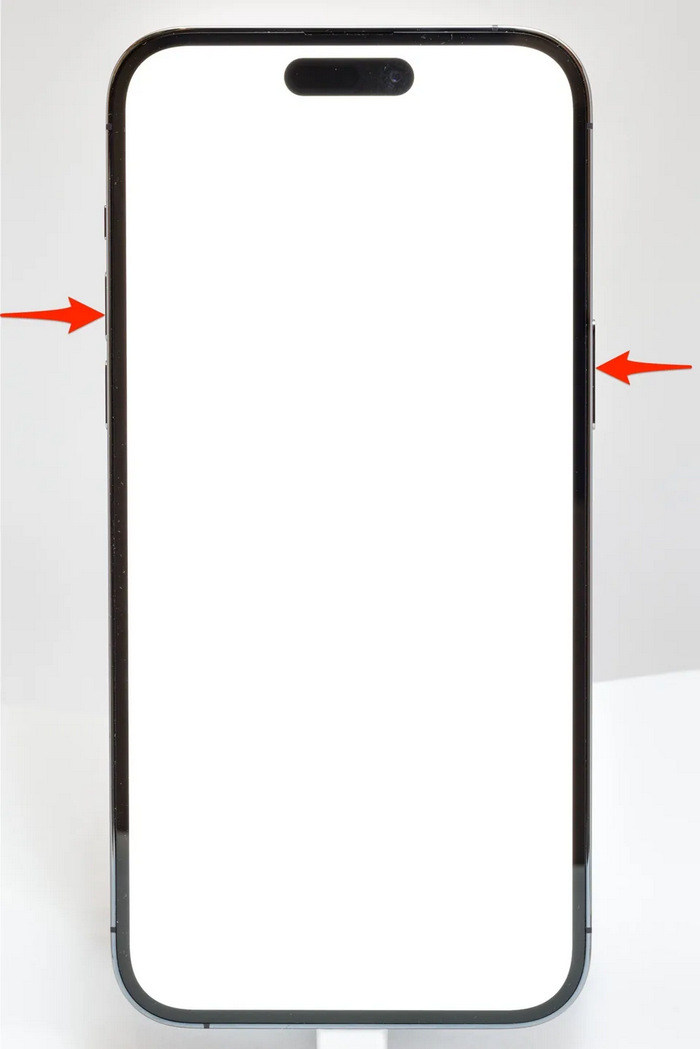
Step 2. Swipe the slider in order for your iPhone to shut off.
Step 3. Now, to turn it on, press the side button.
For iPhone 6, 7, 8, and SE
Step 1. First, you need to press and hold the side button.
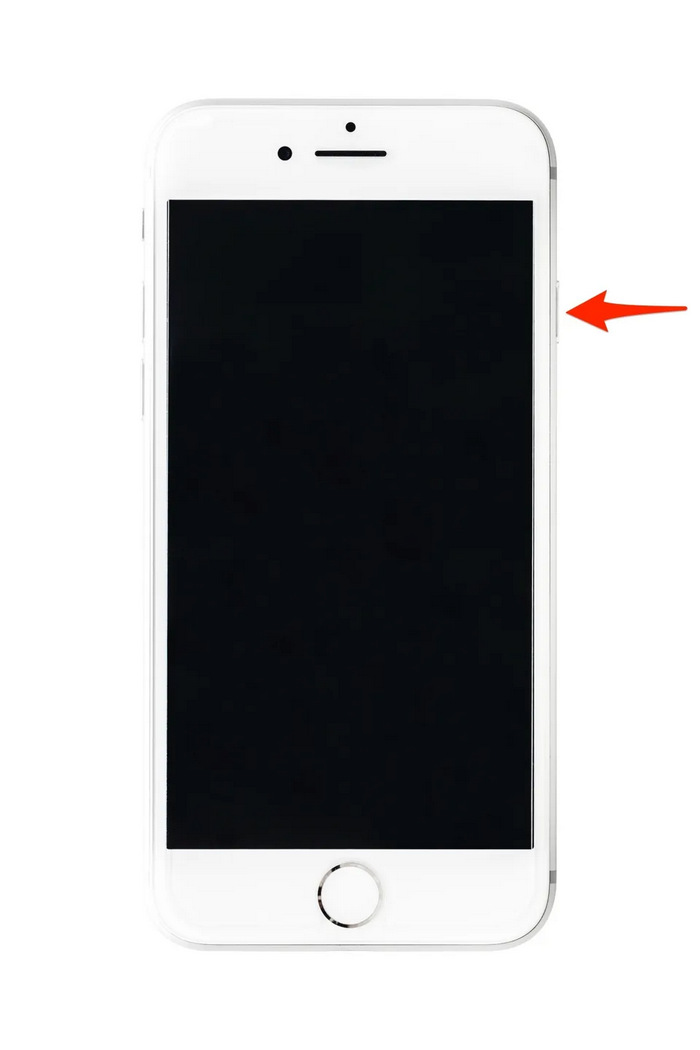
Step 2. Wait until the power-off slider appears and swipe the slider to turn off the device.
Step 3. Now, to turn it on, press the side button.
Esses métodos são simples de fazer e não exigem que você use nenhuma ferramenta de terceiros. No entanto, essa é uma solução muito básica e comum, e eles não garantem um reparo completo para este problema de som no vídeo do iPhone.
Parte 3. Perguntas frequentes sobre Stellar Repair for Video
Quais iPhones suportam som Dolby Vision ou DTS?
Os iPhones da série iPhone 12 e mais recentes suportam Dolby Vision, que melhora a qualidade do vídeo com melhor cor e contraste. No entanto, os iPhones não suportam som DTS diretamente, pois usam outras tecnologias de áudio como Dolby Atmos.
É possível reproduzir FLAC auan dio no iPhone?
Sim, você pode reproduzir áudio FLAC no seu iPhone, mas precisará de um aplicativo de terceiros como o VLC ou um reprodutor de áudio especializado, pois o aplicativo Música integrado do iPhone não oferece suporte nativo a FLAC.
Os vídeos reproduzirão som no modo silencioso no iPhone?
Não, os vídeos não reproduzirão som se o seu iPhone estiver no modo silencioso. Para ouvir o som, você precisará desligar o modo silencioso girando o interruptor na lateral do seu iPhone.
Conclusão
Causes of iPhone has no sound on video problem vary, as well as, the solution to fix them. Now that you know how to fix this, may you not be discouraged if any time you get to encounter this again. But for now, if you have the same problem, you can try any of the methods outlined in this article.
-
 Os 2 métodos principais para converter FLV em vídeo para iPhone gratuitamente
 Este guia concreto compartilha duas maneiras fáceis de ajudá-lo a aprender como converter arquivos FLV para vídeo do iPhone ou muitos outros formatos sem pagar um centavo.
-
 [Resolvido] Como corrigir vídeos que não estão sendo reproduzidos no iPhone com etapas detalhadas
 Os vídeos locais na galeria não podem ser reproduzidos no seu iPhone através do player de vídeo padrão? Vídeos online do YouTube que não são reproduzidos no iPhone sempre acontecem? Aqui estão 5 soluções para ajudá-lo neste artigo.
-
 Guia concreto para enviar seus vídeos FLV para o YouTube
 Carregar FLV para o YouTube, mas falhou? Você pode resolver esse problema sozinho e converter FLV em codecs compatíveis com o YouTube seguindo nosso guia passo a passo.
