


 Video Converter Ultimate
 Gravador de ecrã
 Reparo de vídeo
 Secure Download
MOV File Not Showing Video: What Should I Do? [2026 Guide]
Are you also one of those who struggle with a MOV file that plays audio but shows a blank or black screen? It’s a frustrating issue that can happen unexpectedly, especially when you need the video the most. This problem is more common than you think and is often caused by codec incompatibility, file corruption, or playback errors.
In this guide, you’ll learn what causes why an MOV file is not showing video and what you can do to fix it, especially with the tools that you can use. Lastly, we’ll share a few essential tips to help you prevent this issue from happening again, so you can keep your videos accessible, playable, and worry-free.

Part 1. Why is my MOV File Not Showing Video?
Before jumping into fixes, it’s important to understand why your MOV file is playing audio but not showing any video. This issue doesn’t happen randomly; there will always be an underlying reason behind it. In most cases, it comes down to compatibility problems, missing components, or file damage that prevents the video stream from displaying properly.
Below are some of the most common reasons why your MOV file is not playing video:
Unsupported Media Player: Not all media players fully support the MOV format. Some players may only process the audio track, leaving you with sound but no video.
Missing or Outdated Codecs: MOV files rely on specific codecs to decode and display video. If your system doesn’t have the required codec, or if it’s outdated, the video may fail to play.
Corrupted MOV File: File corruption is one of the most common causes. This can happen due to interrupted downloads, improper transfers, or storage issues, leading to incomplete or damaged video data
Outdated Media Player or System: Older media players or operating systems may struggle with newer MOV file structures, resulting in playback issues like a black screen.
Compatibility Issues Between Devices: MOV files created on one system, such as macOS, may not always play properly on another, like Windows, especially if there are format variations or encoding differences.
Part 2. Understanding the MOV Container and Missing CODECS (HEVC/Alpha Channel)
A MOV file is not just a single stream of video, it’s a container format. This means it holds different types of data, such as video, audio, subtitles, and metadata, all packaged into one file. When your MOV file plays audio but shows no video, the issue is often not the file itself, but how your system reads what’s inside it.
What is a MOV Container?
Think of a MOV file as a wrapper. Inside that wrapper are separate components:
- • Video stream, this is what you see.
- • Audio stream, this is what you hear.
- • Additional data, such as subtitles or other effects.
If your media player can read the audio but not the video, you’ll end up with sound but a blank or black screen.
On the other hand, CODECs are what allow your device to interpret and play the video inside a MOV file. Even if the file itself is fine, missing or unsupported codecs can prevent the video from displaying.
Two common codec-related issues include:
1. HEVC (H.265) Codec Issues
HEVC is a modern video compression format that offers high-quality video at smaller file sizes. However, not all devices or media players support it by default, especially older systems. If your MOV file uses HEVC and your system lacks support, the video may not appear at all.
2. Alpha Channel (Transparency Data)
Some MOV files, especially those used in editing or design, include an alpha channel, which stores transparency information. While useful for professional workflows, not all media players can process this feature. As a result, the video may fail to render properly or appear invisible.
Part 3. How to Fix a MOV File Not Showing Video?
Now that you understand the common causes behind this issue, especially how codecs and compatibility affect playback, it’s time to move on to the actual fixes. The good news is that most MOV files not showing video can be resolved with simple and practical solutions.
Below are some of the most effective methods you can try:
Solution 1: Install HEVC Video Extensions
To do this, on your Microsoft Store or even on your web browser, you can directly install an HEVC video extension. This extension allows your system to properly decode and play videos encoded in HEVC, which is commonly used in modern MOV files. Without it, your media player may only process the audio stream, resulting in a black or blank screen.
Once installed, restart your media player and try opening the MOV file again. In many cases, this simple step is enough to restore the missing video and ensure smooth playback without needing further fixes.
Solution 2. Convert MOV to MP4
The next solution for the MOV file not showing a video is to use a dedicated converter tool. For this one, FVC Video Converter Ultimate is the tool to use as it allows users to easily convert various videos, regardless of their formats and types.
Main Features:
- • Supports a wide range of video and audio formats such as MP4, MOV, AVI, MKV, WMV, and MP3.
- • Converts videos in HD, 4K, and higher resolutions.
- • Fast conversion speed with hardware acceleration.
- • Batch conversion for multiple files at once.
- • Built-in video editor with trim, crop, rotate, merge, filters, and watermark.
- • Customizable output settings like resolution, bitrate, frame rate, and codec.
- • Video enhancement tools for improving quality.
- • DVD ripping and conversion to digital formats.
- • Audio extraction from video files.
- • Simple and user-friendly interface.
Here’s How to Convert an MOV file to MP4 Using FVC Video Converter Ultimate:
Step 1. First, download and install the FVC Video Converter Ultimate on your computer.
Free DownloadFor Windows 7 or laterSecure Download
Free DownloadFor MacOS 10.7 or laterSecure Download
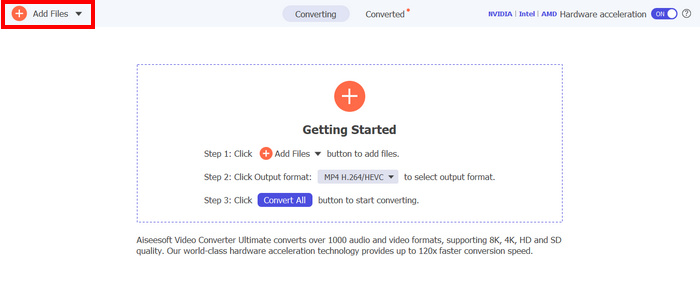
Step 2. Now, to import the MOV file that you want to convert MOV to MP4. After that, click the Add Files button.
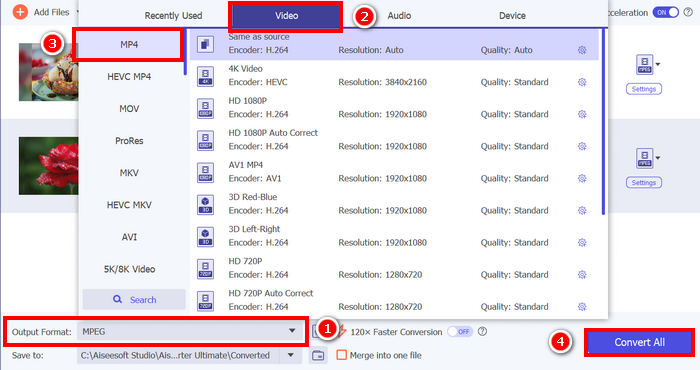
Step 3. Lastly, click on the Output Format below and go to the Video tab. From there, select your preferred format from the list. Once selected, click the Convert All button to convert your video.
Solution 3. Use a Universal Player
If installing codecs or converting doesn’t resolve the MOV file not showing video, the problem may simply come from the media player you are using. Some default players have limited support for certain MOV variations, especially those encoded with newer codecs or advanced video settings. Because of this, switching to a universal media player is often one of the easiest and most effective solutions.
Aiseesoft Blu-ray Player is a multimedia player designed to handle not only Blu-ray and DVD playback but also a wide range of common and high-definition video formats. It supports HD and UHD 4K videos, including MOV files encoded with H.265/HEVC, allowing users to play videos smoothly and losslessly.
Main Features:
- • Supports MOV file playback
- • Compatible with H.265/HEVC encoded videos
- • Functions as a universal media player for various video formats
- • Supports HD and UHD 4K video playback
- • Plays videos smoothly and losslessly
- • Supports formats like MOV, MP4, MKV, AVI, and FLV
- • Provides built-in codec support for better compatibility
- • Offers high-quality video playback
- • User-friendly and easy-to-use interface
Step-by-step guide on how to use the Aiseesoft Blu-ray Player:
Step 1. First, you need to download and install the tool on your computer.
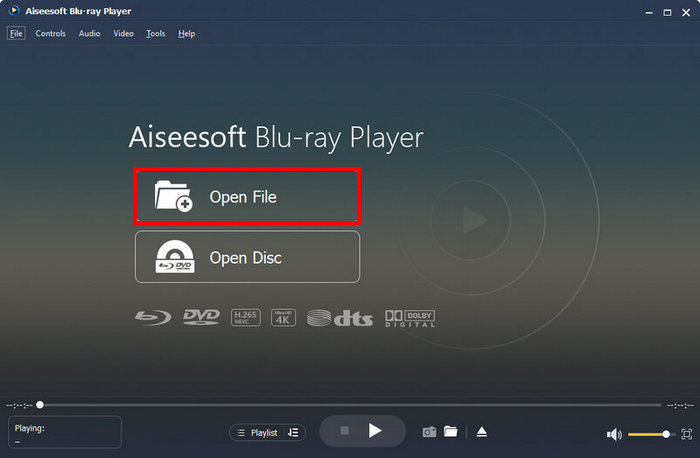
Step 2. Once done, click the Open File to access the MOV file that you want to play.
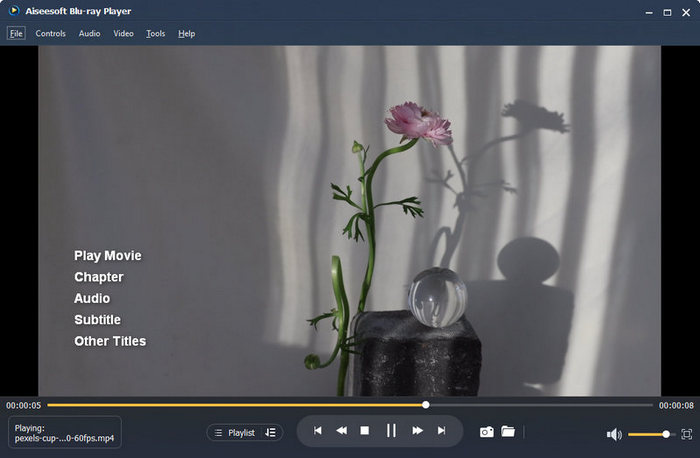
Step 3. After loading, you will be shown the menu interface. Choose the audio track and subtitle you prefer, then click Play Movie to start playing the movie.
Part 4. FAQs About MOV File Not Showing Video
Why does my MOV file play audio but no video?
This usually happens because of missing codecs, unsupported media players, or file corruption. Your player may recognize the audio stream but fail to decode the video stream properly.
Can an outdated media player cause MOV playback issues?
Yes. Older media players may not support newer MOV file structures or advanced codecs. Updating your media player or switching to a more modern universal player can often resolve the issue immediately.
Why does the MOV file work on another device but not on mine?
This happens because different devices have different codec support and playback capabilities. One device may already have the necessary codec installed, while another may lack the required components to properly display the video.
Conclusão
Experiencing a MOV file that plays audio but shows no video can be frustrating, but in most cases, the issue is completely fixable. Whether the problem comes from missing HEVC codecs, compatibility limitations, or an unsupported media player, there are several simple solutions you can try. By installing the correct video extensions, converting the MOV file to MP4, or using a reliable universal player like the Aiseesoft Blu-ray Player, you can restore proper playback and enjoy your videos again without hassle.
-
 MOV VS MP4 - Qual você escolhe?
 MOV VS MP4, qual é o melhor? Este post mostra a diferença entre MP4 e MOV, para que você tenha a melhor escolha para usar em seus arquivos de vídeo.
-
 Como converter MP4 para MOV no Mac / PC / Online
 Como converter MP4 para MOV no Mac? Existe alguma maneira gratuita de converter MP4 em MOV sem perda de qualidade? Este post compartilha 4 maneiras simples de ajudá-lo a fazer a conversão de vídeo MP4 para MOV no Mac, PC com Windows e online.
-
 4 melhores métodos para converter MOV para MP3 no Windows e Mac facilmente
 Quando você deseja extrair arquivos de áudio MP3 de arquivos MOV, aqui estão 4 conversores MOV para MP3 mais eficientes para uso no artigo.
