


 Video Converter Ultimate
 Gravador de ecrã
 Reparo de vídeo
 Secure Download
Why Won't QuickTime Play My MP4? 3 Easy Fixes That Work [2026 Guide]
Have you tried opening an MP4 video on your Mac, but QuickTime Player just wouldn't play it? This can be a bit annoying since MP4 is one of the most popular video formats nowadays. So, what, in your opinion, is the main reason why QuickTime Player is not playing MP4 files?
In fact, a few things can cause the problem. The video could be damaged. It might have been made with an unsupported codec, or maybe your QuickTime is just not the latest version. Fortunately, these kinds of problems are usually very easy to solve, even by those with little computer skills.
Here you will learn the main causes of the problem and the step-by-step solutions to troubleshoot and fix your MP4 files.

Part 1. Why Won't QuickTime Play My MP4?
If your MP4 file is not compatible with QuickTime Player, most of the time, it will be a software compatibility issue, a file corruption, or an unsupported codec. The table below will guide you in determining the most probable reason and the suitable solution.
| Possible Cause | What Happens | Recommended Solution |
| Outdated QuickTime Version | QuickTime may fail to recognize or properly decode newer MP4 files. | Update QuickTime Player Version |
| Corrupted MP4 Video | The video may not open, show a black screen, freeze, or trigger playback errors. | Fix Corrupted MP4 Video with FVC Video Repair |
| MP4 Video Encoded with Unsupported Codecs | The MP4 container opens, but QuickTime cannot decode the video or audio stream inside the file. | Convert MP4 Video to a QuickTime-Supported Format with FVC Video Converter Ultimate |
It is wise to figure out which of these scenarios your video is about before attempting random fixes. When you understand the problem, you will be able to apply the right solutions for video playback to get it working again.
Part 2. Quick Fixes for QuickTime Player Not Playing MP4 Files
The issue of your MP4 file not playing on QuickTime could be due to an old player, a corrupted file, or an unsupported codec. The bright side is that all these problems have simple solutions. Here is a list of the best fixes that will give you an idea about the problem and help you to play MP4 videos again.
Method 1. Update QuickTime Player Version
If your QuickTime version is very old, it may not be able to handle the latest video technologies and codecs. Besides, QuickTime will not play MP4, which is another reason for updating macOS and QuickTime to fix compatibility and playback problems.
Step 1. Go to the Apple menu at the upper-left corner of your display. Choose System Settings (System Preferences if you have an old version of macOS).
Step 2. Move to General > Software Update. Let macOS search for the updates that you can download.
Step 3. If an update is found, click Update Now or Upgrade Now. Stick to the instructions displayed on the screen to finalize the installation.
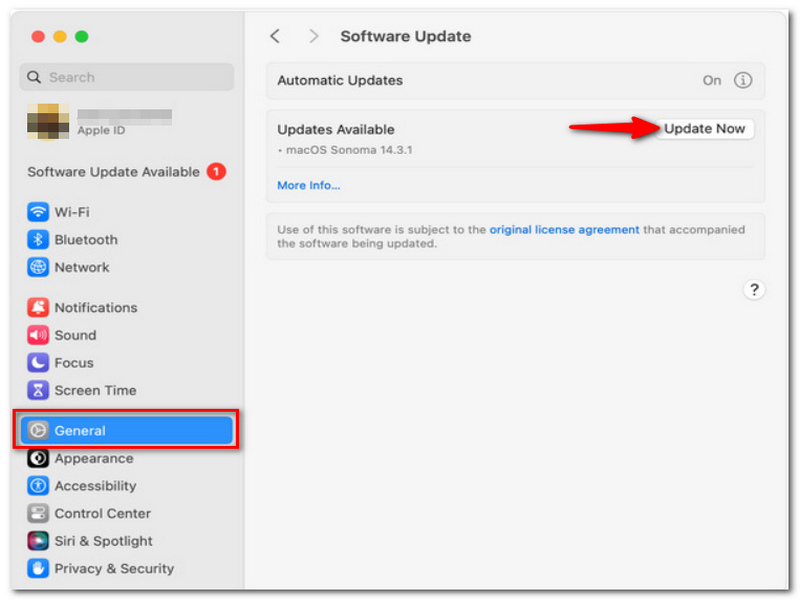
Step 4. Reboot your Mac when it asks you to, launch QuickTime Player once more, and play the MP4 file.
Because QuickTime Player is a native feature of macOS, having your operating system updated also implies that you have the most recent version of QuickTime.
Method 2. Fix Corrupted MP4 Video with FVC Video Repair
If updating QuickTime is not a solution, the video file itself might be corrupted. A corrupted MP4 might not open, might show a black screen, or might cause a playback error, which can make it seem like MP4 is not compatible with QuickTime Player. Repairing the MP4 file is usually the best option in this situation.
Steps to Repair a Corrupted MP4 Video Using FVC Video Repair
Step 1. Click the link below to download FVC Video Repair to your computer.
Free DownloadFor Windows 7 or laterSecure Download
Free DownloadFor MacOS 10.7 or laterSecure Download
Step 2. Launch and click the + button on the left to import the corrupted MP4 file.

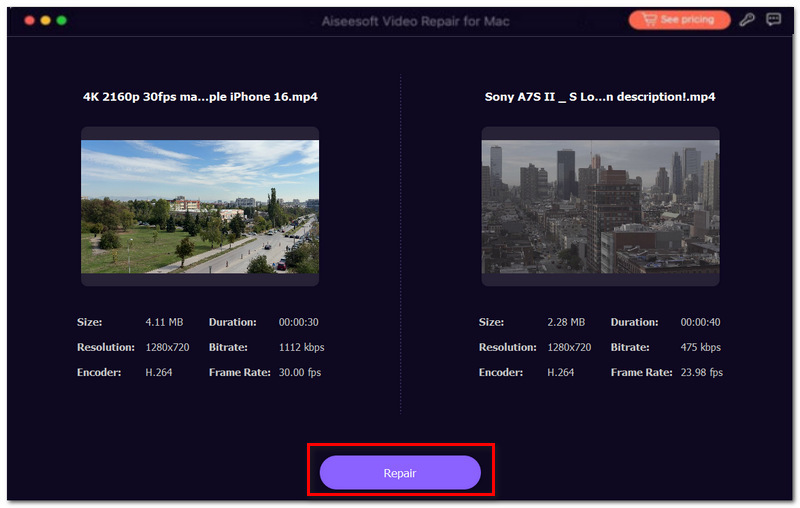
Step 3. Click the + button on the right to add a sample video recorded from the same device and with similar settings.
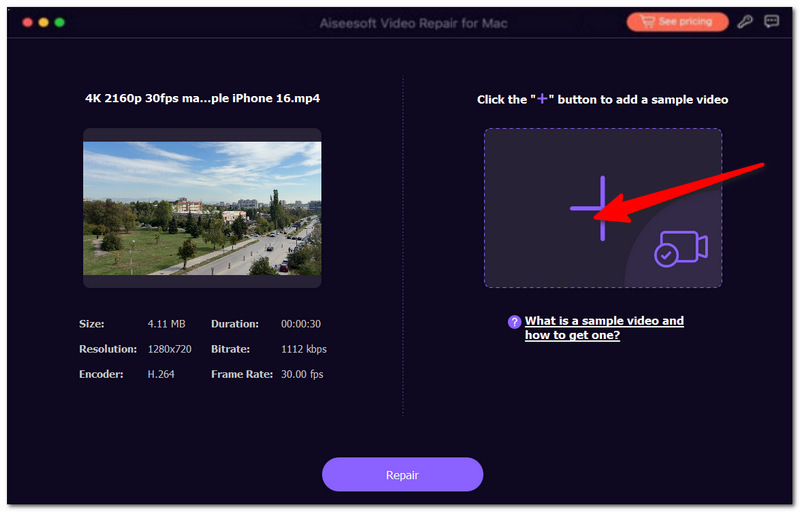
Step 4. Click Repair to start the repair process. Wait for the software to analyze and rebuild the damaged video structure.
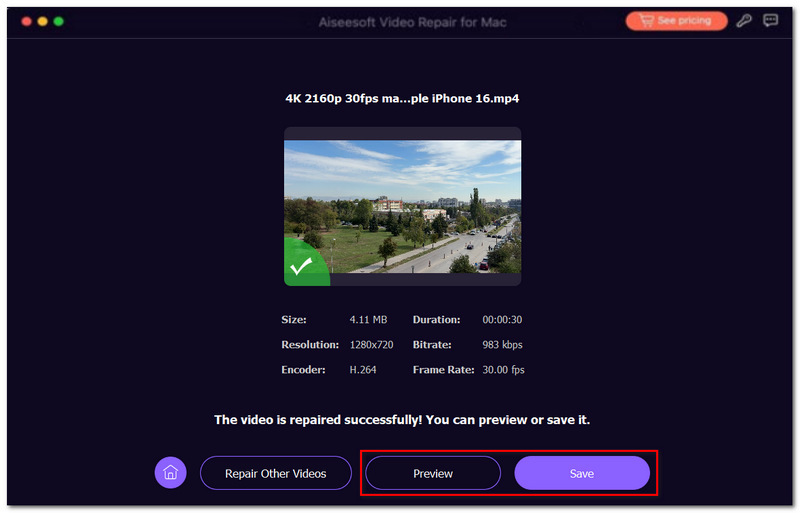
Step 5. Preview the repaired video to verify that it plays correctly. After that, click Save to export the repaired MP4 file. Once the repair is complete, try opening the video in QuickTime Player again.
Method 3. Convert MP4 Video to a QuickTime-Supported Format with FVC Video Converter Ultimate
Occasionally, the MP4 video file is perfectly fine, but the video or sound codec is not supported by QuickTime Player. Changing the file format to MOV or MP4 (H.264) will probably fix the problem of videos not playing.
Steps to Convert MP4 for QuickTime Playback Using FVC Video Converter Ultimate
Step 1. Grab a copy of FVC Video Converter Ultimate (VCU) and install it on your device.
Free DownloadFor Windows 7 or laterSecure Download
Free DownloadFor MacOS 10.7 or laterSecure Download
Step 2. Open the app on your desktop. Hit the Add Files button and select your MP4 video file that is not playing in QuickTime.
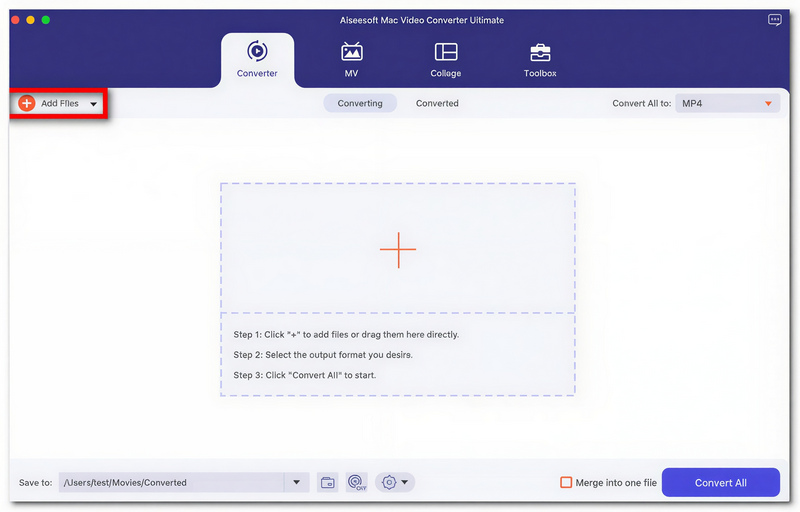
Step 3. Select MOV or MP4 (H.264) as the target format.
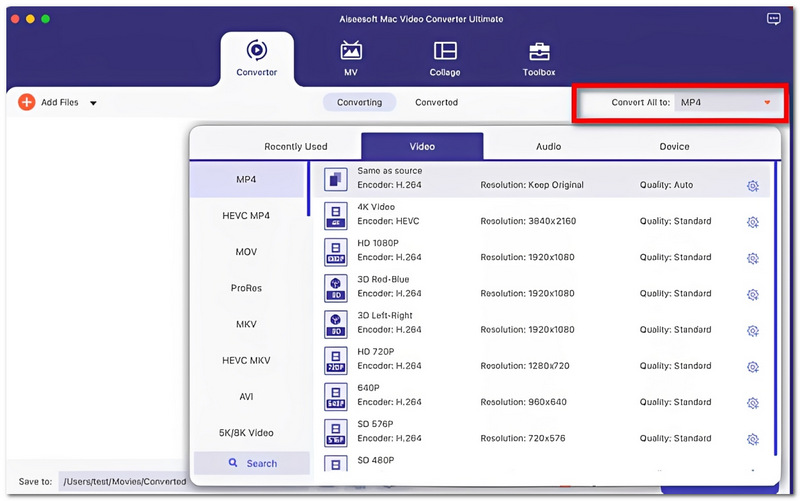
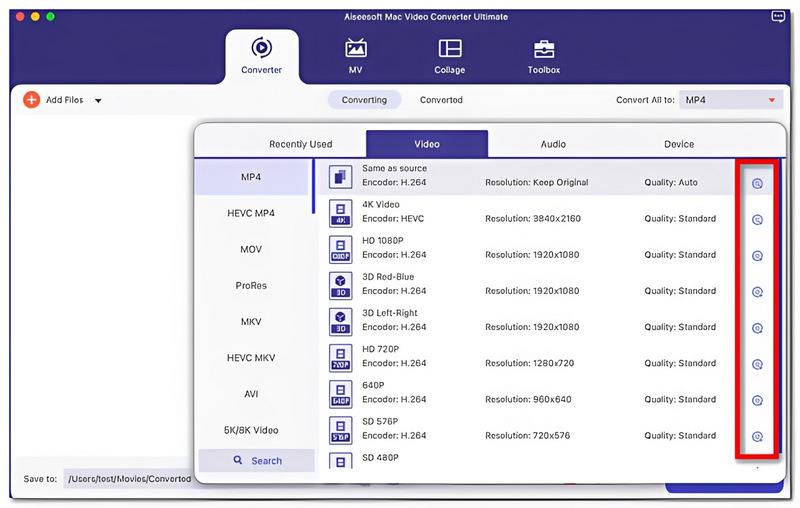
Step 4. Modify the video parameters if necessary, including resolution, bitrate, or frame rate. Also, indicate a location for the converted output file.
Step 5. Click the Convert All option to proceed with the conversion. After the conversion process, use QuickTime Player to open the new file.
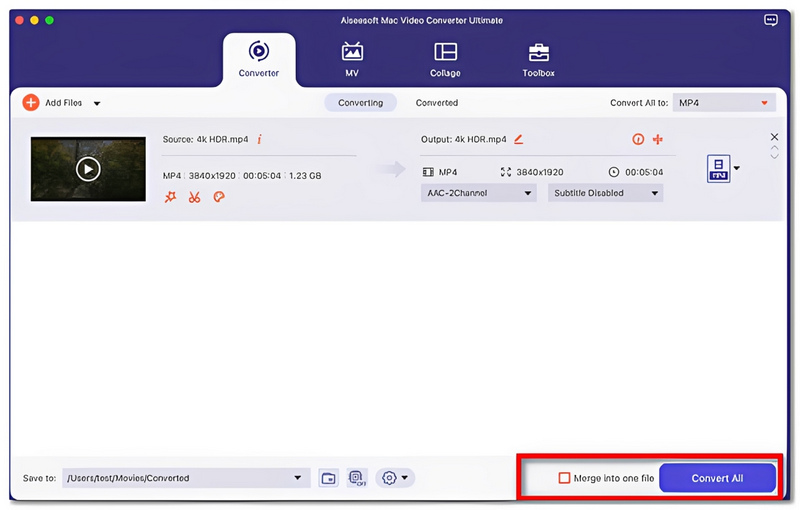
Making your video compatible with QuickTime by converting it to a supported format and codec is a great way to remove playback issues and enjoy your videos smoothly.
Part 3. FAQs about QuickTime Player Not Playing MP4 Files
Why is it that when I play an MP4 with QuickTime, I only hear the sound and no video is showing?
Often, the case is that QuickTime is equipped to handle the audio part of the file only and is unable to decode the video stream properly.
Is QuickTime capable of having issues playing MP4 files that are created by screen recording software?
In fact. Frequently, screen recorders use uncommon codecs or variable frame rates, which QuickTime doesn't handle very well.
What makes an MP4 file play differently when I drag and drop it into QuickTime than when I double-click it to open it from Finder?
Actually, file permissions, the recent file access history, or issues related to the file path can be reasons why QuickTime would have a different way of playing the video in each case.
Conclusão
The fact that the MP4 file is not compatible with QuickTime Player does not automatically indicate that the video is a dead loss. In most cases, it's just that your QuickTime version is too old, the file itself has been damaged, or the codecs are not supported. Once you get to the cause of the problem and resort to the right solution, you will be able to watch the video again in no time, and you won't have any problems of this kind in the future. Besides, becoming familiar with these typical causes will, of course, help you when it comes to your Mac and video playback troubleshooting.
-
 8 melhores jogadores MOV para reproduzir arquivos QuickTime MOV com qualidade original
 Saiba mais sobre os 8 melhores reprodutores MOV disponíveis para Windows e Mac. Sempre há um desejado para reproduzir seu MOV com a qualidade original.
-
 Como gravar vídeos da tela em 4K: Por que e como fazer
 Aprenda como gravar vídeos da tela em 4K com este guia. Descubra por que a gravação em 4K é importante e como capturar conteúdo em ultra-alta definição em qualquer dispositivo.
-
 Melhor maneira de acelerar o vídeo no QuickTime à vontade no Mac
 Precisa acelerar o vídeo no Quicktime? Bem, todas as coisas que você precisa estão neste artigo, então continue lendo para saber mais sobre isso.
