


 Video Converter Ultimate
 Gravador de ecrã
 Reparo de vídeo
 Secure Download
Um guia sobre como extrair áudio de DVD com o VLC Player
VLC Player is a free tool that offers more than you might expect. First and foremost, it is an excellent video player that lives up to its name. It offers a wide range of individual settings. Secondly, it can convert video formats and perform simple video editing. You may be surprised that VLC Player can even rip DVDs and separate the video and audio for saving. As long as you have an optical drive, you can do this in VLC Player. In this article, we will introduce you to how to extract audio from DVDs using VLC Player on both types of devices in two parts. If you find VLC Player's functions too monotonous, you can also try our recommended alternatives.

Parte 1. Extraia áudio de DVD com o VLC Player
Antes de começar a extrair o áudio do DVD, precisamos nos preparar. Primeiro, você precisa garantir que tenha a versão mais recente do VLC Player instalada no seu computador. Caso contrário, algumas funções podem não funcionar corretamente. Segundo, precisamos preparar um drive de DVD compatível com DVDs e conectá-lo ao nosso computador. É assim que podemos ler as informações do disco. Quando estivermos prontos, podemos seguir os passos abaixo.
Usando o VLC Player no Windows
Se você estiver usando um computador Windows, leia as instruções passo a passo nesta seção. Veja como extrair áudio de um DVD com um player VLC no seu PC.
Step 1: Insert your DVD. If your computer has a DVD drive, insert the disc into it. Note that you should ensure it is not a CD drive; otherwise, your DVD will not be able to be read by it.
Se o seu computador não tiver uma unidade, você deverá conectar uma unidade de DVD USB a ele.
Step 2: Open VLC Player on your computer. Click Media to open the drop-down menu.
Step 3: Choose Open Disc among all the options.
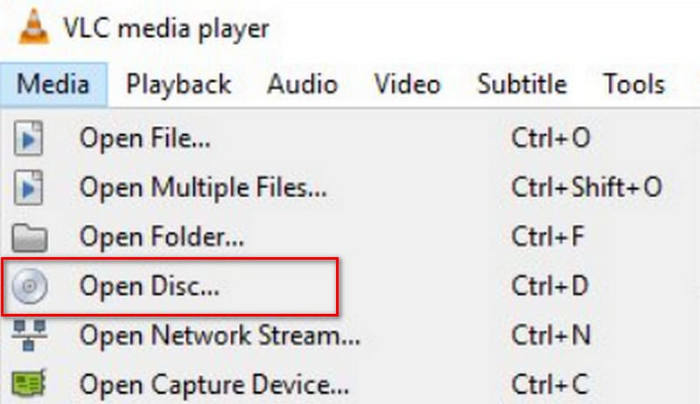
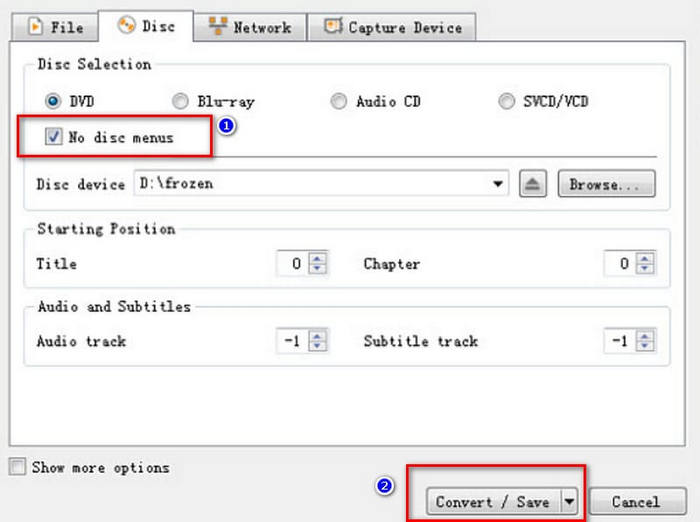
Step 4: An Open Media window will be launched. Find the No disc menus and check them.
Step 5: Find the Play button in the bottom right corner. Then click Convert/Save.
Step 6: A new Convert page will open. Expand the box next to Profile, and choose Audio - MP3.
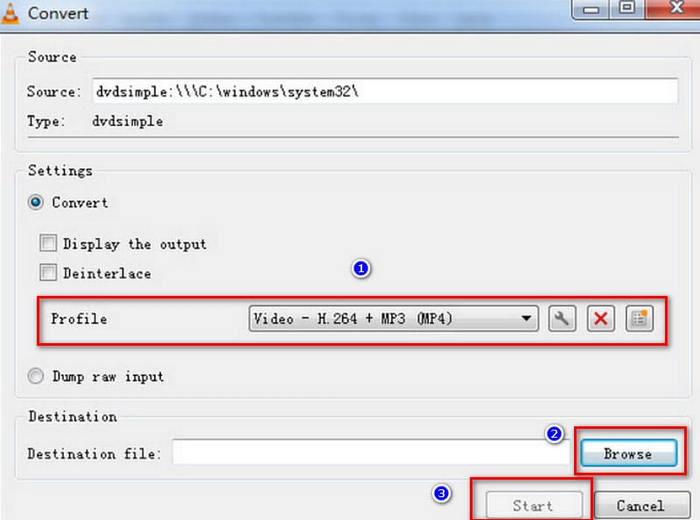
Step 7: To find a save path for the ripped audio, click Browse, name your file and choose a folder.
Step 8: Finally, return to the Convert window and click Start. The VLC audio ripping process will begin.
Usando o VLC Player no Mac
Aqui estão os passos para extrair o áudio de um DVD usando um VLC Player no Mac.
Step 1: First, you need to insert the DVD into the drive. If your Mac computer has an optical drive, insert the disc directly. If not, use an external USB drive to read the DVD.
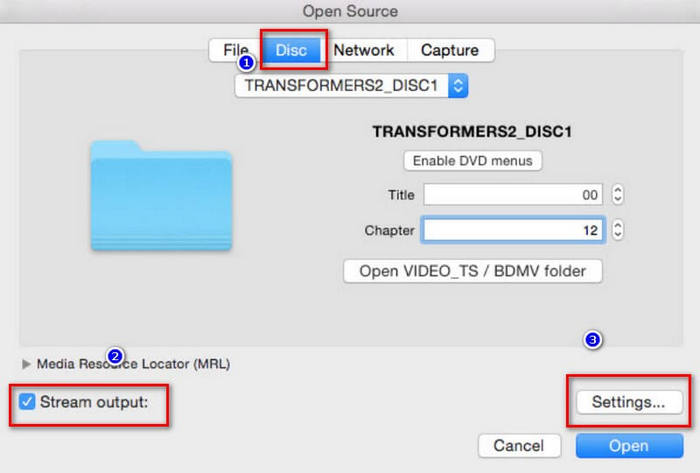
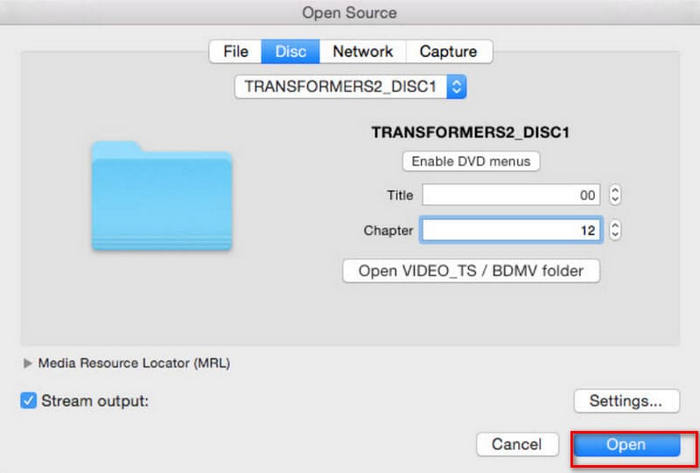
Step 2: Open VLC Player on your device. On its main interface, choose File > Open File. When the Open Source window appears, go to the Disc tab. Choose the DVD you inserted.
Step 3: Then, you need to choose Disable DVD menus. If you don't, the VLC Player may get stuck in a loop while grabbing the DVD menu. You also need to enter the right title and chapter.
Step 4: Click Stream output and then the Settings button. This will launch the output settings page.
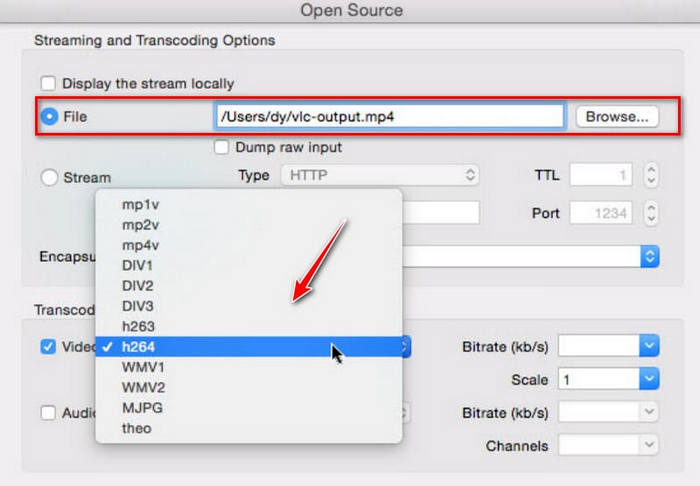
Step 5: On the output settings window, click File > Browse to find a folder on your Mac where you want to save the ripped audio.
Step 6: Next, go to the Encapsulation Method and Transcoding tab to select a format.
Step 7: When you finish all the settings, click Open to start ripping audio off the DVD with VLC Player. The process is visible on the player's interface.
Parte 2. Alternativa para o VLC Player
Agora sabemos como usar o VLC Player em computadores Windows e Mac para exportar músicas de DVDs. No entanto, o VLC Player não é a única ferramenta capaz de fazer isso. Embora seja gratuito, sua funcionalidade é relativamente básica. Caso você queira um serviço mais completo e deseje realizar um processamento profissional do áudio exportado, recomendamos o uso de um conversor de DVD profissional, como o AnyMP4 DVD Ripper. Ele não só converte DVDs caseiros, como também DVDs comerciais com 99 títulos para mais de 500 formatos digitais. Em termos de velocidade de conversão, ele possui tecnologia de aceleração por hardware para garantir a geração de arquivos com alta qualidade e eficiência. Com ele, você pode fazer backup do seu DVD na proporção 1:1 sem comprometer a qualidade do vídeo.
Free DownloadFor Windows 7 or laterSecure Download
Free DownloadFor MacOS 10.7 or laterSecure Download
Aqui está o que você deve fazer para extrair o áudio de um DVD para MP3 usando o AnyMP4 DVD Ripper.
Step 1: Download and install AnyMP4 DVD Ripper on your computer. Launch it on the desktop. Please make sure you have the optical drive to read the DVD. Insert the disc into the prepared drive. Click "Load DVD". Thus, the program will load the content within your DVD.
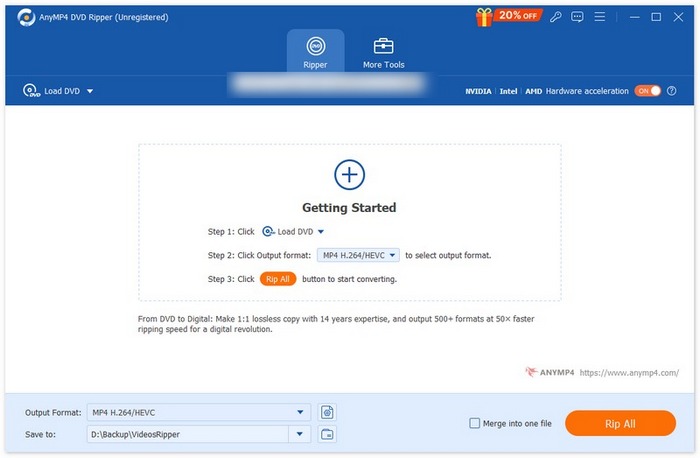
Step 2: The interface will show the DVD details, including the subtitle, audio channel, duration, resolution, etc. You can edit it based on your needs. Then, you can select the "Audio" in drop-down "Output Formats" button and choose an audio format.

Step 3: Click "Rip All" to get your digital audio formats.
Parte 3. Perguntas frequentes sobre o VLC Extract DVD Audio
Devo copiar CDs para MP3 ou WAV?
Depende do que você deseja fazer com o áudio extraído. Em geral, o WAV oferece maior qualidade de áudio, enquanto o MP3 oferece um tamanho de arquivo menor, o que o torna mais fácil de armazenar e distribuir. O MP3 também é mais adaptável. Você pode fazer sua escolha após considerar os fatores acima.
Is it OK to convert FLAC to WAV?
Sim, você pode converter WAV para FLAC ou FLAC para WAV. Ambos os formatos são sem perdas e oferecem alta qualidade de som. No entanto, os arquivos FLAC são menores que os arquivos WAV, embora quase não haja diferença na qualidade do som. Se você estiver preocupado com o espaço de armazenamento do seu dispositivo, recomendamos selecionar FLAC como formato de saída.
As pessoas conseguem ouvir a diferença entre WAV e MP3?
The difference between WAV, FLAC and MP3 formats is negligible for most users. When we discuss the difference between them, we often mention that WAV can provide higher quality, while MP3 compresses files more efficiently, but in actual music, this makes almost no difference.
Conclusão
This is a guide on how to use VLC Player to export audio from a DVD. We demonstrate the method on a Windows PC and a Mac, respectively. You can follow along with our text and accompanying images. If you want to make more changes to the audio before exporting, we recommend VLC Player's best alternative, AnyMP4 DVD Ripper. Its powerful features will not disappoint you.
-
 3 métodos para gravar Video_TS em DVD no Windows e Mac
 Se você tem o arquivo TS em mãos e deseja salvá-lo em DVD, leia este guia. Ensinaremos você a gravar o Video_TS em DVD em computadores Windows ou Mac em detalhes.
-
 Análise de 2025 de 5 reprodutores de DVD gratuitos para Windows 10
 Qual é o melhor DVD player grátis para Windows 10? Como obter o Windows Media Player para reproduzir um DVD? Esta postagem lista os 5 melhores reprodutores de DVD gratuitos para Windows 10.
-
 Software de DVD Player para Mac Download grátis 2025
 Como reproduzir um DVD no Mac sem uma unidade de DVD? Como faço para usar um DVD player externo com meu Mac? Esta postagem compartilha 5 DVD players gratuitos para Mac.
