
- Ferramentas on-line
Vídeo
Áudio
Imagem
- Ferramentas da área de trabalho
produtos em destaque
- Recurso
- Apoio, suporte
Vídeo
Áudio
Imagem
produtos em destaque
Se você deseja gravar o vídeo reproduzido com áudio no seu computador, pode usar o Screen Recorder. Além disso, você também pode usar este software para capturar a jogabilidade em seu computador. Além disso, a função Phone Recorder do Screen Recorder permite gravar as telas do iPhone e do telefone Android no computador.
You can click the Free Download button on this page to download the installation package on your computer first. Then you need to click on the package to open it for installing Screen Recorder on your device.
Se você precisar gravar um vídeo por mais de três minutos ou quiser cortar seus vídeos gravados, você deve se registrar no Screen Recorder.
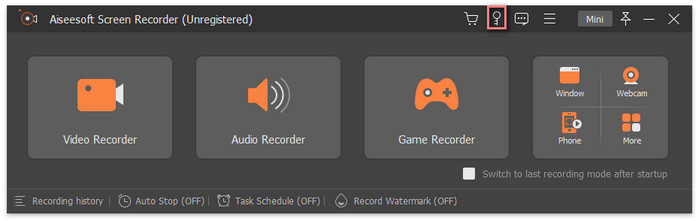
Step 1. After launching Screen Recorder, please click the Register icon.
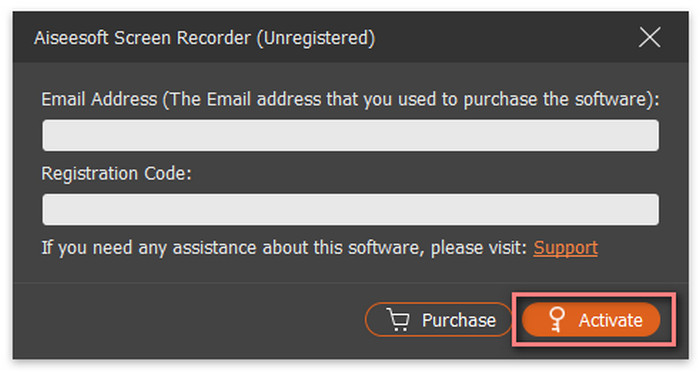
Step 2. If you have purchased this software and received the registration code, you can directly input it and your email address into this window and click the Activate button.
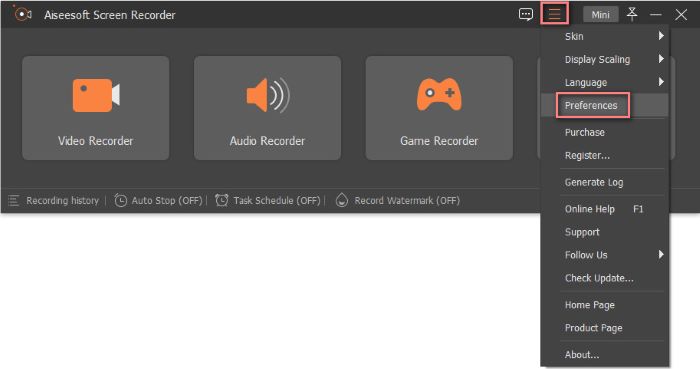
If you want to set preferences for Screen Recorder, please click the Menu icon and choose Preference.
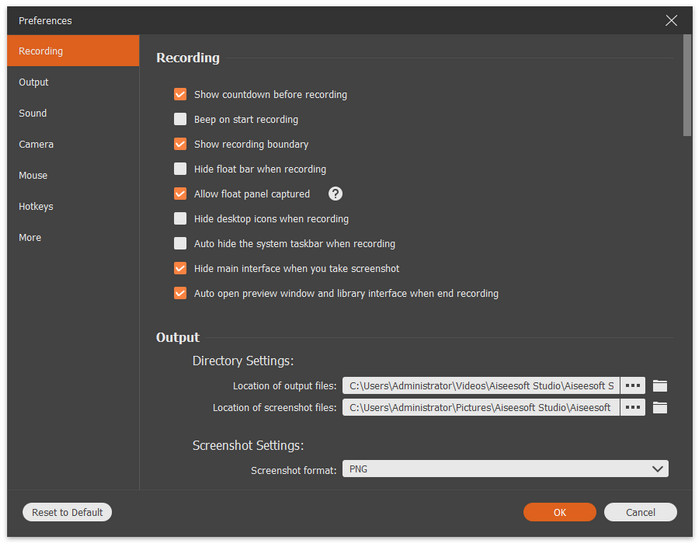
1.Recording
In this window, you can set operations before, when, and after recording, like Hide desktop icons when recording, etc.
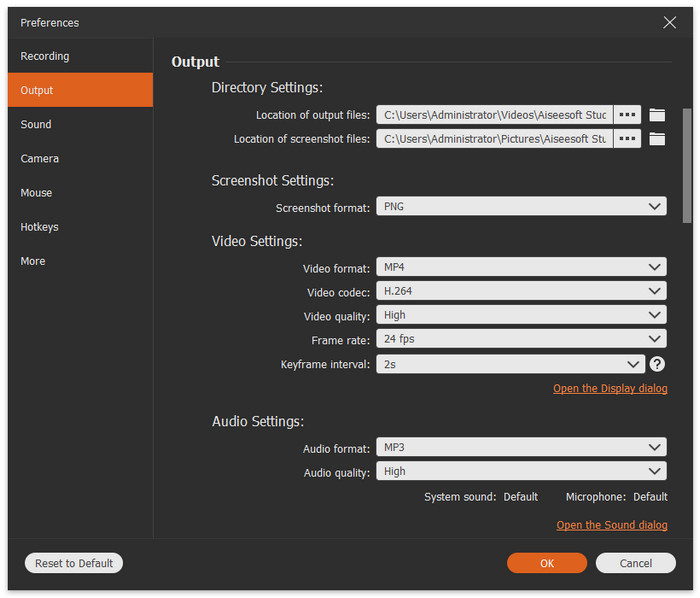
2.Output
Você pode ajustar nesta janela se quiser alterar os formatos de saída, armazenar caminhos e a qualidade da gravação de vídeo, áudio e capturas de tela.
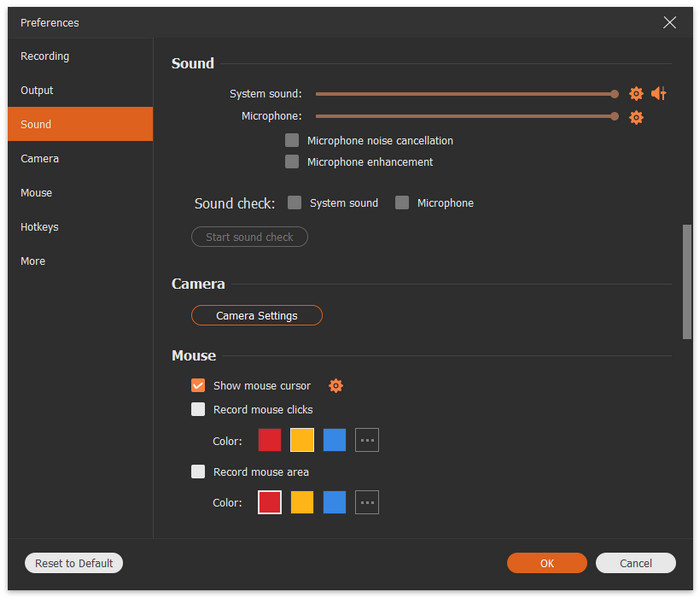
3.Sound
Aqui você pode controlar o volume do som do sistema e do microfone.
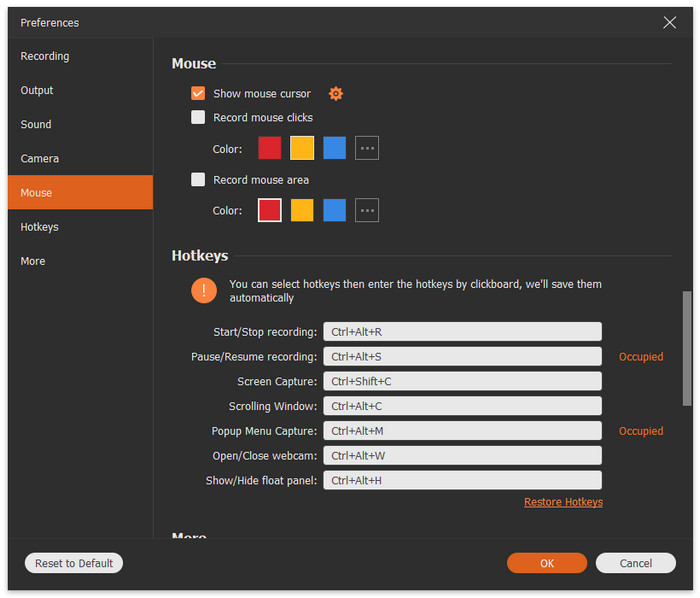
4.Moused
Nesta janela, você pode selecionar se deseja mostrar o cursor do mouse ou não. E você pode escolher a cor dos cliques do mouse e a área durante a gravação.
5.Hotkeys
Você pode definir teclas de atalho aqui se quiser tornar o processo de gravação mais conveniente.
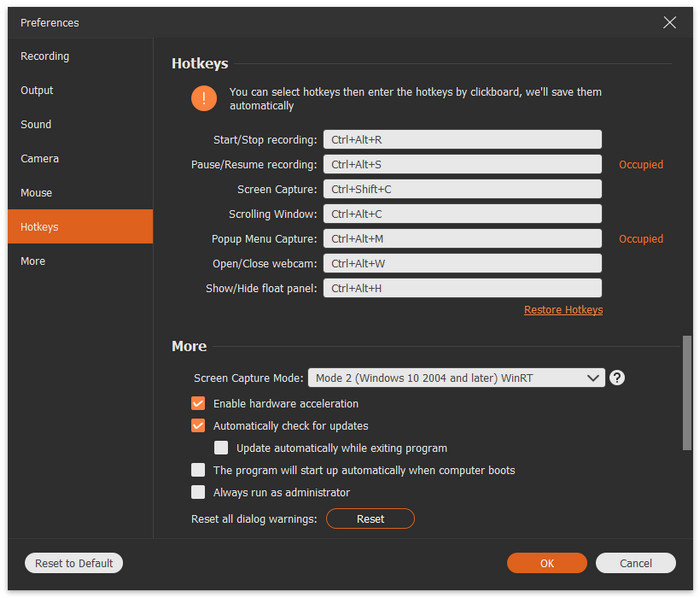
6.More
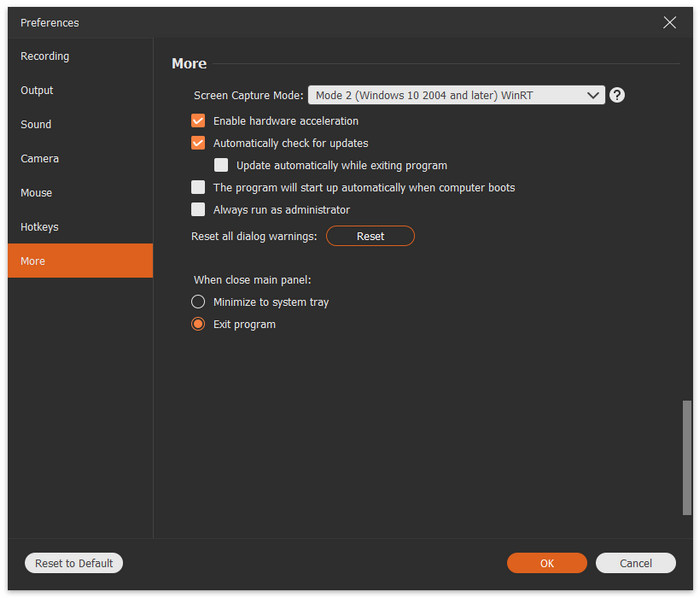
Aqui você pode escolher o modo de captura de tela, habilitar ou desabilitar a aceleração de hardware, ajustar as configurações de verificação de atualização e muito mais.
| SO suportado | CPU/Processador | BATER | |
| janelas | Windows 11/10/8.1/8/7 | CPU Intel/AMD de 1 GHz ou superior | 1GB RAM ou mais |
| Mac | Mac OS X 10.12 ou superior | Processador Intel® de 1 GHz e chip Apple M1/M2 | 512 MB ou mais |
| Formatos suportados | |
| Vídeo | MP4, WMV, MOV, F4V, TS, WebM |
| Áudio | MP3, WMA, M4A, AAC |
| Imagem | PNG, JPG/JPEG, BMP, GIF, TIFF |
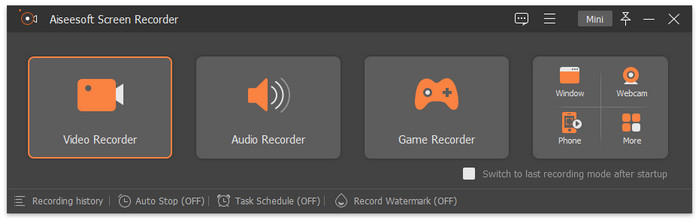
Step 1. Choose Video Recorder
Please select the Video Recorder button to begin video capturing on your computer.
Step 2. Choose Recording Area
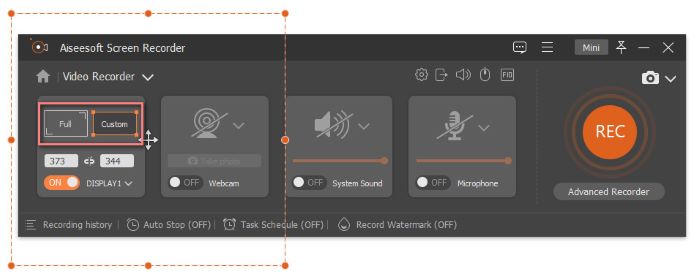
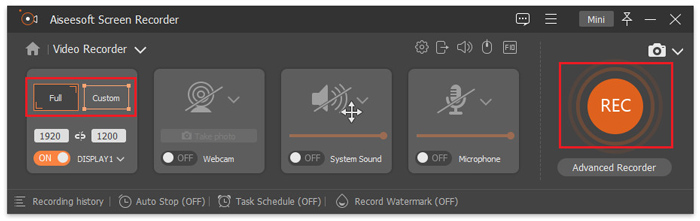
If you want to capture the whole screen of your computer, you can click the Full icon. If you only want to record a specific area of your video, you can click the Custom icon and move the borderline to customize the capture area as you like.
Step 3. Adjust Video Capture Settings
If you need to record the webcam content while recording the video on a desktop, you can switch to On under Webcam.
If you want to record video with audio and the microphone sound, you can turn on System Sound and Microphone.
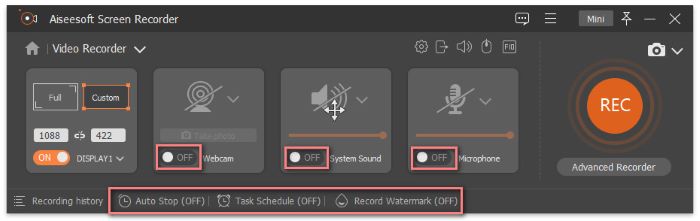
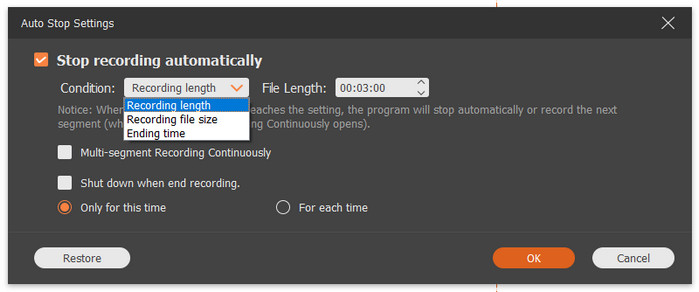
You also can turn on Auto Stop to make your video recording stop automatically. In this window, you can set the Auto Stop Condition by adjusting the Recording length, Recording file size, and Ending time.
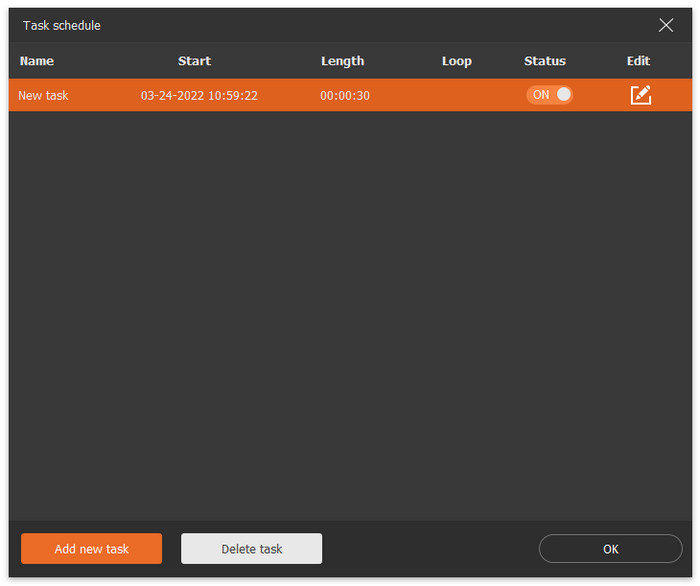
If you need to set the starting and ending time of recording, you can turn on Task Schedule and click the Add new task button to create a task for recording.
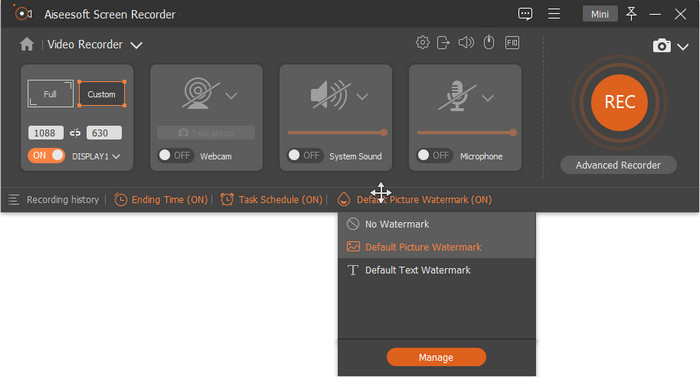
What’s more, you also can choose to record videos with a watermark or not. And you can click the Manage button to make your exclusive watermark and change the watermark position based on your need.
Step 4. Start Recording
After all settings are done, click the REC button to begin recording the video on your computer.
When you are recording, you can click the Snapshot icon to take screenshots of your video for sharing with your friends.

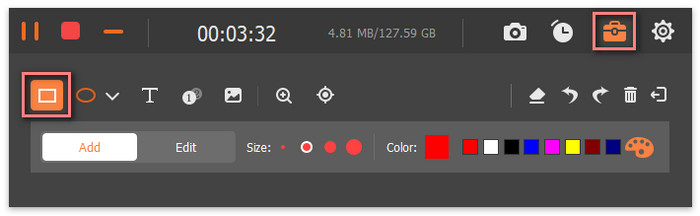
If you want to use a rectangle to mark the critical content when recording, you can click the Edit icon and choose the Rectangle icon.
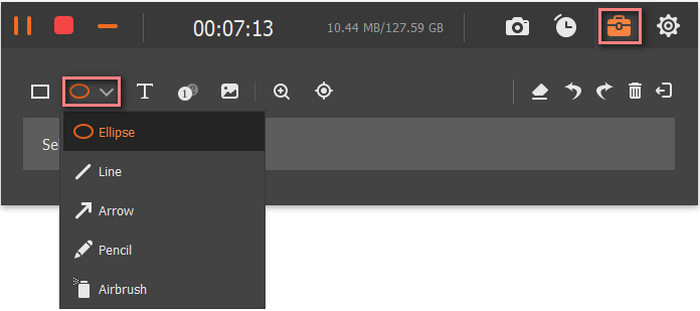
If you want to use other tools like an ellipse, a pencil, or an arrow to mark out, you can click the Edit icon and the pull-down icon to select.
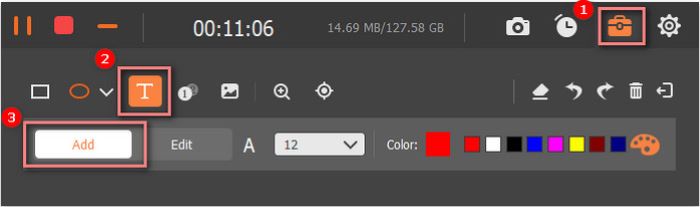
If you need to add text to your recording videos, you can click the Edit icon, choose the Text icon, and click the Add button to place texts on your video.
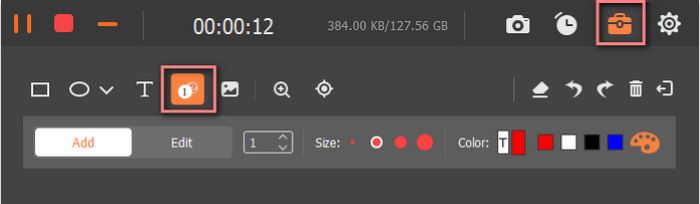
If you want to number the content while recording on your computer, you can click the Edit icon, choose the Callout icon, and use your mouse to click the content you want to number.
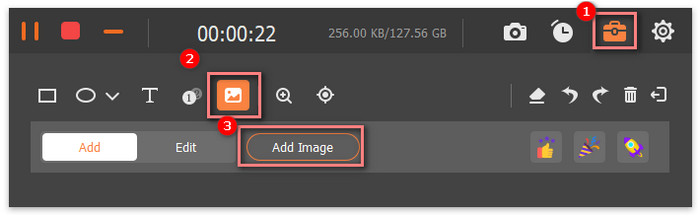
You also can add the image to the screen when you are recording videos by clicking the Edit icon, selecting the Image icon, and clicking the Add Image button.
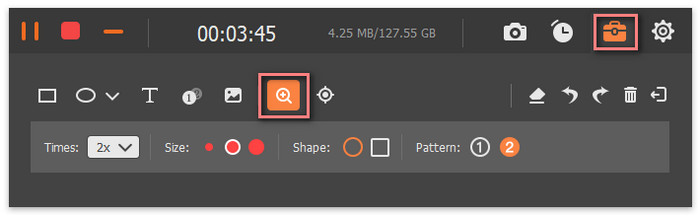
When you need to magnify something of the video you are recording, you can click the Edit icon and choose the Magnifier icon.
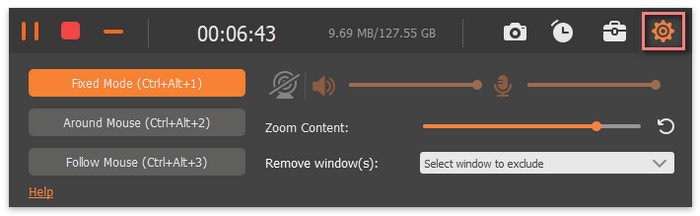
Click the Settings icon, and then choose the recording mode from Fixed Mode, Around Mouse, and Follow Mouse.
Step 5. Finish Recording
Finally, click the Stop icon to complete the recording process.

Once you stop recording, a window where you can preview the recording file will pop up. If you want to record a new video, you can click the Back button to return to the Video Recorder function. Or you can click the >Done 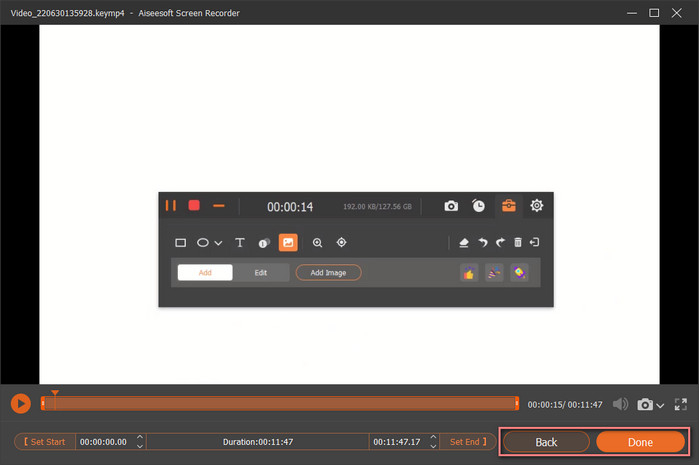
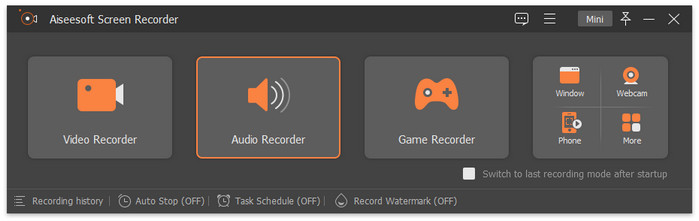
Step 1. Select Audio Recorder
Launch Screen Recorder on your computer and choose the Audio Recorder button.
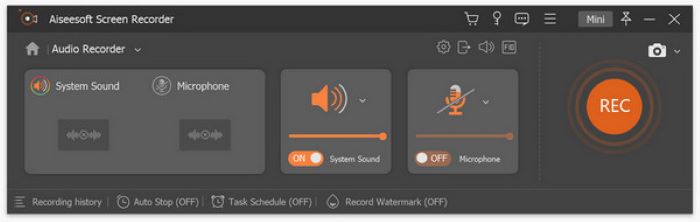
Step 2. Adjust Audio Recording Settings
Then you can control the volume of the System Sound by moving the bar. And you can turn on Microphone if you want to record your voice too.
Step 3. Start Recording Audio
Em seguida, você pode clicar no botão REC para iniciar a gravação do áudio em seu computador.
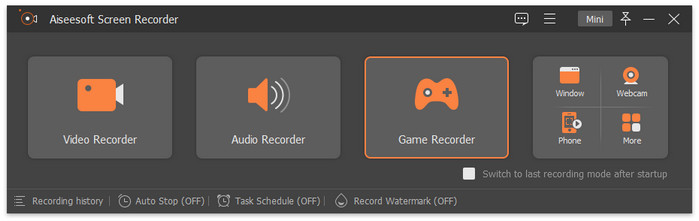
Step 1. Choose Game Recorder
You can click the Game Recorder button to start if you want to record your gameplay screen on your computer.
Step2. Select Game Process
After that, you need to click the Select the game button to choose the gameplay process.
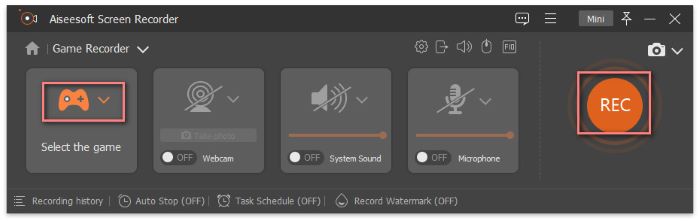
Você também pode ativar a webcam, o som do sistema e o microfone para gravar o jogo com música, seu rosto e sua voz.
Step 3. Start Recording Gameplay
In the end, click the REC button to start recording the gameplay on your computer.
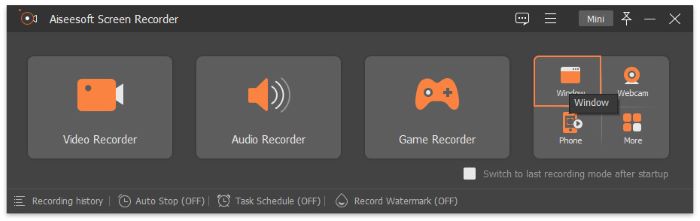
Step 1. Choose Window Recorder
Se você abrir várias janelas em seu computador e quiser gravar apenas uma janela, clique no botão Janela.
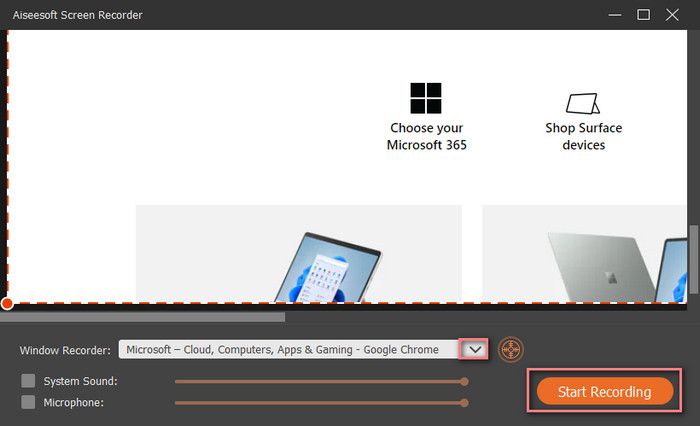
Step2. Select Window
Mais tarde, você pode clicar no ícone suspenso para escolher a janela que deseja capturar.
Step 3. Start Recording Window
After choosing the window, you can click the Start Recording button to begin.
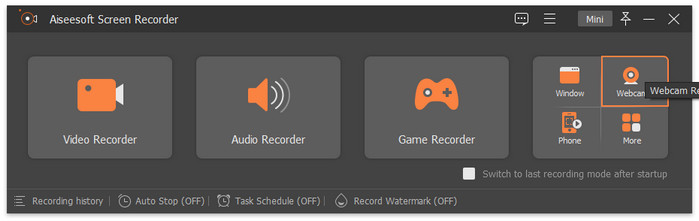
Step 1. Select Webcam Recorder
You can choose the Webcam Recorder button if you want to record the webcam content on your computer.
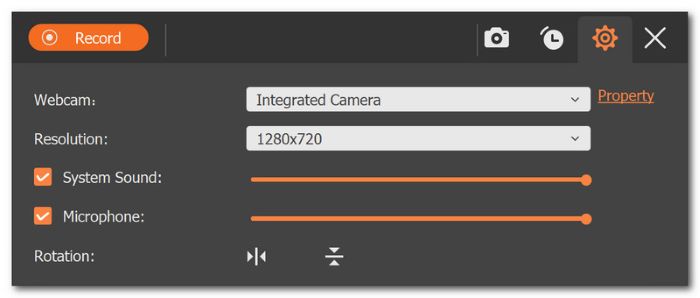
Step 2. Adjust Settings
Then you will see a window with your webcam content on your computer. And you can click the Settings icon to select the camera source, resolution, etc.
Step 3. Start Recording Webcam
Click on the Record button on the top of the previewing window to start.
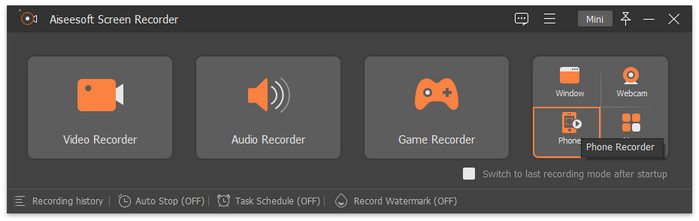
Step 1. Choose Phone Recorder
You can click the Phone Recorder button if you need to record your phone screen on the computer for a larger screen.
Step 2. Connect Phone to PC
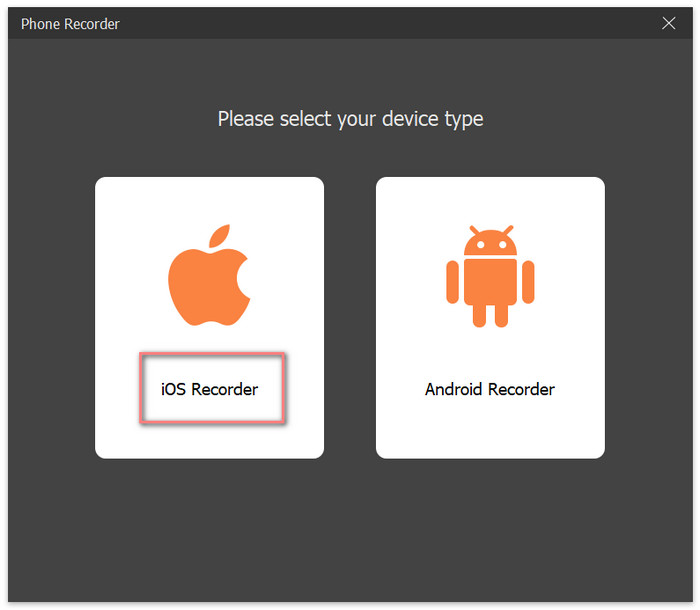
If you are an iOS user, you should choose iOS Recorder first.
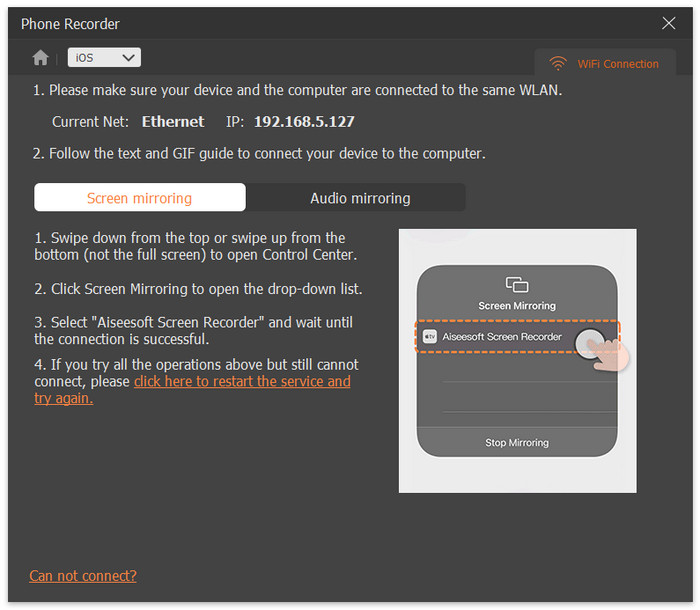
Then you can connect your iOS devices as the on-screen instruction says: make sure that your iOS device and the computer are connected to the same LAN, open Control Center on your iOS device by swiping down or swiping up, tap on Screen Mirroring, and choose Screen Recorder to wait for connecting succeeds.
If you are an Android user, please select Android Recorder.
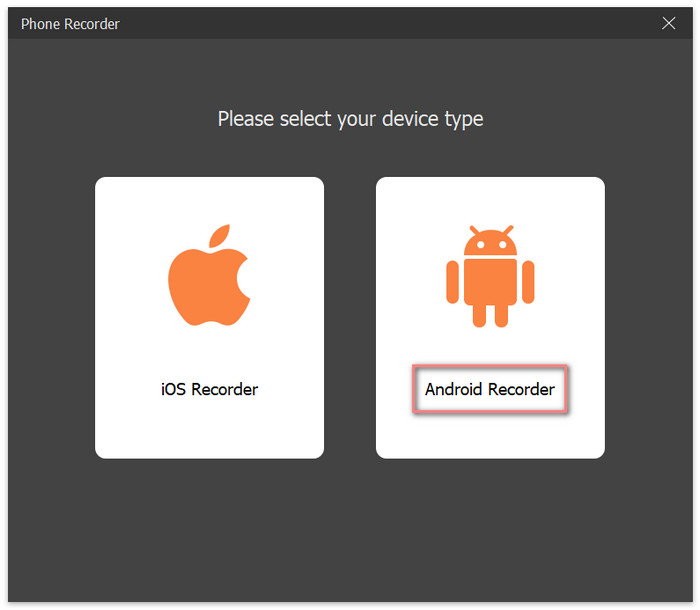
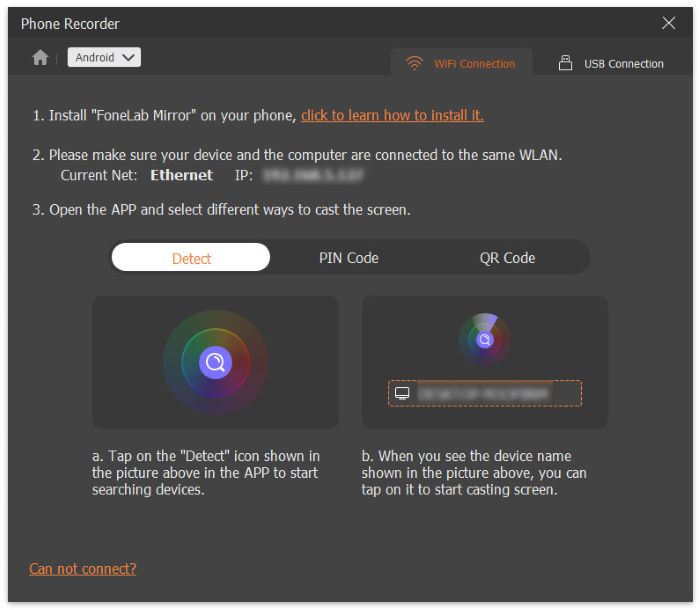
Então você pode conectar seu dispositivo Android ao computador via Wi-Fi ou USB. Para começar, baixe e instale o FoneLab Mirror no seu Android.
If you want to use WiFi to connect, you have to ensure your Android device and the computer are connected to the same LAN. And there are three ways you can select: Detect, PIN Code, and QR Code.
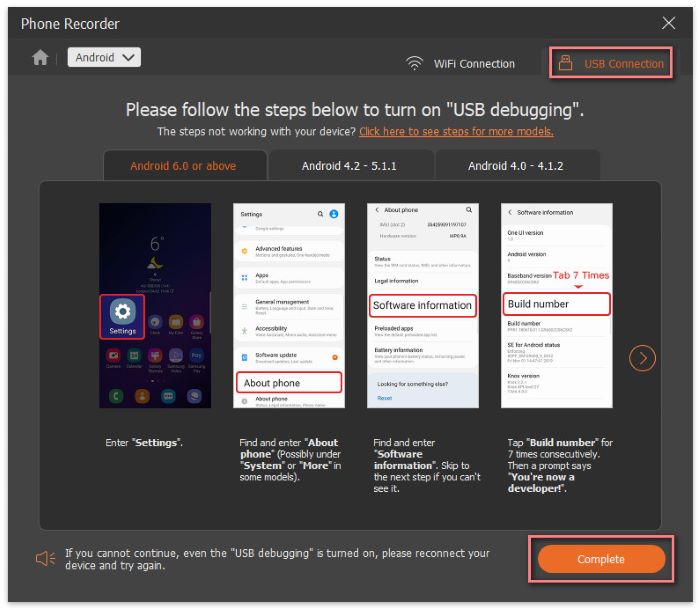
If there is no network connection, you can switch to USB Connection. And connect your Android phone to your PC as the on-screen instruction says: enter Settings on your Android phone and turn on USB debugging, then click the Complete button on the computer and tap on Allow or Start Now on your Android phone to finish this connection.
Step 3. Adjust Phone Recording Settings
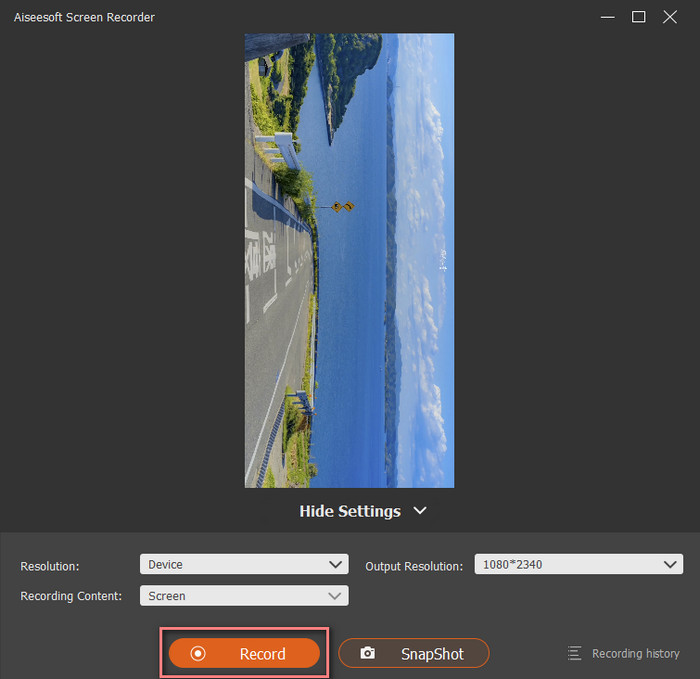
Depois de se conectar com sucesso, você pode ver a tela do seu telefone no computador usando o Screen Recorder, como na foto abaixo.
Aqui você pode escolher a resolução da tela em Device, 4K, 2K, etc., e selecionar a resolução de saída e o conteúdo da gravação.
Step 4. Start Recording Phone Screen
Next, you can click the Record button to begin recording the phone screen on your computer.
Depois de gravar a tela, vídeo ou áudio em seu dispositivo, você pode acessar a janela Histórico de Gravação para cortar, compactar, mesclar e converter seus arquivos gravados e editar os metadados de mídia de seus arquivos gravados.
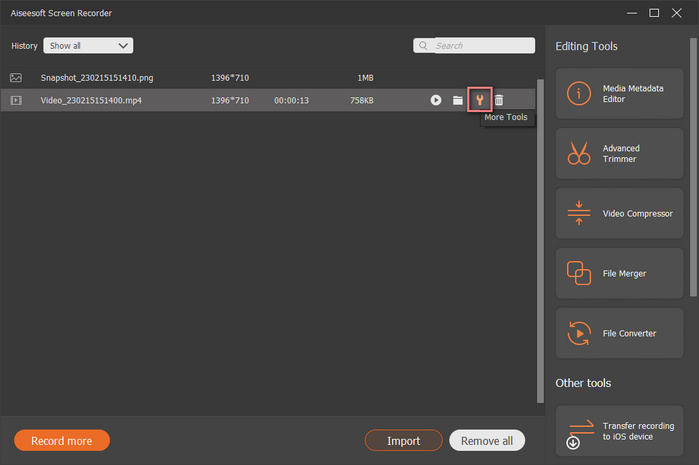
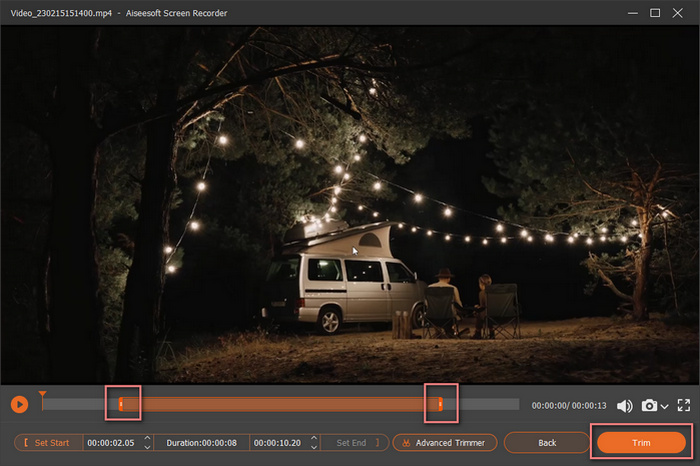
Step 1. At first, please select the file you want to cut and click the More Tools icon to select the Video Cutter option.
Step 2. Then you will enter the video cutting window. In this window, you can shorten your recorded file by dragging the start and end points to the center on the bar. Later, click the Trim button to saving your editing till you are satisfied.
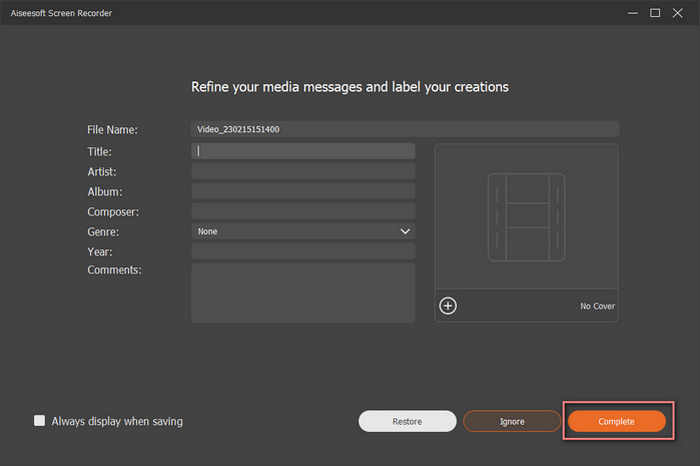
Step 1. Click the recorded file you want to edit, and then in the Editing Tools section, you need to select the Media Metadata Editor option.
Step 2. Next, you can directly change or edit the name, title, artist, album, composer, genre, year, and comment of your recorded file. Lastly, click the Complete button to save.
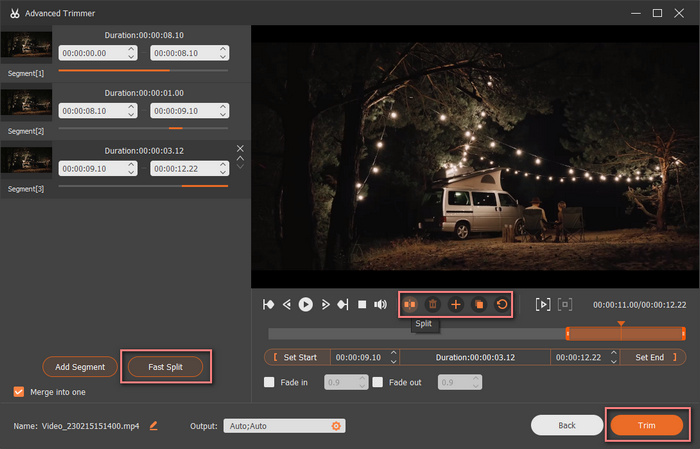
Step 1. If you want split your recorded file into multiple clips, you can use the Advanced Trimmer feature. To enter the function, you can select the recorded file you want to trim in the Recording History window and click Advanced Trimmer in the Editing Tools section.
Step 2. To split your recorded file, you can slide the pointer and click the Split icon. You also can click the Fast Split button to set the number of clips for splitting quickly. Finally, click the Trim button to save your editing.
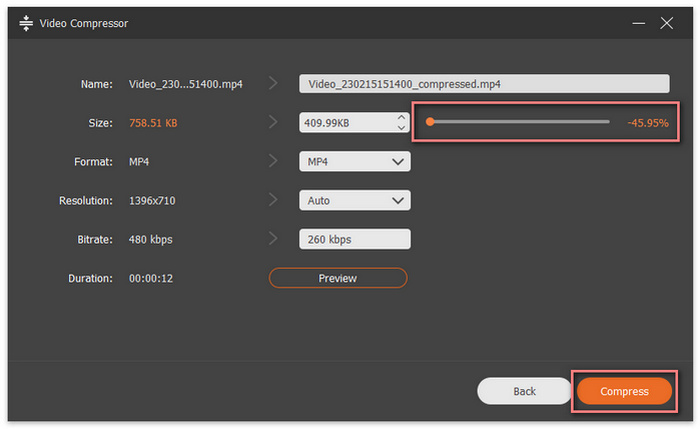
Step 1. After recording, if you think that your recorded video size is too large, you can go to the Editing Tools section and click the Video Compressor button to reduce its size.
Step 2. Then your recorded video will be compressed automatically. You also can slide the point on the Size bar to reduce your video size based on your needs. Next, click the Compress button to save.
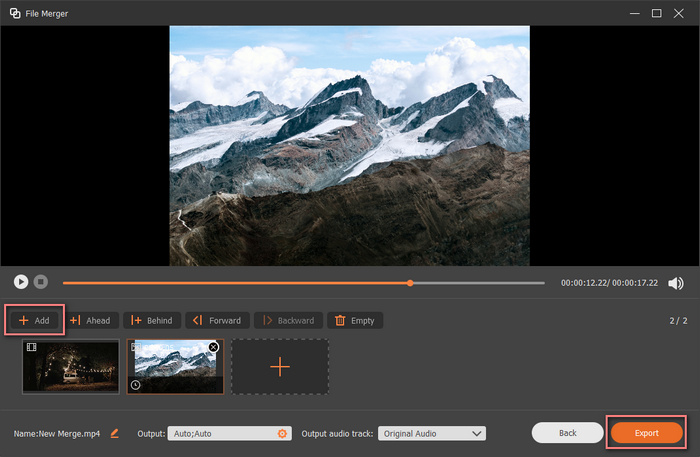
Step 1. If you want to combine your recorded files and your local file into one file, you can use the File Merger function.
Step 2. After selecting File Merger, you can click the Add button to import more videos or images from your existing recorded files and local files. You also can adjust the order of each file by click Forward or Backward. Lastly, click the Export button.
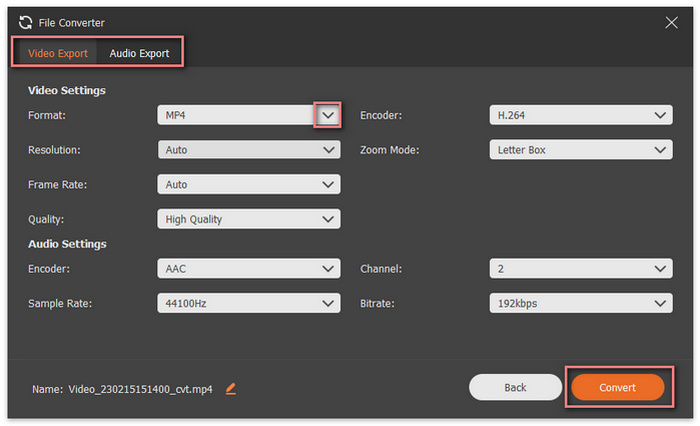
Step 1. To change your recorded file format, you can select your file and click the File Converter button.
Step 2. If you want to change your recorded video format to another video format, you can select the export format in the Video Export section and click the Convert button. If you want to convert your recorded video to audio, you should go to the Audio Export section, select the audio format, and click the Convert button.
Step 1. Enter Either Function
If you want only to take screenshots on your computer using Screen Recorder, you can enter either function like Video Recorder to start.
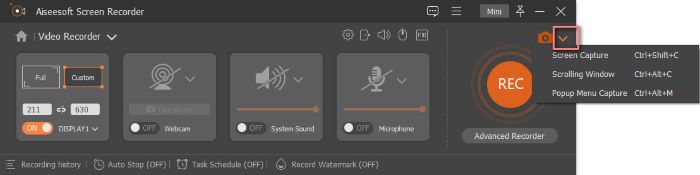
Step 2. Open Screen Capture
Then you can click the pull-down icon next to the Screen Capture icon to select the screenshot mode from Screen Capture, Scrolling Window, and Popup Menu Capture.
Se você deseja gravar o vídeo reproduzido com áudio no seu computador, pode usar o Screen Recorder. Além disso, você também pode usar este software para capturar a jogabilidade em seu computador. Além disso, a função Phone Recorder do Screen Recorder permite gravar as telas do iPhone e do telefone Android no computador.
You can click the Free Download button on this page to download the installation package on your computer first. Then you need to click on the package to open it for installing Screen Recorder on your device.
Se você precisar gravar um vídeo por mais de três minutos ou quiser cortar seus vídeos gravados, você deve se registrar no Screen Recorder.
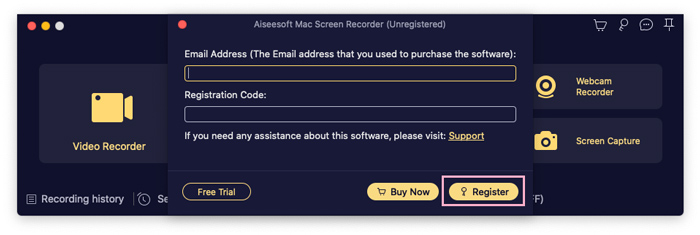
Step 1. After launching Screen Recorder, please click the Register icon.
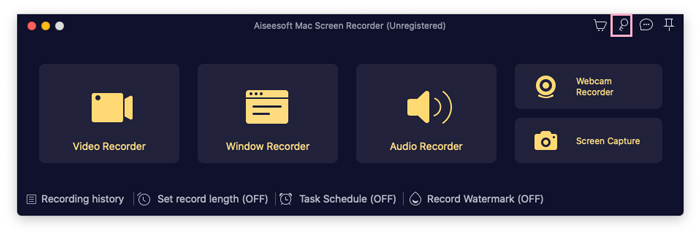
Step 2. If you have purchased this software and received the registration code, you can directly input it and your email address into this window and click the Register button.
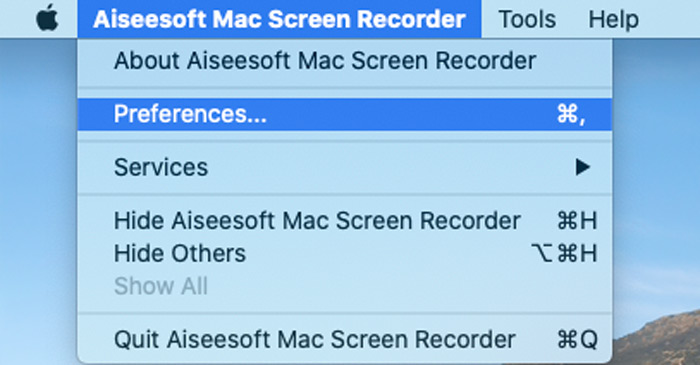
If you want to set preferences for Screen Recorder, please click Aiseesoft Mac Screen Recorder and choose Preference.
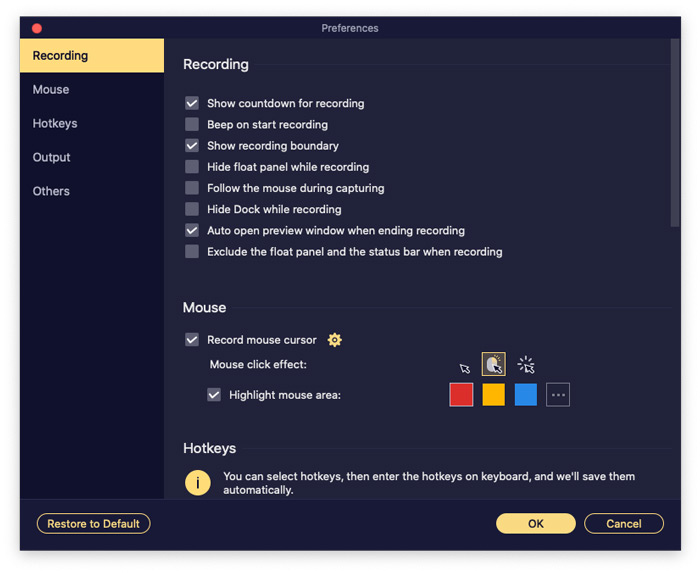
1. Recording
In this window, you can set operations before, when, and after recording, like Hide desktop icons when recording, etc.
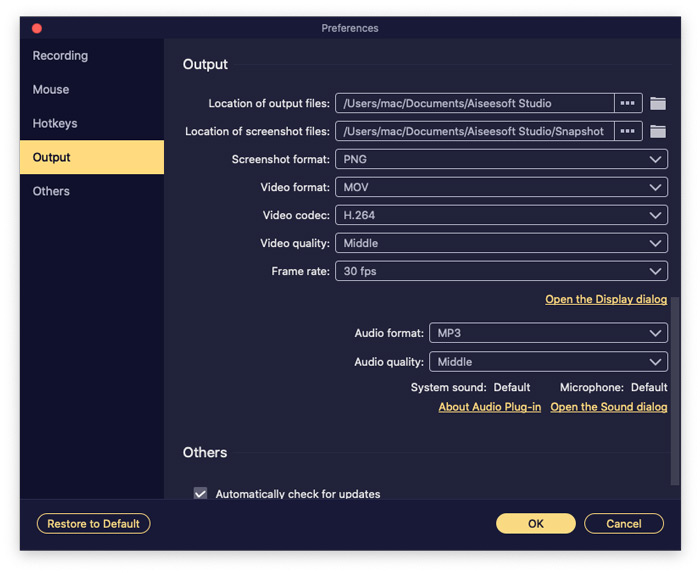
2. Output
Você pode ajustar nesta janela se quiser alterar os formatos de saída, armazenar caminhos e a qualidade da gravação de vídeo, áudio e capturas de tela.
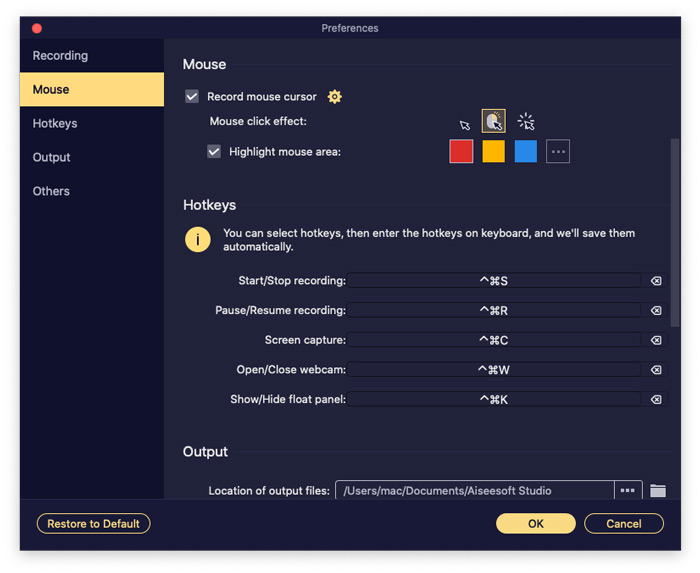
3. Moused
Nesta janela, você pode selecionar se deseja mostrar o cursor do mouse ou não. E você pode escolher a cor dos cliques do mouse e a área durante a gravação.
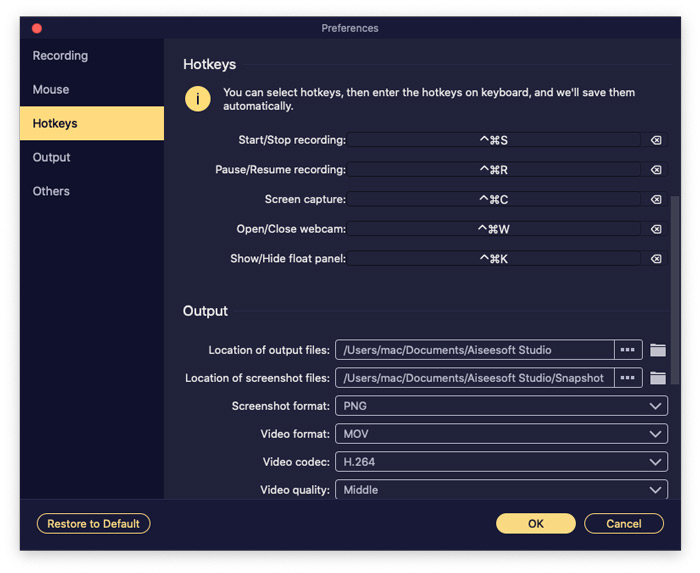
4. Hotkeys
Você pode definir teclas de atalho aqui se quiser tornar o processo de gravação mais conveniente.
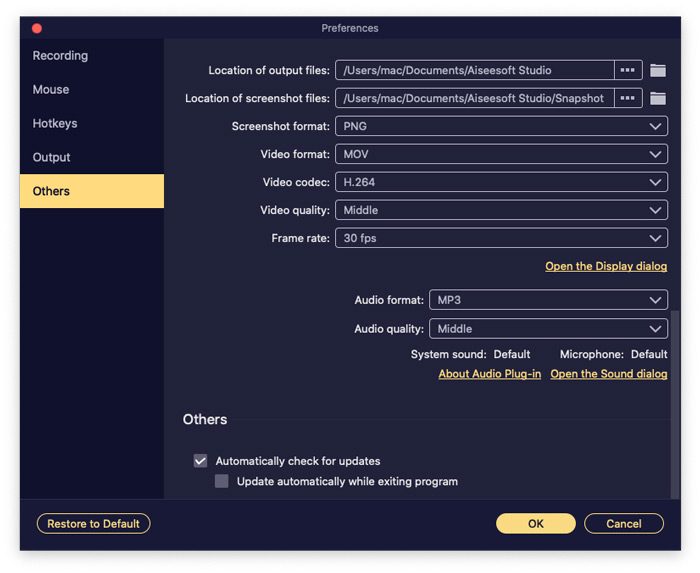
5. Others
Aqui você pode ajustar as configurações de verificação de atualização.
| SO suportado | CPU/Processador | BATER | |
| janelas | Windows 11/10/8.1/8/7 | CPU Intel/AMD de 1 GHz ou superior | 1GB RAM ou mais |
| Mac | Mac OS X 10.12 ou superior | Processador Intel® de 1 GHz e chip Apple M1/M2 | 512 MB ou mais |
| Formatos suportados | |
| Vídeo | MP4, WMV, MOV, F4V, TS, WebM |
| Áudio | MP3, WMA, M4A, AAC |
| Imagem | PNG, JPG/JPEG, BMP, GIF, TIFF |
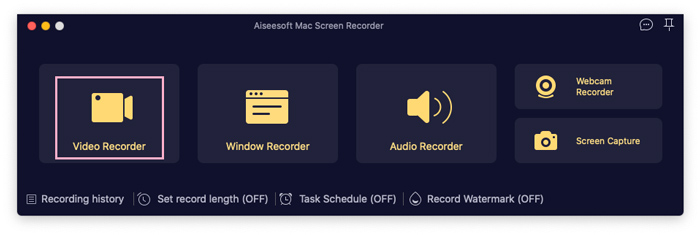
Step 1. Choose Video Recorder
Please select the Video Recorder button to begin video capturing on your computer.
Step 2. Choose Recording Area
Se você deseja capturar toda a tela do seu computador, clique no botão Cheio ícone. Se você deseja gravar apenas uma área específica do seu vídeo, clique no botão Personalizado ícone e mova a borda para personalizar a área de captura como desejar.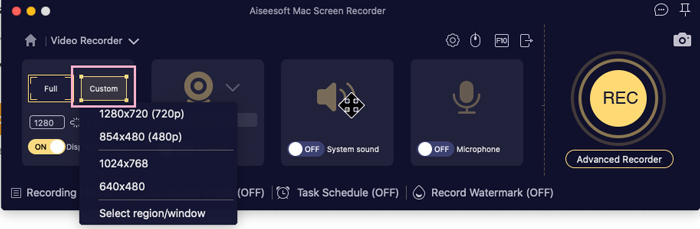
Step 3. Adjust Video Capture Settings
If you need to record the webcam content while recording the video on a desktop, you can switch to On under Webcam.
If you want to record video with audio and the microphone sound, you can turn on System Sound and Microphone.
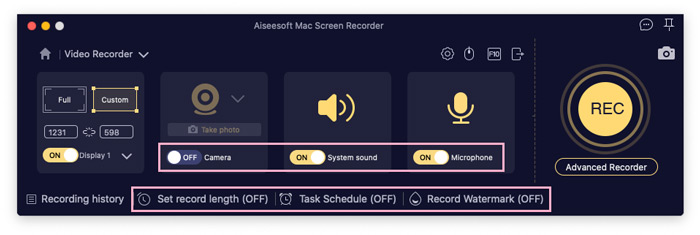
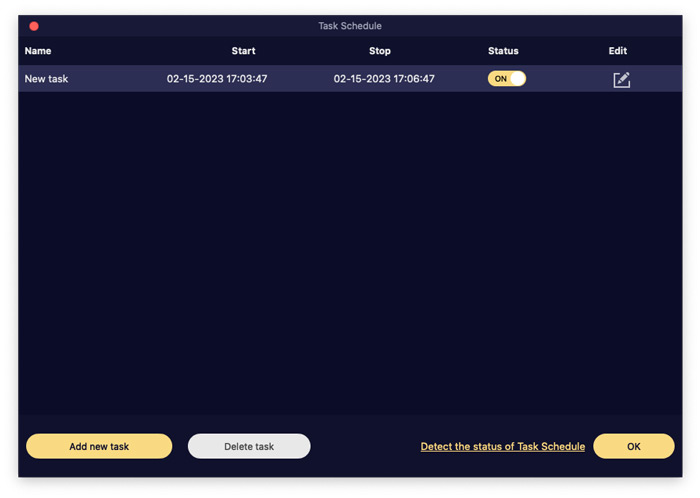
If you need to set the starting and ending time of recording, you can turn on Task Schedule and click the Add new task button to create a task for recording.
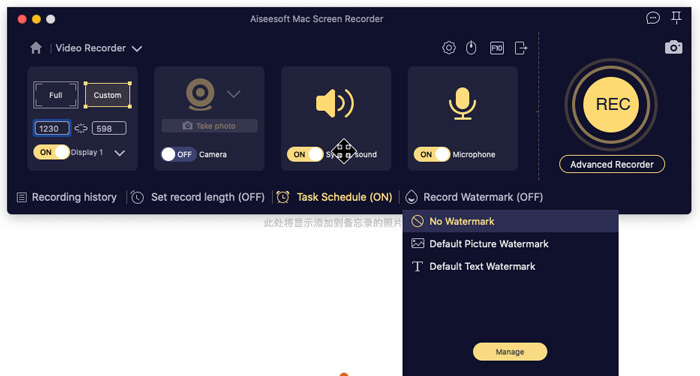
What’s more, you also can choose to record videos with a watermark or not. And you can click the Manage button to make your exclusive watermark and change the watermark position based on your need.
Step 4. Start Recording
After all settings are done, click the REC button to begin recording the video on your computer.
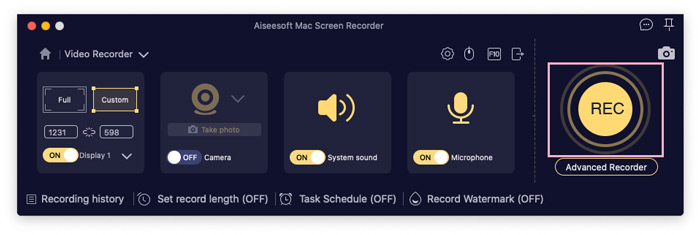
When you are recording, you can click the Snapshot icon to take screenshots of your video for sharing with your friends.

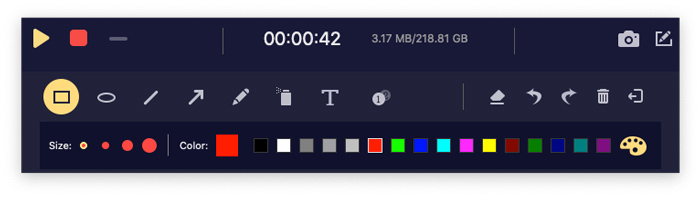
If you want to use a rectangle to mark the critical content when recording, you can click the Edit icon and choose the Rectangle icon.You also can user other tools, including an ellipse, a pencil, or an arrow, to mark out.
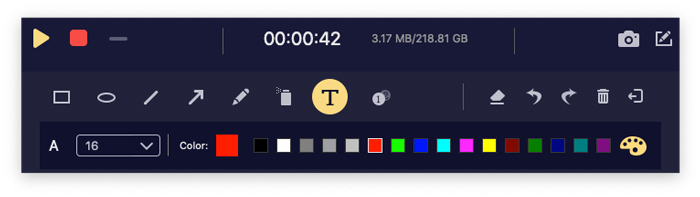
If you need to add text to your recording videos, you can click the Edit icon, choose the Text icon, and click the Add button to place texts on your video.
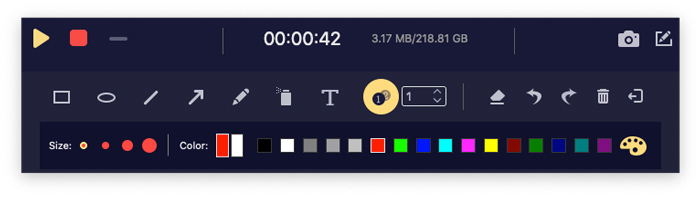
If you want to number the content while recording on your computer, you can click the Edit icon, choose the Callout icon, and use your mouse to click the content you want to number.
Step 5. Finish Recording
Finally, click the Stop icon to complete the recording process.

Once you stop recording, a window where you can preview the recording file will pop up. If you want to record a new video, you can click the Back button to return to the Video Recorder function. Or you can click the >Done button to save the recording video.
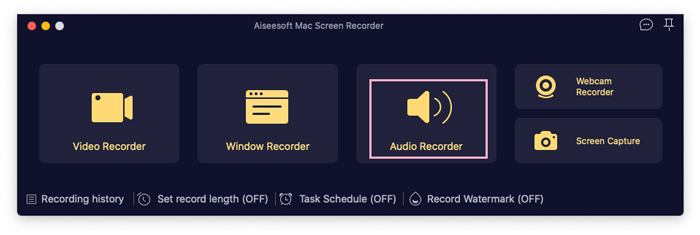
Step 1. Select Audio Recorder
Launch Screen Recorder on your computer and choose the Audio Recorder button.
Step2. Adjust Audio Recording Settings
Then you can control the volume of the System Sound by moving the bar. And you can turn on Microphone if you want to record your voice too.
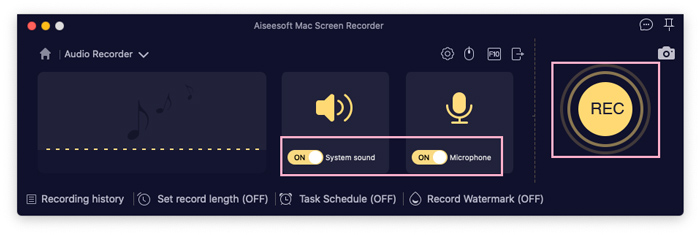
Step 3. Start Recording Audio
Next, you can click the REC button to start recording the audio on your computer.
Step 1. Choose Window Recorder
If you open multiple windows on your computer and want to record a window only, you can click the Window button.
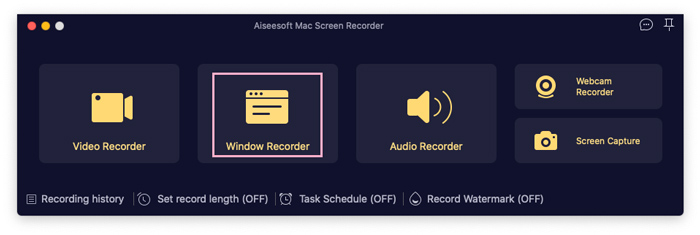
Step2. Select Window
Mais tarde, você pode clicar no ícone suspenso para escolher a janela que deseja capturar.
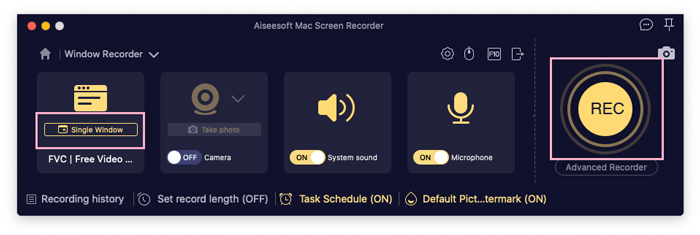
Step 3. Start Recording Window
After choosing the window, you can click the Start Recording button to begin.
Step 1. Select Webcam Recorder
You can choose the Webcam Recorder button if you want to record the webcam content on your computer.
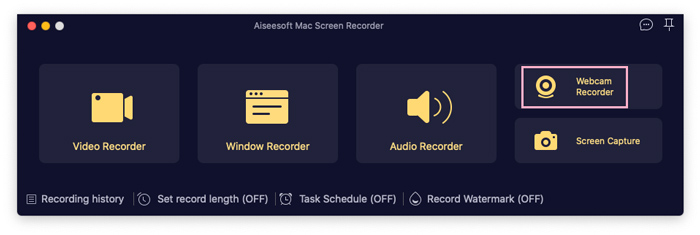
Step 2. Start Recording Webcam
Click on the Record button on the top of the previewing window to start.
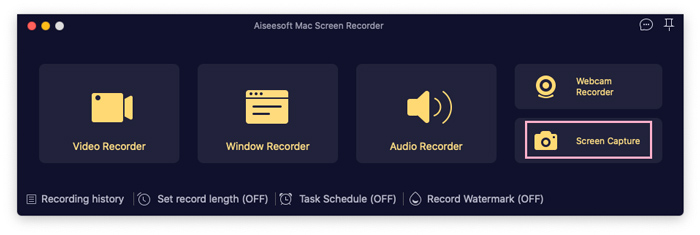
You can select the Screen Capture button and select the area to take a screenshot.
Licença Vitalícia
Licença de 1 mês
Alvará de funcionamento
Licença Vitalícia
Licença de 1 mês
Alvará de funcionamento

Pacote recomendado:
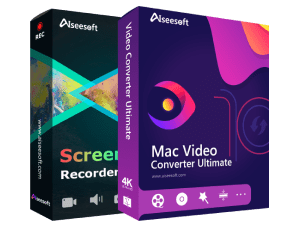
Video Converter Ultimate + Gravador de tela
Um pacote completo para soluções de DVD: copie, copie, grave e converta DVDs.$135.65$59.95
Pacote recomendado:
Video Converter Ultimate + Gravador de tela
Um pacote completo para soluções de DVD: copie, copie, grave e converta DVDs.$135.65$59.95

 Pagamento seguro
 Garantia de devolução do dinheiro em 30 dias
 Problemas resolvidos em 48 horas
Copyright © 2026 FVC Studio. Todos os direitos reservados.


 Video Converter Ultimate
 Gravador de ecrã
 Reparo de vídeo
