


 Video Converter Ultimate
 Gravador de ecrã
 Reparo de vídeo
 Secure Download
Como gravar MP4 no iPhone: configurações e melhores soluções para descobrir
Does the iPhone record in MP4? Typically, iPhones record videos in MOV format, which usually works fine. However, if you want to share these iPhone videos with devices that do not support MOV, you will just run into trouble. Hence, whether you are watching, shooting, or editing a video on your iPhone, it's important to understand its video formats. This understanding or knowledge can help you avoid playback problems by using the right file type and codecs. So, in this article, I'll show you three simple ways to record videos in MP4 on your iPhone. Thus making the videos compatible for playback and editing.

Parte 1. O iPhone grava vídeos em MP4
Muitas pessoas, especialmente usuários que não usam iPhone, se perguntam se um iPhone grava no formato MP4. Bem, para responder rapidamente, os iPhones podem gravar vídeos em dois formatos. Mas isso ainda depende das configurações. A opção padrão é MOV, que é um formato amplamente usado em dispositivos Apple e funciona bem em alguns dispositivos. No entanto, os iPhones também oferecem uma opção de economia de espaço chamada alta eficiência ou HEVC. Isso usa um formato diferente, mas você ainda pode visualizar essas gravações diretamente no seu iPhone.
Agora, em relação à gravação de tela, o gravador de tela integrado do iPhone salva apenas as gravações no formato MOV. Assim, se você precisar de gravações MP4 e quiser editar esses vídeos MP4 diretamente no seu iPhone, você terá que recorrer a um gravador de tela profissional ou software de edição no seu computador devido às limitações da App Store.
Parte 2. Como gravar MP4 no iPhone sem conversão
In line with the recording of video in MP4 on an iPhone, here’s a professional software called FVC Screen Recorder that will help you screen record everything on your iPhone, even the videos, and produce an MP4 output from them. FVC Screen Recorder comes with various recorders, including the one for your iPhone. It works to mirror your phone screen and then record everything on it, including the sound system. What makes it exclusive is that it offers annotation tools that will help you personalize the recordings you have made. Truly, with this FVC Screen Recorder, you won’t need to convert iPhone videos just to have great MP4 video quality. What you will need is to follow the below how-to record MP4 on an iPhone, and you are good to go.
Step 1. The first thing to be done is to acquire the recorder for your computer. You may grab it on a desktop or Mac by clicking the Download buttons below. Tip: You can already prepare your iPhone and connect it to the same WLAN your computer is connected to.
Free DownloadFor Windows 7 or laterSecure Download
Free DownloadFor MacOS 10.7 or laterSecure Download
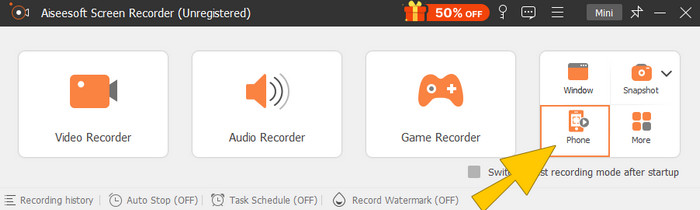
Step 2. Launch the screen recorder and click the Phone recording tool. Then, select the iOS option. Go to your Control Panel, tap the Screen Mirroring feature, and choose the Screen Recorder option there. This will connect your two devices to start the recording.
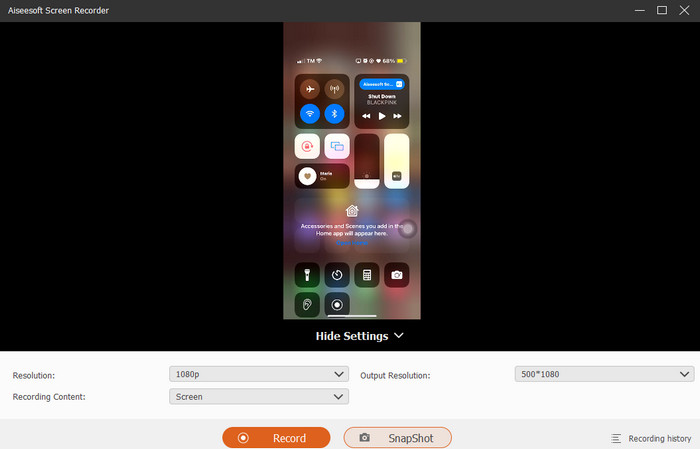
Step 3. When connected, you can now click the Record button. Then, click the Stop button once done.
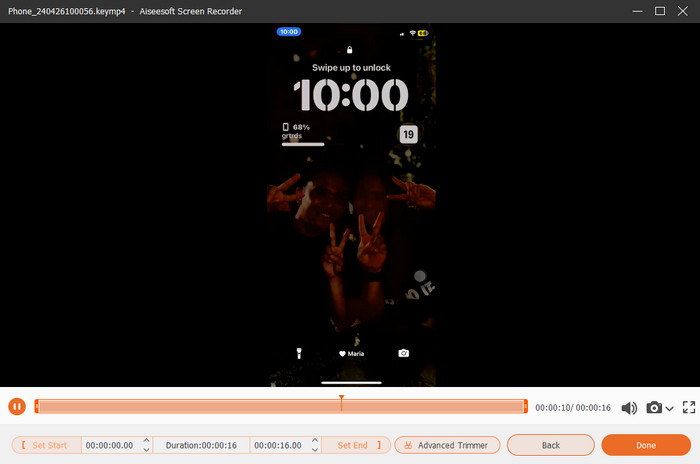
Step 4. After the recording, the tool will bring you to its saving section, where you can edit the raw recording. The editings include the sound volume, trimming, and screen capture. Otherwise, click the Done button to save the recorded MP4.
Parte 3. Como gravar MP4 através das configurações do iPhone
Normalmente, os vídeos que você grava com o iPhone não são armazenados como arquivos MP4. Porém, se quiser no formato MP4, você deve ajustar as configurações, que é provavelmente a maneira mais simples de fazer isso. Mas espere, é importante observar que mudar para MP4 pode consumir muito espaço de armazenamento do seu telefone. Portanto, antes de ajustar as configurações, considere se vale a pena tentar. Caso contrário, observe as etapas fornecidas abaixo.
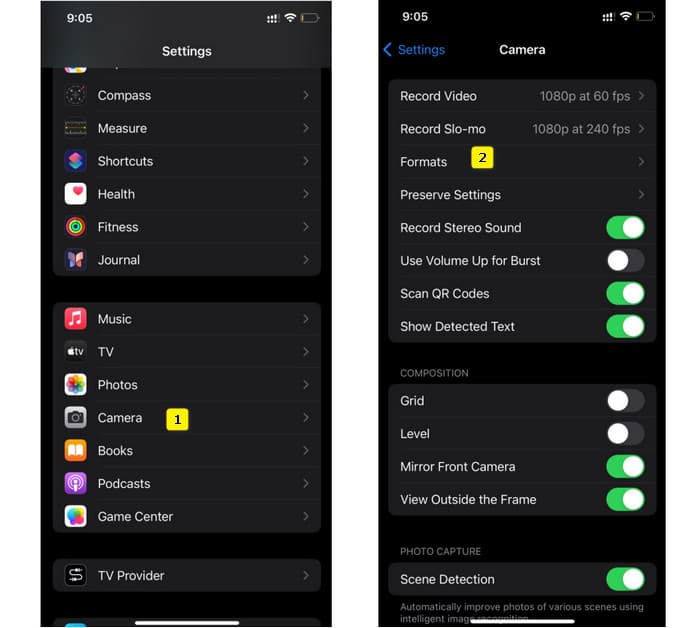
Step 1. Go to your phone’s Settings app and look for the Camera app, then tap it open.
Step 2. Now go to the Format section and tap it. Then, set it to the Most Compatibility option to have the MP4 by default.
Step 3. After that, you can start recording your iPhone by using its built-in screen recorder.
Parte 4. Converter gravações do iPhone para MP4 online gratuitamente
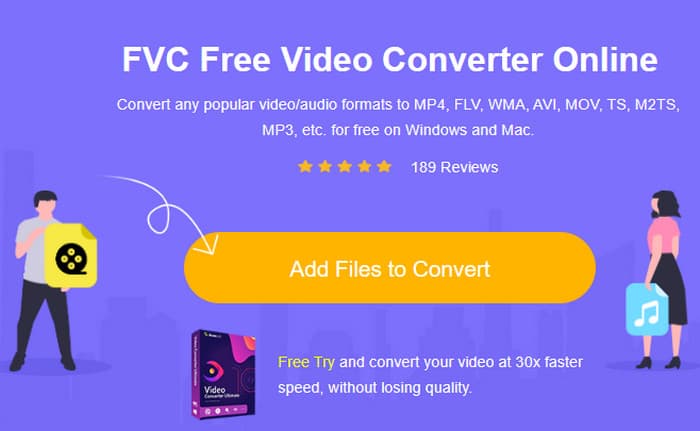
Admit it, when recording to MP4 is not your thing, your last resort will be conversion. That said, you can use a free online converter to provide you with a breezier and quicker solution for your video. Meet FVC Free Video Converter Online, a free program that lets you convert your videos and music to different formats. It works with popular video and audio files and can convert them to formats like MP4, FLV, AVI, WMV, MOV, MKV, and many more. Even high-definition videos can be converted quickly without losing quality! You can also transform multiple videos at once, helping you save more time on conversion. What makes it more convenient to use is that it won’t require you to download your converted files separately, as it will only ask you to choose a file destination where your outputs will be saved directly! Thus, let’s try this amazing tool and convert your iPhone videos quickly!
Step 1. On your desktop browser, visit the tool's official website. Then, click the Add Files to Convert button to grab the launcher. Once caught, re-click the button to upload your iPhone videos.
Step 2. Upon reaching the main interface and wanting to add more iPhone videos to convert, just click the Add File button. Then, the files are set to MP4 by clicking them and tapping the format at the bottom.
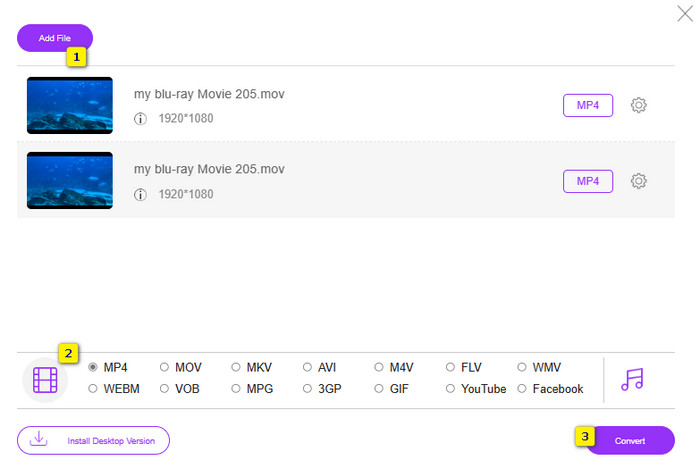
Step 3. Once done, click the Convert button and choose your file destination. Immediately after picking, the conversion process will start.
With the steps above, you can easily convert iPhone MOV videos to MP4 for free.
Parte 5. Perguntas frequentes sobre gravações de vídeo MP4 do iPhone
Posso editar vídeos MP4 gravados no meu iPhone?
Sim, você pode editar os vídeos MP4 no seu iPhone. Para fazer isso, use vários aplicativos de edição de vídeo disponíveis na sua App Store. Caso contrário, você pode transferir os vídeos para o seu computador e editá-los usando um software profissional de edição de vídeo.
Como posso transferir vídeos MP4 do meu iPhone para um PC?
Existem vários métodos que você pode usar para transferir seus vídeos do iPhone para o PC. Você pode usar um cabo USB, enviar os vídeos para armazenamento em nuvem ou usar um software que o ajudará a transferi-los.
Qual qualidade e resolução de vídeo o iPhone grava em MP4?
Isso depende do modelo do seu iPhone. Os iPhones geralmente gravam vídeos no formato MP4 com diversas resoluções e opções de qualidade. As opções vão desde definição padrão até alta definição e até 4K nos modelos mais recentes.
Conclusão
Esses são os métodos que fornecem orientação sobre como gravar facilmente MP4 no seu iPhone. Escolha o que mais combina com você e compartilhe também com seus amigos!
-
 Como converter MP4 para MOV no Mac / PC / Online
 Como converter MP4 para MOV no Mac? Existe alguma maneira gratuita de converter MP4 em MOV sem perda de qualidade? Este post compartilha 4 maneiras simples de ajudá-lo a fazer a conversão de vídeo MP4 para MOV no Mac, PC com Windows e online.
-
 Tutorial - 4 maneiras gratuitas de mesclar vídeos do iPhone em um novo
 Quer combinar vídeos em um no seu iPhone? Leia e obtenha 4 maneiras fáceis com suporte para todos os modelos de iPhone e versões de iOS.
-
 [Resolvido] Como corrigir vídeos que não estão sendo reproduzidos no iPhone com etapas detalhadas
 Os vídeos locais na galeria não podem ser reproduzidos no seu iPhone através do player de vídeo padrão? Vídeos online do YouTube que não são reproduzidos no iPhone sempre acontecem? Aqui estão 5 soluções para ajudá-lo neste artigo.
