


 Video Converter Ultimate
 Gravador de ecrã
 Reparo de vídeo
Os 4 principais gravadores FLV adequados para computadores Chrome, Windows e Mac
Você já se perguntou o que faz com que os vídeos que você vê sejam veiculados na web? A maioria dos sites HTML 5 usa o formato WebM para reproduzir vídeos. Além do WebM, o FLV também está sendo usado. Mais especialmente aqueles sites gratuitos de filmes e programas de TV. Como você saberia se é um arquivo FLV? Normalmente, se o vídeo não for reproduzido, você verá uma mensagem de erro que diz instalar o Adobe Flash Player. Atualmente, muitos vídeos são incorporados em arquivos FLV. Mas quando você grava o vídeo usando seu gravador embutido ou outro gravador, a possibilidade de a qualidade do vídeo ser alterada é alta.
So, it will be better to use a recorder that can produce FLV files too or that can produce better quality regardless of the file format. If you are worried about the video quality being altered, discover FLV Recorders that do not require a registration for you to use them.

Parte 1. A melhor escolha do usuário - Gravador de tela FVC
Among the FLV Recorders seen online, FVC Screen Recorder is one of the crème de la crème or should we say in a simple word, it is the very best. User's demands are sometimes higher than what the product can give and not all can be the best choice. Other customers are searching for the best product that they should use. FVC Screen Recorder surpasses more than a thousand premium recorders, especially with your current recorder. With its seamless recording performance, you can get the most out of the video that you want to record. What's more, you can change the bit rate and the frame rate of the video that will result in better video quality. So it is a must that you must keep an eye on this best FLV recorder review. Meanwhile, to use the tool here is an easy-to-follow guide.
Step 1. Use the download buttons below to get the app. Install it and follow the guide until the app Is launched.
Free DownloadFor Windows 7 or laterSecure Download
Free DownloadFor MacOS 10.7 or laterSecure Download
Step 2. Choose between the tabs. Since we are trying to record a video, click on Video Recorder. After that a dotted frame will appear along with the floating bar.
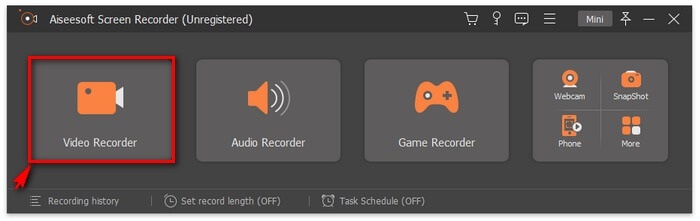
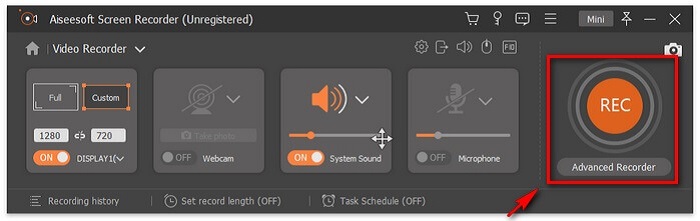
Step 3. Adjust the dotted frame to set the aspect ratio of the screen then click the REC button to begin recording.
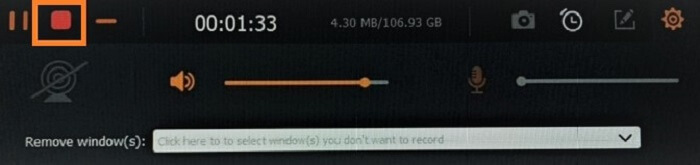
Step 4. To stop the recording, click the red Square button from the floating bar. From there, another window will pop. This is where you can choose to save or re-record if you are not satisfied with the output.
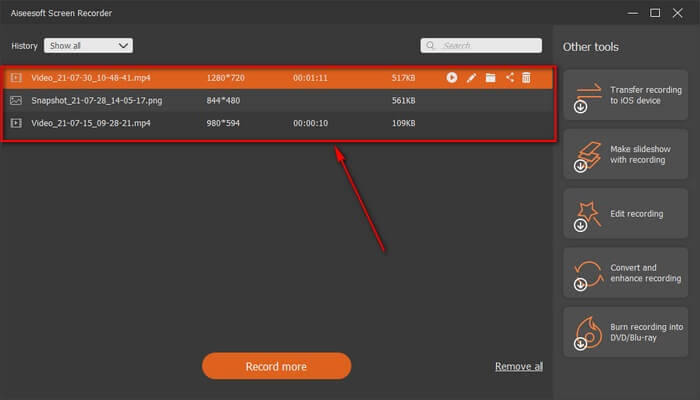
Step 5. Let us say you saved the file, the next window will allow you to choose the file location that will be saved. Choose the folder and click on Next.
Parte 2. Outro Gravador de Vídeo FLV Gratuito
FLV Recorder para todos os navegadores - FVC Free Screen Recorder
It is known for the fact that FVC Free Screen Recorder is lightweight and it also has a powerful feature. So, if you are a beginner who would like to record for fun you can use this, or if you are a professional who wants to record a business meeting. Either way, it works. The best feature this recorder provides is that you can record any part of your screen without being bothered by the tool floating bar. It automatically records the screen alone. Take as many screenshots without disturbance as you want with the help of the Lock-in screen feature. Without any discussion let's now proceed on how to use this FLV recorder. You must follow the step provided below.
Step 1. Visit the official website of FVC Free Screen Recorder and launch the app.
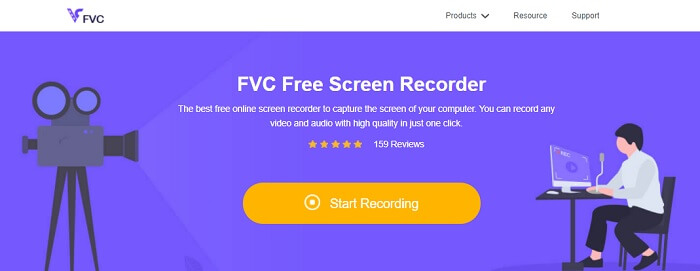
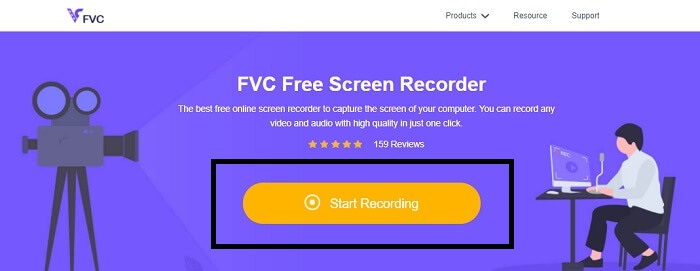
Step 2. Launch the tool by clicking the Start Recording and proceed to the next step.
Step 3. In its toolbar, click the gear button to change the settings according to your needs. If you are now in the preferences menu, find the Output and change the video format according to your wants. Click OK if everything is settled out.
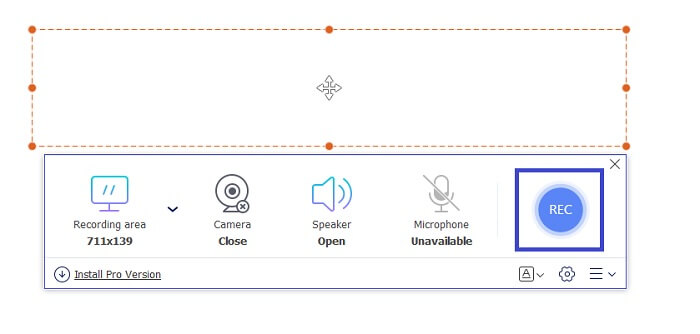
Step 4. On the floating toolbar, you can now adjust the frame ratio of the screen. Also, add the reaction of your face by turning the Webcam. System Sound is used to add the natural sound of the program. And at last, add your voice by turning the Microphone on. To start the FLV recording click the REC button to start.
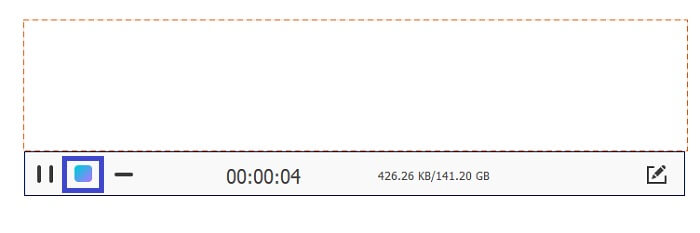
Step 5. To end the FLV recording, click the cube button to stop. After that, click Save and Next. All the recordings you perform are in the History list.
Gravador FLV para Chrome - SCREEN.IO
Se você não deseja baixar arquivos adicionais em sua unidade, pode usar este gravador integrado do Chrome. Este gravador FLV para Chrome ajuda muitas pessoas em toda a web. Portanto, se você é fã de economizar espaço em seu armazenamento, deve experimentar este SCREEN.IO. Embora a ferramenta não forneça recursos especiais semelhantes a outro gravador. Mas a capacidade de gravação dele é muito padrão. Se compararmos um gravador do Chrome e um gravador de desktop, o desktop é a maneira eficiente de fazer a gravação, pois você não se importará se a conexão com a Internet for interrompida.
Gravador FLV para Windows - VLC Media Player
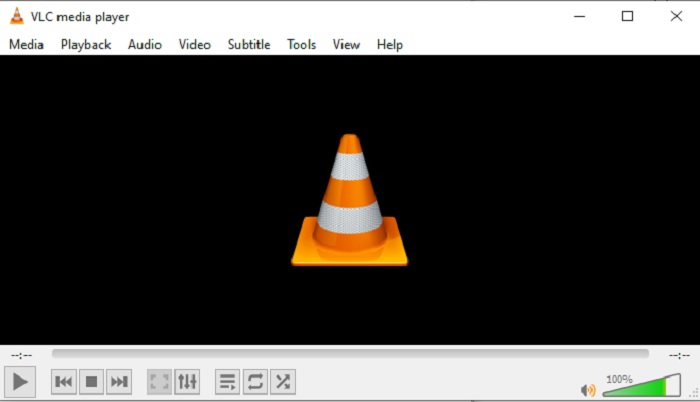
VLC Media player is not only renowned as the best media player in town. It also has several features like recording, converting, and more. Although it is the best media player, all of these mentioned features are not the best. And in some cases, video or audio formats are unplayable here because their codecs are proprietary. So, instead, you can use the VLC Media Player Alternative that supports even if the file is proprietary.
Gravador FLV para Mac - OBS Studio
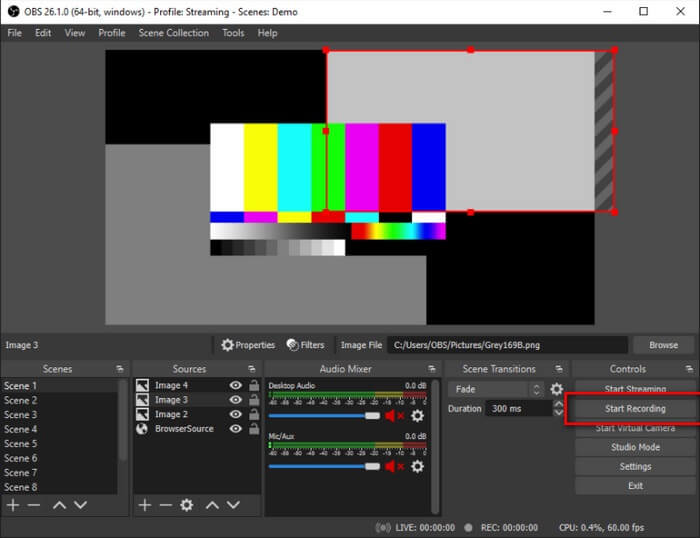
Maybe you're thinking that we forgot the Mac users. This FLV recorder for Mac is one of the powerful recorders in the list because you can do streaming also in here. Despite its amazing feature the tool itself is a bit intimidating especially if you are new to recording. Because there is a lot going on the interface when you open the tool.
Parte 3. Perguntas frequentes sobre o gravador de vídeo FLV
FLV, é seguro baixá-lo no meu PC?
Na realidade, não é do arquivo que estamos falando quando se trata de segurança. Os arquivos FLV são incorporados a sites de compartilhamento de vídeo, portanto, sua pergunta deve ser: como posso identificar se o vídeo que estou baixando de um site não possui malware? Use um Safeguard para o seu PC. Existem toneladas de defensores e scanners de software que você pode encontrar online. Mas o arquivo em si é seguro. A menos que eles coloquem malware nele, é seguro.
Qual programa pode abrir arquivos FLV?
There are a lot of media players out there, but what I recommend is VLC player. This player is versatile and can play almost all file formats. Regardless if it's uncompressed or compressed. Click here to get more popular FLV players.
Quais são as vantagens dos arquivos FLV?
A primeira grande vantagem do FLV é sua capacidade de produzir vídeo de alta qualidade em tamanho pequeno. Por natureza, o arquivo é flexível. Por quê? Você pode facilmente converter este arquivo para um formato diferente, mesmo usando conversores online.
Parte 4. Gráfico de comparação
| Recursos | Gravador de tela FVC | FVC Free Screen Recorder | VLC Media Player | OBS Studio |
| Gravador de ecrã |  | | | |
| Gravador de áudio | | | | |
| Suporta FLV | | | | |
| Reprodutor multimídia |  | | | |
| Taxa de bits e taxa de quadros ajustáveis | | | | |
Conclusão
Todas as ferramentas listadas são úteis para gravar vídeos FLV e produzir a melhor qualidade de vídeo possível. Além disso, se você não tiver certeza de qual ferramenta usar, consulte o gráfico de comparação escrito. Mas entre os gravadores FLV listados. O FVC Screen Recorder tem uma vantagem maior por causa de seu recurso de bloqueio de janela.
-
 Gravador OGG mais útil de 2021 [Grátis e online]
 Este artigo fala sobre as melhores ferramentas de gravação OGG que ajudam você a gravar áudio OGG. Para adicionar informações mais detalhadas para o usuário continue lendo.
-
 Os 5 melhores softwares de gravador M4B para PC e Mac [gratuito e pago]
 A gravação M4B é compactada com perdas para arquivo de livro de áudio MPEG-4. Em alguns aspectos, M4A e M4B são quase comuns, mas eles têm diferenças. Para saber o que é, leia o artigo.
-
 As 5 melhores ferramentas de gravador AMR disponíveis para todos os sistemas operacionais
 Quer saber o que é um formato AMR e qual é o melhor gravador AMR que você deve escolher e que proporcionará uma gravação incrível.
