Video Converter Ultimate
 Gravador de ecrã
 Reparo de vídeo
 Secure Download
How to Record Discord Voice Calls and Server Audio Step by Step
Not every chat on Discord is something you want to erase from memory. Occasions do arise when you may want to hold onto a project discussion, a game plan, or an interview for later. When you understand how to record a Discord call, it becomes quite a breeze to capture those precious instances that are worth saving without entirely giving up one's memory. Here, I'll walk you through a couple of straightforward ways to record voice channels and private calls on Discord. I'll also let you know the most suitable times for each option and a few things that you should keep in mind before recording.

Method 1: Use Craig Bot for Server Voice Channels
Craig Bot is one of the most popular tools for recording conversations in a Discord server. A common question is Does Discord record calls? The answer is no; by default, Discord does not record voice channels. Craig Bot works by joining your server as a bot and recording voice conversations in different audio tracks, so editing is a lot easier after the fact.
Melhor para
- • Recording voice channels on a Discord server.
- • Running podcasts and community discussions.
- • Interviews with several participants.
- • Keeping individual audio tracks simplifies post-production work.
- • Discord server administrators and content creators who need their voice recordings well organized.
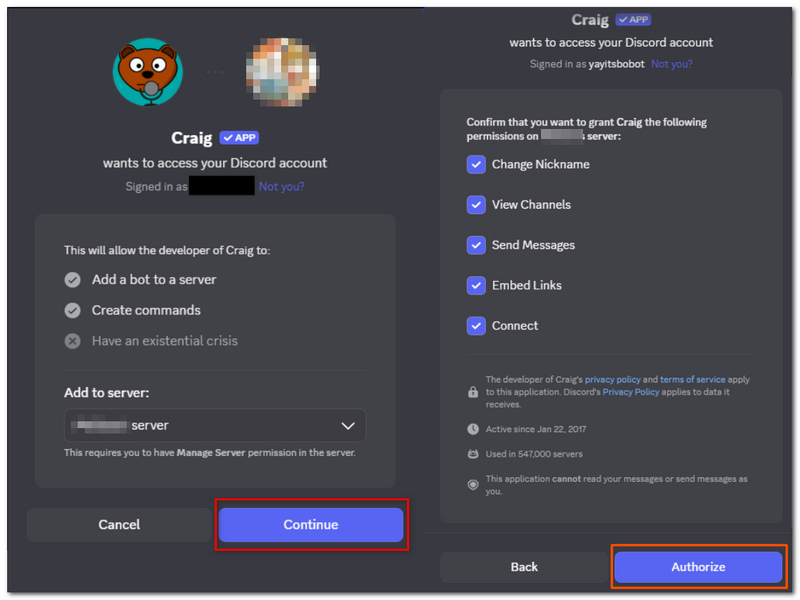
Step 1. Get the Craig bot to your discord server by clicking the official invitation link is the way of doing it. Ensure you have the rights or permissions to add the bots, control, and manage the server.
Step 2. You need to be on the voice channel you want to record. In any text channel, type the relevant Craig recording command and, if necessary, specify the voice channel.
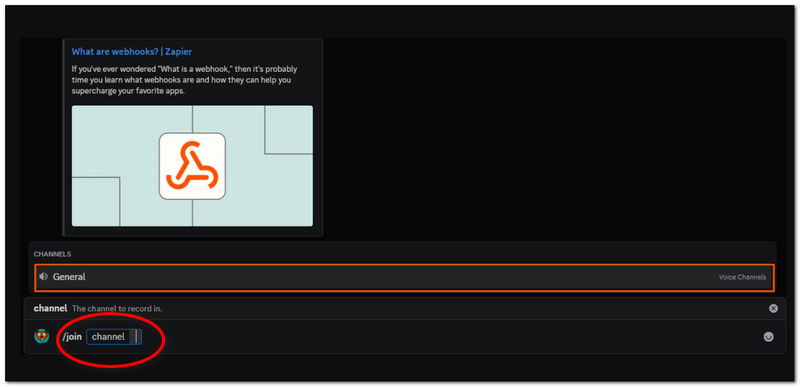
Step 3. Be ready for Craig Bot to come to the voice channel by itself. The moment Craig is in, it will start recording the talk.
Step 4. Keep your jabbing as it normally is. When the end is there, use the stop recording command by Craig to turn off the session.
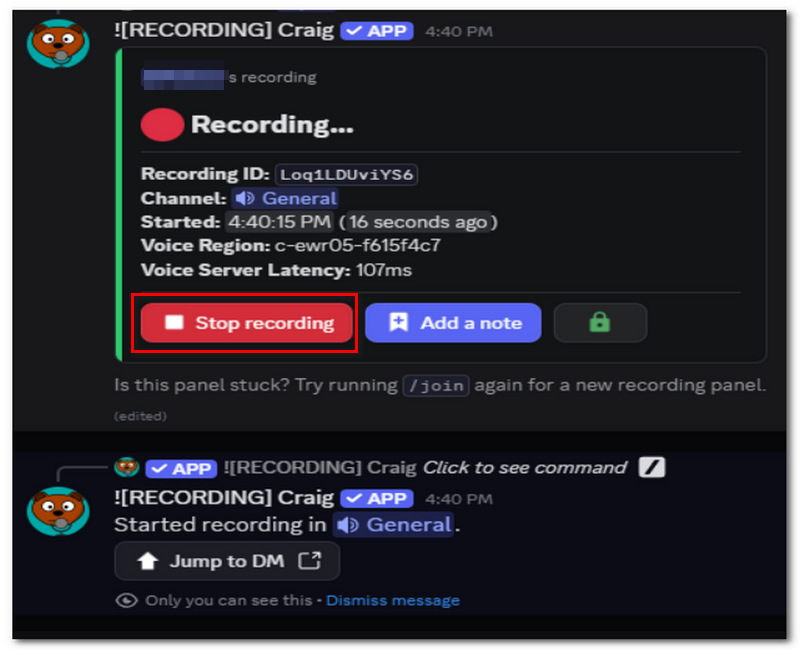
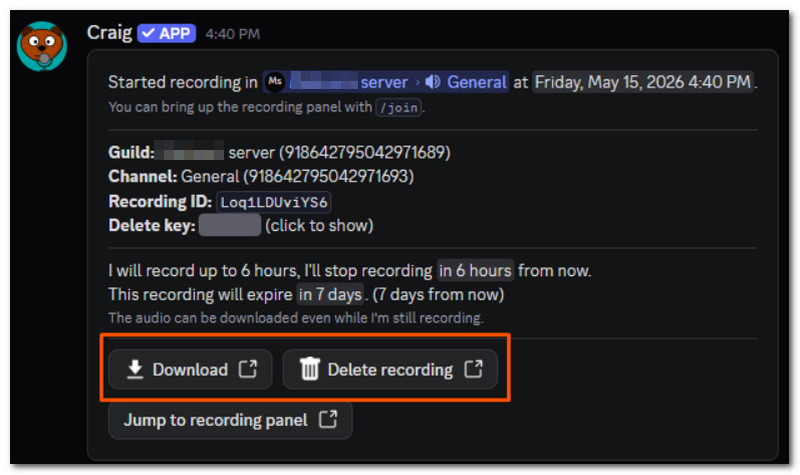
Step 5. Craig will be creating a download link for the recorded audio files. Download these recordings and put them on your computer for playback or editing.
Method 2: Record Private Calls using FVC Screen Recorder
Whenever I have to record a one-on-one Discord conversation, FVC Screen Recorder is my first pick as it does the job easily, and it also produces both video and audio recordings at top quality. This is totally different from Discord bots that can only operate in server voice channels. With the FVC Screen Recorder, I can capture private calls, group calls, or even my whole screen in just a few clicks. So, how to record Discord calls on PC? FVC Screen Recorder will provide you with the full solution to recording, without you having any complicated setup needs.
Melhor para
- • Recording private Discord calls.
- • Capture high-quality video and audio.
- • Recording of interviews, meetings, and podcasts via the Internet.
- • A target group of people who want a range of customizable recording options and the convenience of having the editing tools embedded.
- • People in need of a simple, all-in-one Discord recording app for their Windows or Mac computer.
Principais características
- • Record Discord calls in stunning 4K UHD.
- • Capture system audio and microphone separately or together.
- • Record the entire screen, a specific window, or an area of your choosing.
- • Noise reduction and microphone enhancement features for clearer voice recordings.
- • Automatically start recording by scheduling it beforehand.
Free DownloadFor Windows 7 or laterSecure Download
Free DownloadFor MacOS 10.7 or laterSecure Download
Steps to Record a Discord Call with FVC Screen Recorder
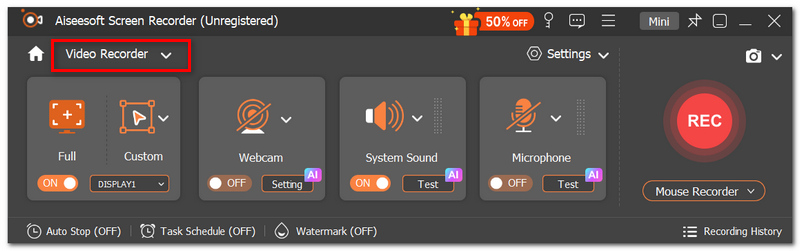
Step 1. First of all, go and download the FVC Screen Recorder and then open the software. Click Video Recorder down at the home screen if you want to make a fresh recording.
Step 2. Decide what portion of the screen you want to record and select Full Screen or Custom.
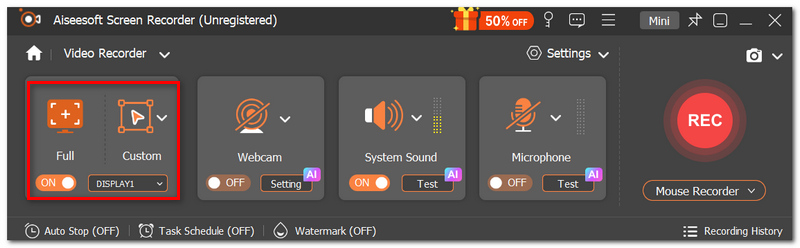
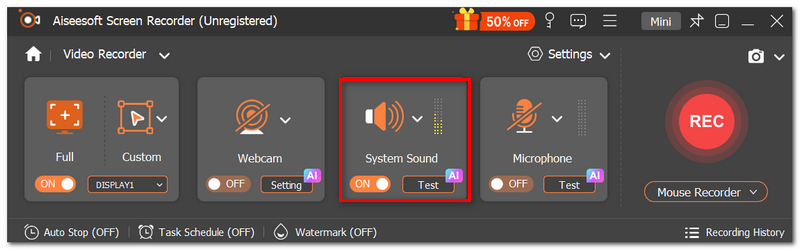
Step 3. If you wish to record the Discord call audio, then you have to turn on System Sound. Also, you can enable the microphone if you want the recording to include your voice.
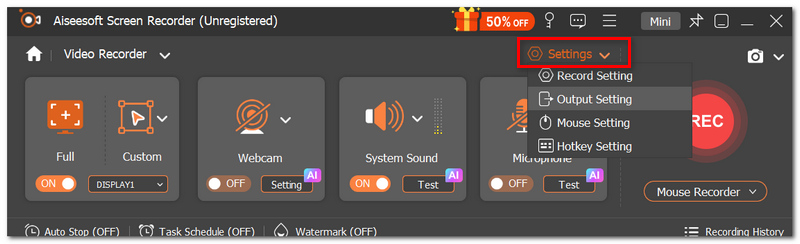
Step 4. Go to the Settings section to change the output format, define the quality of the video, set the desired frame rate, change the keyboard shortcuts, and even set the save location.
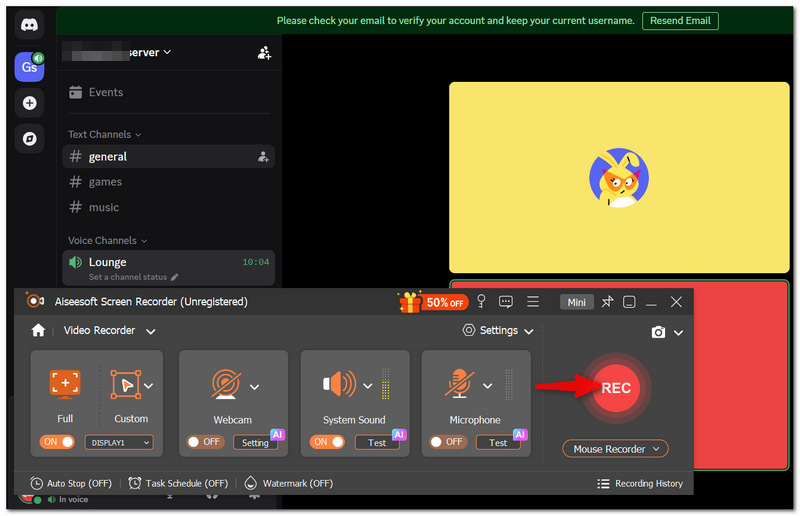
Step 5. Open Discord and go to the private voice or video call that you want to record.
Step 6. Get back to FVC Screen Recorder and hit the REC button. A brief countdown will be shown, and then the recording will start. If you want, you can, during the call, rely on the floating toolbar to pause, resume, take screenshots, or see how long you have been recording.
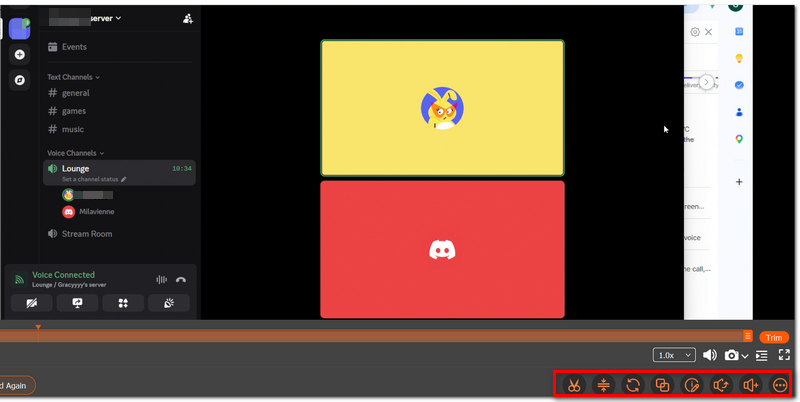
Step 7. Click the Stop button once you are done with the call to complete the recording. If you want, use the preview window to rewatch the recording file, cut the segments that you don't want, and save it to your favorite folder.
Method 3: Capture Clean Audio with Audacity
At times, the audio component is the major player. If you are not required to use the screen recording feature, getting a very clean voice through Discord calls is possible with Audacity. Dedicated to audio capture, Audacity becomes the best choice for situations like creating a podcast, doing an intake interview, having a meeting, or anyone asking how to record Discord calls with audio. What's more, there is always the aspect of keeping the sound as pure and undistorted as possible.
Melhor para
- • If you need to record Discord audio without taking a screen capture.
- • Create podcasts and radio programmes.
- • Participate in meetings and group discussions.
- • Individuals who wish to modify or enhance the recorded audio later;
- • A person searching for an audio recording tool that is FREE and doesn’t occupy computer memory.
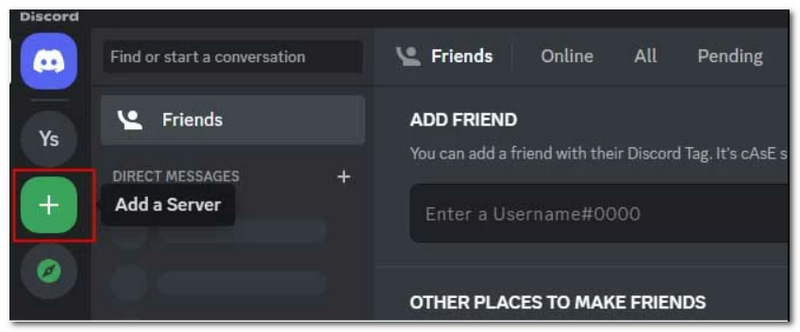
Step 1. Visit the Audacity website and get the software. Open Audacity and add a server. Check if the recording device is correctly selected for the microphone from the audio device toolbar.
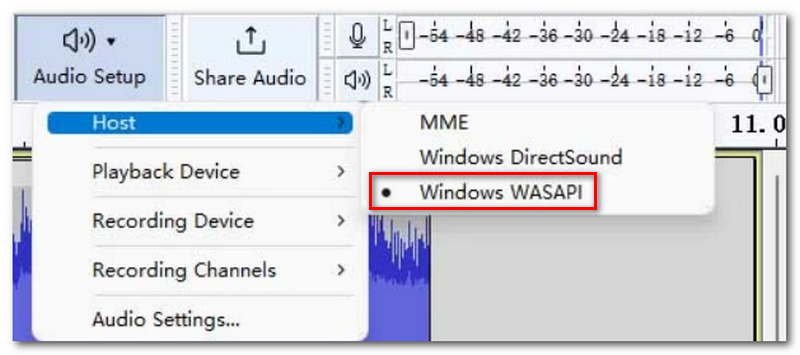
Step 2. Windows WASAPI (available on Windows OS) should be selected to get a recording of your computer's system audio. Use Discord, and make sure you are in the voice/video call of your choice before recording.
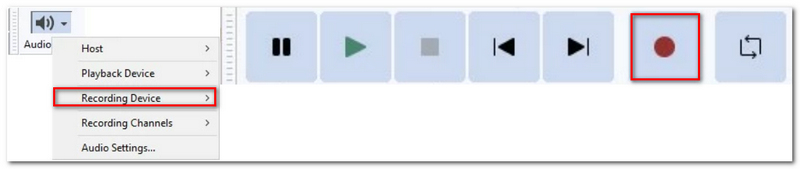
Step 3. Click Record, go to Audacity, and start recording the sound (audio stream).
Step 4. During the conversation, record what is happening around you, and Audacity will capture whatever audio is being input to it. When the phone call or the video call is over, click Stop.
Step 5. Check the recording before exporting, as it is likely that some sections are not good enough, or maybe there was background noise. These can be cut out through Audacity's edit functions, and the noise can be reduced.
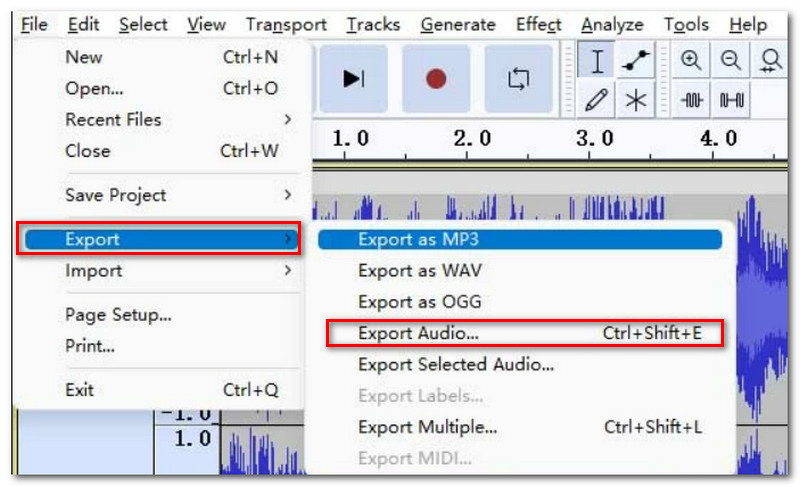
Step 6. Click on File > Export Audio, decide on the audio format in this step, and save the recording to your PC.
Is It Legal to Record Discord Calls?
Can you record Discord voice chats? Well, it is possible, but the law is your only guide. Recording is legal in some places as long as at least one participant gives consent, while in others, everyone involved has to give their okay. Since laws can be extremely different between one region and another, it is essential that you become familiar with what applies to you. No matter the law, the common good requires that you inform everyone participating in the call that the conversation will be recorded and that you use the recording in a respectful manner if you decide to share the conversation beyond those individuals involved.
FAQs about Recording a Discord Call
Is it possible to still film if I hide the Discord window?
Yes. Mostly, if a conversation is still going on over Discord, many screen and audio recording softwares will be capable of capturing both video and audio.
Can I record Discord calls while wearing Bluetooth headphones?
Yes. Just make sure your recording software is using the correct audio input and output devices before you start.
Is it possible to bookmark important moments during a Discord recording?
Some recording applications include markers or timestamp features, while others require you to note the time manually for easier editing later.
Conclusão
Once you learn about a recording method for Discord voice chat, saving a conversation becomes a breeze. Does Discord record calls? This article provides you with a better understanding and guides you on how to choose the best recorder tool for your screen.