


 Video Converter Ultimate
 Gravador de ecrã
 Reparo de vídeo
 Secure Download
Guia definitivo de como gravar facilmente clipes de Fortnite no PC
Fortnite is one of the most exciting and fast-paced games out there, and capturing your best plays or funniest moments is a must for every gamer. Whether you’re aiming to share highlights online, create tutorials, or simply keep your best victories, recording your gameplay is the way to go. In this guide, we’ll show you the best ways to record Fortnite on PC using reliable and easy-to-use tools. From built-in options to professional screen recorders, you’ll find the perfect method that fits your style, plus some bonus tips to make your Fortnite clips look even better.
Está pronto para resolver este problema? Continue lendo!

Parte 1. A melhor maneira de gravar Fortnite no PC sem lag
The best way to record Fortnite on PC is by using FVC Free Screen Recorder. This tool makes it easy to capture your Fortnite moments in high quality, perfect for uploading to YouTube or sharing with friends. It features a clean and user-friendly interface, making it ideal even for beginners. You can choose to record in full-screen, windowed, or custom mode, depending on what you want to capture. The recorder also supports both system audio and microphone input, allowing you to add live commentary as you play. Another great thing about it is its ability to record smooth, high-quality videos, essential for fast-action games like Fortnite. Plus, you can take screenshots or even schedule recordings in advance.
Como usar o gravador de tela FVC para gravar Fortnite no PC:
Step 1. Download and install FVC Screen Recorder on your computer.
Free DownloadFor Windows 7 or laterSecure Download
Free DownloadFor MacOS 10.7 or laterSecure Download
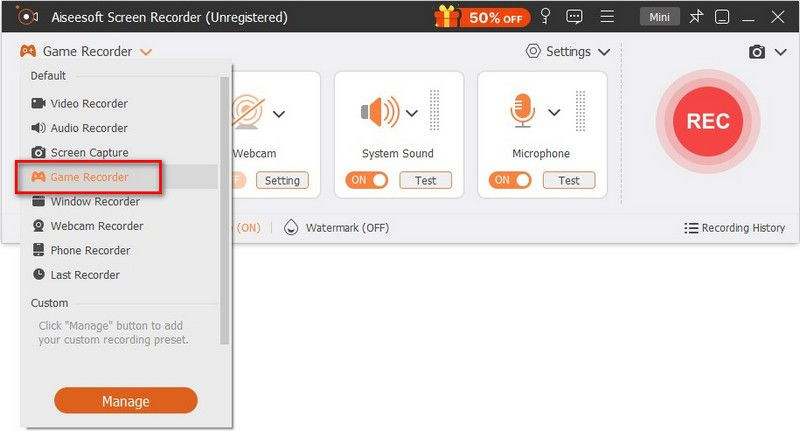
Step 2. Launch the program and select Game Recorder to begin capturing your Fortnite gameplay.
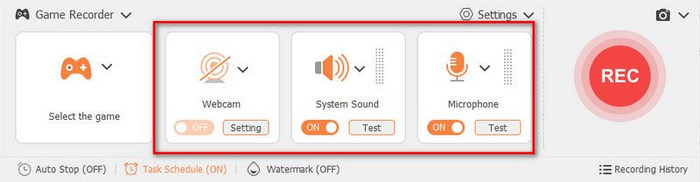
Step 3. In the Select the Game panel, click the drop-down arrow and choose Fortnite from the list of running games. You can also enable System Sound, Microphone, or both if you want in-game sound and voice commentary.
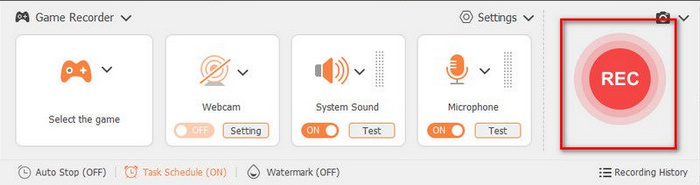
Step 4. Once everything is ready, click REC to start recording your gameplay.
Step 5. When you’re finished, click Stop, then select Export to save your recorded Fortnite clip.
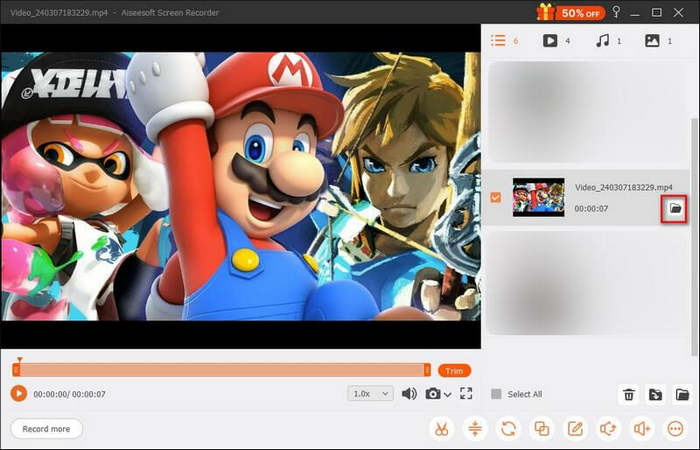
Note: While recording the game, you are allowed to use the features on the toolbar, including snapshot-taking, record-length setting, and editing tools as you like.
Parte 2. Solução gratuita e de código aberto para gravar Fortnite no PC
OBS Studio is one of the most popular free and open-source screen recorders available for PC. It’s widely used by gamers and streamers for recording high-quality gameplay footage, including Fortnite. With OBS, you can record your Fortnite clips in various ways, such as full screen or specific windows, capture audio from your system and microphone, and even add webcam overlays. Despite being free, it offers professional-grade recording options that let you customize resolution, bitrate, and frame rate to suit your needs.
Veja como gravar Fortnite no PC com o OBS Studio:
Step 1. First, you need to download and launch OBS Studio, and then run Fortnite gameplay on your PC.
Step 2. Next, go to the Sources bar and add Game Capture. After that, click Create new and press OK.
Step 3. Click in the game and go back to OBS Studio to check if it's working. If it goes well, you can click Start Recording to begin recording Fortnite.
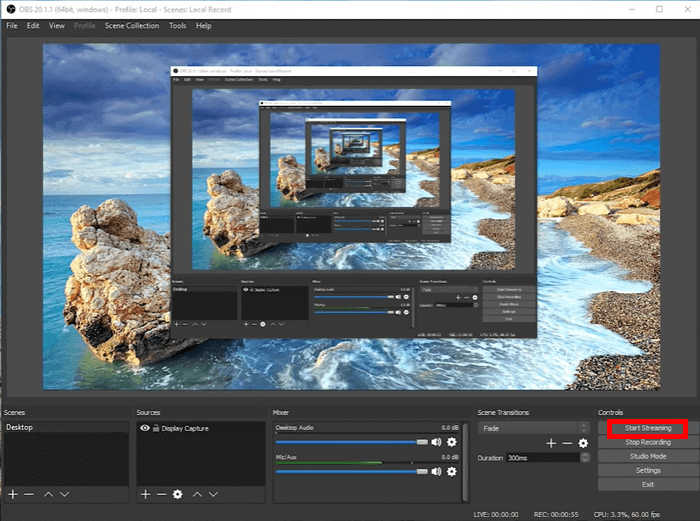
Step 4. Once you’re done, you can stop the recording and preview the recorded video on your computer. If you like, you can directly upload and share the recording to social media platforms.
O OBS Studio é uma excelente opção para jogadores que desejam uma maneira confiável e personalizável de gravar Fortnite no PC gratuitamente. Ele oferece ferramentas de nível profissional, como resolução e taxa de bits ajustáveis, perfeitas para criar vídeos de alta qualidade. No entanto, pode parecer um pouco complexo para iniciantes devido às suas opções avançadas de configuração.
Parte 3. Como gravar Fortnite diretamente com a Barra de Jogos do Xbox
Outra ferramenta para gravar Fortnite no PC é através da Barra de Jogos do Xbox. Trata-se de um recurso de gravação integrado ao Windows que permite capturar partidas de Fortnite sem a necessidade de instalar aplicativos de terceiros. Ele foi projetado para acesso rápido, permitindo iniciar e parar gravações usando atalhos de teclado simples. A ferramenta funciona discretamente em segundo plano, garantindo o mínimo impacto no desempenho durante o jogo.
Veja como gravar Fortnite no PC usando a Barra de Jogos do Xbox:
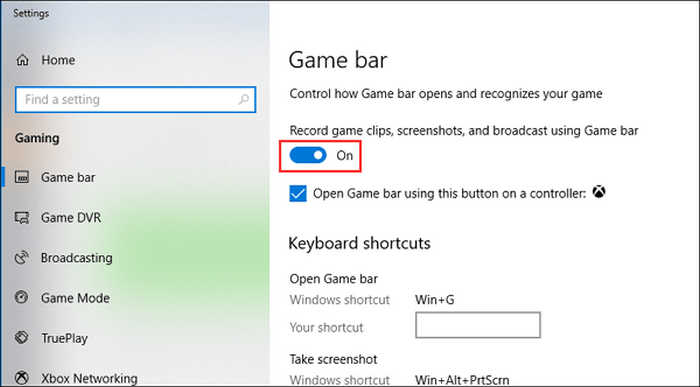
Step 1. First, on your Windows PC, click Start, choose Settings, and find Gaming to open the Settings dialog. Then, go to the Game bar tab and switch it to the On lado.
Step 2. Next, press Win + G to open the Game bar and choose the Yes, this is a game option.

Step 3. Launch Fortnite on your computer and click the Red button to begin recording Fortnite.
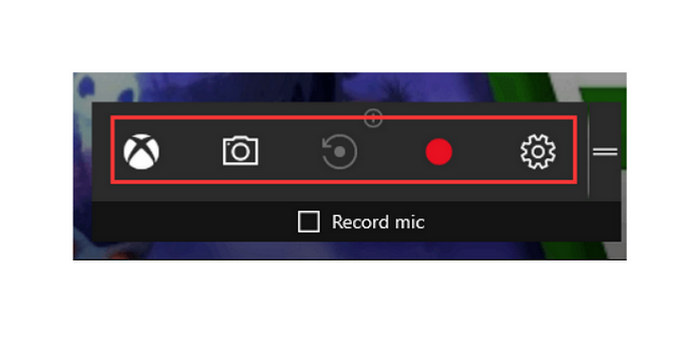
Step 4. If you want to stop the recording, you can choose the Stop option. The recorded game videos will be saved in a Captures folder on your computer.
A Barra de Jogos do Xbox é uma opção prática para gravar Fortnite no PC, já que vem integrada ao Windows e é fácil de usar. É ideal para gravações rápidas sem a necessidade de software adicional. No entanto, possui configurações e recursos limitados em comparação com gravadores dedicados, o que a torna menos adequada para edição avançada ou capturas com qualidade profissional.
Parte 4. Como gravar clipes de Fortnite no Nintendo Switch
Outra forma de gravar clipes de Fortnite no PC é através do recurso de captura integrado do Nintendo Switch. Pressionando e segurando o botão de captura no seu controle, você pode salvar até 30 segundos da sua partida recente. Esse recurso é perfeito para capturar lances rápidos, eliminações épicas ou vitórias decisivas sem nenhuma configuração extra. Depois de gravados, você pode visualizar, editar e compartilhar seus clipes de Fortnite diretamente da galeria do Switch.
Veja como gravar Fortnite no PC usando o Nintendo Switch:
Step 1. Hold down the Capture button on the left Joy-Con.
Step 2. The last 30 seconds of gameplay will be saved automatically.
Step 3. View and share your clips in the Album.
Note: For longer recordings, use a capture card connected to a PC. Also, be informed that with Nintendo Switch, the recording length is strictly limited to 30 seconds, and there's no support for voice or external audio. Still, it is one of the easiest ways to record a Fortnite clip on PC.
Parte 5. Como gravar Fortnite no PC usando o gravador de jogos FBX
Por fim, se você usa o FBX Game Recorder, também pode usá-lo para gravar clipes de Fortnite no PC.
FBX Game Recorder is a dedicated recording tool made for gamers who want smooth, high-quality gameplay capture. It automatically detects Fortnite and starts recording with minimal lag, even during fast-paced matches. FBX also includes useful features like instant clip saving, webcam overlays, and built-in editing tools, making it ideal for players who want to create professional Fortnite videos or highlights easily.
Veja como gravar Fortnite no PC com o FBX Game Recorder:
Step 1. Open FBX Game Recorder, then head to Settings, select Capture, and choose Game.
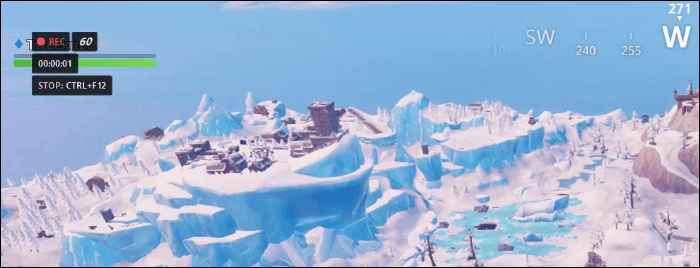
Step 2. Next, open your Fortnite Game. Once the FBX overlay appears on your screen, press the Start Recording hotkey Ctrl + F12 to begin capturing your gameplay.
Step 3. Meanwhile, to stop recording, press Ctrl + F12 again. The saved recordings will automatically appear in the Recordings tab.
No geral, o FBX Game Recorder é uma boa ferramenta para gravar Fortnite no PC, pois captura a jogabilidade de forma fluida e com boa qualidade. É fácil de usar e oferece recursos úteis, como replay instantâneo e edição básica. No entanto, algumas opções avançadas exigem uma versão paga, e vídeos de alta qualidade podem ocupar muito espaço de armazenamento. Mesmo assim, é uma ótima escolha para jogadores que desejam gravações rápidas e confiáveis.
Parte 6. Dica bônus para gravar Fortnite sem perder qualidade
E para a parte extra que pode te ajudar a gravar clipes de Fortnite no PC sem perder a qualidade, aqui vão algumas dicas úteis para manter a qualidade alta durante a gravação:
Tip 1: Use the right settings. Choose at least 1080p resolution and 60 FPS for smooth and clear gameplay footage.
Tip 2: Enable hardware acceleration. Turn on GPU-based encoding like NVENC or AMD VCE to reduce lag and improve performance.
Tip 3: Close background apps. Free up system resources by closing unnecessary programs before recording.
Tip 4: Use a fast storage drive. Save your recordings to an SSD to prevent stuttering or frame drops.
Tip 5: Adjust the bitrate properly. Set a bitrate between 10,000 to 20,000 kbps for high-quality video without massive file sizes.
Tip 6: Keep your graphics drivers updated. Updated drivers ensure better stability and optimized recording performance.
Com todas essas dicas, você pode garantir uma gravação com qualidade impecável ao gravar Fortnite no seu PC.
Parte 7. Perguntas frequentes sobre como gravar Fortnite no PC
Por que minha gravação do Fortnite está travando ou não está fluida?
Se a sua gravação de Fortnite estiver travando, provavelmente é porque seu computador está executando muitas tarefas ao mesmo tempo. Tente diminuir as configurações gráficas do jogo, fechar aplicativos não utilizados e ativar a aceleração de hardware no seu gravador. Além disso, salvar suas gravações em um SSD pode ajudar a mantê-las mais fluidas.
Qual o melhor formato de vídeo para gravar Fortnite?
O formato MP4 é a melhor opção se você for gravar vídeos de Fortnite no PC, pois oferece boa qualidade com um tamanho de arquivo menor. Ele também é amplamente compatível com a maioria das plataformas, como YouTube e redes sociais. Mas se você pretende editar suas gravações posteriormente, pode escolher o MKV para maior flexibilidade.
Posso gravar minha voz enquanto jogo Fortnite?
Sim, você pode gravar o som do jogo e sua voz simultaneamente. Basta ativar a opção de microfone em ferramentas como FVC Free Screen Recorder, OBS Studio ou FBX Game Recorder. Isso é perfeito se você quiser adicionar comentários ao vivo enquanto joga ou criar vídeos no estilo tutorial.
Conclusão
Now that you know how to record Fortnite on PC, recording your gameplay moments should be on your list. With the tools shared in this guide, you can easily capture every victory, funny moment, or epic battle in great quality. Whether you go for OBS, Xbox Game Bar, or FBX Game Recorder, each method lets you relive your best plays anytime. So, pick the tool that works best for you, hit record, and start turning your Fortnite moments into awesome clips worth sharing.
-
 Análise do ScreenPal: Tudo o que você precisa saber sobre ele
 Descubra tudo nesta análise detalhada do ScreenPal — recursos, prós, contras, segurança e muito mais. Saiba tudo antes de usar este gravador de tela em 2025.
-
 Como obter qualidade 4K no OBS: descrição mais detalhada
 Se você joga um jogo de alta resolução e quer gravar suas ações com a maior nitidez possível, leia este guia. Ensinaremos como obter qualidade 4K no OBS.
-
 Análise do gravador de tela Tella Online: recursos, prós e contras
 Análise do Tella Online Screen Recorder com principais recursos, prós e contras. Descubra se esta ferramenta para navegador é ideal para suas necessidades de gravação e edição.
