


 Video Converter Ultimate
 Gravador de ecrã
 Reparo de vídeo
 Secure Download
Como gravar no PS4 via padrão e as melhores alternativas
PS4, or the PlayStation 4, has been impressing many gamers with its awesome power and great performance ever since it first came out. Even now, it's still a big part of many gamers' lives today due to its wide range of games and ability to do more than just gaming. Now, when you are playing your favorite games with PS4, it is only natural if you want to capture those epic moments to share with others, right? Regardless of your reasons, knowing how to record on PS4 is pretty important. That's why we are here to help you out!
Neste post, vamos detalhar os passos que você precisa seguir para gravar seu gameplay no seu console favorito usando o modo padrão, junto com as melhores alternativas que você pode usar! Então, preste atenção e acompanhe de perto para ter certeza de que você está fazendo certo.

Parte 1. Como gravar a tela do PS4 em qualidade total sem limite além do método padrão
Since PS4 comes with a time limitation, let’s jump to the best alternative first. So, since you are looking to record your gaming sessions on console your console, the FVC Screen Recorder is your reliable option. This is a desktop software that focuses on capturing gameplay, along with screens, videos, sounds, phones, and more. With support for lossless recording at 60 frames per second, you can capture your gameplay smoothly and in high quality. Furthermore, it is particularly handy for those on a task to capture unlimited gameplay. Moreover, this FVC Screen Recorder offers editing and sharing options for your recorded clips across various platforms like YouTube, Twitter, Facebook, Instagram, and more.
O mais interessante é que ele fornece preferências onde você pode personalizar suas gravações para atender às suas necessidades. Portanto, seja ajustando as configurações de saída, limpando sua narração com cancelamento de ruído ou incorporando sua webcam em um modo picture-in-picture, esta ferramenta tem tudo o que você precisa! Além disso, com recursos como snapshotting, compartilhamento rápido em sites populares e aprimoramento, este gravador de tela ainda é uma ferramenta versátil para jogadores. Portanto, aqui está como gravar uma tela do PS4 sem nenhuma limitação de tempo.
Step 1. Firstly, you must download the right version of the game recorder on your computer and open it. Before you start recording, make sure that your PS4 is connected to the same computer through screencast remote play.
Free DownloadFor Windows 7 or laterSecure Download
Free DownloadFor MacOS 10.7 or laterSecure Download
Step 2. When the recording software opens up, you will have some choices to make. But for this task, click the Game Recorder tool. Now, choose the window where your PS4 is aired when you click the arrow button on the first box selection. Then, feel free to set the other setting according to your preferences.
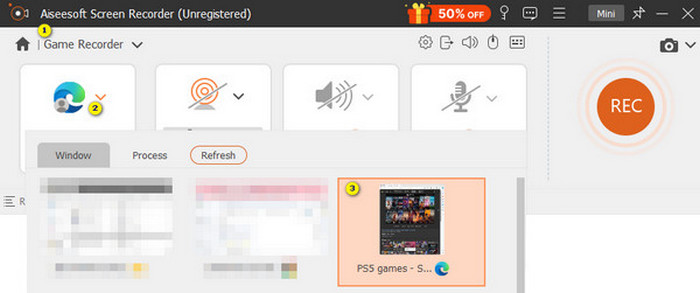
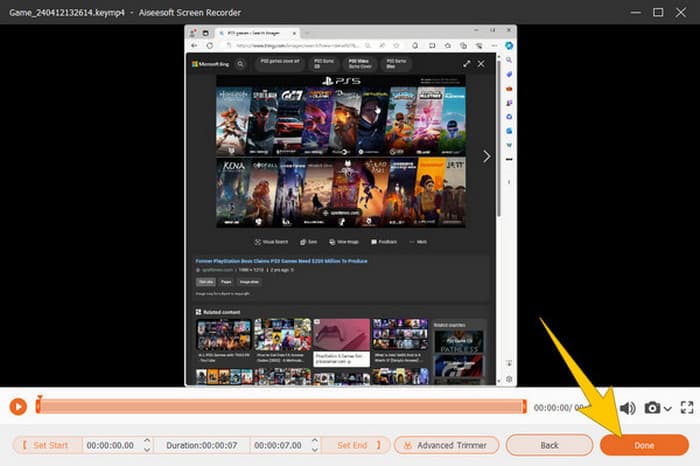
Step 3. After the setup, click the REC button to start the recording. When you're done recording, hit the Stop button. When done, the software will then take you to a window where you can make some adjustments to your recording. You can trim, take a snapshot, and set the volume if you want. Then, click the Done button to proceed to save the output.
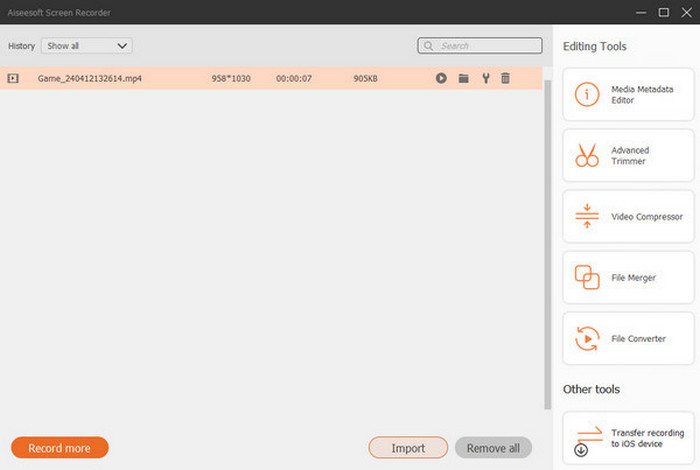
Step 4. When the video is saved, a new window will appear. You may try to right-click your recorded game, then choose an advanced setting you want to apply. Also, you can choose to share it on your desired platform if you're going to. That’s how to record a PS4 screen without any limit.
Parte 2. Como gravar no PS4 da maneira padrão
Apart from the third-party game recorder, you also have a built-in recorder on PS4. Now, let us proceed with the steps of using the built-in PS4 recorder.
Step 1. Start by turning on your PS4 and selecting the game that you want to capture. Then, jump into your game of choice and get playing. When you're ready to start recording, simply double-tap the Share button on your controller
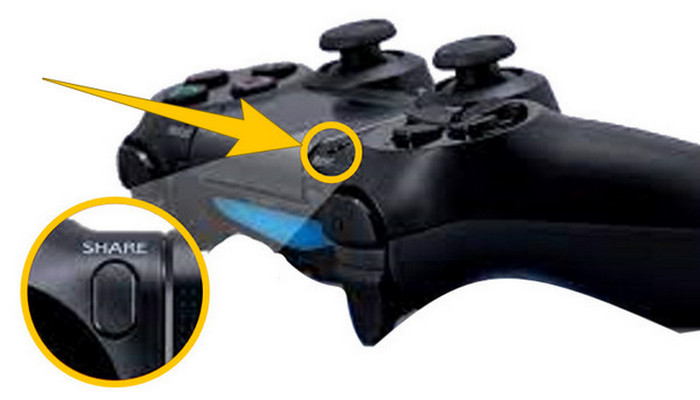
Step 2. You will be notified that the recording has started. But how do you stop gameplay recording on PS4 after you finish? To do so, you just need to press the Share button long.
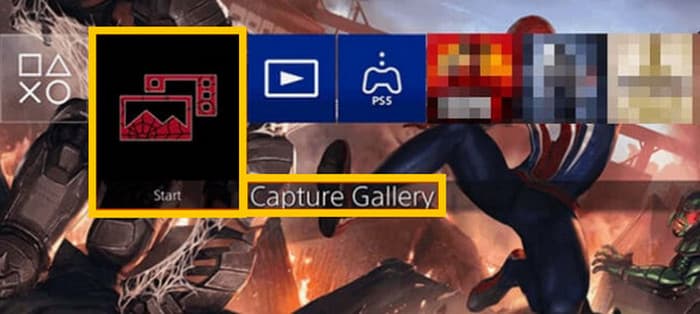
Step 3. After that, see your recording by accessing the Main Menu and then selecting the Capture Gallery from the options given.
Parte 3. Como gravar gameplay no PS4 usando uma placa de captura
Outra alternativa popular ao gravador padrão do PS4 é o uso de uma placa de captura. Claro! Uma placa de captura ajudará você a conectar seu PS4 a outros dispositivos e permitirá que você grave tudo em seu PS4. Se você não sabia sobre isso, continue lendo e siga as instruções que damos abaixo.
Step 1. Connect the capture card to your PS4, your computer, and your TV monitor via HDMI. Then, make sure that your computer has an OBS to make the recording work.

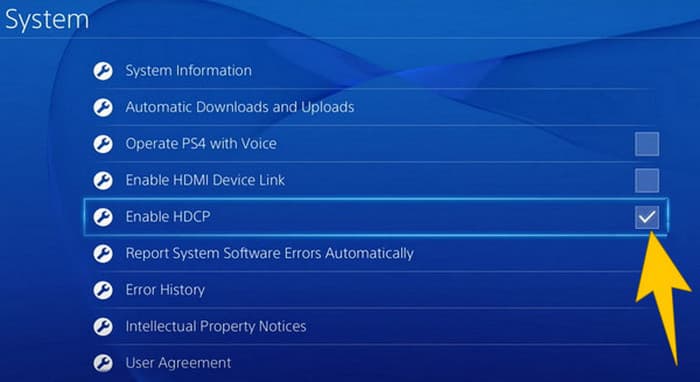
Step 2. Now, set your PS4 by navigating to Settings and selecting the System, then the System Information. From there, tick the Enable HDCP option.
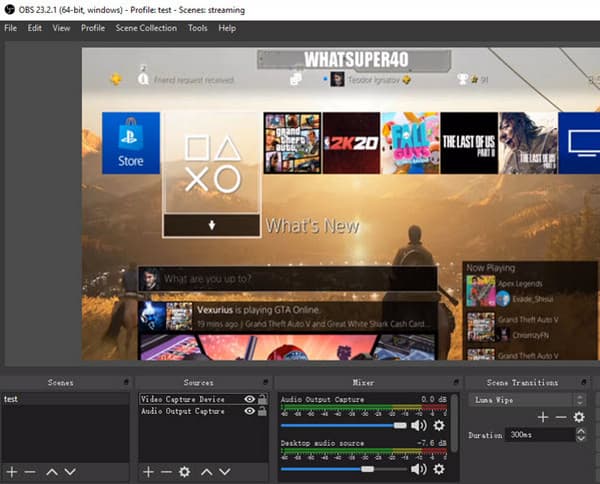
Step 3. Launch your OBS, then navigate to the Source Section>Plus>Video Capture Device, and then click the OK button. You can now click the Start Recording button and begin playing to record your gameplay. To end the recording, click the Stop Recording button anytime you want.
Parte 4. Perguntas frequentes sobre gravação no PS4
Como parar a gravação do jogo no PS4?
Para parar a gravação do gameplay usando o gravador padrão do seu PS4, você só precisa pressionar longamente o botão Share. Após pressionar este botão, você verá a opção Stop Recording na sua tela. Clique nela para aplicá-la.
Preciso de um software especial para utilizar uma placa de captura no meu PS4?
Yes. Basically, you will need special software like OBS to make the capture card work on your PS4. Aside from that, you will also need monitor devices and connectors such as HDMI and USB cables to successfully operate the screen recording using a capture card.
Quais são as limitações para gravar no PS4 no gravador integrado?
É verdade que o recurso de gravação embutido no PS4 tem limitações na gravação. Os limites mais comuns estão na duração e na qualidade do gameplay gravado.
Conclusão
Those are the guidelines on how to record on PS4. You can record using the console’s built-in way, a capture card, and specialized software that is best for screen recording. But we don’t want you to disregard the limitations of the built-in recorder that hinder you from capturing lengthy and qualitative recordings. In the same manner, capture cards may also have limitations based on your computer's hardware and storage capacity. Thus, if you don’t want these limitations to go your way, then go for FVC Screen Recorder as your best option.
-
 Como gravar as acrobacias épicas, embreagens ou tutoriais no Minecraft
 Você quer saber como gravar suas acrobacias no Minecraft? Então leia este artigo conforme fornecemos.
-
 Como gravar no PS5 de 2 maneiras incríveis sem limites
 Este artigo mostrará a você as ótimas maneiras de aprender a gravar gameplay no PS5. Maneiras padrão e ilimitadas são encontradas neste guia de artigo! Então leia agora!
-
 Guia detalhado sobre como reproduzir arquivos MKV no PS4 [atualizado em 2024]
 Ao ler este artigo, você aprenderá algumas maneiras de como reproduzir MKV no PS4 e como converter o arquivo de vídeo caso o vídeo não seja reproduzido.
