


 Video Converter Ultimate
 Gravador de ecrã
 Reparo de vídeo
 Secure Download
How to Record Gameplay on Steam Deck Using 4 Proven Methods
Have you made some fantastic combos, stumbled upon a secret game scene, or maybe you've beaten a tough boss on your Steam Deck and wanted to record it? Recording gaming footage has become such an integral aspect of gaming nowadays that it hardly matters.
Fortunately, there are quite a number of ways to record your gameplay when using a Steam Deck, from simple, built-in recording functions to more complex setups that allow the capture of higher-quality videos. How to screen record on Steam Deck? It's not necessary that you are a technology guru to start because this tutorial is designed to help you understand the different recording techniques you can use, their appropriate usage scenarios, and also how to select the one that matches your gaming and recording requirements.

Part 1. Can You Screen Record on Steam Deck
Yes, there are multiple ways to record screen Steam Deck gameplay. In fact, Steam Deck has incorporated a built-in game recording capability in SteamOS, so capturing gameplay highlights and full sessions can be done conveniently and without having to download any extra software. Still, if you want features that are more sophisticated, you can always resort to third-party screen recording software, recording plugins, or even an external capture card to obtain top-notch quality recordings.
First of all, consider which recording method would suit you most:
| If You Want To… | Best Method |
| Gravar gameplay quickly without installing extra software | Method 1: Enable SteamOS Native Game Recording |
| Add more recording features and customization | Method 2: Use the Decky Loader Recorder Plugin |
| Record or stream gameplay with advanced controls | Method 3: Use OBS Studio in Desktop Mode |
| Capture the highest possible quality with minimal performance impact | Method 4: Use an External Capture Card |
It really depends on whether you want to save those memorable gameplay moments, create tutorials, or just stream your session. With the help of the techniques here, you'll be guided in picking the simplest and most productive method of recording on your Steam Deck.
Part 2. How to Screen Record on Steam Deck
You know what choices for recording you have, so now is the time to determine which one should be yours. If you are looking for a quick in-built recording option on your device, or if you want to get a very decent gaming recording leading to high-quality gameplay, then the very basic ways given below will help you figure out how to screen record on Steam Deck without any difficulty.
Method 1. Enable SteamOS Native Game Recording
SteamOS is outfitted with a native recording feature, so you can take gameplay videos without any extra software installation. Whether you want to keep highlight clips or record entire gaming sessions, Steam Deck screen recording with the built-in recorder is the fastest and easiest method.
Step 1. Hit the Steam button to get the main menu. Click on Settings.
Step 2. Scroll all the way down and pick Game Recording. Flip the switch to enable game recording.
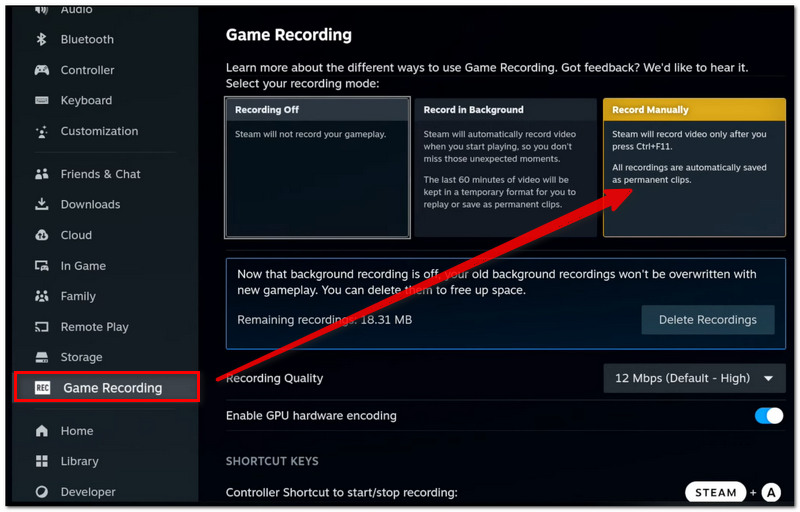
Step 3. Decide on your recording mode, whether to record in the background or Record Manually.
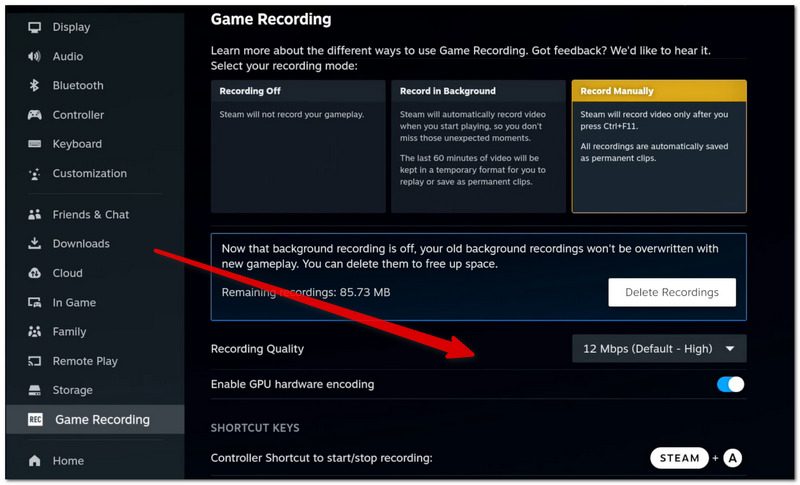
Step 4. Make the changes to your recording settings, like video quality, folder location, and microphone, if you want.
Step 5. Start the game you would like to record and employ your recording key to start, stop, or save the gameplay recording.
Step 6. Go to Media or Recordings in Steam to check out, cut, or share your recorded videos.
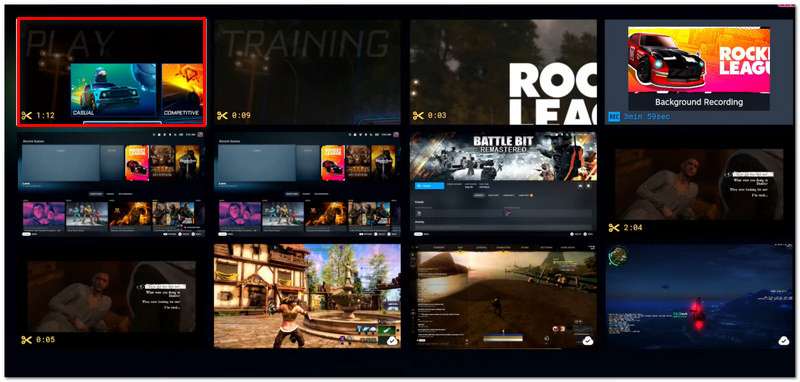
Since it is deeply integrated with SteamOS and calls for very little installation, the built-in recorder is perfect for everyday gameplay recording.
Method 2. Use the Decky Loader Recorder Plugin
If you are looking for more recording options aside from what the built-in feature offers, the Decky Loader Recorder Plugin is an excellent alternative. This Steam Deck screen recorder allows you to personalize your recordings, so it is perfect for those who want more control over their gameplay captures.
Step 1. If your Steam Deck doesn't have Decky Loader, install it. To bring up the Quick Access Menu, press the... button.
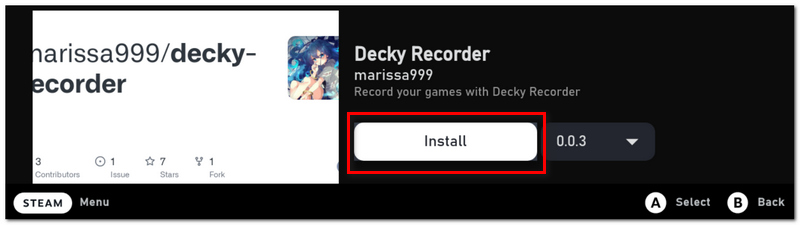
Step 2. Go to the Decky Loader tab and click the Plugin Store.
Step 3. Find Recorder and hit Install.
Step 4. After the installation, go to the Recorder plugin from the Decky Loader menu.
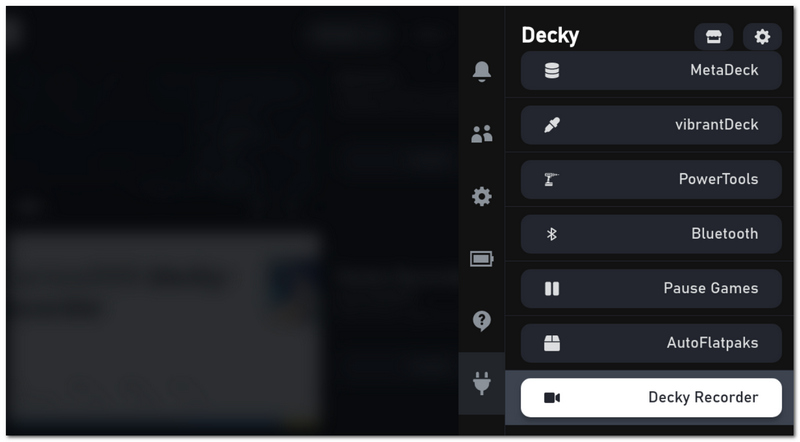
Step 5. Choose your recording parameters like video quality, fps, and sound. Then, open the game you will be recording.
Step 6. With the Recorder plugin's interface, you can record your gameplay by pressing the record button and then stopping it when you're done.
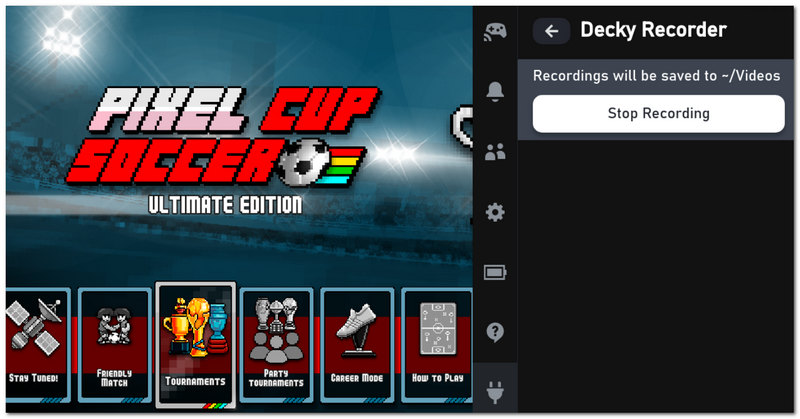
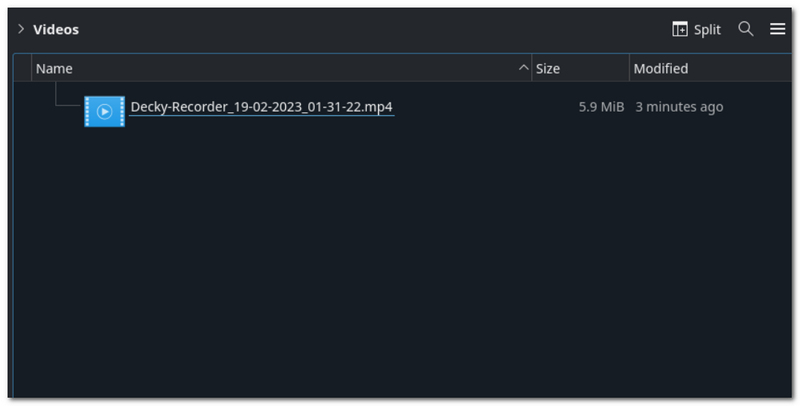
Step 7. Find your recorded videos through the Videos folder in the Desktop mode..
Steam Deck users who want different features and control over their recording and saving formats might consider the Decky Loader Recorder Plugin as a suitable alternative to the SteamOS built-in feature.
Method 3. OBS Studio in Desktop Mode (For Streamers)
OBS Studio is a very powerful recording software if your intention is to livestream or record professional gameplay videos. When you run it in the Desktop Mode of a Steam Deck, you'll get the ability to perfectly control scenes, overlays, and audio sources, as well as streaming. Because of that, it will be a great tool for content creators.
Step 1. Go ahead and hit the Steam button and pick Power.
Step 2. Select Switch to Desktop. Head over to the Discover Software Center.
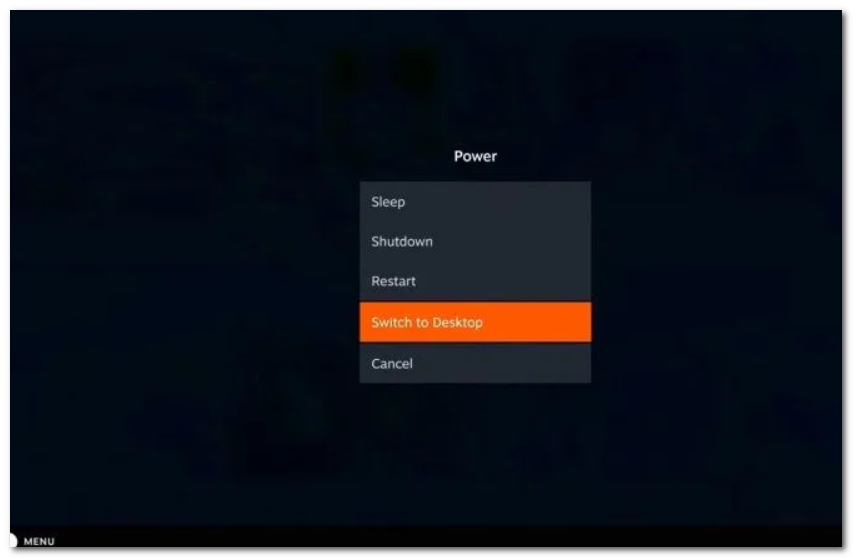
Step 3. Look up OBS Studio and tap Install. Run OBS Studio once the installation has been done.
Step 4. Hit the + sign under Sources and decide between Screen Capture (PipeWire) or Display Capture.
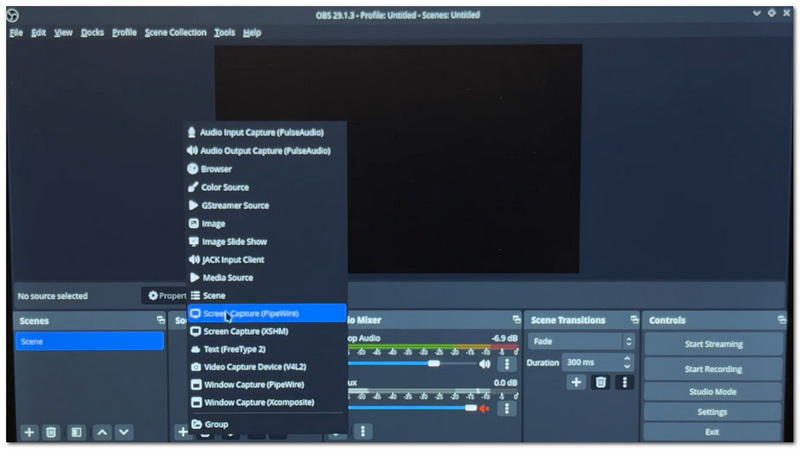
Step 5. Select which Steam Deck screen you want to record. Then set up your recording options, like resolution, frame rate, audio sources, and output directory.
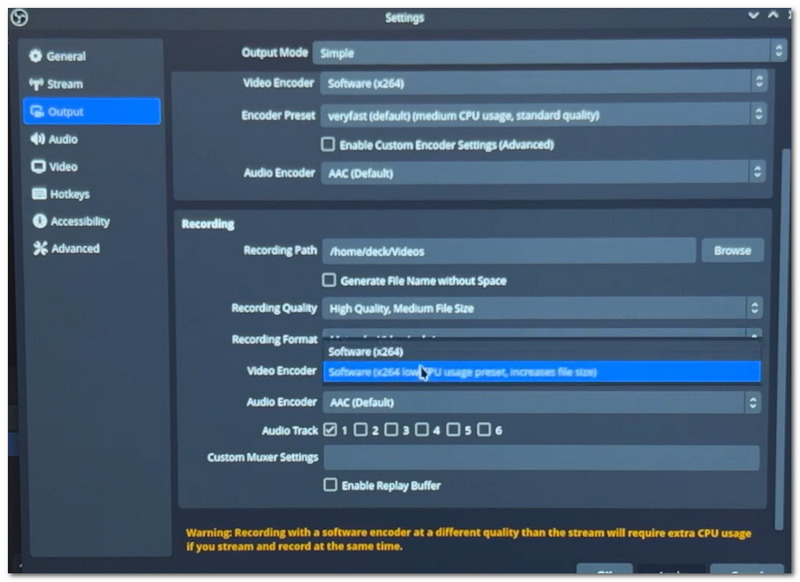
Step 6. Open the game you want to record. Switch back to OBS Studio and click Start Recording or Start Streaming.
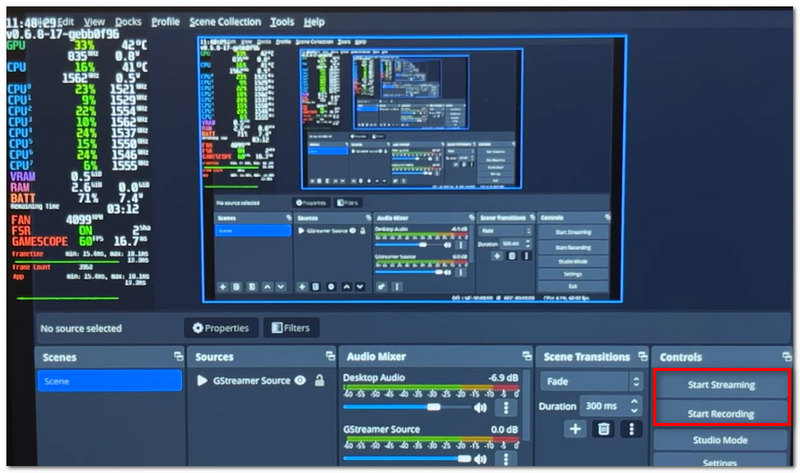
Step 7. When you've done, hit Stop Recording. Your gameplay video will be kept in the output folder you've chosen.
Using OBS Studio would be a great pick for streamers and creators who are looking for high-quality recordings, customizable layouts, and live streaming features.
Method 4. Use an External Capture Card (For 4K Recording with Minimal Performance Impact)
To get the best recording quality that won't compromise the performance of a Steam Deck, a separate capture card is the way to go. When casting or getting the Steam Deck's display output to a PC via a capture card, you can record your game with FVC Screen Recorder at outstanding resolutions of up to 8K at 120 FPS, perfect for professional-level content creation.
Steps to Record Steam Deck Gameplay with an External Capture Card
Step 1. Use a compatible USB-C dock or HDMI adapter to connect your Steam Deck to an external capture card. After that, use a USB cable to connect the capture card to your computer.
Step 2. Turn on your Steam Deck and check if the display is mirrored on your computer. Download FVC Screen Recorder and install it on your computer.
Free DownloadFor Windows 7 or laterSecure Download
Free DownloadFor MacOS 10.7 or laterSecure Download
Step 3. Run FVC Screen Recorder and click on Video Recorder.
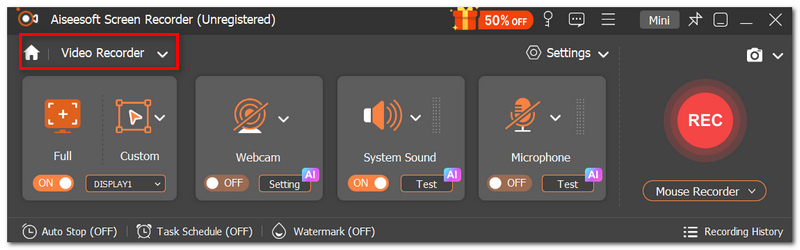
Step 4. Select your capture card as the video input source under the drop-down menu.
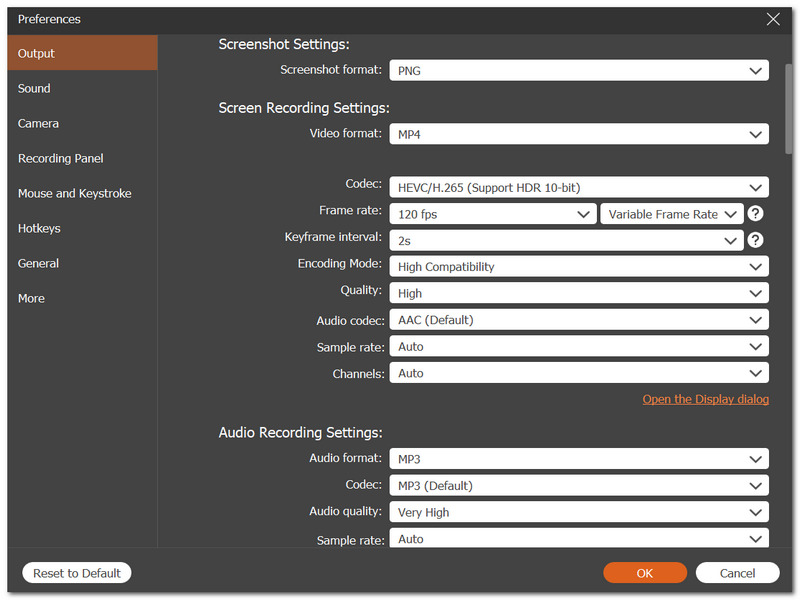
Step 5. Adjust your recording options such as resolution, frame rate (up to 120 FPS), audio input, and output file location.
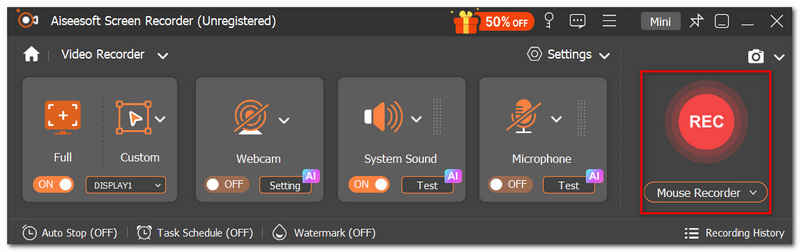
Step 6. Click the REC button to record your Steam Deck gameplay. Keep playing your game smoothly while the software captures the video.
Step 7. Stop recording, check your video, and then save it where you want.
This is the method that allows creators to have a seamless gaming experience, make almost no impact on the performance of the Steam Deck, and have the highest quality recordings for editing or online sharing.
Part 3. FAQs on Screen Recording on Steam Deck
Will screen recording still work if I put my Steam Deck to Sleep Mode?
No. By entering Sleep Mode, the Steam Deck automatically ends or suspends the recording session because the gameplay is considered as being inactive.
Is it possible to switch from Gaming Mode to Desktop Mode in the middle of a recording?
This is not advisable. Mode switch can disrupt recording or generate multiple video files, subject to the recording method used.
Does the Steam gaming record captures notifications as well?
Definitely, during recording, any on-screen notifications will be captured unless you turn them off before the recording.
Conclusão
Having understood how to record screen on Steam Deck, the options available to you for recording can be selected according to your requirements: a built-in recorder, a plugin, a desktop software, or an external setup. Selecting the appropriate method, you will find it very convenient to capture and keep your most cherished gameplay clips and the quality and features you desire.
-
 Melhor gravador de fluxo de vídeo de arquivo M4V compatível com todas as plataformas
 Descubra os melhores aplicativos que você pode usar para gravar vídeos M4V ou streaming ao vivo. Veja a lista de gravadores que podem funcionar em todas as plataformas de dispositivos.
-
 Descubra sites de download de jogos grátis para PC: 6 opções para você
 If you are ready to enjoy exciting computer games but don't know where to download resources, check out this guide. Here are 6 free PC games download sites.
-
 Conversão de imagens 3D: como transformar imagens 2D em modelos 3D
 Quer ver como ficam suas imagens em 3D? Confira esta postagem para recomendações de aplicativos para converter imagens 2D em modelos 3D.
