


 Video Converter Ultimate
 Gravador de ecrã
 Reparo de vídeo
 Secure Download
Melhor gravador de tela MP4 para gravar formatos MP4 em plataformas PC e Mac
Most of the video file users save is in the file format of MP4. Because of its flexibility, efficiency and storage it is a better choice than the other formats. So, thinking about the function of the tool,maybe you’re thinking that it consumes more storage. But to be honest it doesn’t eat more storage; in fact, the audio and video are compressed separately. So, expect a high quality of output. This file format is used by different users all over the world. So, if you want to know what are the best MP4 video recorders available on the web, you must continue reading this article because it contains a review about the tool you might find over the web whether it is an online tool or offline. Without any more explanation, let's proceed to the answer of your questions.

Parte 1. Melhor gravador MP4 online gratuitamente
FVC Free Screen Recorder
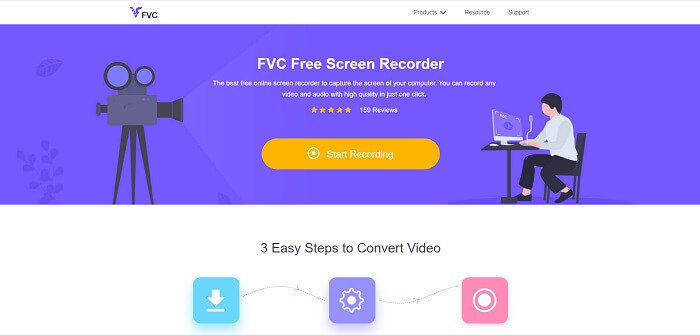
This online tool is used by many other users over the internet. FVC Free Screen Recorder is an open-source tool that you may access just by using your favorite search engine. This tool already helps a million users in the entire world. This mp4 screen recorder is a top-notch tool over online. So, if you don’t want to download the tool because you only need it one time. Follow the steps below because this will be your guide on your journey on how this tool works.
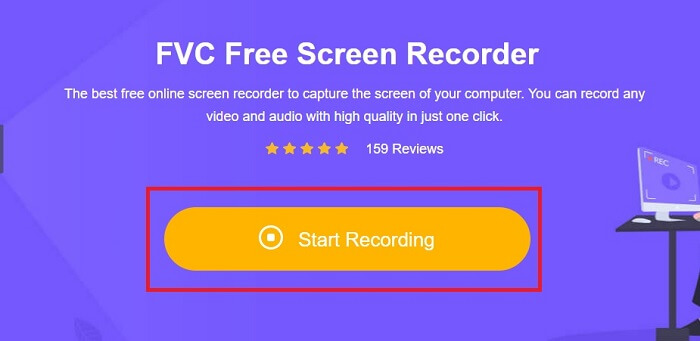
Step 1. Click this link to go to the official webpage of the tool. Click the Start Recording button to launch the tool.
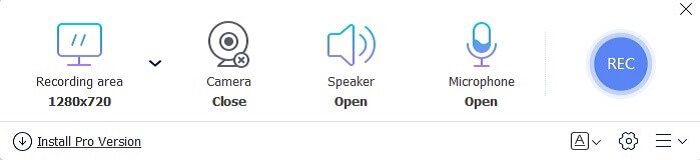
Step 2. A toolbar like this will be displayed on your screen.
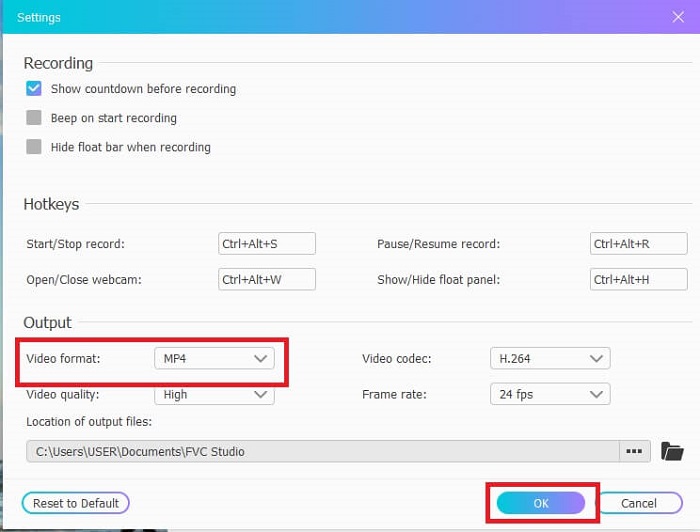
Step 3. Click the settings gear icon to adjust it based on your desired output. To save the adjustment click OK.
Step 4. Before starting recording, adjust the frame size or click full screen for full-action. Other functions available like turning on the Webcam to add your face, to add the system sound click the Speaker, and lastly it also has an mp4 voice recorder if you are on the Microphone. Proceed by clicking the round REC button.
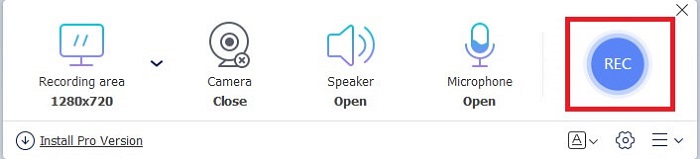
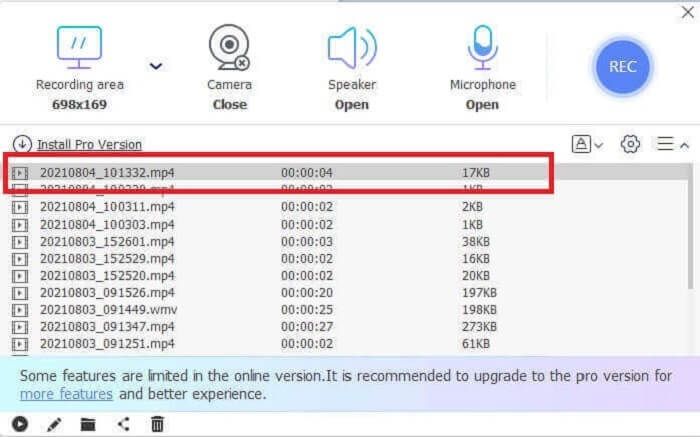
Step 5. If you want to end the recording click the square button to stop. All of the recordings will automatically be saved over to your storage. But if you want to check it, click the history below the rec button and the list will show up.
Parte 2. 2 Gravadores MP4 alternativos disponíveis para Windows e Mac
1. Gravador de tela FVC
The free version of this tool can handle the work but it can’t handle the work of the big-boys just like this tool can do. FVC Screen Recorder is also known as the new era of recorders. This tool allows the user to do more than video recording. You may as well do audio recording and gaming recording. These two are so impressive but the gaming recording is something that a gamer must have. It can capture every detailed action, montage, highlights and many more. You may as well do a tutorial with it. But without any more explanation, give way to the best screen recorder for saving your MP4 . Here are some steps on how to use this, so you must follow it from the start of the road up to the end of the journey.
Step 1. Download the software and choose between the two programs. After that, install the tool. Change the preferences based on your wants and click finish to launch the tool.
Free DownloadFor Windows 7 or laterSecure Download
Free DownloadFor MacOS 10.7 or laterSecure Download
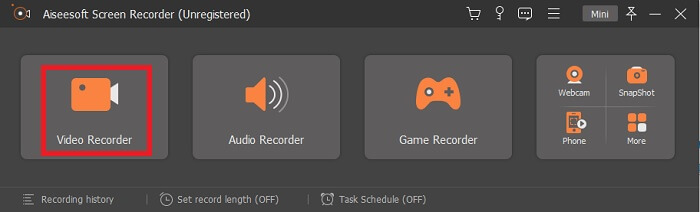
Step 2. A toolbar will pop-up to your screen like this. It only means that the tool is already running in your program. Click the Video Recorder to continue.
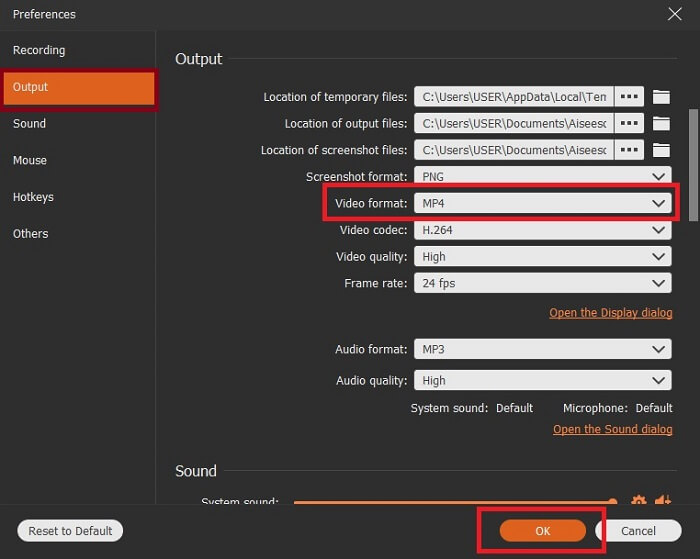
Step 3. Click the cog icon to change the output of your desired format. Adjust the other options if needed, to save the modified options click the OK.
Step 4. In the main toolbar, you may as well select a region on your screen or Full-screen for the full display action. If you turn on the Webcam, you will be added to the recording, to add the system sound, turn on the System Sound and Microphone to add your voice. If you're ready to go click the disk-shape button to start the recording.
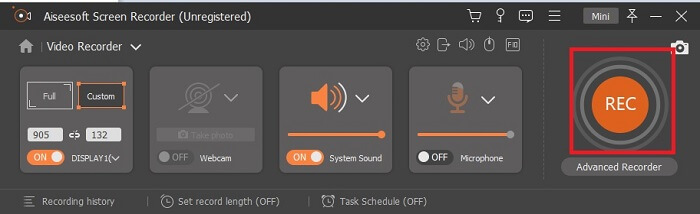
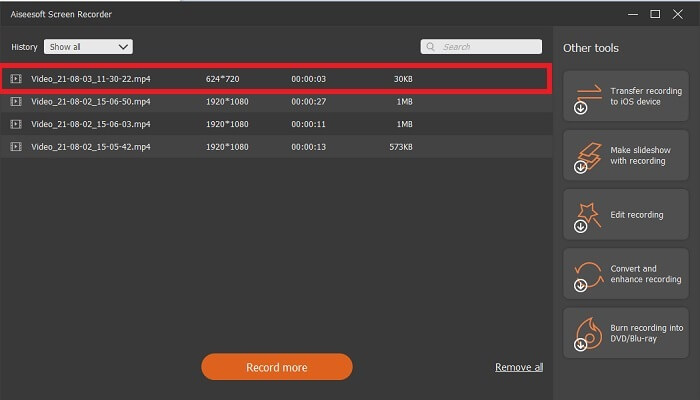
Step 5. If recording is already done or you want to end it, click the square button to stop. To save the recording, click the Save button and change the place where you want it to be put and click Next to be saved. To re-watch the recording you just made, click the parallel line and a recording list will show to your screen. Click the first recording on the list because that is the latest.
2. Snagit
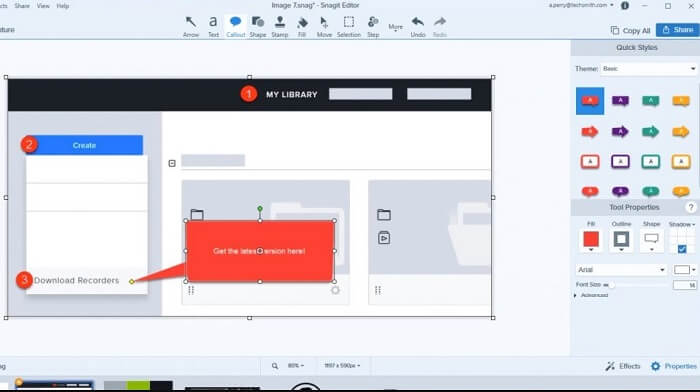
Another tool that allows the user like you to do the recording. Snagit became popular because it is superb at doing screenshots. It is simple to use yet can do the work of a screen recorder. To know more about the tool itself is to click this link provided to you.
Parte 3. Gravador MP4 na Web
Screencastify
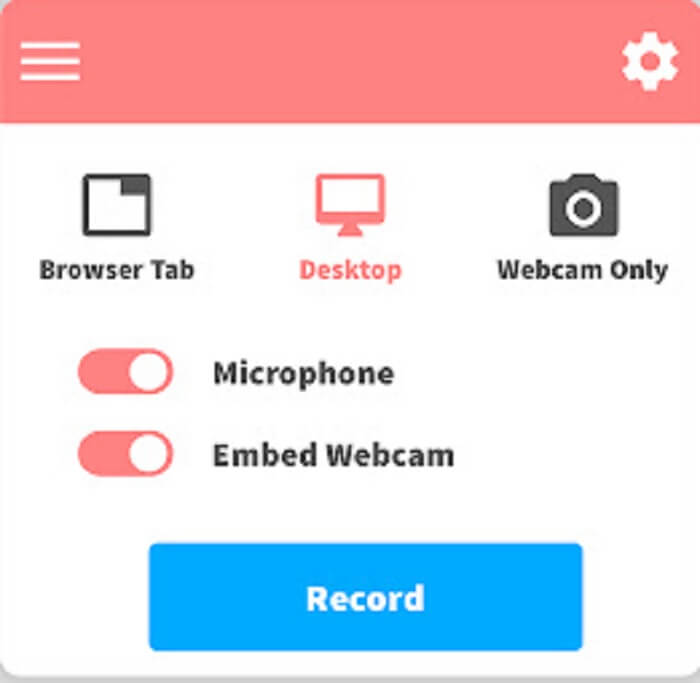
This screen recorder is an extension of Google chrome. Screencastify can record a short video. The free version of it allows you to record approximately 5 minutes. Unlike the FVC Free Screen Recorder that allows you to record without a limit. But also, it has a premium version that allows you to do the recording longer and basic editing tools are included.
Parte 4. Aplicativo MP4 Recorder para Dispositivos Móveis
1. Grave!
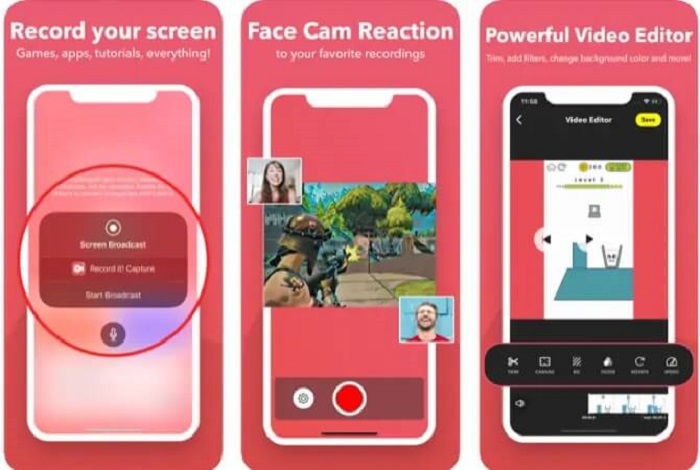
This tool is only available over mobile devices only and also pay-to use. Record It! is an offline application available over mobile devices like your iPhones and iPads. This apple app allows you to record any montage, highlights, tutorials, and more with basic video editing. After the recording you may add your face on it to add your reaction towards the video. Want to know more about MP4 players for Android devices, click here to have a check.
2. Gravador DU
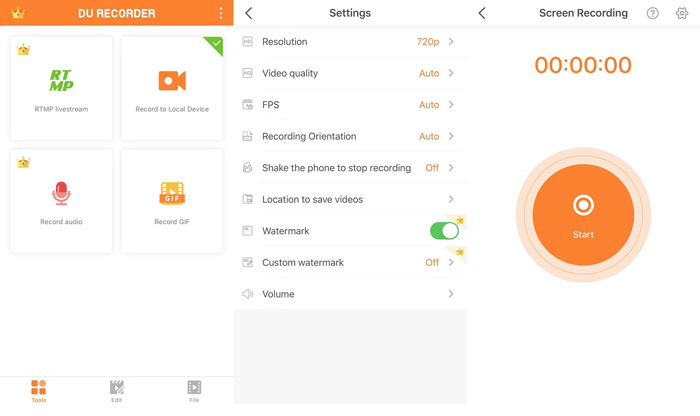
Another MP4 recorder you may see in mobile devices is the DU Recorder. An app that allows you to do live streaming while playing. These major platforms like Facebook, Twitch, and YouTube support the live streaming of this tool. So instead of saving the video, you can stream it online by using this tool.
Parte 5. FAQs sobre MP4 Recorder
Qual é o melhor reprodutor de mídia que devo usar que suporta todos os formatos?
Without any doubt, FVC Free Video Player is the best media player that you may find over the internet. It can be played over all the available formats on the internet.
MP4 é um bom formato de arquivo?
Unlike any other format available, this type of format is a lossy format that contains video, audio, subtitles, still images and text without losing any data and the unique quality of the file. And almost all media players support playing MP4 videos. Read on Best MP4 Players to find your desired one to enjoy your MP4 videos.
Qual é a taxa de quadros do MP4?
A taxa de quadros que o MP4 travou é de 24 quadros por segundo. Para torná-lo mais realista ao reproduzi-lo em seus dispositivos.
Conclusão
To conclude all the data, tools, steps and information delivered to you. This is the sum up of all the details above. That all these tools provided to you have their unique features that will fit your demand as their user or customer. In such a way, maybe you're still confused on what is the best tool you should use as an MP4 video recorder because of the options.
Mas não fique tão confuso porque o FVC Screen Recorder está lá para você. Esse cara pode fazer o trabalho difícil para um fácil, mas a saída ainda é como as outras ferramentas profissionais ou maior do que as ferramentas mencionadas neste artigo. Portanto, não pense duas vezes e escolha com sabedoria.
-
 Os 5 melhores gravadores de tela WebM para Windows / Mac
 Saiba mais sobre os arquivos de extensão do WebM lendo o artigo e descubra os aplicativos gravadores de tela do WebM que você pode usar para gravar vídeos do WebM.
-
 Os 5 principais gravadores MOV para Windows PC e Mac
 Se você precisar gravar vídeos MOV em tamanhos de arquivo menores compatíveis com dispositivos iOS, continue lendo o artigo.
-
 Top 4 melhores gravadores de vídeo AMV computadores Windows / Mac
 Descubra mais sobre os arquivos AMV e aprenda sobre as maneiras mais práticas de gravar vídeos em AMV e outros formatos de vídeo.
