


 Video Converter Ultimate
 Gravador de ecrã
 Reparo de vídeo
 Secure Download
Procedimento passo a passo para VLC gravar DVD em todos os sistemas operacionais
VLC is a well-known media player used by millions of users in the entire world. It is not simply for playing video or audio. Maybe this is new for you, but did you know that this media player has other uses. For example, it can edit, record DVDs with video and audio, and also read encrypted and rip DVDs. But not all the DVDs can be ripped by the VLC if they have copy-protection. Also, ripping will take your time instead of watching the video you'll probably wait to finish the rip. For some reason, users tend to record DVD movies using VLC while watching or leave it alone rather than rip the video content from the DVD to share with others. In this article, you will understand that you don't need to rip the video audio output from the DVDs. But instead, you can record it while watching while retaining the same quality. Continue reading and understand the value of each tool.

Parte 1. Como gravar filmes em DVD com o VLC Media Player
VLC Media Player
Este media player é uma multiplataforma de código aberto que suporta quase todos os formatos de mídia que você pode imaginar. Ele também pode extrair vídeos de DVDs, mas levará algum tempo para o VLC extrair o arquivo. O processo de extração levará mais de 15 a 45 minutos, dependendo de quanto, quantos minutos e do tamanho do formato da mídia. Em vez de extrair o disco, por que você não grava com a ajuda do VLC.
Conforme prosseguimos, aqui estão algumas etapas sobre como gravar um vídeo-áudio para o VLC.
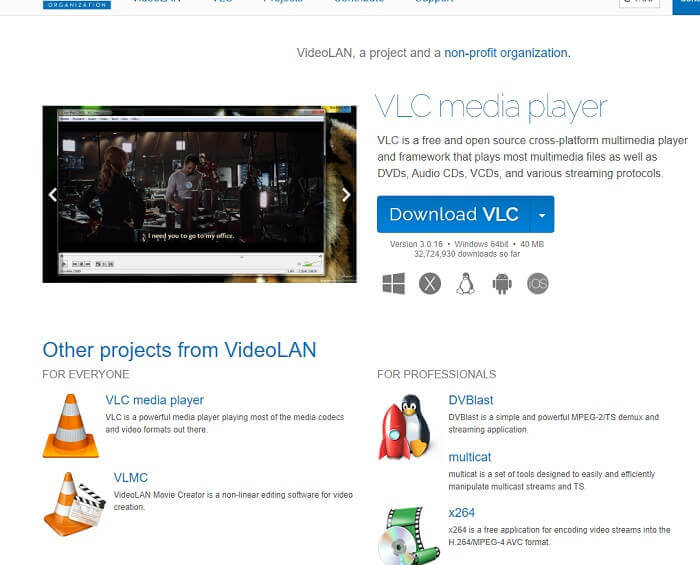
Step 1. Download the VLC Media player over the browser then install it. Set your preferences then click Finish to proceed. If you don't have an idea what it looks like then this is it.
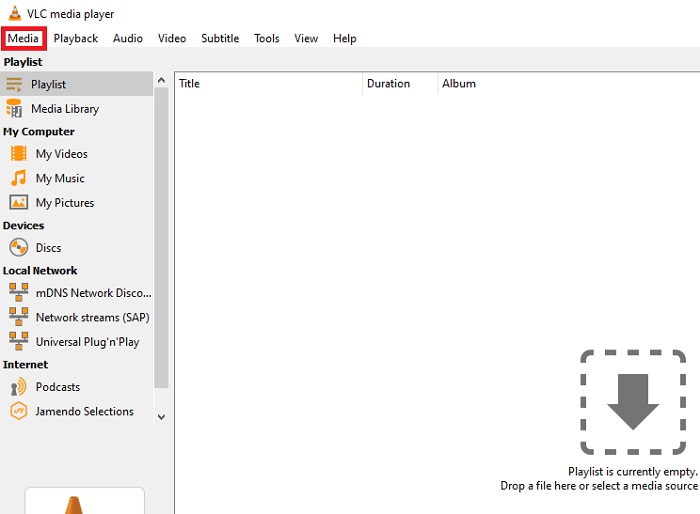
Step 2. Click the Media in the upper left end of the interface. Click Open File and choose the file. Or you can as well drag and drop the media file.
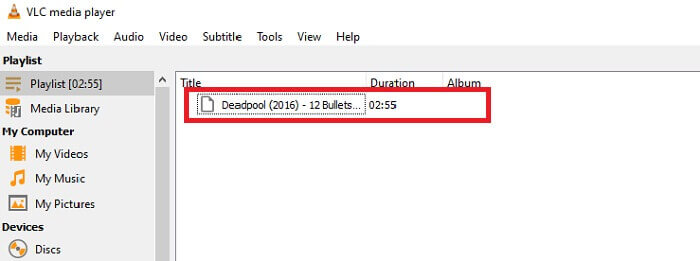
Step 3. Click the video file you insert in the interface to play.
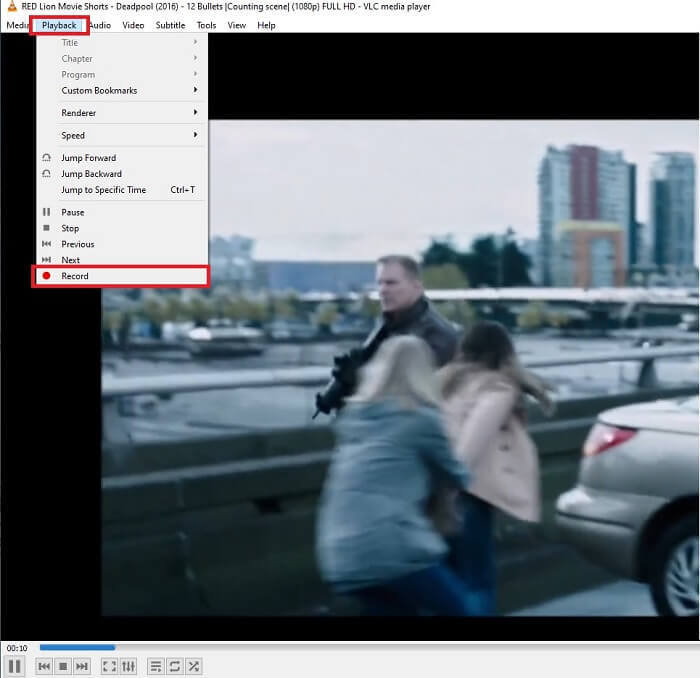
Step 4. Hit the Playback button at the top of the interface next to the media. Click the Record below the drop-down to start recording. Note that if you click to record the record will start already. Wait until the video is finished before stopping it.
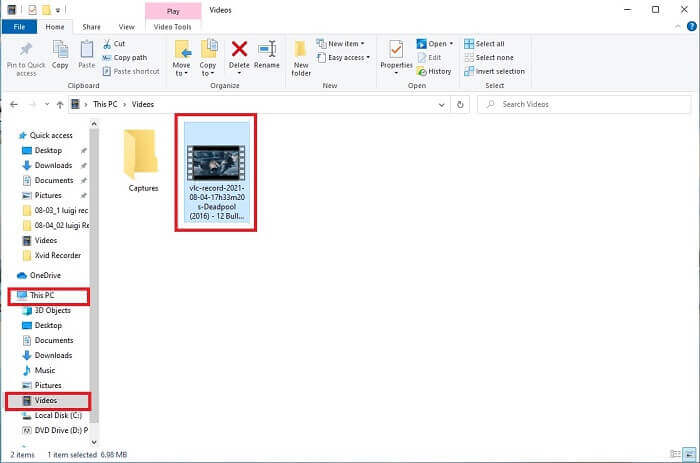
Step 5. When the video is finished, You can check it in your file explorer or manager then click it. Find This PC hit it, next trace the videos, lastly in the video you will see the VLC recorded file is in.
Prós
- Suporta qualquer tipo de formato de áudio e vídeo, codec e outros arquivos criptografados.
- É uma ferramenta de código aberto gratuita em seu site oficial.
- Assista em qualquer lugar e a qualquer hora. Sem internet necessária para reproduzir vídeos.
Contras
- Não tem sua própria lista de histórico após o término da gravação.
- Os usuários acham difícil saber se a gravação ainda começou. Sem fps, duração do vídeo, armazenamento usado e vários outros recursos que um registro de tela deve ter.
Parte 2. Maneira online de capturar DVD com o gravador de tela FVC grátis
O VLC pode registrar o que em sua interface. E se você não quiser baixar o VLC, mas quiser gravar sem baixar nenhuma ferramenta. Quero apenas gravar os filmes em DVD em uma plataforma online. Uma ferramenta online gratuita que pode ser acessada por qualquer pessoa e em qualquer lugar com conexão à Internet.
Then this online tool - FVC Screen Recorder is for you, no download just launch the tool. Instead of recording DVDs with VLC, this internet-dependent tool makes your life easier for recording with a quality video audio output. No hidden charges included. It is available to all platforms. With the help of the floating toolbar, it became user-friendly and easy to manage.
E agora vamos prosseguir para as etapas de como usar essa ferramenta.
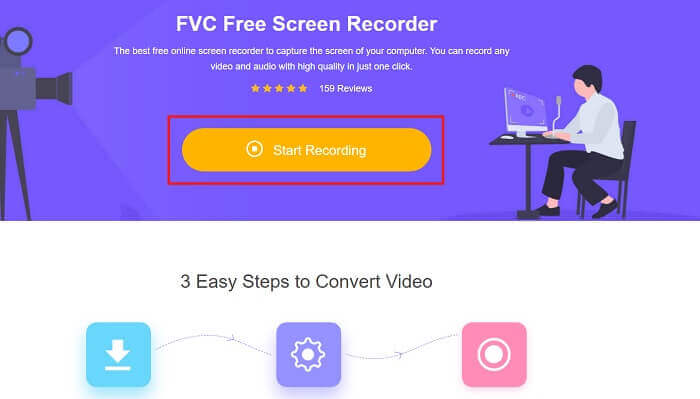
Step 1. Click the link to proceed to the tool. Click the Start Recording to launch the software.
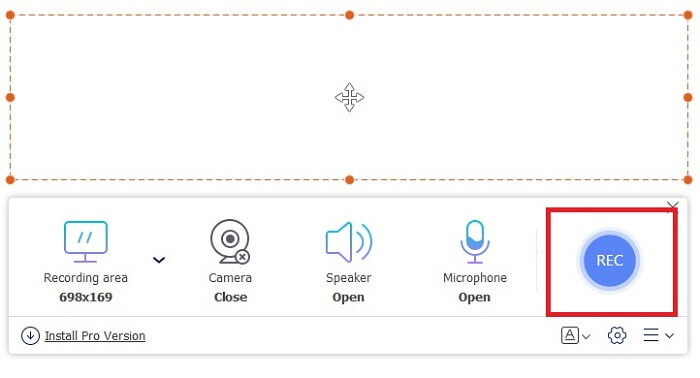
Step 2. A floating toolbar will show up on your screen. Select a region you want to record. Turn on the Speaker for the system sound and click the round button to start recording. Leave the screen recorder for a while to record the video or you may as well watch it.
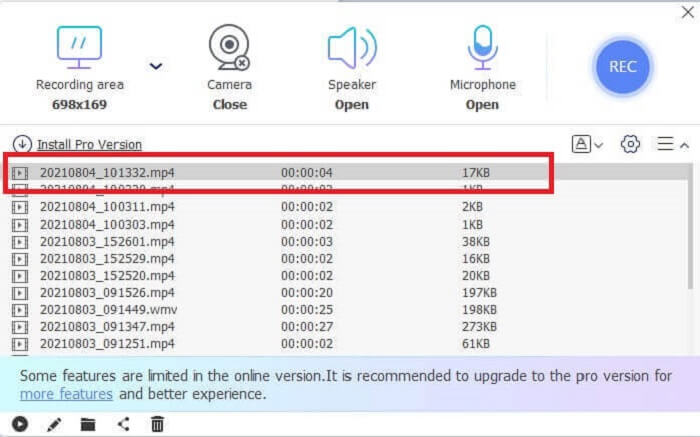
Step 3. Click the square button to stop the recording. History list will show up and click the first file to watch the recorded version with the same video audio quality.
Prós
- Ferramenta online gratuita. Nenhuma cobrança oculta será ativada e também nenhuma inscrição necessária.
- Sem anúncios irritantes no programa antes de usá-lo.
- Grave sem limite.
Contras
- Depende da Internet.
- Sem recursos de tela de bloqueio.
Parte 3. Como capturar DVDs com a melhor alternativa VLC
O VLC pode fazer a gravação, mas e se você precisar gravar um vídeo de alta qualidade com áudio cristalino. Além disso, você também pode escolher qual formato, qualidade e codec deseja que o DVD de gravação VLC não pode fornecer.
Gravador de tela FVC
Apresentando esta ferramenta fenomenal que ajuda o usuário a produzir qualquer tipo de formato de vídeo-áudio que as outras ferramentas não podem fornecer. Este gravador de tela FVC faz o trabalho pesado para um gravador de tela; os recursos da tela de bloqueio fazem a diferença com as outras ferramentas. Com a ajuda desta ferramenta, você pode gravar o conteúdo do seu DVD a qualquer hora e em qualquer lugar do mundo, seja uma plataforma online ou offline. Além disso, você pode fazer anotações na tela durante a gravação e também tem um cancelamento de ruído para uma saída de áudio mais nítida. Para explorar mais sobre esta ferramenta, aqui estão as etapas fornecidas sobre como usar a ferramenta.
Step 1. Click the download button that suits your program. Set it up and launch.
Free DownloadFor Windows 7 or laterSecure Download
Free DownloadFor MacOS 10.7 or laterSecure Download
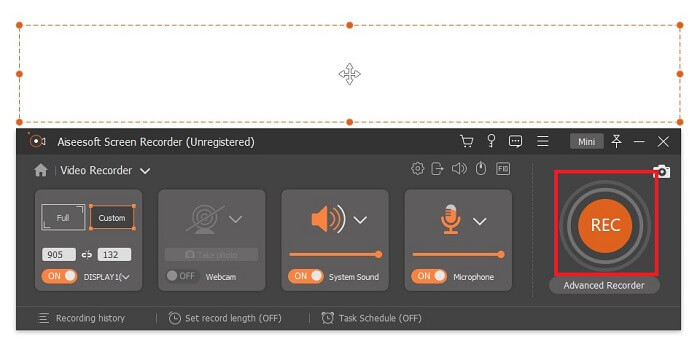
Step 2. In the floating toolbar click the Video Recorder. It transfers you to another floating toolbar. Adjust the frame ratio, activate the System Sound to record the audio in the system. Then, click the round REC button to start the recording.
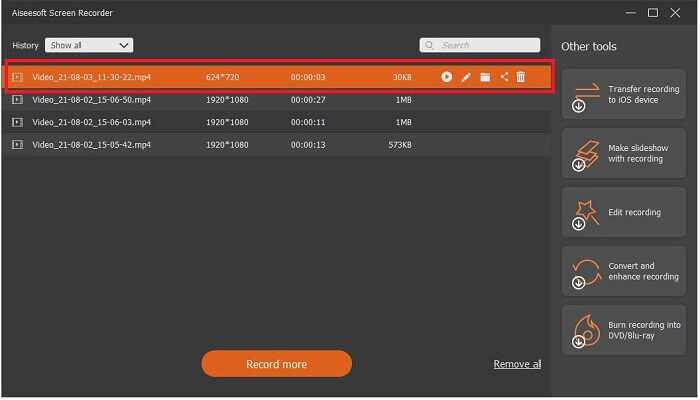
Step 3. After recording, click the square button to stop. The first video in the history list is the latest, click the Play button to watch the recorded version and enjoy.
Prós
- Recurso de tela de bloqueio para evitar a perturbação com a gravação de vídeo.
- Fácil de acessar, pois pode ser utilizado para gravação online e offline.
- Suporta todos os tipos de formatos com aceleração de hardware para processamento rápido da saída de mídia.
Contras
- Pagamento antes de usar a ferramenta.
- Precisa ser baixado para acessar.
Parte 4. Perguntas frequentes sobre gravação de DVD com VLC e conclusão
Quais são os formatos suportados no VLC Media Player?
These are some of the supported formats in VLC Media for video: MPEG (ES,PS,TS,PVA,MP3), AVI, ASF / WMV / WMA, MP4 / MOV / 3GP, OGG / OGM / Annodex, Matroska (MKV), Real, WAV (including DTS), Raw Audio: DTS, AAC, AC3/A52, Raw DV, FLAC, FLV (Flash), MXF, Nut, Standard MIDI / SMF, Creative™ Voice.
For audio: MPEG Layer 1/2, MP3 - MPEG Layer 3, AAC - MPEG-4 part3, Vorbis, AC3 - A/52, E-AC-3, MLP / TrueHD>3, DTS, WMA 1/2, WMA 3, FLAC, ALAC, Speex, Musepack / MPC, ATRAC 3, Wavpack, Mod, TrueAudio, APE, Real Audio, Alaw/µlaw, AMR (3GPP), MIDI, LPCM, ADPCM, QCELP, DV Audio, QDM2/QDMC, MACE. As well as this, it supports different formats such as the listed and many more.
O VLC ainda é um reprodutor de mídia gratuito?
Sim, ainda é gratuito porque é protegido pela licença GNU GPL emprestada, mas você também pode doar via PayPal sem doação mínima.
O download do VLC é seguro?
If you download it to the official site then there is no problem. Also, it is free from malware, viruses, worms, spyware and many more. It is also protected from intended damages to the file. If you are still worried about that, you can try the alternatives to VLC Media Player.
Conclusão
Para resumir todos os detalhes acima. É melhor gravar o vídeo em vez de copiá-lo. Porque nem todos os DVDs podem ser copiados, pois alguns são protegidos por direitos autorais. O VLC pode fazer a extração, mas demorará muito do seu tempo no processo. Então, para diminuir o problema, você deve gravar o vídeo para curtir assisti-lo e, mais tarde, pode compartilhá-lo com outras pessoas.
Mas no final do dia, você ainda deve estar pensando qual a melhor opção de gravação de tela para gravar a saída do DVD sem prejudicar a qualidade do conteúdo da mídia. Então a escolha certa ainda está em suas mãos, os detalhes fornecidos dão a você a idéia de que o FVC Screen Record é uma ferramenta imprescindível. Você pode usar isso não apenas para gravar filmes de DVD, mas também para muitos outros propósitos. É um gravador de screencast tudo-em-um. Então, o que você está esperando em vez de esperar que a mágica aconteça? Por que você não lança seu feitiço e faz seu primeiro truque com o gravador de tela FVC.
-
 Revisão Snagit 2021 - Prós, Contras e a Melhor Alternativa
 Qual é a melhor alternativa ao Snagit? Existe uma ferramenta de captura de tela como o Snagit? Esta postagem revisará o Snagit e compartilhará a melhor alternativa ao Snagit para capturar a tela.
-
 Gravação de tela QuickTime - Grave vídeo com áudio em Mac e PC
 A tela de gravação com áudio no Mac é muito útil. O player embutido, QuickTime Player, pode fazer isso. Leia sua postagem e saiba como capturar tela com som no Mac e no PC.
-
 Captura de tela no VLC - Como fazer um instantâneo no VLC Media Player
 Como tirar uma foto no VLC Media Player? Onde o instantâneo VLC é salvo? Aprenda mais sobre o recurso de instantâneo do VLC e a melhor alternativa no artigo.
