


 Video Converter Ultimate
 Gravador de ecrã
 Reparo de vídeo
 Secure Download
Recurso VLC Snapshot - Aqui está o guia para tirar screenshots no VLC Media Player
Quando você reproduz um vídeo tutorial ou um filme no VLC player, como você faz uma captura de tela no VLC Media Player? Se você precisa capturar um instantâneo como miniatura ou adicionar uma anotação a um determinado quadro, você pode simplesmente usar o recurso de instantâneos oculto do VLC.
Como você tira instantâneos com o VLC Media Player? Depois de tirar os quadros desejados, onde as imagens são salvas? É possível salvar os instantâneos nos formatos desejados? Quando você quiser saber mais detalhes sobre o processo, bem como a melhor alternativa, poderá encontrar algumas informações úteis no artigo.

Parte 1: Como tirar instantâneos no VLC e encontrar o local
1. Como fazer uma captura de tela no VLC Media Player
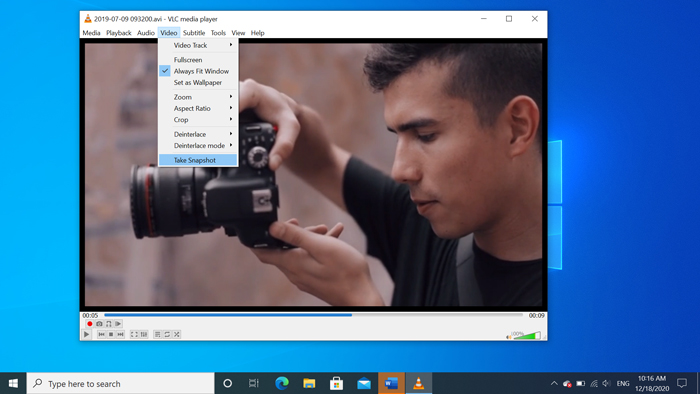
Se você estiver usando o VLC Media Player mais recente, há um ícone de câmera na parte inferior da interface do usuário. Basta clicar na câmera para fazer uma captura de tela no VLC Media Player. Para a outra versão, você pode usar as teclas de atalho ou botões para capturar as imagens como abaixo.
Step 1: Once you have installed the VLC Media Player, you can launch the program on your computer. After that, you can import the desired movies into the media player.
Step 2: When you reach the desired frame you want to take a snapshot in VLC, click the Video menu, and choose the Take Snapshot option to save the desired snapshot.
Você também pode usar o atalho para fazer uma captura de tela no VLC. Aqui está o padrão para sua referência. SHIFT + S para Windows, Command + ALT + S para Mac e CTRL + ALT + S para Linux.
Step 3: Then you can find a popup thumbnail with the snapshot on the top of VLC Media Player, as well as the saved file location and file name. But it will fade within a few seconds.
2. Onde estão as capturas de tela do VLC salvas
Se você não conseguir obter as informações da miniatura pop-up, aqui estão os destinos padrão para as capturas de tela do VLC. Obviamente, você pode tirar vários instantâneos para aprender mais sobre a pasta de destino dos instantâneos.
Windows 7/8/10: C: UsuáriosusernameMinhas imagens
Windows XP: C: Meus DocumentosMinhas Imagens
Mac OS X: os instantâneos são salvos na área de trabalho /
Linux: os instantâneos são salvos em $ (HOME) /. Vlc /
3. Como configurar preferências para instantâneos no VLC
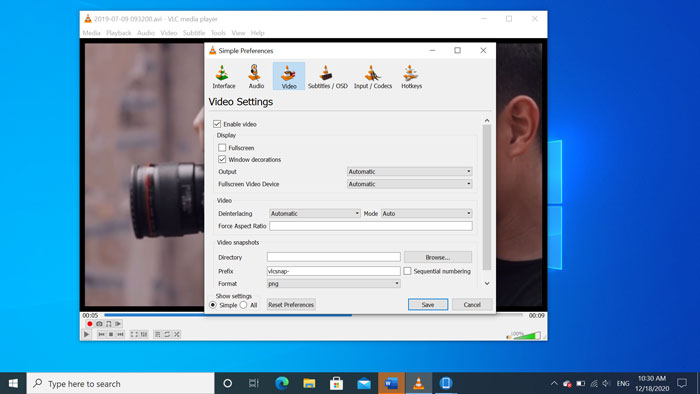
Is it possible to set up the preferences for the snapshots? When you want to change for another format, or destination folder, you can go to the Tools menu and select the Preferences to tweak the settings.
Video Directory: Once you have clicked the Browse button, you can choose the VLC screenshot location as your desktop, or other frequently used destination instead.
Prefixo: Ele adicionará algum prefixo e sufixo às imagens capturadas no VLC Media Player. Marque a caixa de numeração sequencial se quiser usar números em vez da data / hora atual.
Formato: você pode escolher JPG, PNG e TIFF como o formato da foto de saída.
Parte 2: A alternativa online do VLC para tirar capturas de tela
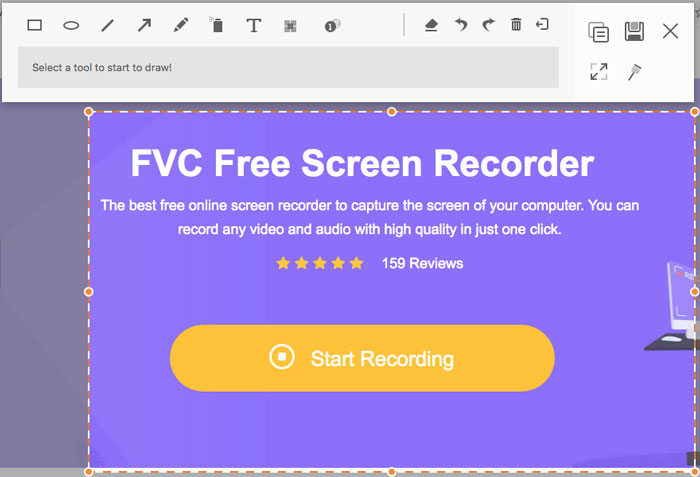
VLC Media Player is an easy method to capture video screenshots. But when you need to add annotation, tweak the frame to capture, or take any snapshot on Windows and Mac, FVC Free Screen Recorder is a VLC online alternative to take screenshots. It enables you to record any video and audio with high quality in just one click. Moreover, you can also manage the screenshot within the online video recorder.
- 1. Capture os filmes, a área de trabalho e outras atividades em seu computador.
- 2. Ajuste as teclas de atalho, pasta de destino, qualidade de vídeo / áudio e muito mais.
- 3. Edite a captura de tela em tempo real, como linhas, texto, destaque, linha, etc.
- 4. Fornece gravação de tela gratuita sem marca d'água e outras restrições.
- 5. Grave vídeos com alta qualidade.
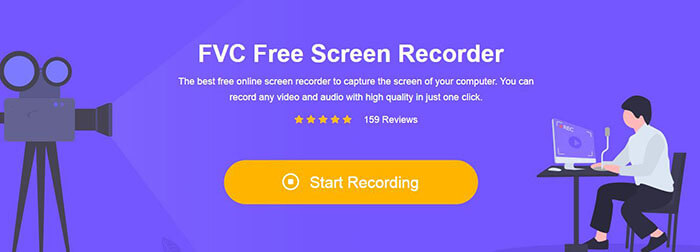
Step 1: Go to the online screen recorder, you can click the Start Recording icon to download and install the installer. Then you can launch the online screen recorder to capture any activity on your computer.
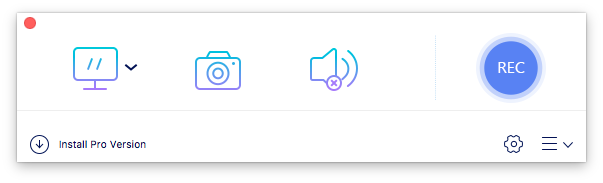
Step 2: Once you have launched the online screen recorder, click the camera icon to take a snapshot online as a VLC alternative. Tweak the capturing area with your mouse to get a snapshot.
Step 3: After that, you can add annotations, such as watermark, callout, arrow, text, and more other elements into the screenshot. Moreover, you can also manage the screenshot within the program directly.
Parte 3. Perguntas frequentes da captura de tela do VLC Media Player
1. Como ajustar as teclas de atalho para a captura de tela no VLC?
If there is a conflict for the hotkeys, especially when you are doing other tasks, you can go to the Tools menu and choose the Preferences option. Then you can choose the Hotkeys button and enter the snapshot into the search column. Click the Take video snapshot and press the new key or combination for VLC snapshots.
2. Como capturar instantâneos no VLC com a melhor qualidade?
Quando você precisa fazer uma captura de tela de vídeo em VLC com a qualidade original, você pode escolher o modo de tela inteira e escolher o formato de arquivo como PNG. Para evitar qualquer imagem borrada, você pode pausar em um determinado quadro que deseja capturar com antecedência.
3. É possível capturar uma imagem de filmes do YouTube no VLC?
Yes. To capture screenshots of YouTube movies in VLC, you can stream and play the YouTube movies within the media player. Click on the Media option and choose the Open Network Stream option. Then enter the direct YouTube URL to the video. After that, you can play the video and capture the desired snapshot accordingly. You can also try FVC Free Screen Recorder or other recording tools like DU Screen Recorder to take the snapshot.
Conclusão
Tirar instantâneos de vídeo no VLC Media Player é uma tarefa simples. Mas quando você deseja localizar a pasta de destino, ajustar as configurações para instantâneos ou até mesmo escolher uma alternativa online, o FVC Free Screen Recorder é sempre a melhor escolha para ajudá-lo.
-
 Revisão Snagit 2021 - Prós, Contras e a Melhor Alternativa
 Qual é a melhor alternativa ao Snagit? Existe uma ferramenta de captura de tela como o Snagit? Esta postagem revisará o Snagit e compartilhará a melhor alternativa ao Snagit para capturar a tela.
-
 Gravação de tela QuickTime - Grave vídeo com áudio em Mac e PC
 A tela de gravação com áudio no Mac é muito útil. O player embutido, QuickTime Player, pode fazer isso. Leia sua postagem e saiba como capturar tela com som no Mac e no PC.
-
 A análise imparcial do jogador real e das melhores alternativas
 Se você escolher o Real Player para reproduzir o reprodutor de mídia, deverá ler nossa breve introdução e análise imparcial, bem como aprender mais sobre a melhor alternativa no artigo.
