


 Video Converter Ultimate
 Gravador de ecrã
 Reparo de vídeo
 Secure Download
Os 5 principais gravadores WebM para gravar vídeos WebM em alta qualidade
WEBM file extension is usually used by web browsers. Most of them are modern browsers like Google Chrome, Opera, Firefox, Safari, and Edge. Commonly these browsers are HTML5 Websites that support video live streaming. One good example is YouTube, Twitch, and other media platforms. This supports video resolution from 360p to the highest resolution. If we are going to compare this format, this is a compressed format similar to MKV, MOV, and MP4. The difference lies in the file content of the format. Both Windows and Mac can play this specific file provided that the player has the right codecs and plug-ins. Meanwhile, if you are looking for a better way to record or gain WebM files, check out the list of best WebM recorders below.

Parte 1. Melhor Gravador WebM: Gravador de Tela FVC
Obtenha a maneira mais fácil de tirar instantâneos, gravar sua tela e gravar os arquivos de vídeo WebM em três etapas fáceis com o FVC Screen Recorder. Este gravador de tela .webm para Windows e Mac pode gravar sites da WebM como YouTube, chamadas do Skype e streaming ao vivo, e outros sites oferecem suporte ao formato WebM. Capture a transmissão ao vivo do jogo sem comprometer a qualidade do vídeo. Além de ser capaz de gravar vídeo, áudio e microfone. Sem ruído de fundo garantido porque grava os sons do sistema. Portanto, experimente uma gravação perfeita e excelentes recursos de edição para o seu tutorial em vídeo com a Gravação de tela FVC. Por outro lado, aqui está como você usa a ferramenta.
Step 1. Download FVC Screen Recorder using the download buttons below.
Free DownloadFor Windows 7 or laterSecure Download
Free DownloadFor MacOS 10.7 or laterSecure Download
Step 2. Install and Launch the app after following the set-up wizard.
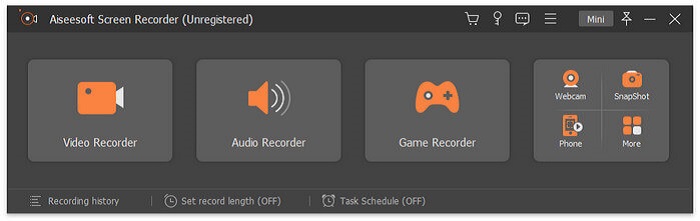
Step 3. Once the floating bar appears, click Video Recorder.
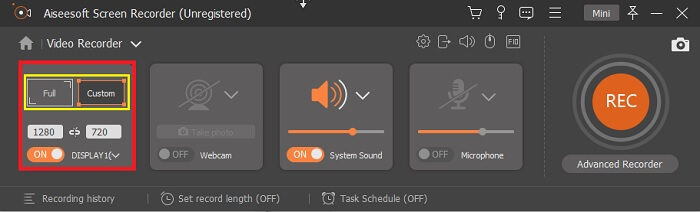
From there another window will appear. This time click the Custom or Full Screen. If you choose custom, adjust the frame size to your desired size.
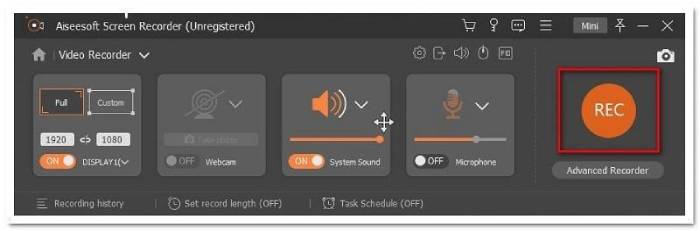
Step 4. To begin recording, click the REC button and just do the usual things you are doing.
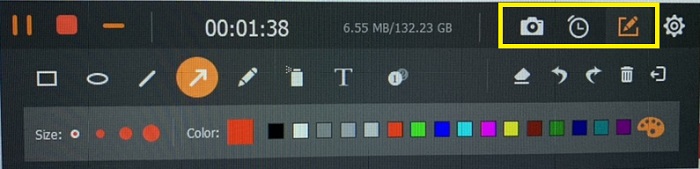
Você pode então fazer anotações, adicionar setas e enviar texto à gravação.
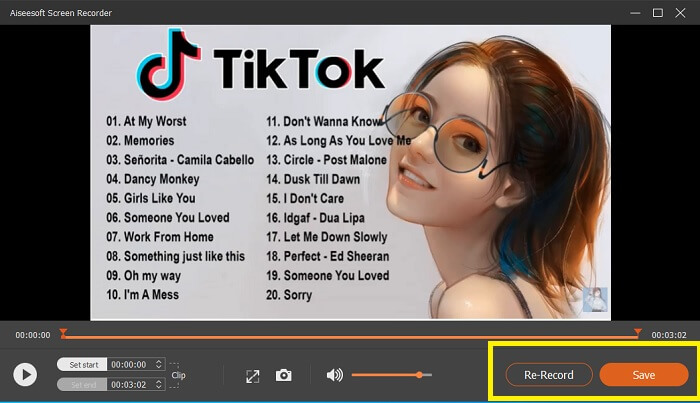
Step 5. Then, click the red square button to stop the recording. A new window will then show letting you choose between saving and re-record again. To check the recording, check the list at the bottom part of the floating bar.
Parte 2. Outros gravadores WEBM populares para o seu computador
1. Gravador de tela livre FVC
Distinctive Feature: Free from Malware. 100% safe
If the first tool did not satisfy you, you might be looking for a practical one. FVC Free Screen Recorder is your go-to tool if you want to maximize great features without spending a dime. Although free tools are known to produce lower quality compared to the premium ones, this toolset the bar a little higher. This can produce high-quality videos and satisfy crystal clear audio despite it being free. On top of that, it is easy to use. Follow through the steps below to learn more about it.
Step 1. Launch the app on your PC using the web Browser. It does not matter what browser you are using, this tool is flexible enough to be accessed anywhere. Click the link to land on the official webpage directly.
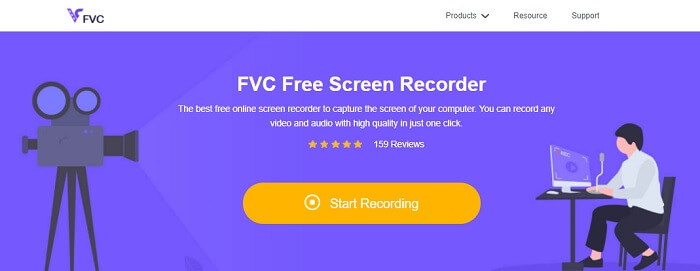
Step 2. Launch the tool by clicking the Start Recording button.
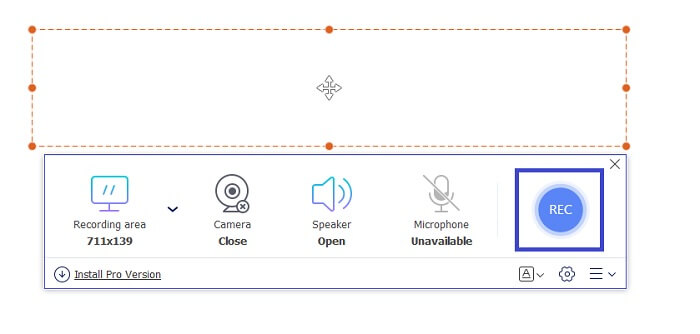
Step 3. After launching the tool, you will see the floating bar appear. Adjust the frame to resize the aspect ratio then start recording by clicking the REC button.
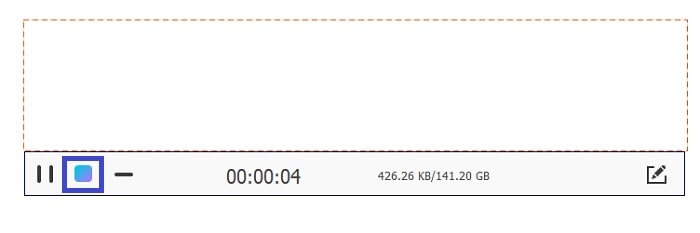
Step 4. Meanwhile, to stop recording click the square button shown in the picture below.
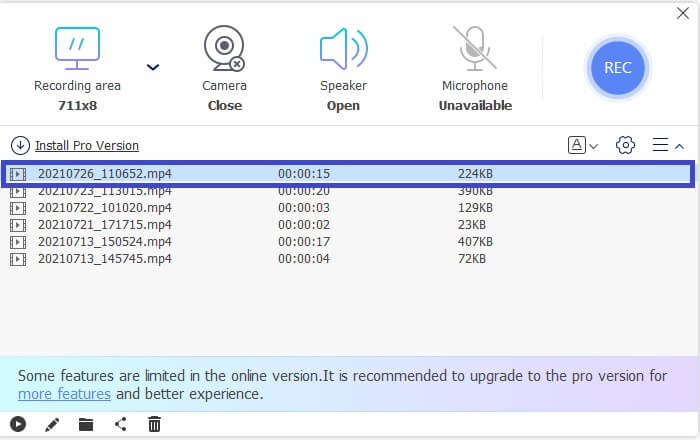
Step 5. To see the file that you recorded, check the list below the floating toolbar.
Prós
- 100% protegido contra malware.
- É flexível no ajuste da proporção de aspecto, taxa de bits e taxa de quadros.
- Suportado imagem em imagem.
Contras
- Ele não suporta aceleração de hardware.
2. Tiny Take
Distinctive Feature: Collaboration or remote work is supported.
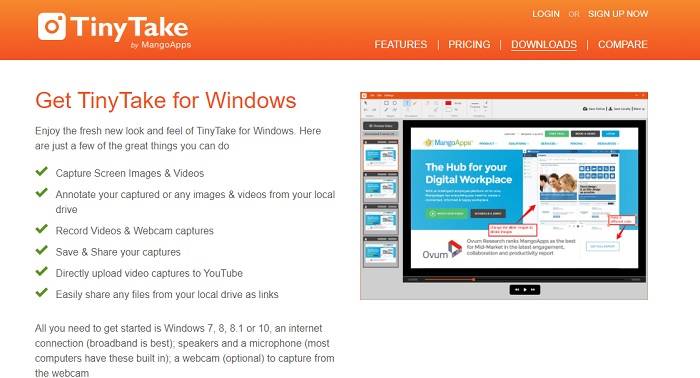
TinyTake é uma ferramenta de gravação de vídeo e captura de tela gratuita desenvolvida pela Mango Apps. O Tiny Take oferece ótimas soluções para captura de tela simples ou gravação de reuniões profissionais ou pessoais. O que tornou essa ferramenta popular é o recurso de colaboração em que você pode trabalhar remotamente, compartilhar arquivos em massa, usar recursos de anotação e armazenamento de longo prazo e Galeria (online).
Prós
- Ele pode capturar imagens e vídeos de sua unidade local.
- Compartilhe diretamente no YouTube.
- Faça anotações durante a gravação.
Contras
- Sem recurso de janela de bloqueio.
3. Screencast-O-Matic
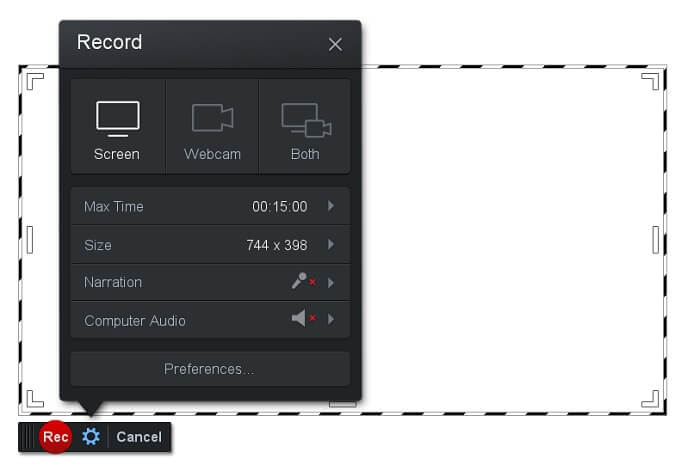
Distinctive Feature: The tool has an easy-to-use and navigate interface. Very Straightforward.
Screencast-O-Matic is one of the most commonly used software by many. What it can do is record the computer screen for free upon registration. It is recommended to create an account to use the free tool. Aside from that, the developer infused a feature where you can edit your video directly before exporting. You take refuge in the built-in stock library of the tool to gain inspiration and continue improving your videos. Also, take screenshots and share all contents with your social media account.
Prós
- Ele tem um recurso de hospedagem em nuvem.
- Envie um vídeo para edição.
- Conteúdo do host.
Contras
- É necessário registro.
4. Screencastify
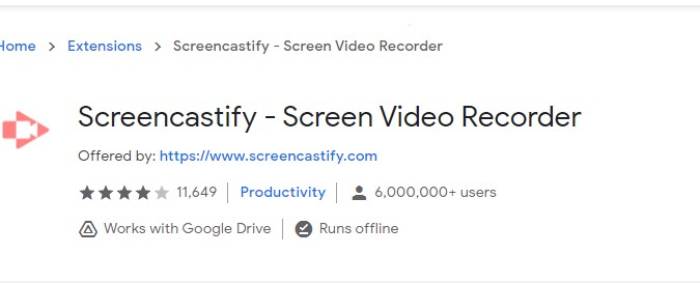
Distinctive Feature: Web browser Extension
Vamos dar um pouco de diversidade à lista. Screencastify é uma ferramenta dependente da web especificamente uma extensão para o navegador Chrome. Isso é usado principalmente por educadores e alunos. Principalmente pela simplicidade da ferramenta e pela capacidade de anotação que mantém o educador e o aluno focados na aula. A maioria das pessoas que estão estudando via Udemy e sites de aprendizagem usam este gravador de tela. Se você estiver fazendo o mesmo, pode considerar usá-lo. Enquanto isso, aqui estão informações mais detalhadas sobre a ferramenta.
Prós
- Compatível com todas as plataformas de mídia.
- Conteúdo do host.
- Envie um vídeo para edição.
Contras
- Embora seja um acesso fácil porque depende do navegador, também pode ser desvantajoso.
- Precisa de muitas permissões para usá-lo.
Parte 3. Perguntas frequentes sobre o Gravador WebM
Por que meu arquivo WebM não abre?
I understand the confusion, you might think that you are using a modern browser and still, it won't play. Have you tried checking if you are running the latest version of the browser? If not, please update. It is one of the most common reasons why a video won't play. But note, these are some of the supported versions by the WebM file. Chrome 6, Firefox 4, and Internet Explorer 9 and above. Or you can try using WebM players to help you open it.
Por que não consigo reproduzir vídeo WebM no meu Mac?
Eu recomendo baixar o VLC player ou o plugin VLC para Mac OS X. Deve ter um processador Intel de 64 bits.
Parte 4. Gráfico de comparação
| Recurso | Gravador de tela FVC (Premium) | Gravador de tela FVC grátis | TinyTake | ScreenCast-O-matic | ScreenCastify |
| Gravação de áudio e vídeo |  | | | | |
| Recurso de edição de vídeo | | |  | | |
| Recurso de janela de bloqueio | | | | | |
| Recurso de anotação | | | | | |
| Compatível com WebM | | | | | |
| Malware seguro | | | | | |
| Taxa de bits ajustável e proporção da imagem | | | | | |
Conclusão
Todas as ferramentas de gravação do WebM analisadas neste artigo são confiáveis e eficientes. Você só precisa ver qual ferramenta se adapta aos requisitos do seu PC e do seu sistema operacional. A maioria das pessoas estará em terreno seguro usando um aplicativo baseado na web. Mas ainda é sua decisão.
-
 O gravador de áudio imparcial Cinch Review e a melhor alternativa
 Cinch Audio Recorder é a melhor maneira de baixar músicas de sites de streaming. Aprenda mais sobre a revisão imparcial e a melhor alternativa do artigo.
-
 Os 5 melhores gravadores de mouse e teclado para Windows e Mac
 Aqui estão os cinco melhores programas de gravador de mouse e teclado que podem salvar os movimentos do mouse e cliques do teclado e repetir os eventos.
-
 Os 4 principais gravadores de tela AVI gratuitos para capturar vídeo na tela como arquivos AVI
 Para gravar a tela em arquivos AVI de alta qualidade, o artigo identifica e compartilha os 4 principais gravadores de tela AVI gratuitos neste post. Aprenda mais detalhes para encontrar o desejado de acordo.
