


 Video Converter Ultimate
 Gravador de ecrã
 Reparo de vídeo
 Secure Download
Como fazer uma captura de tela do Facebook: 6 maneiras práticas de fazer isso
As an avid user of social media platforms like Facebook, I know that sharing information has become an integral part of the overall social media experience. As always, when looking for something interesting, you need to be able to share news from your mutual friends, and the best way to do it is by taking a Facebook screenshot. Regardless of the context of the screenshot, doing it is very easy. Through this guide, we will delve into different ways to take a screenshot on Facebook using different devices, varying from mobile to desktop devices. In the process of knowing how to do it, we also included the use of a reliable third-party software tool that can do all screenshot-type regardless of the device you are using. To find more information on the software tool, read this article until the end and take Facebook screenshots like a pro.

Parte 1. Métodos para fazer uma captura de tela do Facebook em diferentes dispositivos
Antes de mergulhar nos métodos de captura de tela de postagens do Facebook, você precisa primeiro decidir qual dispositivo usará. Para este, decidimos separar cada dispositivo e apresentar um guia passo a passo, começando pelo Windows, Mac, iPad/iPhone, Samsung Galaxy e Android. Dispositivos diferentes podem apresentar pequenas diferenças na captura de tela, principalmente para uma plataforma de mídia social como o Facebook.
janelas
No Windows, existem várias maneiras de fazer uma captura de tela no Facebook, seja no Windows 7 ou posterior. Seguir os passos abaixo garante que você faça uma captura de tela com eficiência usando o método mais simples. Além disso, os passos abaixo usam o recurso Ferramenta de Captura do Windows para fazer uma captura de tela do Facebook.
Step 1. From your Windows Start Menu, search and open the Snipping Tool software.
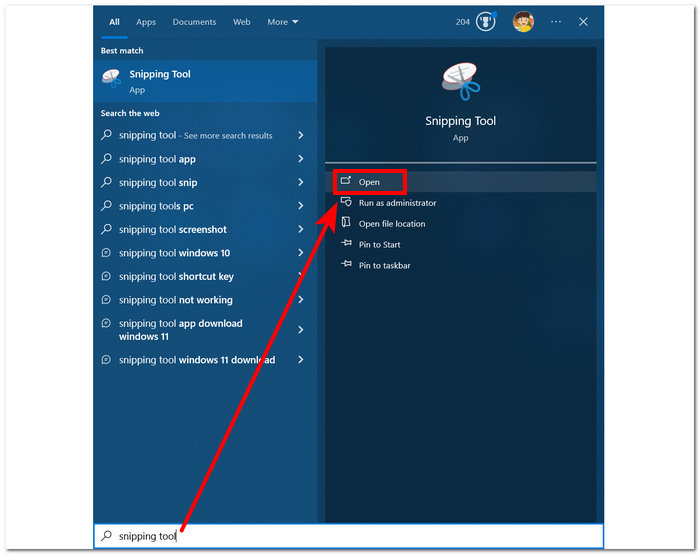
O software Snipping Tool já está pré-instalado no seu Windows.
Step 2. Once the Snipping Tool software is open, proceed to click on the Mode drop-down button to access the snipping features. For this case, you can select the Rectangular Snip.
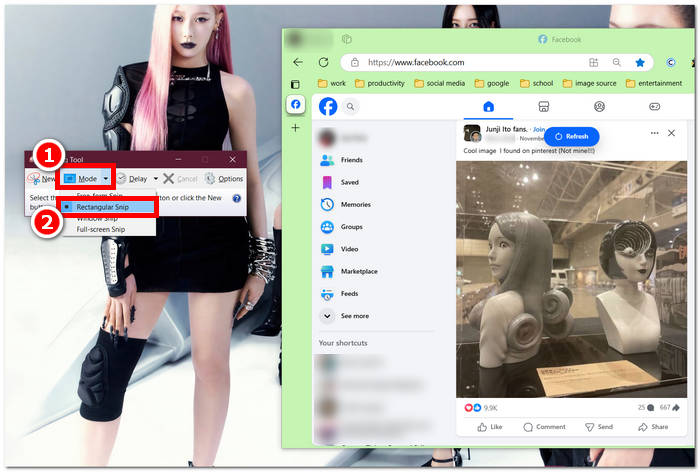
Se desejar uma região com formato personalizado no seu instantâneo, selecione Recorte Livre. Se desejar uma área retangular para a captura de tela, selecione Recorte Retangular. Se desejar capturar uma captura de tela de uma janela ou guia específica, selecione Recorte de Janela. Para capturar uma captura de tela de toda a tela do Windows, selecione Recorte em Tela Cheia.
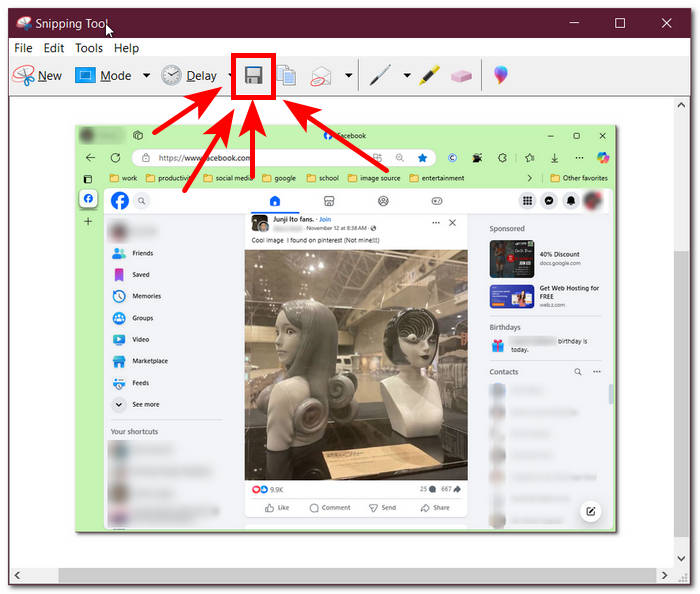
Step 3. Once you click on the Rectangular Snip, you can select the area on your Facebook web that you want to include in your screenshot. Once you've done this, a Snipping Tool window will appear containing your selected screenshot. Within that, you can customize your screenshot by adding text, highlights, annotating words, and more.
Step 4. To finish the process, click the Save button in the upper part of the Snipping Tool window.
Mac
Capturar uma tela do conteúdo do Facebook pode ser diferente em dispositivos Mac do que em Windows. No entanto, neste caso, apenas orientaremos os usuários a seguir os comandos básicos de atalho do teclado do Mac.
Step 1. Using your Mac devices, open your Safari web browser and proceed to the Facebook website.
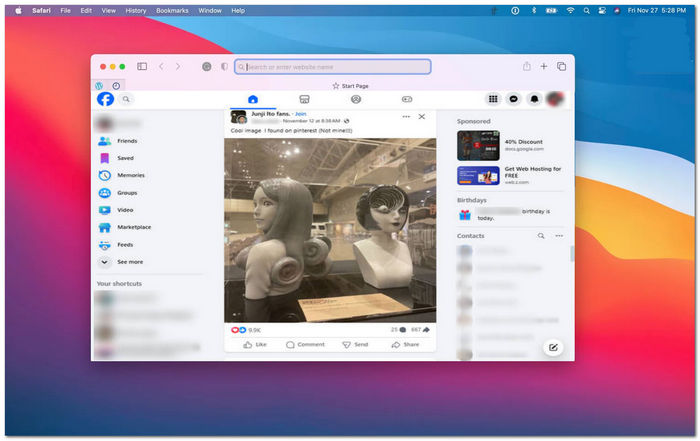
Step 2. On your Mac keyboard, to screenshot your Facebook webpage, hold down the following command + shift + 4.
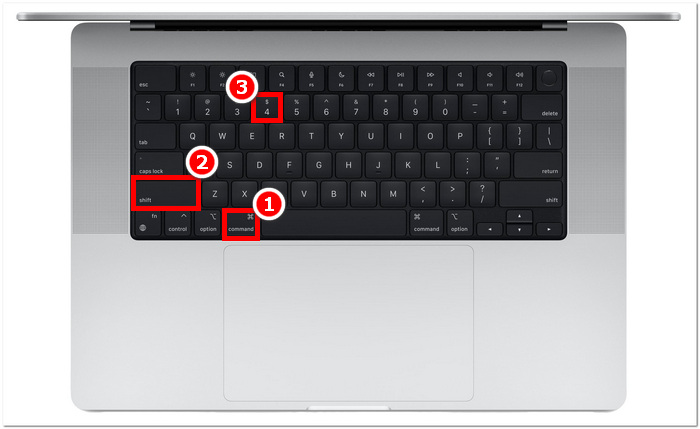
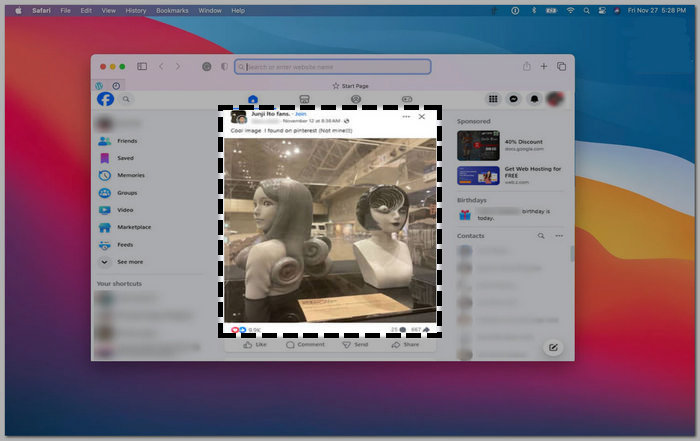
Step 3. Using your cursor, click, hold, and drag onto the area you want to capture.
Step 4. Release the cursor to instantly screenshot the Facebook consent using your Mac’s Safari web browser.
iPad/iPhone
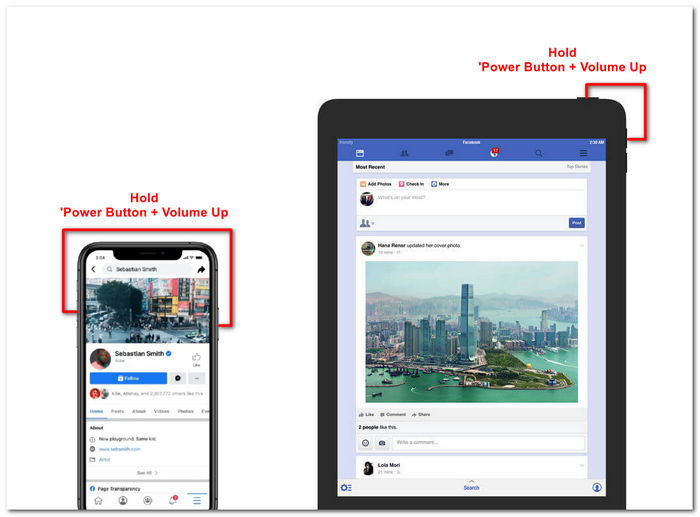
Tirar uma captura de tela é fácil em dispositivos portáteis como um iPad ou iPhone, já que ambos usam apenas os botões liga/desliga e de aumentar o volume combinados. Seja um iPad ou um iPhone, você pode seguir os passos abaixo.
Step 1. Open your iPhone or iPad’s Facebook App and browse through your feed to find a post or perhaps a screenshot of Facebook story content.
Step 2. Once you are all set, take a screenshot of Facebook content; hold your device's Power Button + Volume Up button to capture it and have it saved in your Photos App.
Samsung Galaxy
Se você usa um dispositivo Samsung Galaxy e não sabe como fazer uma captura de tela no aplicativo do Facebook, os passos abaixo vão ajudar.
Step 1. Through your Samsung Galaxy device, open your Facebook App and look for content within the platform you want to save as a screenshot to your device.
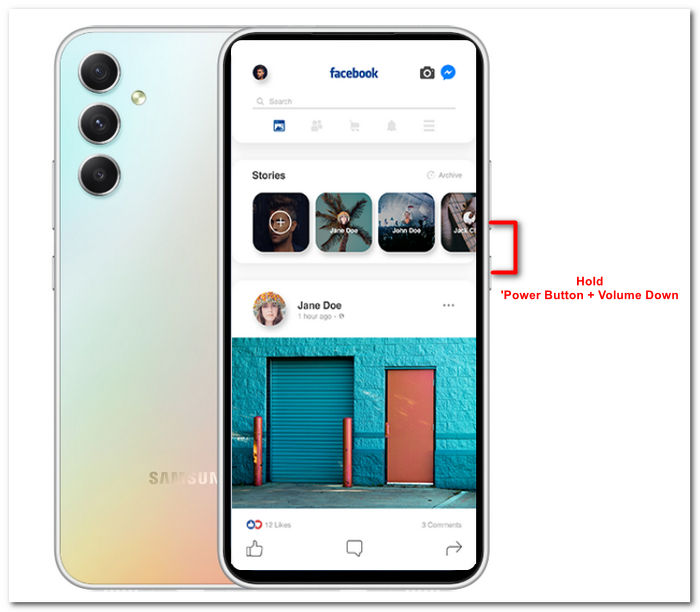
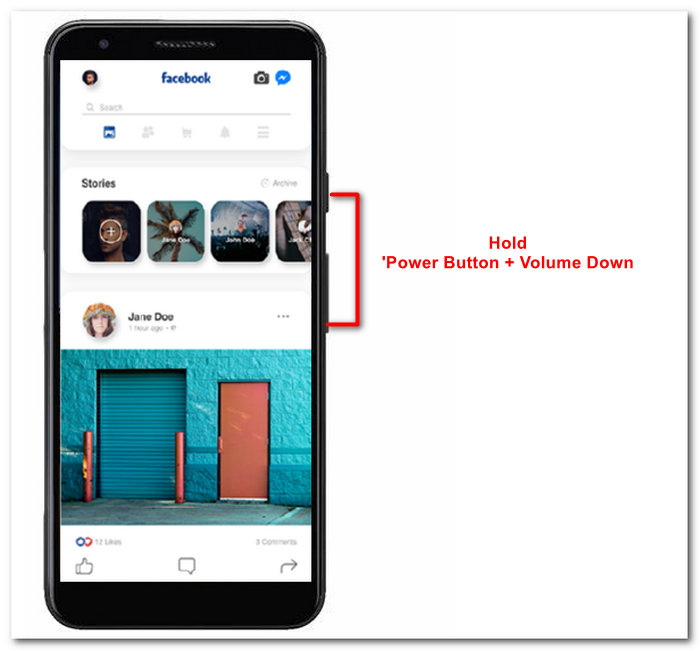
Step 2. Once you find the Facebook content you want to capture, hold your Power Button + Volume Down to screenshot it effectively.
It can also help you how to screenshot Samsung-specific models, like S23. You can use it to solve all your screenshot problems.
Android
O processo de captura de tela difere entre dispositivos Android e iOS, já que o Android usa o botão de diminuir volume em vez do botão de aumentar volume. Para capturar facilmente uma tela do Facebook, siga o processo abaixo.
Step 1. Open the Facebook mobile app on your Android device and browse your timeline for content you want to save as a screenshot in your Gallery.
Step 2. Once you find one, hold your mobile’s Power Button and Volume Down to screenshot it and save it directly in your Gallery App.
Parte 2. Um ótimo gravador de tela para capturar tudo na área de trabalho
If you are looking for a more convenient way to take screenshots on your Facebook with a feature that allows you to instantly make edits, annotate, highlight, crop, and more in the screenshot, then you might like using the FVC-picked screen recorder. This free-to-use screen record tool can double function as a tool to record your screen in real time and take a snapshot for easy and quick sharing of content. Moreover, this comprises four screenshot settings to cater to all types of screen capture needs, no matter whether you want to screenshot on Mac or Dell. and using it in the likes of Facebook is beneficial. To learn more about these screenshot features offered by FVC-picked screen record, it is best to show you how to do it.
Step 1. On your desktop, download and install the FVC-picked screen recorder software, then start the application.
Free DownloadFor Windows 7 or laterSecure Download
Free DownloadFor MacOS 10.7 or laterSecure Download
Step 2. Access your Facebook web using any of your preferred web browsers. In the screen recording tool, click on the Snapshot drop-down menu, then select a screenshot type to capture your Facebook screen.
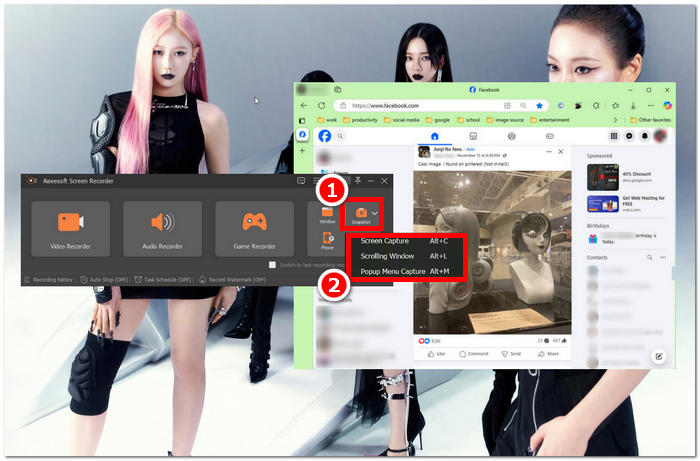
Você pode salvar uma captura de tela de toda a página inicial usando a Captura de Tela. A função Janela de Rolagem tira uma captura de tela de toda a página inicial, de cima para baixo. Os usuários podem escolher uma seção da página enquanto tiram uma captura de tela personalizada com a Captura de Menu Pop-up.
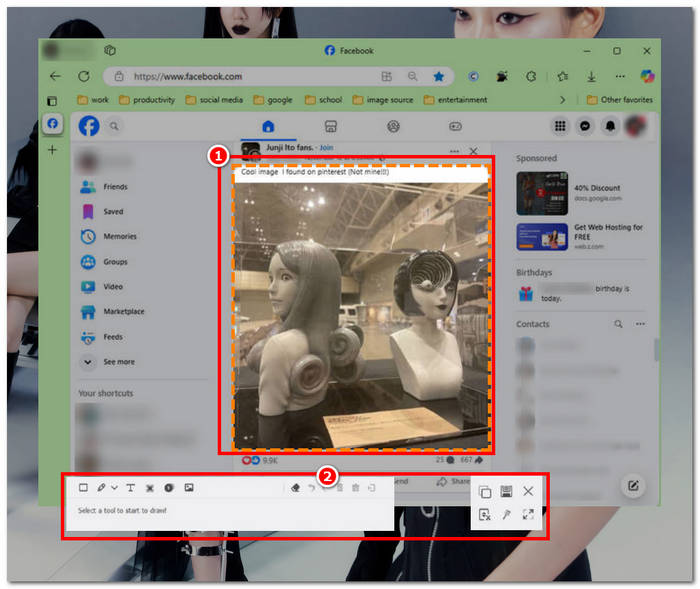
Step 3. In your Facebook timeline, click, hold, and drag your cursor on the area of the Facebook content you wish to capture as a screenshot.
Step 4. Once done, you can utilize the tools below to edit your screenshots before you can download them to your desktop download folder.
Parte 3. Perguntas frequentes sobre captura de tela no Facebook
As pessoas podem ver se eu fizer uma captura de tela do perfil, publicação ou foto delas?
Não, outros usuários não serão notificados se você tirar uma captura de tela do perfil deles no Facebook. Só você poderá vê-la, a menos que compartilhe a captura de tela com eles.
As capturas de tela do Messenger são detectáveis?
Não, como isso representa um problema de segurança e violação de dados, o Facebook não notifica o outro usuário que você acabou de fazer uma captura de tela da sua conversa.
É legal fazer capturas de tela de conteúdo do Facebook?
Capturas de tela de conteúdo do Facebook não são ilegais, pois postagens públicas são públicas e podem ser visualizadas por todos. No entanto, é ilegal usar o conteúdo ou a publicação de alguém para seu próprio benefício sem a permissão dessa pessoa.
Conclusão
Taking screenshots of Facebook content is a great way to store and quickly share it with another user. While it is greatly helpful, learning how to do it, especially using other devices, from desktop to mobile, is also helpful. Through this guide, you learn different approaches to taking a Facebook screenshot using any available device you may have. While it is very convenient, the ability to edit and highlight instantly the screenshot using the FVC-picked screen recorder is the best way to take when you want to crop or highlight a certain part of the screenshot so that you won’t have to edit them later.
-
 Como fazer uma captura de tela no Alcatel para aproveitar o momento
 Está com dificuldade para fazer capturas de tela no seu dispositivo Alcatel? Experimente esta solução de software para celular e desktop e salve sua tela para visualização offline.
-
 Como fazer capturas de tela no Minecraft: captura de tela do jogo mais fácil
 Aprenda a maneira mais fácil de fazer capturas de tela no Minecraft. Experimente as ferramentas integradas e o software de gravador de tela para salvar sua criação do Minecraft.
-
 Como fazer capturas de tela em um Chromebook [guia passo a passo]
 Descubra como capturar facilmente capturas de tela em seu Chromebook com este guia passo a passo abrangente. Seja guiado e obtenha aquela captura de tela perfeita agora!
