


 Video Converter Ultimate
 Gravador de ecrã
 Reparo de vídeo
 Secure Download
Captura de tela no Minecraft: criando instantâneos de tela sem complicações
Minecraft is a game that offers a wholesome experience where you can go on an adventure, build things, and fight with other mobs. An experience like that is surely needed to be remembered but what can you do to save and relive those moments? Take a screenshot of your favorite spot to have it saved, and feel free to revisit it later. Whether you are on a quest to find the rarest ore in the game or simply want to relax and appreciate the game, screenshotting is a way for you to appreciate it. Fortunately, taking a Minecraft screenshot is simple, and only reading this article will give you three ways of taking screenshots straight out of your Minecraft game for offline viewing

Parte 1. Como fazer capturas de tela no Minecraft com software profissional
Learning how to take screenshots in Minecraft has never been easy, as using professional software to partake in immortalizing visual journeys is Screen Recorder, picked by FVC. This software features and elevates the screen capture experience of Minecraft playing, as taking screenshots on it can capture all the finer details a player doesn’t want to miss. This is because the game recorder has shortcut keys to take screenshots while a player is busy playing. Additionally, a screen capture in the software lets the player immediately edit by means of utilizing its built-in advanced editing features, such as the ability to draw, annotate, or simply put highlights on the part of the screenshot they want to emphasize to add another layer of fun in their screenshots. Available to download for free to all computers that have your Minecraft game in it, this user-friendly software produces high-quality screenshots but doesn’t consume much space in your computer.
Step 1. First, download the screen recorder software to your computer and launch it once done.
Free DownloadFor Windows 7 or laterSecure Download
Free DownloadFor MacOS 10.7 or laterSecure Download
Step 2. Select the Snapshot feature in the software by clicking on the drop-down menu on the right side of the interface.
Step 3. To screenshot your Minecraft gameplay in full-screen, choose the Screen Capture option or press the shortcut key Alt + C on your keyboard.
Note:
◆ Você também pode fazer uma captura de tela de rolagem selecionando o recurso Janela de rolagem no menu suspenso Instantâneo ou usando a tecla de atalho ALT + L.
◆ Para capturar imagens de regiões personalizadas em seu jogo do Minecraft, você deve selecionar o menu pop-up Capturar ou clicar em ALT + M no teclado.
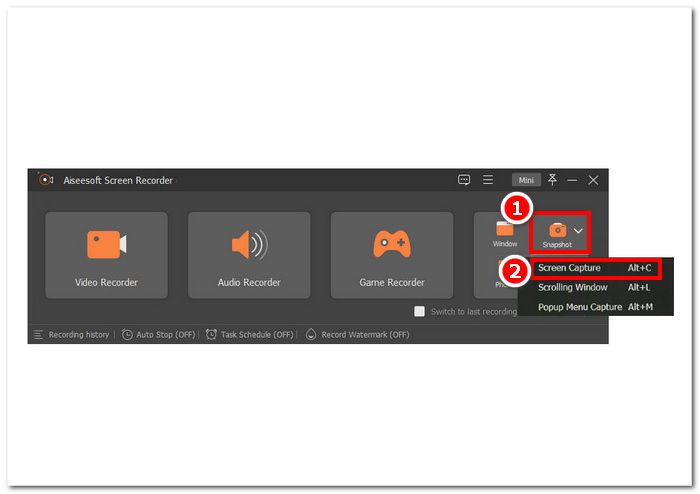
Step 4. Once you have decided on what Snapshot feature to use in taking screenshots of your Minecraft gameplay, it will automatically take a screenshot of your screen, and it will show you a preview of it, which you can modify before saving it to your local storage.
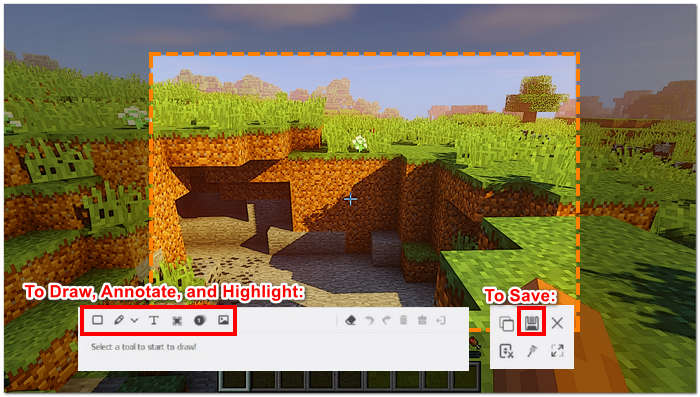
Now that you have successfully learned how to take a screenshot with a multi-purpose tool like FVC-picked Screen Recorder, you can go on an endless journey and not worry about missing a single memory. The software is not just a tool to take screenshots but also one of the best game recorders. Enjoy recording your Minecraft gameplay and share it with your close friends or co-crafters. You can also use the recorder to take a scrolling screenshot on Windows easily.
Parte 2. Como fazer capturas de tela no Minecraft com ferramenta integrada
Os entusiastas do Minecraft podem aproveitar as vantagens de uma ferramenta de captura de tela integrada ao jogo. Usando apenas as teclas de atalho do teclado, eles podem facilmente fazer uma captura de tela da maneira mais rápida e conveniente.
Step 1. To take a full-screen screenshot of your Minecraft gameplay, you have to locate and click on the PrtSc button on your keyboard. This is found in the upper-right part of your keyboard.
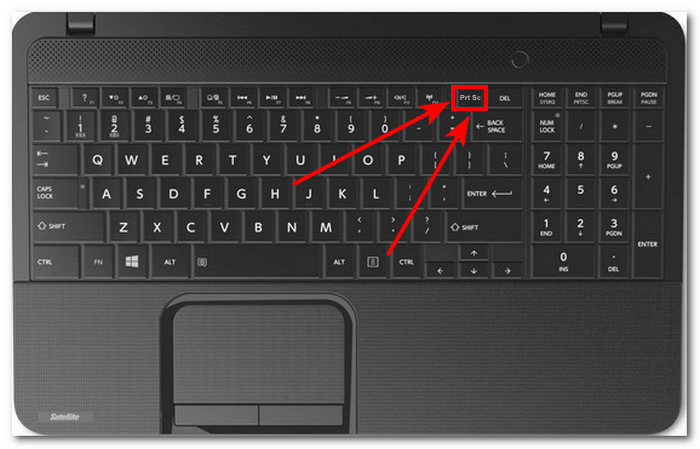
Step 2. If your computer or laptop doesn’t take a screenshot when clicking on the PrtSc button, try clicking the Fn + F2 simultaneously from your keyboard.
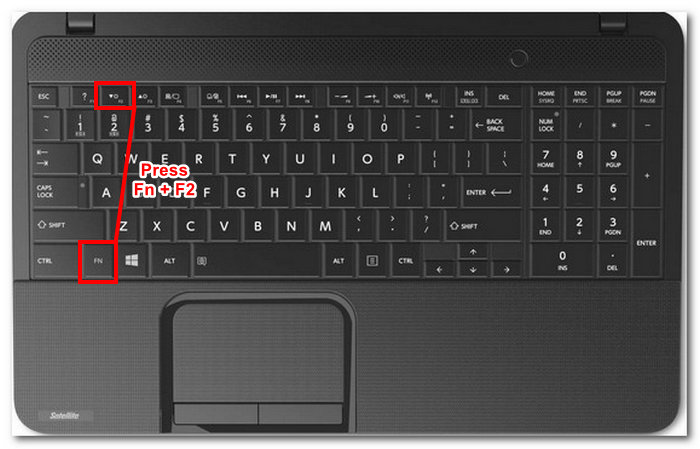
Step 3. After pressing the shortcut keys, your game's screenshot will be automatically saved in your local storage.
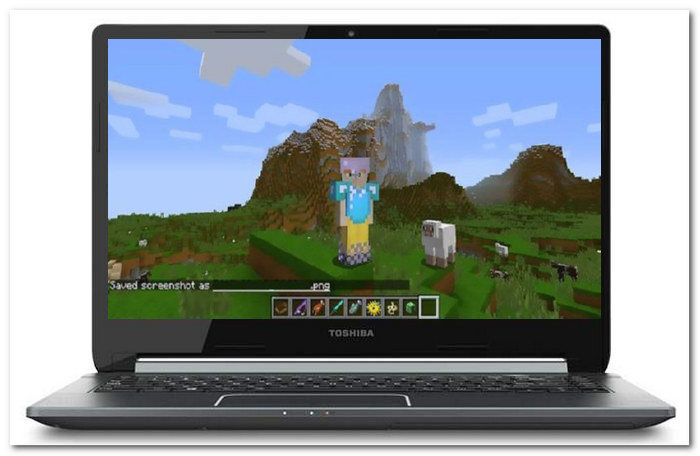
Utilizar as teclas de atalho de captura de tela integradas do Minecraft é de fato a maneira mais rápida de fazer isso. Ainda assim, também é importante destacar que quando você deseja editar sua captura de tela ou destacar uma determinada parte, a necessidade de uma ferramenta extra para editá-la é um incômodo. Quando esses casos chegarem, você se verá usando um software que possui recursos de captura de tela de alto rendimento e oferece recursos avançados de edição para capturas de tela, como o software escolhido pelo FVC mencionado acima. Além do mais, você pode gravar a jogabilidade do Minecraft com o gravador de tela sem limite de tempo.
Parte 3. Como encontrar capturas de tela do Minecraft
Se você está se perguntando onde está localizada a pasta de capturas de tela do Minecraft, não se preocupe; é fácil de encontrar! Apenas siga estes simples passos:
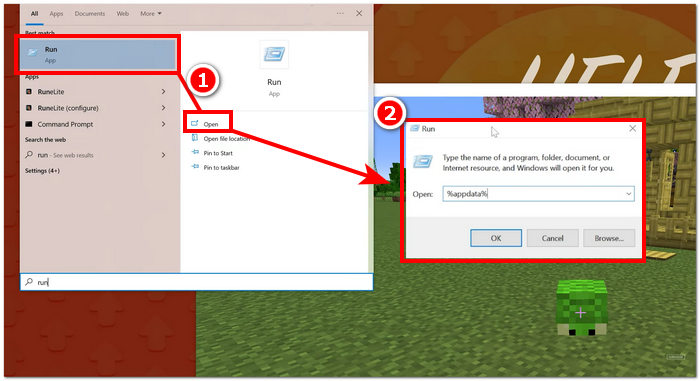
Step 1. Locate the Run software on your Computer through your Windows Start menu.
Step 2. Open the Run app and enter the %appdata% on the text field to proceed.
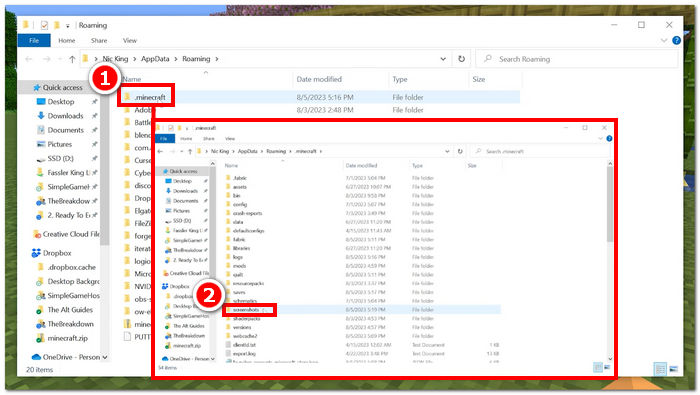
Step 3. Look for the Minecraft folder located in the app directory and click on the Screenshot folder to find the saved screenshot.
Step 4. You have now located your screenshot folder. All that is left is to locate a specific screenshot and edit them the way you want it.
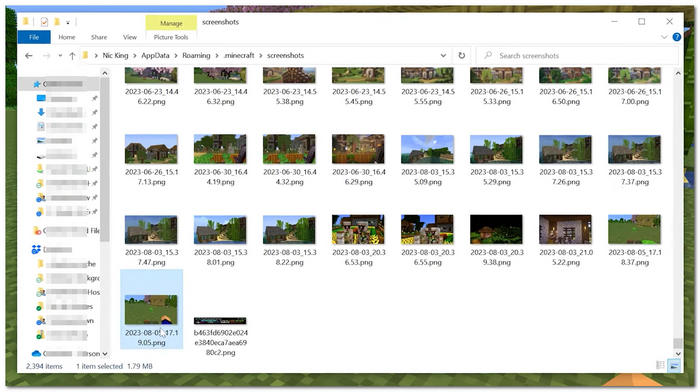
Felizmente, você pode acessar e salvar facilmente suas capturas de tela seguindo alguns passos simples. Você pode aprender o processo exato para localizar e salvar suas capturas de tela para nunca perder a chance de documentar suas emocionantes aventuras no jogo. Infelizmente, apesar do processo simples de fazer capturas de tela do jogo do Minecraft, não é possível criar ou alterar o local da pasta de capturas de tela do Minecraft.
Parte 4. Perguntas frequentes sobre como fazer capturas de tela no Minecraft
Posso personalizar a chave da captura de tela no Minecraft?
Sim, você pode personalizar a chave da captura de tela no Minecraft acessando as configurações de controle. Basta navegar até o menu de opções, selecionar os controles e escolher um novo atalho de teclado para a função de captura de tela. Uma vez atribuída, você pode usar a tecla recém-selecionada para capturar imagens do jogo.
Como fazer capturas de tela no Minecraft Bedrock?
A edição Minecraft Bedrock pode fazer capturas de tela clicando em Win + G para abrir a sobreposição de configurações. Assim que as configurações do jogo estiverem abertas, localize Game Capturing e clique no botão da câmera para fazer uma captura de tela do seu jogo.
Há alguma configuração no jogo para ajustar a qualidade ou resolução da captura de tela?
O Minecraft oferece configurações limitadas no jogo para ajustar a qualidade ou resolução da captura de tela. No entanto, você pode melhorar indiretamente a qualidade da captura de tela ajustando as configurações gráficas do jogo, como distância de renderização e qualidade gráfica. Configurações gráficas mais altas geralmente resultam em capturas de tela de maior qualidade.
Posso capturar capturas de tela em terceira pessoa no Minecraft?
Sim, você pode capturar capturas de tela em visão de terceira pessoa no Minecraft. Basta alternar para a perspectiva de terceira pessoa pressionando a tecla padrão (F5 na maioria dos sistemas) e depois usar a tecla de captura de tela (o padrão é F2) para capturar a cena desejada. Isso permite capturar capturas de tela de diferentes perspectivas dentro do jogo.
Como compartilho minhas capturas de tela do Minecraft com amigos ou nas redes sociais?
Para compartilhar suas capturas de tela do Minecraft com amigos ou nas redes sociais, primeiro localize as capturas de tela salvas em seu computador. Uma vez encontrados, você pode enviá-los diretamente para plataformas de mídia social. Alternativamente, você pode compartilhá-los com amigos enviando os arquivos de captura de tela diretamente por meio de aplicativos de mensagens ou e-mail.
Conclusão
Taking your Minecraft gameplay memory to a new height is a whole new experience and dream for every player. Taking screenshots of your iconic scene is one way of doing it, and learning it is a need in order for a player to relive those moments in their own time. It’s not about what tools you are using to take a screenshot in Minecraft. It’s a matter of convenience and practicality. Some users might prefer the shortcut keys method, while others like the software-based tool that provides many features for taking screenshots, like the FVC-picked Screen Recorder and Snipping tool. Learning where to locate your stored screenshot is also a great way to access it without the need to search on your computer for hours.
-
 Top 8 melhores gravadores de webcam para Windows e Mac
 Se você está procurando os melhores gravadores de webcam, nós temos o que você deseja. Leia este artigo com as oito principais opções para Windows e Mac.
-
 Revisão do gravador de tela Camtasia e alternativa gratuita para Windows / Mac
 Leia e obtenha a análise mais recente do Camtasia Screen Recorder. Com seus prós e contras, você pode dizer se o TechSmith Camtasia é a melhor opção para você.
-
 6 ferramentas incríveis de gravação de MP4 de 2025 [gratuitas e premium]
 A melhor forma de fazer a gravação é escolher o melhor gravador de tela. Aqui estão alguns dos melhores gravadores de tela MP4 da web.
