


 Video Converter Ultimate
 Gravador de ecrã
 Reparo de vídeo
Seja uma crítica extensa na resolução de problemas fora de sincronia [áudio e vídeo]
You have an online reporting project for your class tomorrow. You're finding the best applications or software that you can use to record your video to achieve the reporting you need to submit tomorrow. But instead of having a solution to your problem, chaos and trouble start to make you overthink because the audio and video are out of sync. You don't have to worry about your situation because it's your lucky day; this article covers everything you need to learn to mend your concern.

Parte 1. Por que o áudio não está sincronizado com o vídeo?
O áudio e o vídeo podem estar fora de sincronia por vários motivos, incluindo o seguinte: A transmissão ou a conexão entre o decodificador de TV a cabo/satélite pode ser o problema ao assistir a um programa de TV. Um reprodutor de DVD ou Blu-ray DiscTM não confiável ou o próprio disco podem ser os culpados se você tiver um desses dispositivos conectado à sua TV. Se o seu sistema de home theater estiver conectado à sua TV por meio de um cabo óptico, você poderá notar um atraso de áudio que precisa ser corrigido manualmente. Por outro lado, as configurações da sua TV podem ser as culpadas.
Parte 2. 3 Melhores Ferramentas Comprovadas: Como Sincronizar Áudio e Vídeo
1. Use o Video Converter Ultimate
Há muitas maneiras e softwares disponíveis on-line que podem ajudar com o problema fornecido, e essa é uma das melhores ferramentas que recomendamos usar. Baixe o FVC Video Converter Ultimate em seu computador, um software com vários recursos para aprimorar um videoclipe. Um dos recursos oferecidos pode corrigir o problema de sincronização de áudio e vídeo de um videoclipe no Windows 10 - por exemplo - ajustando seu atraso. Siga os passos abaixo para saber como usar o software:
Step 1: To download the software to your desktop, click the Free Download button. Then install the software and customize the setup as desired. If everything is in order, launch the software after installing.
Free DownloadFor Windows 7 or laterSecure Download
Free DownloadFor MacOS 10.7 or laterSecure Download
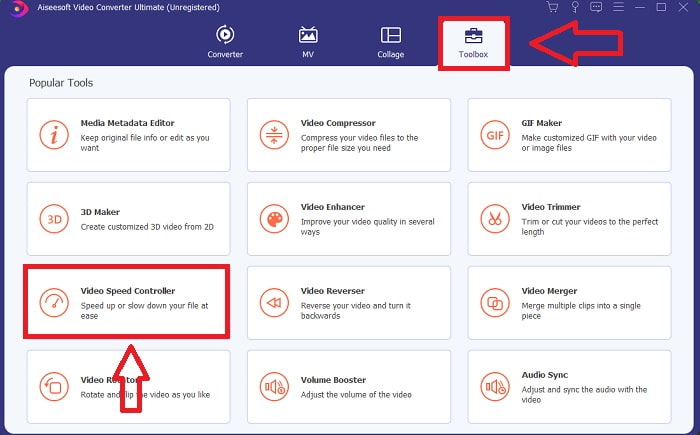
Step 2: On the main interface, click the Toolbox feature and proceed with Audio Sync.
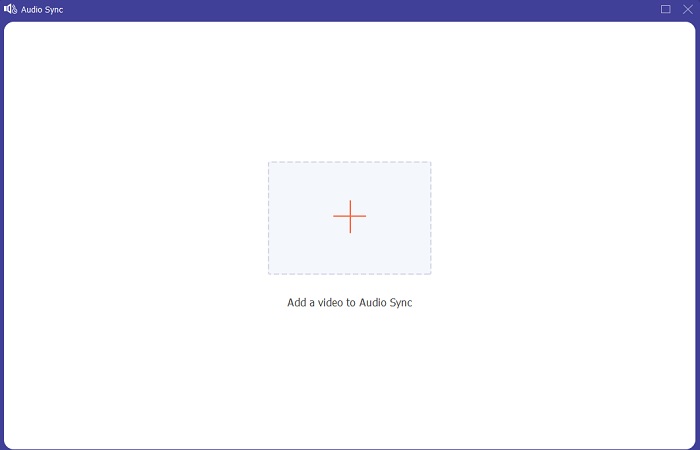
Step 3: Add any file by clicking the + button in your preference and proceed with editing the video clip.
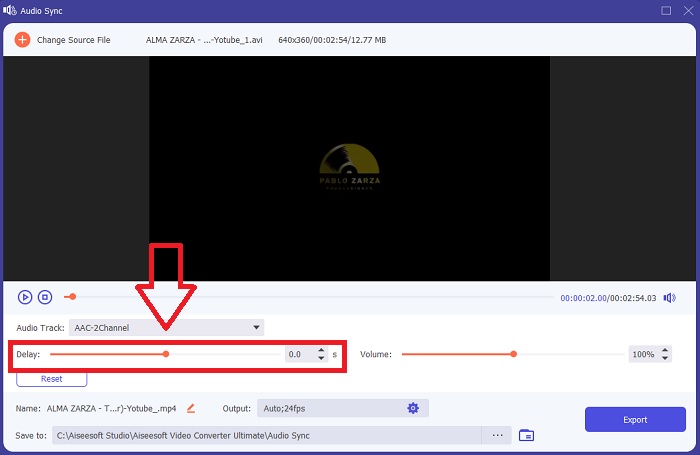
Step 4: Adjust the slider of the audio to sync its video clip. You can also change the output device and customize the volume of your video clip.
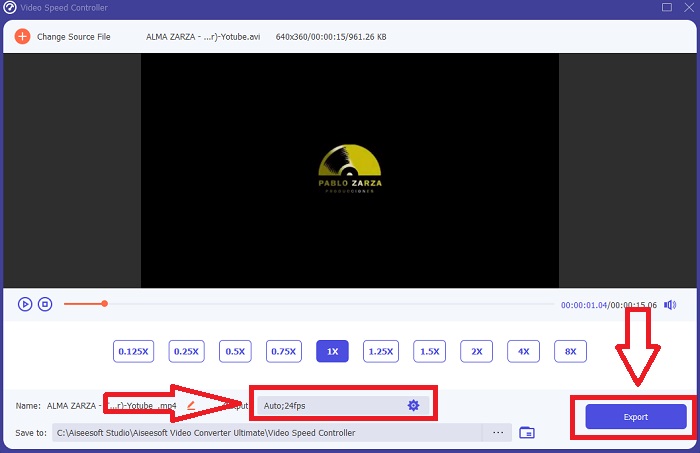
Step 5: If you finish editing the sync of your video clip, click Export and choose where your file will be saved.
2. Use o VLC Media Player
The VLC media player is an application available in every operating system; Windows, Mac, iPhone, and Android. Even though it is accessible to every device, each has different ways of fixing the audio delay and syncing the audio of the video's clip. This media player is common with its faulty operating system, but you can also use this media player to fix audio and video sync permanently.
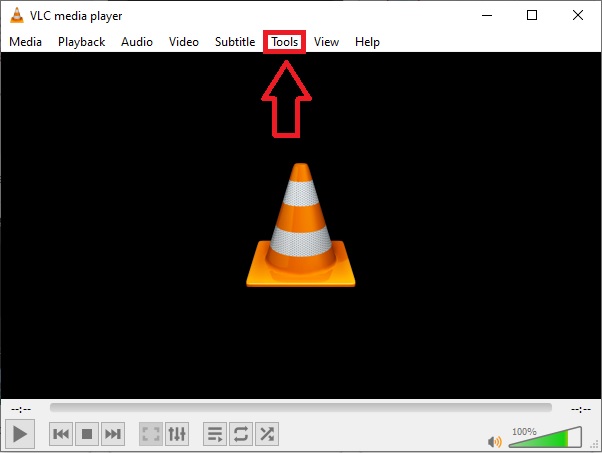
Step 1: Open the VLC media player in windows, and click the Tools tab. After you click the Tools tab, click the Preference.
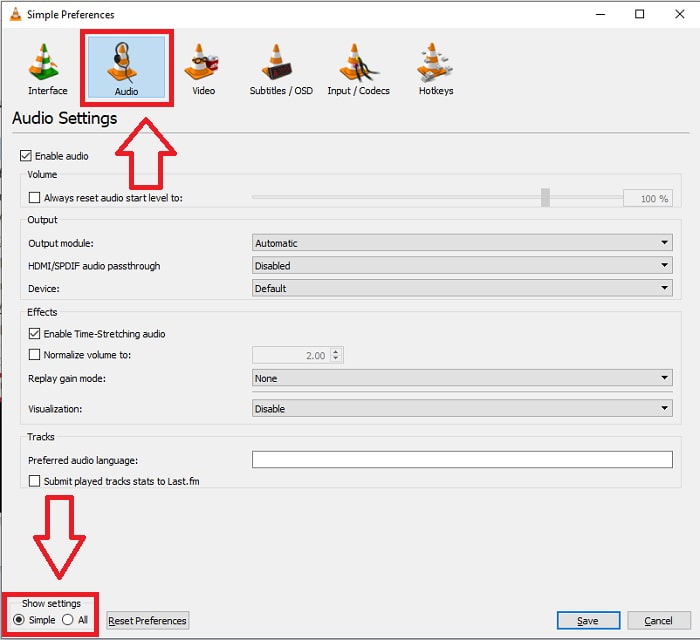
Step 2: Another interface will appear on your screen. Continue the process by clicking the Audio tab. At the bottom left corner, select All to access the advanced settings.
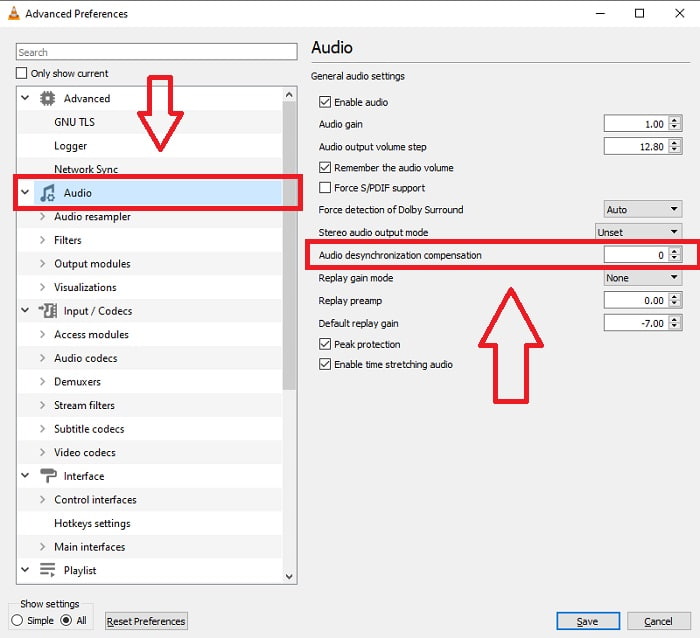
Step 3: The advanced settings will provide you with the entire grounds. Proceed with locating the Audio in the advanced settings tab. After you press it, you will see the general audio settings and adjust the Audio Desynchronization Compensation. If the Audio is lagging behind the video, change the value to a positive value to compensate. Negative values should be used if the audio is playing ahead of the video. VLC out of sync will permanently be fixed with this process.
Related:
How to Fix VLC Player Won't Play MKV
How to Fix VLC Not Playing DVD
3. Use o Premiere Pro
When it comes to creating broadcast-quality, high-definition video, Premiere Pro is the tool of choice. This software can be used to import all kinds of media, including video and audio. It can then be used to edit that media and export it in the format needed for distribution. Various videos and still images can be edited together when using Premiere Pro to create videos. Videos can have titles, filters, and other effects applied. This software is a big help when audio and video are out of sync, especially for desktop or laptop users. Here are the steps given to execute the procedure properly.
Step 1: Make sure to layer your audio and video files in your timeline, as shown in the illustration.
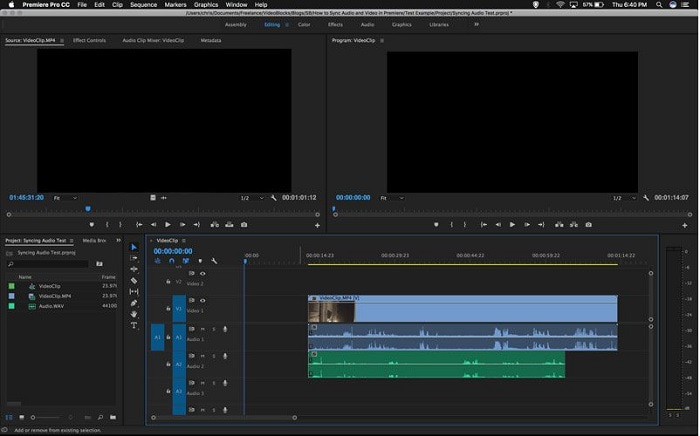
Step 2: Right-click to select both the audio and video tracks. There will be an appearance of a dropbox. Choose Synchronize from the drop-down menu that appears.
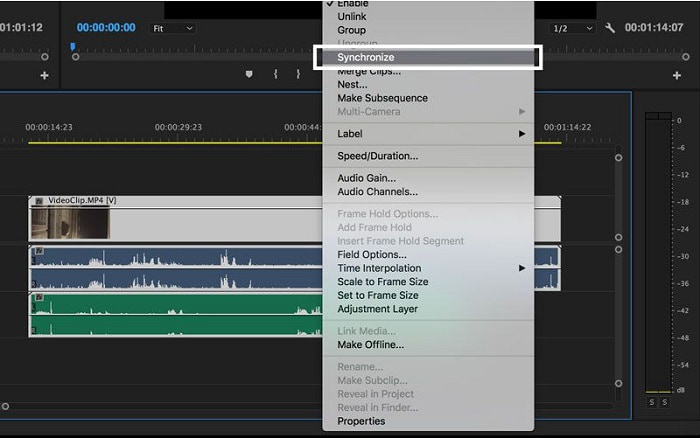
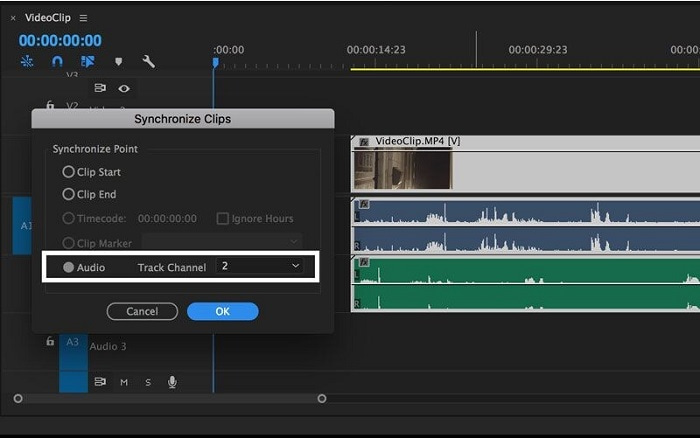
Step 3: Now select Audio as the synchronize point. Select the track that you want to synchronize. Lastly, delete the scratch track and select the Link option to link clips.
Parte 3. Perguntas frequentes sobre áudio e vídeo fora de sincronia
Se eu alterar a taxa de amostragem, a qualidade do áudio será prejudicada?
Se você quiser apenas ouvir o áudio em seu videoclipe e não fazer nenhuma alteração, deverá alterar a taxa de amostragem para acompanhar. Você só poderá sincronizar o áudio do vídeo ajustando o atraso de áudio do videoclipe no FVC Video Converter Ultimate. Você não se preocupará mais com a deterioração da qualidade do áudio ao ajustar a taxa de amostragem. Com este software, você não se preocupará com o áudio que não está sincronizado no vídeo. Este software contém um recurso que pode resolver o problema; ele também possui outros recursos que podem beneficiar todos os usuários e serem usados com facilidade.
O que é a compensação de dessincronização de áudio?
Defina um atraso de compensação de dessincronização de áudio positivo ou negativo em milissegundos nas Preferências do VLC clicando em Áudio e marcando a caixa de seleção Opções avançadas.
Qual é a outra razão pela qual o vídeo e o áudio estão fora de sincronia?
A outra razão pela qual o vídeo e o áudio estão fora de sincronia é devido à saída de vídeo não suportada que o dispositivo de áudio não pode utilizar e vice-versa.
Conclusão
To conclude, audio and video delay must be a difficult scenario most people have in the online world. Especially this pandemic, gadgets and online necessities are popular, but how are you going to function properly or do your task properly if there's a hurdle facing these online shenanigans like the issue of how to sync audio and video? If there's a delay happening. To sum up, all the given ways and alternatives to clarify all the concerns are presented here in the article. We recommend using Video Converter Ultimate to fix these unnecessary situations for the future.
-
 Cinco principais reprodutores de vídeo em câmera lenta no computador (Windows / Mac / Linux)
 A câmera lenta é um recurso muito útil em muitas situações. Para assistir a vídeos em velocidade lenta para saber informações mais detalhadas nas tomadas rápidas, você pode aprender os 5 principais players de vídeo em câmera lenta neste artigo.
-
 [2 melhores soluções] Como reproduzir filmes AVI no iPhone/iPad facilmente
 Não consegue reproduzir filmes AVI no seu iPhone/iPad e não quer baixar players de vídeo de terceiros? Você pode aprender 2 maneiras eficientes de converter vídeos AVI para reproduzir no iPhone.
-
 O Wii / Wii U pode reproduzir DVDs sem o Homebrew? 2 soluções para você
 Ao inserir discos de DVD no Wii, você descobrirá que o Wii não pode ler e reproduzir DVDs devido ao bloqueio regional. Neste artigo, você aprenderá como reproduzir DVDs no Wii/Wii U facilmente sem o truque do Homebrew.
