


 Video Converter Ultimate
 Gravador de ecrã
 Reparo de vídeo
Entenda como importar arquivos AVI para o iMovie no Mac OS
As we all know, iMovie is notorious for editing videos on Mac. If you use this tool, you can see why it is one of the best in editing. But as we speak about the beauty of iMovie, there are some cases where you can't import videos to edit. This incident is very common when you import AVI file format. Because of its wide scale covered codec AVI format became popular to the users. Yet, it is very challenging to use this format especially when the codec is not supported by the tool you use. So here you are wondering how to convert AVI to iMovie format to edit the video later. In the list below, here are some tools you can use to convert AVI format and learn why you can't load video files on iMovie.

Parte 1. Por que o iMovie falhou ao importar o formato de arquivo AVI
Embora o iMovie seja válido apenas no Mac, espere que seja menos prioritário que os codecs do Windows forneçam. Mas há alguns motivos pelos quais você não pode importar vídeos. Aqui na lista, falaremos sobre os 2 motivos pelos quais você não pode importar outro formato para o iMovie.
First reason: iMovie only supports a small scale of codecs. This might be the reason why you can't do editing to iMovie because of the codec compatibility. In the case of AVI format it should be encoded into MJPEG data or else the file will not be imported.
Second reason: Your iMovie is or your Mac OS is not updated. This reason is easy to understand because if your software or operating system is not up to date. Then there is a chance that it can't support up to date formats.
These are the most common reasons why you can't edit into iMovie but in every problem, there is always a solution. For that reason, here are some ways to fix this problem and you'll need to learn how to convert AVI files to iMovie accessible format and codec presented.
Parte 2. Converter AVI para formato compatível com iMovie com a ajuda dos melhores conversores AVI
1. FVC Free Online Video Converter
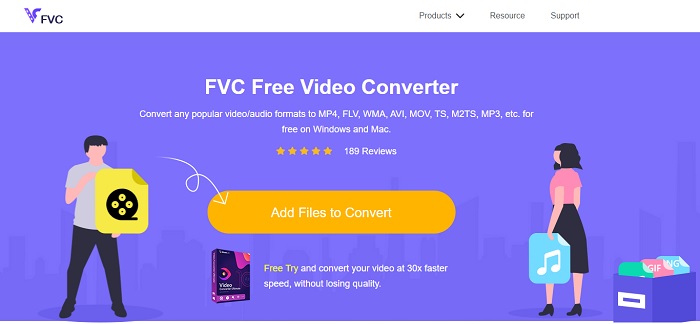
This free AVI to iMovie can do the task of converting. Unlike the tool below FVC Free Video Converter is free to access and no download needed. Also, this online tool is the free version of the tool below. As being said, they provide good compression but the difference between the two is that. This tool doesn't have the major features like the premium tool provides and the other formats to choose on. Nevertheless, it is still the best online tool compared to the other converter you can depend on. So, before anything else let's now proceed how this tool works by following these easy steps below.
Step 1. Click this link to go to the main webpage of the tool.
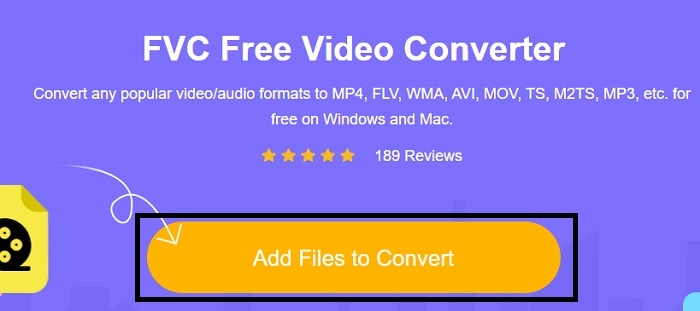
Step 2. Press the Add Files to Convert to launch the online converter.
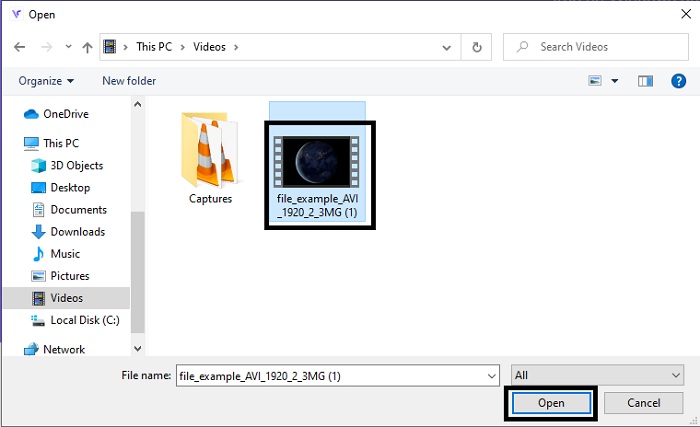
Step 3. As we proceed, cull the AVI file and press open to insert it into the interface.
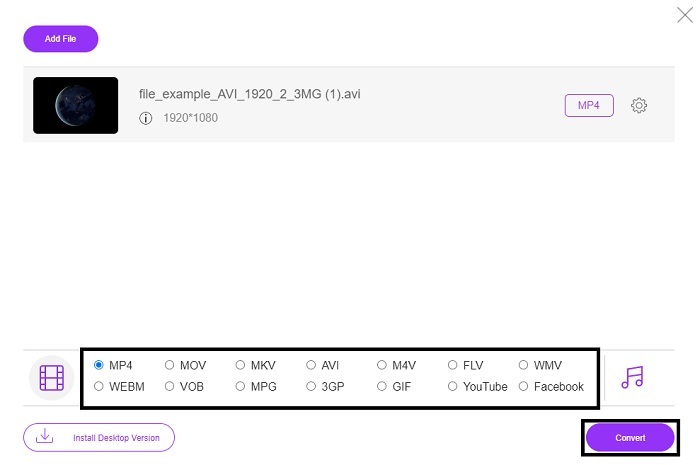
Step 4. Choose what iMovie format you want it to be. After choosing, click the Convert to start the process.
Step 5. Go to the file manager and search for the finished product.
2. FVC Video Converter Ultimate
Como dissemos anteriormente, a ferramenta online não oferece os recursos de edição e o outro formato também. O FVC Video Converter Ultimate pode ser usado como uma alternativa ao iMovie, especialmente na edição. Ele oferece aos usuários e clientes a capacidade de manipular todos os arquivos de mídia e aprimorar, editar ou criar uma versão mais recente. Mas essa ferramenta precisa ser paga, mas não é cara, então não precisa se preocupar, porque cada centavo que você pagará por essa ferramenta ainda vale a pena.
So, after you convert AVI to iMovie format later you can enhance it before bringing it in iMovie or you can also not bring it there and do the editing here. If we talk about how perfect this tool is, we might need roughly two or more articles to explain it properly. So, without any more delay let's proceed on our journey to successfully convert AVI into a new format by copying these steps below.
Step 1. Before you can use this tool, you'll need to download it to your desktop. Choose the right operating system that supports your desktop. After the downloading process follow the set-up next and click finish to launch the tool.
Free DownloadFor Windows 7 or laterSecure Download
Free DownloadFor MacOS 10.7 or laterSecure Download
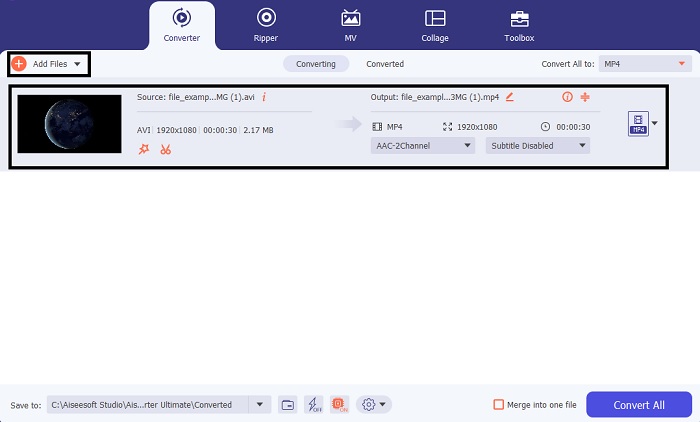
Step 2. To insert the AVI file to convert click the Add Files or the plus sign whether what you choose between the two is okay. Select the file that you wanted to be converted and click open to proceed.
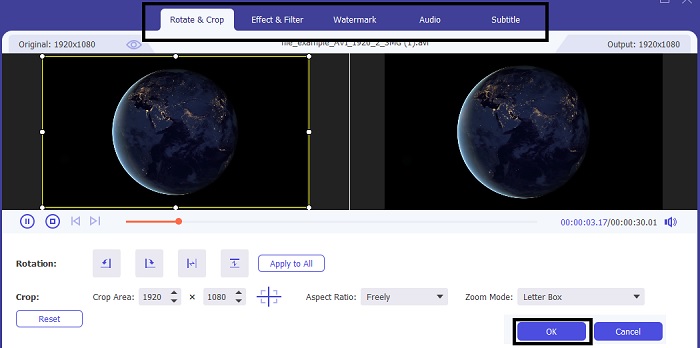
Step 3. On the interface of the FVC tool, you will see a magic wand-like shaped button there, then click it. A new interface will be shown to your screen, where you can edit the video into a better one. Reminder, this step is only a bonus if you want to do editing before you convert. So, later you will not need the iMovie to edit if you want. Press OK to save.
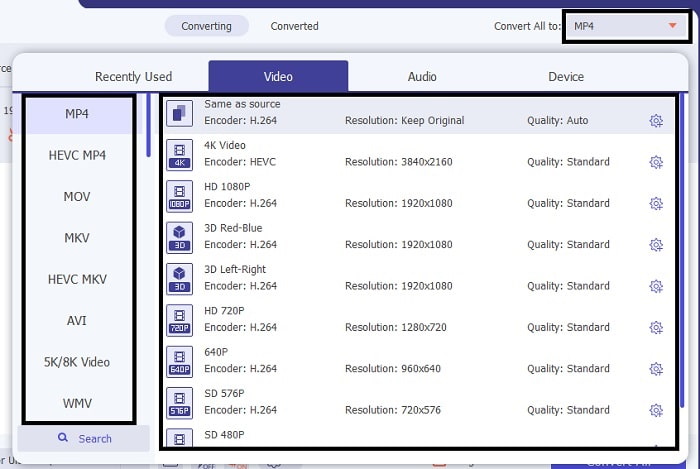
Step 4. After all the process, click the drop-down button and choose what iMovie format you want it to be. If you already choose the new AVI format you must click the Convert All to give the tool the signal to start the conversion.
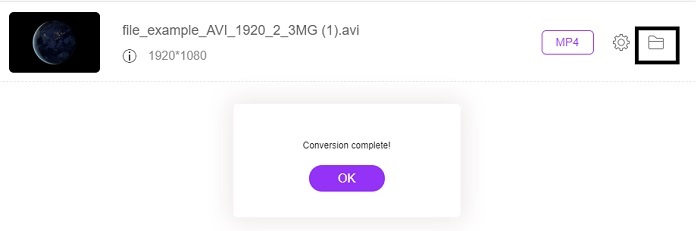
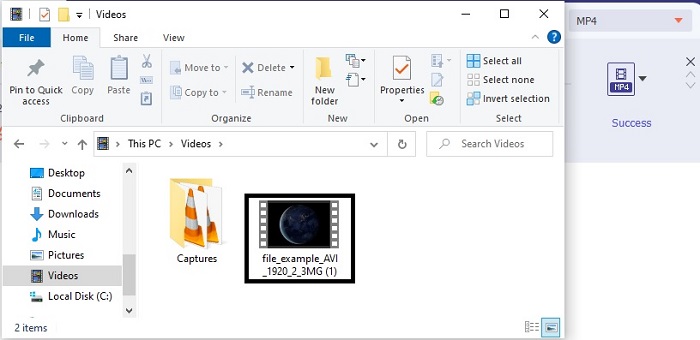
Step 5. The conversion will only take a couple of seconds, after it is done. And a folder containing your new format will be shown onto your screen. Click the file to watch it and congrats you can now edit it in iMovie.
Parte 3. Perguntas frequentes sobre AVI para iMovie
Quem é o criador do iMovie?
O iMovie foi criado pela Apple Inc. para ser sua ferramenta de edição proprietária. Outros fatos sobre a Apple Inc. Eles também desenvolveram o QuickTime player e o formato MOV como seu reprodutor de mídia nativo e formato para usuários de Mac.
Qual é a melhor alternativa para o formato AVI no Mac?
It is probably the MOV format because it was intended to be used on Mac. Do you want to know how to convert AVI files into a MOV format? Then click this link to learn more about the AVI to MOV converters.
Qual é a desvantagem de usar um formato AVI?
Foi dito acima que este formato pode conter codecs diferentes, o que é bom. Mas o formato AVI não é compactado, portanto, ter um vídeo de 2 a 3 minutos espera um tamanho de arquivo enorme. No entanto, se você quiser saber mais sobre o AVI, clique aqui para saber o que é um AVI.
Conclusão
Before we were blind and confused because we didn't have any idea how to deal with this problem. But now, it is clear to us that you will need to convert the AVI file to edit it on iMovie. So, now no more asking about how to import AVI files into iMovie and edit it later. If you have chosen the FVC Video Converter Ultimate then you deserve an applause for yourself. Because you chose the tool that provides a solution in all your converting, merging, enhancing, compressing, and more problems you may encounter in the future. Decide what's the best for you and that best is the FVC Video Converter Ultimate.
-
 Guia concreto para ajudá-lo a converter AVI em FLV gratuitamente
 Para converter AVI em FLV, você precisa de um conversor de vídeo poderoso. Felizmente, você pode aprender dois e seu guia passo a passo neste único artigo.
-
 Como converter vídeos AVI em arquivos GIF animados no Windows / Mac
 Quer selecionar os segmentos AVI interessantes para criar memes GIF? Este artigo apresentará os 2 melhores métodos para recortar os vídeos AVI e converter arquivos AVI em GIF animados gratuitamente.
-
 [2 melhores soluções] Como reproduzir filmes AVI no iPhone/iPad facilmente
 Não consegue reproduzir filmes AVI no seu iPhone/iPad e não quer baixar players de vídeo de terceiros? Você pode aprender 2 maneiras eficientes de converter vídeos AVI para reproduzir no iPhone.
