


 Video Converter Ultimate
 Gravador de ecrã
 Reparo de vídeo
How to Convert H.264 to H.265 Effectively (Full Guide)
Having an H.264 codec results in a higher file size; thus, converting it to the HEVC or H.265 codec can give you smaller file sizes, lower bitrate, but with great video quality. It can also allow you to stream 4K to 8K video content with ease. You may also have different reasons why you need to convert H.264 to the H.265 codec, yet this article is here to guide you in making the process possible. We have prepared four of the leading tools that offer great features for converting codecs. We have chosen the best of the best; all you need to do now is read this post and discover more about them.

Why You Need to Convert H.264 to H.265
Reasons to Convert H.64 to H.265
- • Efficient Compression. An H.265 video compresses 25 to 50 percent, which is better than H.264. This basically gives you the same video quality yet lower bitrates.
- • Smaller File Size. For instance, if you have a 10-minute video in 1080p, it can be 375 MB in H.264. This can be shrunk to 210 MB for H.265 without noticing any changes in its quality.
- • Improve Visual Quality. The H.265 codec can give you cleaner and sharper images because it has advanced coding blocks.
Can I Convert H.264 to H.265 without Loss ?
Yes. You can always convert H.264 to H.265 without losing its quality. The secret behind this is to use the right encoder settings. Some tools can help you carefully convert the codecs and adjust the bitrate with ease. Continue reading the following part of this article as you discover the best ways to do the process.
Use a Free Online Converter (Best for Small Files & Quick Tasks)
Best For: Free and online conversion process.
Speed: Normal
File Size Limit: 100 MB
Overall Rating: 4/5
We shall now provide you with the easiest and simplest way to convert H.264 to H.265 using a free online conversion tool called FVC Video Converter Online. This tool is straightforward and suitable for small files and quick tasks. Here, you will not have to install any software on your computer; all you need to do is access its main website in a browser and follow the simple steps below:
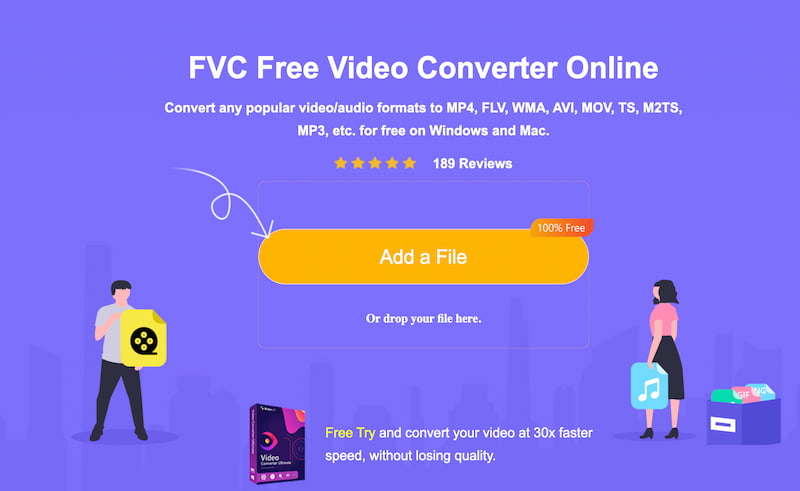
Step 1. Access the official website of FVC Video Converter Online and click Add a File from their main interface.
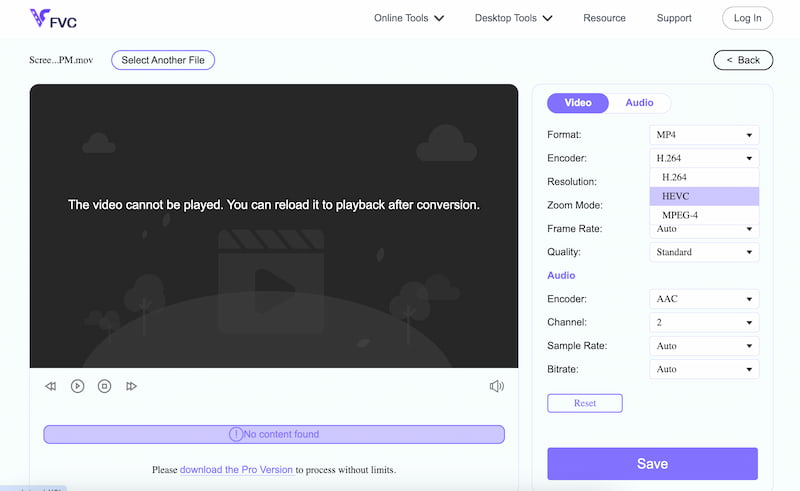
Step 2. Upload the H.264 file you want to convert to H.265. Then click on the Codec to set it to HEVC, which is the equivalent of H.265. Click the Save button to continue.
Step 3. Let the online tool process the video. After a few seconds, your video is now ready.
Use FVC Video Converter Ultimate (Best for Beginners & Batch Conversion)
Best For: Advanced features with an easy-to-use interface.
Speed: 30x faster.
File Size Limit: 11 GB.
Overall Rating: 4.5/5
On to the next method is the use of the amazing FVC Video Converter Ultimate. This is the software version of FVC Video Converter Online, suitable for beginners, batch conversion, and extra features you might need for your file. This tool has a conversion speed 30x faster than any tool here. In addition, you can expect a higher-quality output with this tool, making the changes unnoticeable. Here are the simple steps to follow:
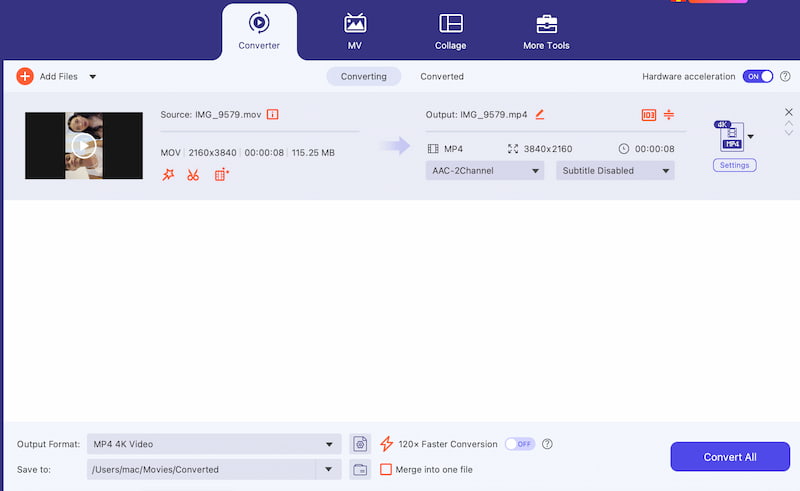
Step 1. Get the amazing tool: FVC Video Converter Ultimate from its official website. Immediately install the tool and access its main features.
Step 2. On its main interface, click on the Converter feature. Then, click the Add button to add the H.264 file you want to convert.
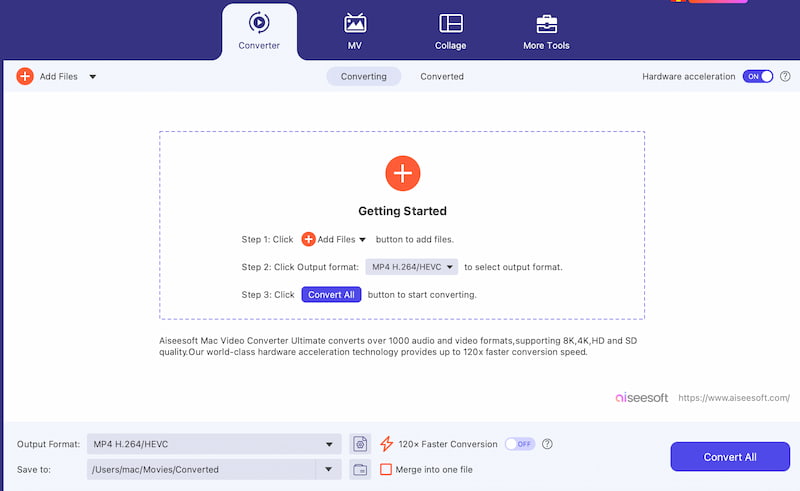
Step 3. Go to the Output Format and select the 4K Video. This can guarantee you an H.265 codec with high-quality video.
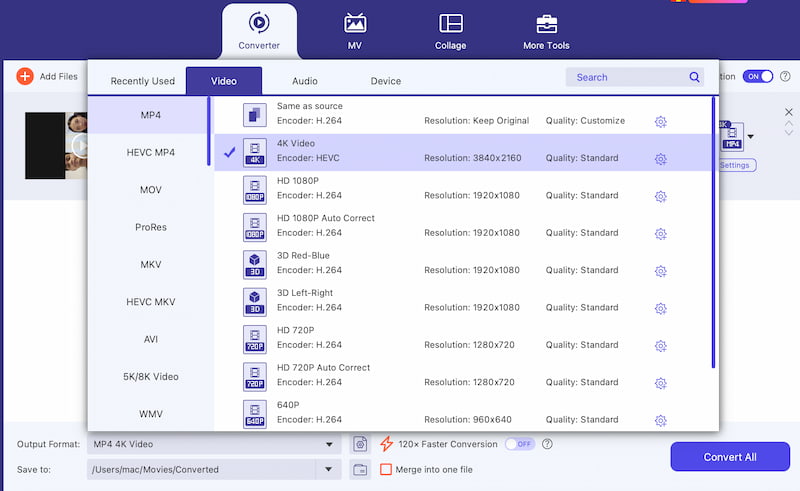
Step 4. Now, click the Convert All button. Let the tool process it, and your video will be available after a few moments.
HandBrake (Best Free & Open-Source Desktop Tool)
Best For: Free and open-source desktop tool.
Speed: Moderate.
File Size Limit: Unlimited.
Overall Rating: 4/5
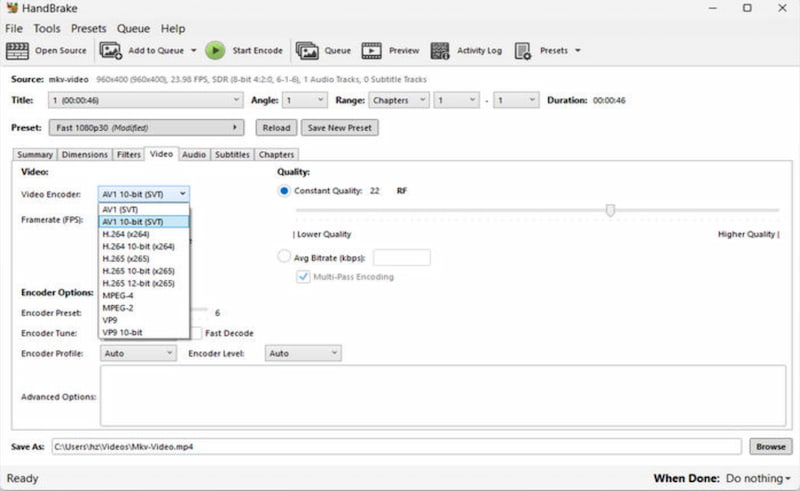
The next tool HandBrake is known for its open-source features. This tool can balance quality and file size with the use of CRF settings. One of the best things about it is its ability to support unlimited file sizes.
Step 1. Install HandBrake on your computer. Then, import your H.264 file.
Step 2. In the interface, go to Video Encoder to select H.265.
Step 3. Then adjust the Constant Quality or CRF. Finally, start encoding.
FFmpeg (Best for Advanced Users & Automation)
Best For: Advanced Users, Automation.
Speed: Fast with scripting.
File Size Limit: Unlimited.
Overall Rating: 4.5/5
The last on the list is the amazing FFmpeg, which is also known for being a command-line tool. This tool is for advanced users who know how to automate and perform precise processes. Like HandBrake, it has unlimited file size support. The best thing about it is its customizable parameters suitable for techy users.
Note: You can use this command ffmpeg -i input.mp4 -c:v libx265 -crf 23 output.mp4. Here you can adjust the CRF depending on your needs.
FAQs about Converting H.264 to H.265
Q: Can I use my H.265 on YouTube?
A: Yes. YouTube can support your H.265 or HEVC uploads. Yet, it is still recommended to have H.264 video for better compatibility. There are also instances where your H.265 is transcoded back to H.265 on YouTube.
Q: Can I save storage by converting H.264 to H.265?
A: Yes. Converting H.264 to H.265 can compress your video by 25 to 50 percent in bitrate. Despite that, the video quality changes will not be noticeable.
Q: Is there a risk in converting video from H.264 to H.265?
A: There are some risks in converting H.264 to H.265. These risks include longer encoding times, higher CPU/GPU usage, and limited playback support on older devices or browsers.
Conclusão
In conclusion, saving file storage while maintaining quality is possible. Converting H.264 to H.265 can make that process possible. The good thing is, we have an amazing tool in this article to help you with it. We can see that FVC Video Converters are great, whether online or as a software tool. Use it now and get your video in high-quality output.
-
 H.264 para MP4: Qual é a diferença e como convertê-los
 Procurando maneiras de converter H.264 para MP4? Este artigo é para você! Aprenda como converter facilmente H.264 para MP4 para melhor compatibilidade com vários dispositivos.
-
 3 Methods to Easily Convert DVD to H.264 [Windows & MacOS]
 Procurando uma solução para converter DVD para H.264? Nós temos a solução! Leia este artigo e conheça 3 ferramentas diferentes que você pode usar para converter seus DVDs facilmente.
-
 Como obter qualidade 4K no OBS: descrição mais detalhada
 Se você joga um jogo de alta resolução e quer gravar suas ações com a maior nitidez possível, leia este guia. Ensinaremos como obter qualidade 4K no OBS.
