


 Video Converter Ultimate
 Gravador de ecrã
 Reparo de vídeo
 Secure Download
Converting Videos in QuickTime: How-to Steps, Limitation and Alternatives
If you’re using a Mac, there’s a good chance you already have everything you need to handle basic video conversion.
QuickTime Player isn’t just a media player that most of you might know. This tool also comes with simple export features that can help users convert files into different resolutions and formats. But how far can it really go as a video converter?
In this guide, we’ll walk you through how to use QuickTime for video conversion, what options are available, and where its limitations start to show. So if you’re to learn how to convert videos in QuickTime, you’re just in the right place. Scroll to learn more!

Part 1. How to Convert Videos in QuickTime?
QuickTime Player is Apple’s built-in multimedia tool that comes pre-installed on every Mac. It’s mainly known for playing videos and audio files, but it also includes a few basic editing and exporting features that many users often overlook.
When it comes to converting videos in QuickTime, please take note that it doesn’t work like full-featured converters that support a wide range of formats. Instead, it focuses on simple exporting. This means you can convert videos by changing their resolution, such as 4K, 1080p, or 720p, or optimizing them for specific uses like email or web sharing. While its format support is limited, it’s still a convenient option if you just need quick, straightforward conversions without installing additional software.
Here’s How to Convert Videos in QuickTime:
Step 1. First, you need to open the QuickTime Player on your Mac. From there, go to the top menu bar, select File, then choose Open File to load the MOV video you want to convert.
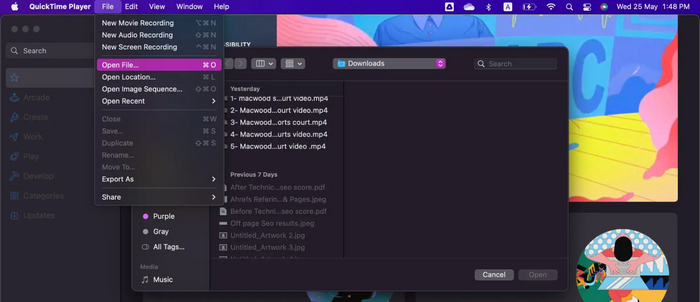
Step 2. Next, once the file appears on the screen, click Open to fully import and preview the video in QuickTime.
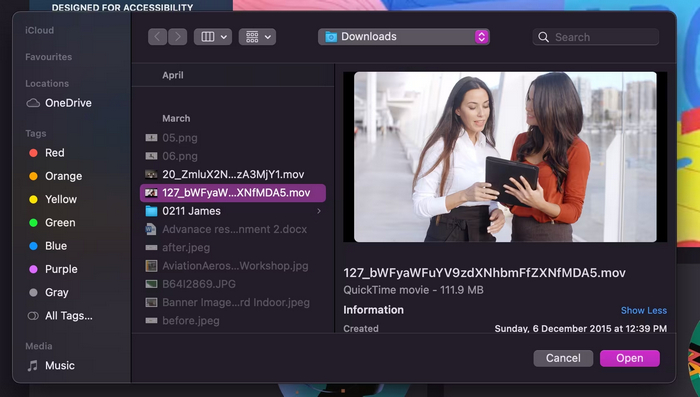
Step 3. After that, go back to the File menu, click Export, and select the option that allows you to export the video as MPEG-4 MP4.
Step 4. Lastly, choose your preferred save location, click Save, and QuickTime will process and convert your MOV file into MP4 format.
Part 2. QuickTime Limitations: What it Can’t Do?
While QuickTime Player is a convenient built-in tool for basic playback and simple video exporting, it’s not designed to fully replace a dedicated video converter. Understanding its limitations helps you avoid frustration, especially if you’re working with different file formats or more advanced editing needs.
One of its limitations is its limited format support. QuickTime works best with Apple-friendly formats like MOV and MP4, but it struggles or completely fails to open common formats such as AVI, WMV, MKV, or DivX unless additional codecs are installed.
When it comes to conversion, its capabilities are quite basic. Instead of offering true format flexibility, QuickTime mainly allows you to export videos into a few preset resolutions or formats.
Performance can also be an issue. Large video files may take longer to load or export, and buffering can occur during playback. Additionally, QuickTime isn’t ideal for tasks like screen recording or gameplay capture, as it may produce lower frame rate outputs that feel laggy.
Another limitation is its reliance on extra components. Some files require additional codecs or plug-ins to work properly. While macOS does include command-line utilities like afconvert and avconvert for more advanced users, these aren’t beginner-friendly and don’t replace a full-featured conversion interface.
Overall, converting videos in QuickTime is great and feasible, but if you need broader format support, faster processing, or more control over your video output, you’ll likely need a more advanced video converter.
Part 3. Best Alternative to QuickTime
One of the best alternatives to QuickTime for converting videos is the FVC Video Converter Ultimate. This tool allows users to easily convert various videos, regardless of their formats and types. Unlike QuickTime Player, which only offers limited export options, FVC Video Converter Ultimate supports a wide range of formats such as MP4, MOV, AVI, MKV, WMV, and more.
Main Features:
- • Supports a wide range of video and audio formats such as MP4, MOV, AVI, MKV, WMV, and MP3.
- • Converts videos in HD, 4K, and higher resolutions.
- • Fast conversion speed with hardware acceleration.
- • Batch conversion for multiple files at once.
- • Built-in video editor with trim, crop, rotate, merge, filters, and watermark.
- • Customizable output settings like resolution, bitrate, frame rate, and codec.
- • Video enhancement tools for improving quality.
- • DVD ripping and conversion to digital formats.
- • Audio extraction from video files.
- • Simple and user-friendly interface.
Overall, if QuickTime feels too limited for your needs, FVC Video Converter Ultimate is a more flexible and powerful option for handling different video formats and advanced video conversion.
Here’s How to Convert Videos Using FVC Video Converter Ultimate:
Step 1. First, download and install the FVC Video Converter Ultimate on your computer. Free Download Free Download
Free DownloadFor Windows 7 or laterSecure Download
Free DownloadFor MacOS 10.7 or laterSecure Download
Step 2. Now, to import the video file you want to convert to MP4. After that, click the Add Files button.
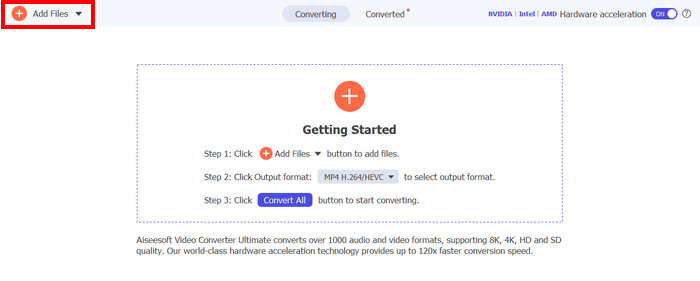
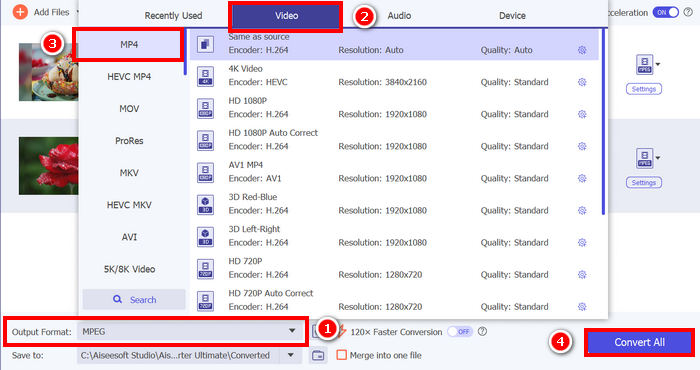
Step 3. Lastly, click on the Output Format below and go to the Video tab. From there, select your preferred format from the list. Once selected, click the Convert All button to convert your video.
Part 4. FAQs about Converting Video in QuickTime
Can QuickTime convert any video format to MP4?
No. QuickTime Player only supports limited formats like MOV and MP4. Other formats, such as AVI, MKV, or WMV, may not work unless converted first using another tool.
Does QuickTime reduce video quality when converting?
It depends on the export settings. QuickTime usually keeps good quality, but since it offers limited control over advanced settings, you may not be able to fully customize output quality compared to other converters.
Why can’t I open some videos in QuickTime?
Some video files use codecs that QuickTime does not support, such as MKV, AVI, or WMV. In these cases, the video may not open unless it is converted first or additional codecs are installed.
Is QuickTime free to use for video conversion?
Yes. Converting videos in QuickTime is completely free because it is already built into macOS, so you don’t need to purchase or install anything extra.
Can I edit videos before converting them to QuickTime?
Yes, but only basic editing is available, such as trimming and splitting. It does not include advanced editing features like effects or multi-layer editing.
Conclusão
Converting videos in QuickTime makes video conversion for Mac users easier and hassle-free. However, its limited format support and lack of advanced features make it less ideal for more complex or professional needs. For users who need more control, flexibility, and faster processing, tools like FVC Video Converter Ultimate provide a more complete and efficient solution.
-
 4 maneiras de converter filmes QuickTime em MP4 gratuitamente no telefone / computador
 Leia e obtenha 4 maneiras de converter vídeos QuickTime para MP4 gratuitamente em seu telefone ou computador. Você pode alterar facilmente o formato do arquivo de MOV para MP4.
-
 Como consertar o QuickTime Player que não funciona: 5 métodos para você
 Se você perceber que o QuickTime Player não está funcionando no seu Mac, tente encontrar soluções aqui. Oferecemos 5 soluções para você ver se alguma delas se encaixa na sua situação.
-
 Melhor Substituição do QuickTime Player Online e Offline [2025]
 Isso irá guiá-lo para escolher qual é a melhor opção de substituição do QuickTime Player se o QuickTime Player não estiver disponível em sua plataforma ou se você quiser um novo.
