


 Video Converter Ultimate
 Gravador de ecrã
 Reparo de vídeo
Como converter DivX para WMV com facilidade: métodos offline e online
DivX is a video compression codec that compresses the video to the user's desired size. A WMV file is a Windows Media Video file that can compress Microsoft's video compression formats. Keep in mind that DivX and WMV aren't always compatible. Even though most videos currently are encoded in DivX and stored in WMV format, it is occasionally required to convert DivX to the WMV format depending on the situation. Fortunately, we offer DivX to WMV converters you will need to get this job done quickly – for offline or online usage.

Parte 1. Excelente método para usar na conversão de DivX para WMV [Offline]
Video Converter Ultimate is perhaps the one to go if you are looking for software that can do the whole process in one sweep and offer additional features for other editing needs. Not only that it supports numerous video file formats, but it also lets you further edit your video and audio in terms of quality and not mention personalize your clips by adding effects. This software is an all-in-one converter. Here are the steps you need to follow to use this program:
Step 1: Install the software to your desktop by clicking one of the Free Download buttons below according to your operating system. Wait for the .exe file to finish downloading, then open it to start the installation process. If you finish installing the software, click Start Now and launch the software.
Free DownloadFor Windows 7 or laterSecure Download
Free DownloadFor MacOS 10.7 or laterSecure Download
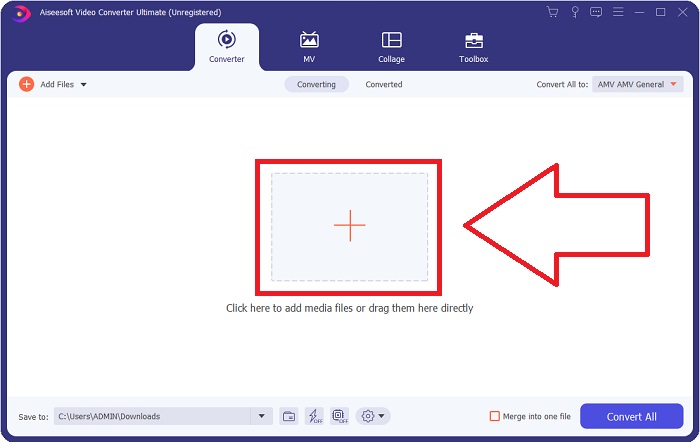
Step 2: A window will open with an interface with a + button in the middle. Click on it to import the video file you wish to convert, or you can just drag and drop files with ease.
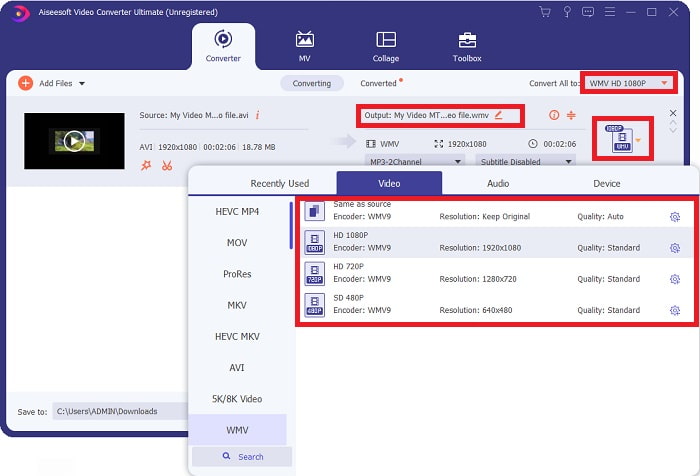
Step 3: If you finish importing files, it will show you the current format of your video file's current format on the right side of the file. Click on it, and all the available formats will appear. You can scroll down or type WMV in the search bar to select it. Also, there will be video qualities to choose from on the right side of the tab.
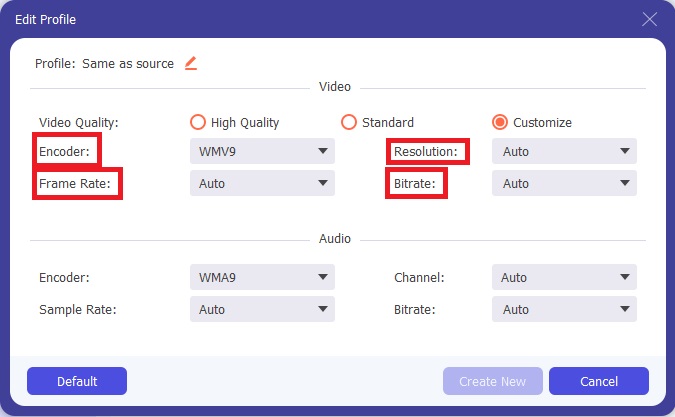
Step 4: For more options, you can click the gear icon beside the video quality you selected, and another interface will appear. You can edit the resolution, frame rate, bitrate, and many more from there that best suits your interest. If you are satisfied with all the adjustments, click the Create New button on the bottom right corner to keep the changes.
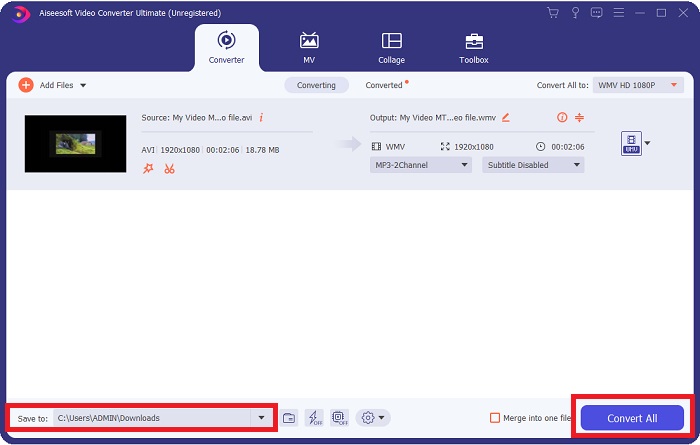
Step 5: If you finish editing the video settings to your liking, click the Convert All button on the lower right corner to start the conversion process and wait for it to end.
Parte 2. Outro método a ser usado na conversão de DivX para WMV [Online]
É possível manter um conversor de vídeo sempre à mão sem precisar instalar nenhum software. Ainda assim, também é possível converter um vídeo de forma rápida e fácil sem instalar nada. O Video Converter Ultimate tem uma contraparte online que você pode usar em uma varredura. Ele ainda oferece opções adicionais e suporta muitos formatos. Para usar esta ferramenta da Web, siga estas etapas simples:
Step 1: You can start by clicking this link, and it will redirect you to the online tool. From there, you will find an Add Files to Convert button in the middle. Click on it to download the launcher; you will need to import your video files easily.
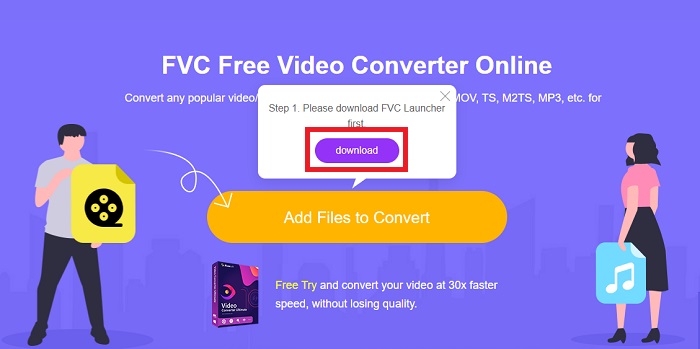
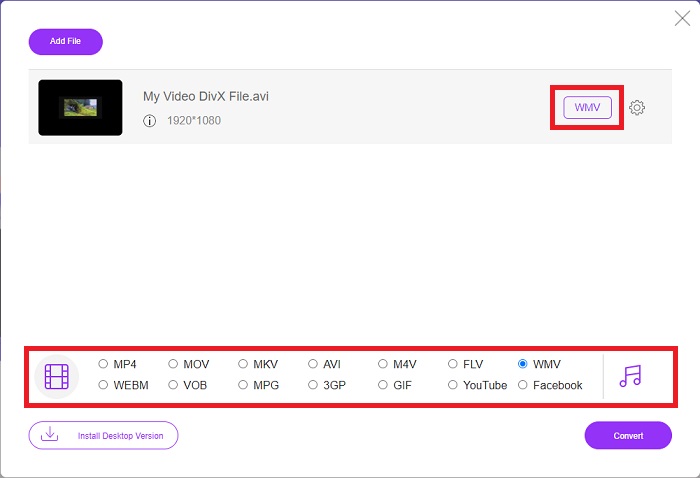
Step 2: If the launcher has finished downloading, click the same button again to import the file you wish to convert. You can now select WMV from the list of formats at the bottom of the window.
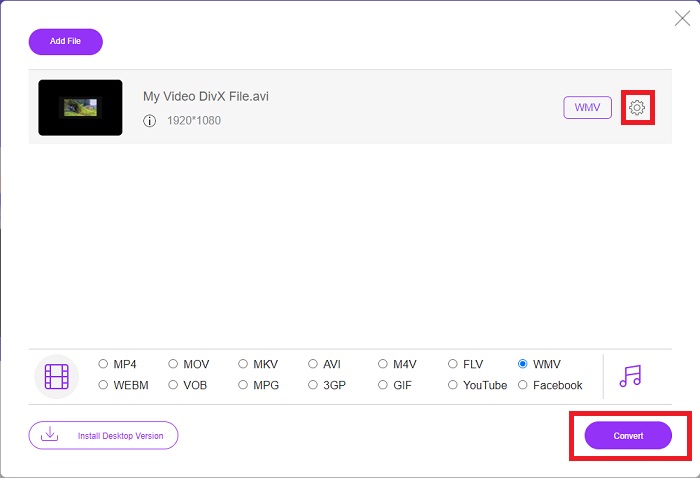
Step 3: You can also find a gear icon on the right to make changes in terms of resolution, frame rates, and more like in the software itself. To save the changes made, click Ok, and you can now start the conversion process. Click the Convert button on the lower right corner and wait for it to finish.
Related:
Parte 3. DivX vs. WMV: informações que você deve saber
Para uma comparação entre os dois formatos mencionados, você pode ler além desta parte para conhecer todas as informações essenciais:
DivX é uma marca de codec de vídeo criada pela DivX, LLC. Este codec de vídeo funciona melhor com aplicativos do Windows, embora os usuários também possam encontrá-lo em consoles de jogos, despertadores, aparelhos de som de veículos e outros dispositivos. Os codecs de vídeo de alta definição MPEG-4 Parte 2, HEVC Ultra HD e H.264/MPEG-4 AVC DivX Plus são os três principais codecs DivX usados atualmente.
Por outro lado, WMV (Windows Media Video) é um conjunto de codecs de vídeo e formatos de codificação lançados pela Microsoft como parte de sua estrutura Windows Media. Seu objetivo é competir com o formato RM em aplicativos de streaming de internet. Sua finalidade é armazenar filmes compactados e até entregar Blu-ray/DVD.
| Expresso de vídeo digital (DivX) | Vídeo do Windows Media (WMV) | |
| Extensão de arquivo | .divx | .wmv |
| Desenvolvedor | DivX Networks Inc. | Microsoft |
| Programas de apoio | ◆ Leitores de DVD/Blu-ray ◆ Despertadores ◆ Carro estéreo ◆ X-Box 360 | ◆ VLC Media Player ◆ MPlayer ◆ Media Player Clássico ◆ Windows Media Player |
Parte 4. Perguntas frequentes sobre a conversão de DivX para WMV
O DivX ainda é usado?
DIVX (Digital Video Express) é um formato de vídeo digital descontinuado que foi um esforço fracassado nos Estados Unidos para desenvolver uma alternativa viável ao aluguel de vídeo.
Quais são as limitações do WMV?
Como o WMV é um formato do Windows, encontrar reprodutores de mídia Apple ou Linux pode reproduzir filmes WMV. O WMV não tem sido um formato de streaming de vídeo convencional por esse motivo.
Qual tem gravação de alta definição?
Embora tanto o WMV quanto o DivX possam gravar em 1280x720, um deve ser de qualidade superior ao outro. Esses codecs podem gravar em vários níveis de qualidade na resolução exata, mas a taxa de bits varia para criar arquivos menores. Embora a imagem WMV seja superior, o DivX criou um arquivo cinco vezes mais rápido e 50% menor.
Conclusão
Tudo considerado, ter um conversor ao seu lado é encorajado para que, em momentos de necessidade, você não tenha que passar por todo o trabalho de encontrar um decente online. O Video Converter Ultimate e sua contraparte de ferramenta online são recomendados para um consumidor ou criador de vídeo, pois oferecem muito mais do que outros conversores. Além disso, ele oferece a você o mais conveniente, pois possui uma interface na qual os iniciantes podem navegar facilmente.
-
 4 maneiras de converter DivX em MOV gratuitamente [online e offline]
 Você luta contra as limitações de um DivX ou não tem reprodutores de mídia para acessar vídeos neste formato? Se você deseja convertê-lo para o formato MOV, continue lendo este artigo para preencher as lacunas.
-
 2 conversores certificados usados para converter arquivos DivX em formato FLV [2022]
 Você quer saber como converter seus arquivos DivX para FLV? Então leia este artigo para ter uma ideia de como fazer isso e os conversores disponíveis que você pode usar.
-
 Um guia simples sobre como transformar seu GIF em WMV no Windows / Mac
 Você quer saber como converter GIF para o formato WMV? Em seguida, siga este artigo, pois ele apresenta diferentes soluções que você pode escolher.
